Authentication & security incl. SSO

Who gets in and how is decided in two places. The security page governs sign-in with a username and password. The SSO page connects a directory or an external sign-in service. You can run both at the same time.

1

Signing in with a username and password

Before you start: The settings on this card live under “Settings → Security”. Only an administrator can change them. Anybody else who has been given the page sees it read-only.

Out of the box everyone signs in with a username and a password. The e-mail address works instead of the username. If mail delivery is set up, the link “Do you need a password reset?” appears below the form. Mail delivery is part of Professional.

After signing in the browser is given a pass that is valid for a set time. The “JWT token timer” card decides how long. Values from 1 to 24 hours are allowed, 12 is the recommendation. After that the person has to sign in again.

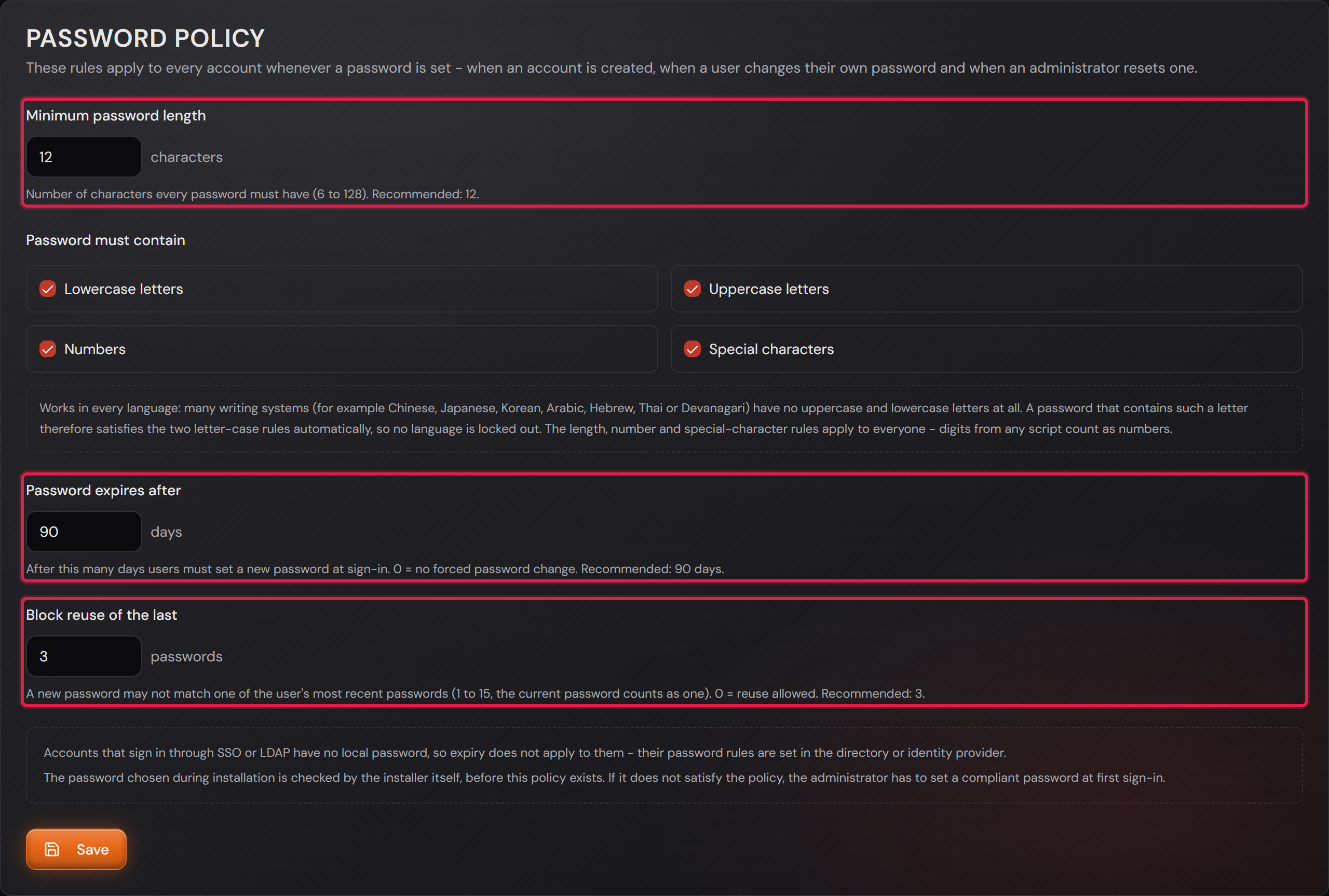
The “Password policy” card applies to every password set in the system. It is enforced when an account is created, when a person changes their own password and when an administrator resets one.

You set the minimum length, which kinds of characters must appear, after how many days a password expires and how many old passwords stay blocked. For the days and the block list, 0 means “off”.

The rules about upper and lower case do not lock any language out. Many writing systems have no such distinction at all, and a character from one of them satisfies both rules on its own.

Accounts that only sign in through SSO or a directory have no local password, so expiry does not apply to them. Their rules live at the provider. If an existing account was linked to SSO and still has its own password, expiry and the password policy keep applying to that password.

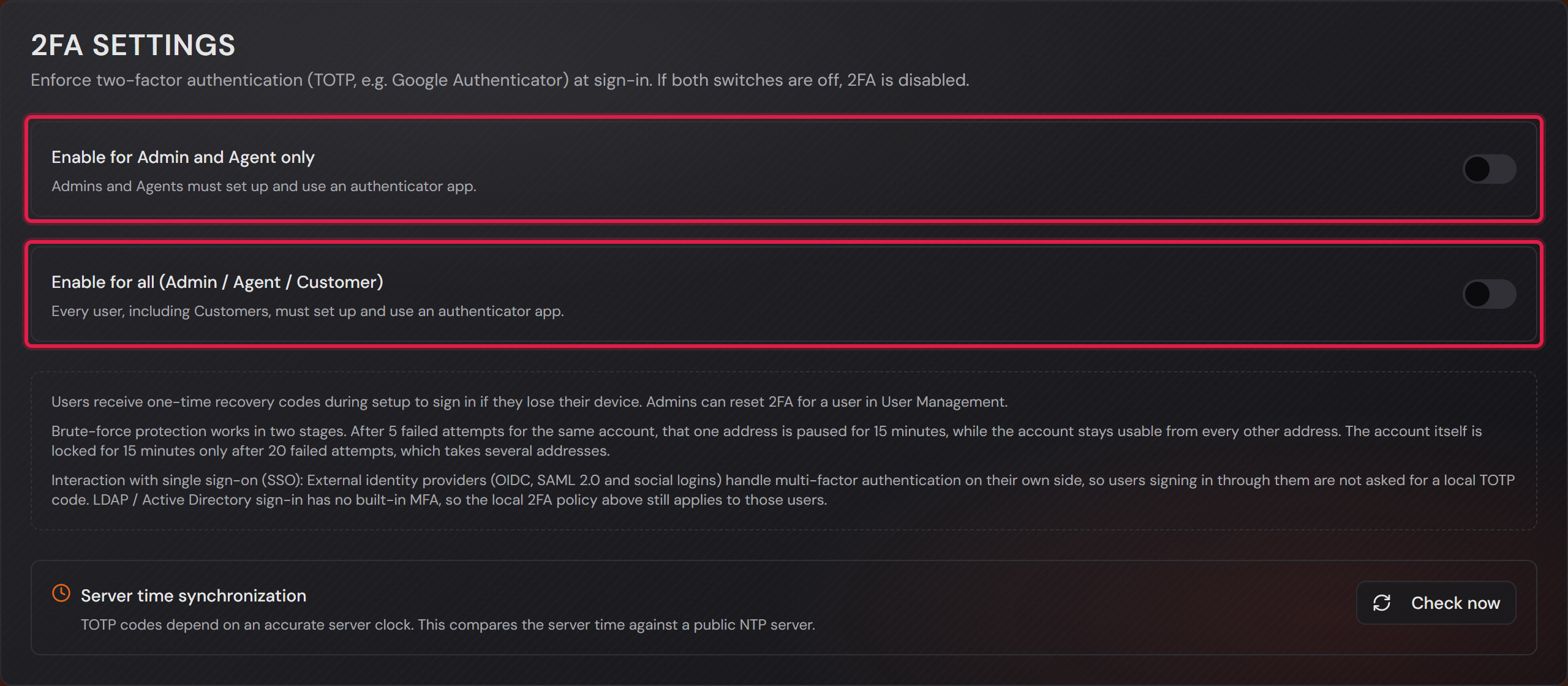
The “2FA Settings” card decides who has to use two-factor sign-in. Under “Two-factor requirement” you choose one of four options: “Off”, “Administrators only”, “Administrators and agents” or “Everyone”. “Everyone” includes customers. A new installation starts with “Administrators only”. An installation that existed before keeps its previous setting after an update.

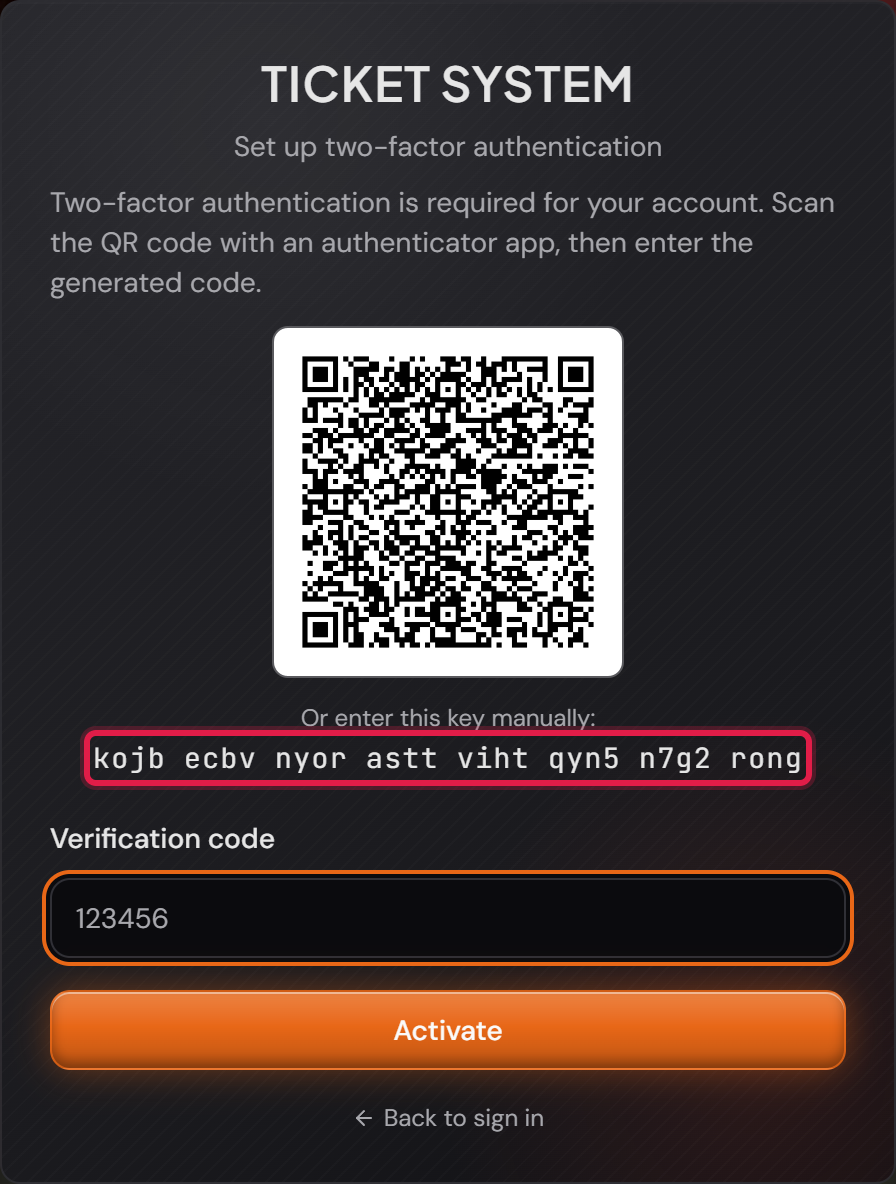
Whoever signs in next without a second factor sets one up. The system shows a QR code for an authenticator app and the same key to type in by hand. After the first code the factor is active. With “Set up later” the setup can be postponed, and the sign-in continues without it. That works for at most 7 days, counted from the first time it was postponed. The line under the button shows the days left. After that the setup is required.

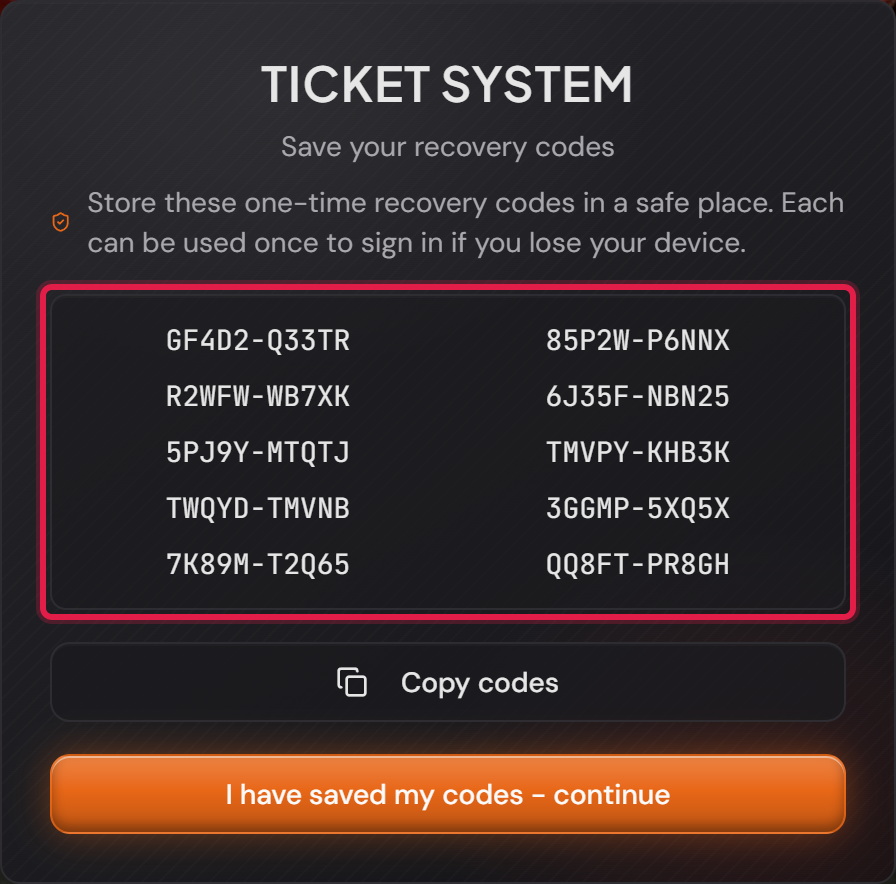
Right after that, ten recovery codes appear. Each of them replaces the code from the app once. They are shown exactly once. You save them with “Copy” or “Download”. “Download” always works. “Copy” usually works too.

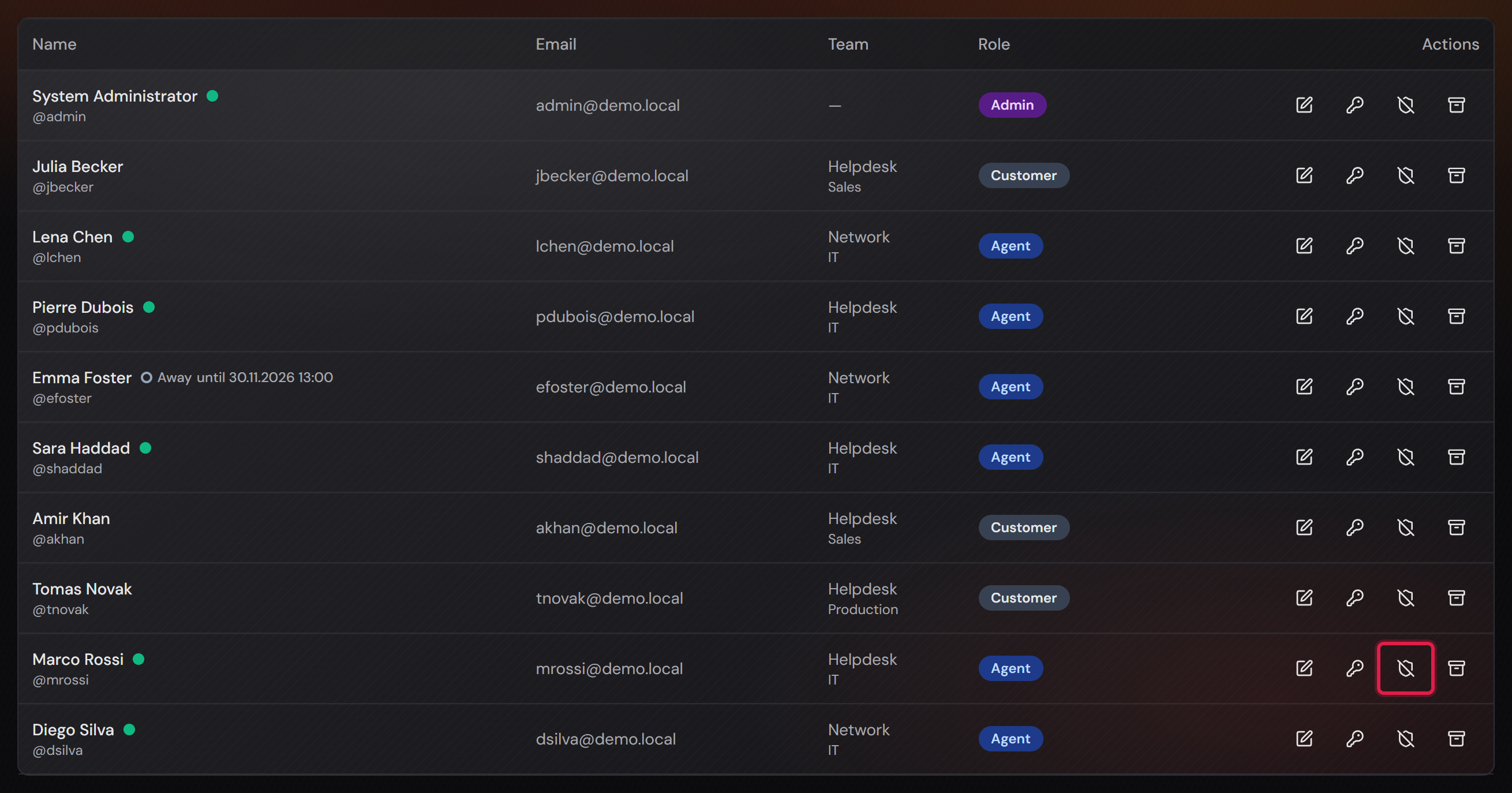
If someone loses their device and their codes, the administrator helps. In the user list, the button with the crossed-out shield resets that person’s two-factor sign-in. They set it up again at the next sign-in.

The codes depend on the server clock. If it is wrong, no code is accepted. The “Check now” button on the same card compares the server time against a public time source.

If someone signs in through an external sign-in service, the system does not ask for a code. The provider has already checked the second factor. Directory sign-in is different: there the rule above still applies.

More on this in the card: Two-factor sign-in in your own profile
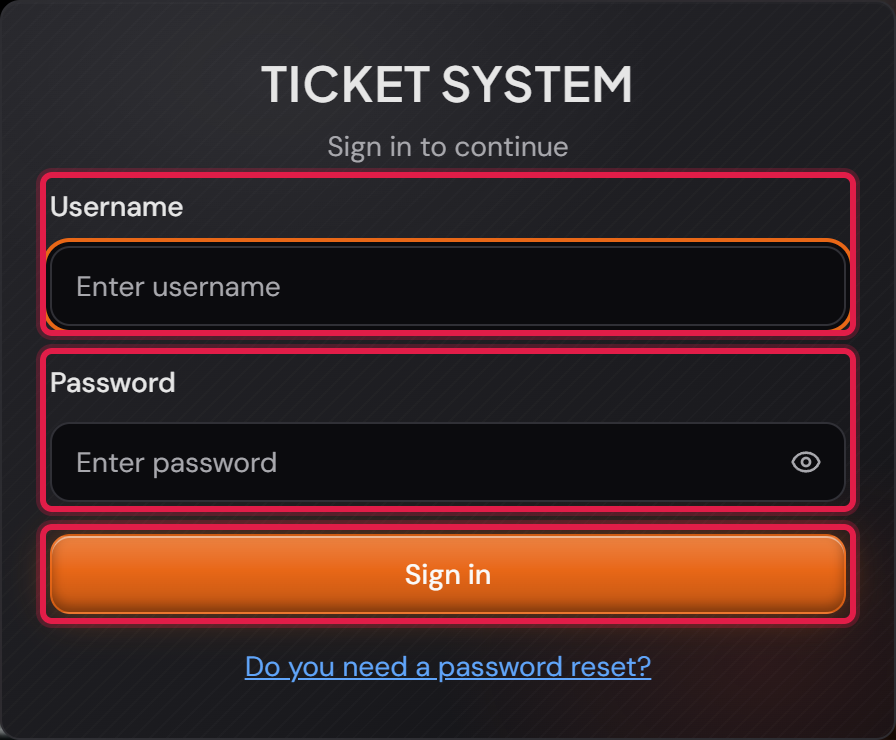
The sign-in page with the “Username” and “Password” fields and the “Sign in” button.
The red frames sit on the two fields and the button. The upper field also accepts the e-mail address.Open image at full size
The “JWT token timer” card with the field for the number of hours.
The red frame sits on the field. It accepts values from 1 to 24.Open image at full size
The “Password policy” card with minimum length, character kinds, expiry and block list.
The red frames sit on the three number fields. The checkboxes between them decide which kinds of characters must appear.Open image at full size
The “2FA Settings” card with the four options under “Two-factor requirement”.
The red frame sits on the four options. “Administrators only” is selected, as in a new installation.Open image at full size
The setup screen with a QR code, a key to type in and the field for the first code.
The upper red frame sits on the key. It is the same thing as the QR code above and helps when the camera reads nothing. The lower one sits on “Set up later” and the days left.Open image at full size
Ten recovery codes in two columns, with “Copy” and “Download” below.
The red frames sit on the codes and on the two buttons. The codes appear exactly once. The codes in the picture come from a test system and are worthless.Open image at full size
The user list with the button that resets two-factor sign-in.
The red frame sits on the crossed-out shield in Marco Rossi’s row. One click takes away his app and his recovery codes.Open image at full size
2

Two-factor sign-in in your own profile

Every user can turn on two-factor sign-in for their own account. That applies to every role, also when the “2FA Settings” card does not require it. Open the user menu at the bottom left of the sidebar and choose “Profile picture”. The same page holds the “Two-factor authentication” area.

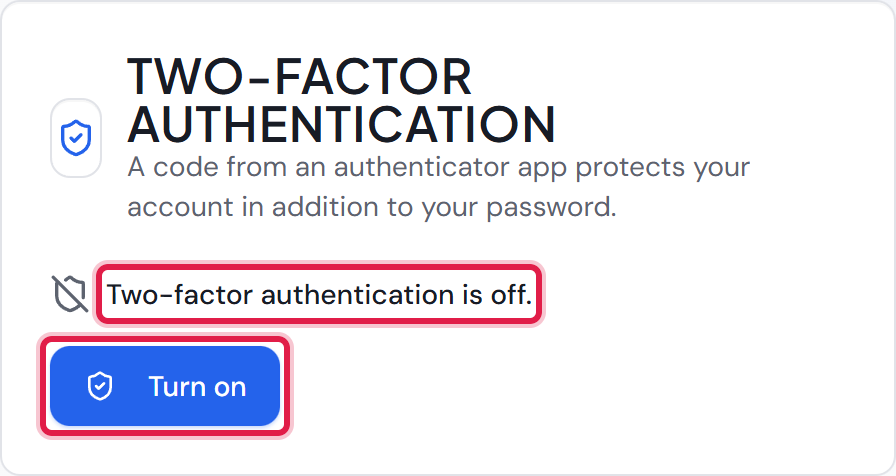
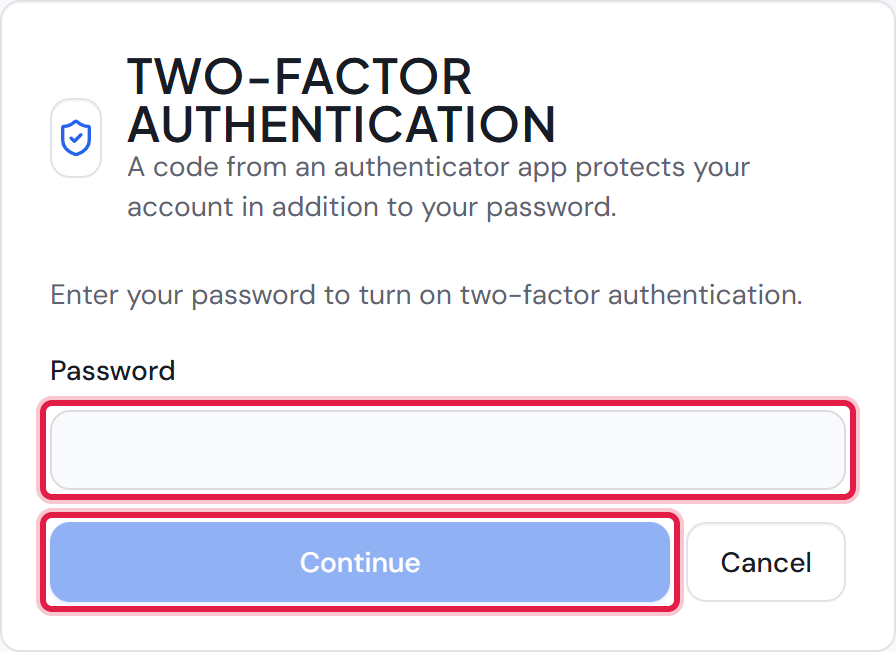
The area shows whether two-factor sign-in is on. While it is off, the “Turn on” button is there. It first asks for your password. Then a QR code for the authenticator app appears, with the same key to type in by hand. After the first code from the app the factor is active.

Right after that, ten recovery codes appear. Save them with “Copy” or “Download”. “I have saved my codes” closes the list. It is shown only this once.

While two-factor sign-in is on, the area shows how many recovery codes are left. “New recovery codes” creates ten new ones. The old codes then stop working. “Turn off” switches two-factor sign-in off again. Both buttons ask for the current code from the app. A recovery code is not accepted there.

If the “2FA Settings” card requires two-factor sign-in for your role, “Turn off” is missing. A line in the area says so.

A wrong password or a wrong code counts like a failed sign-in. The protection against password guessing applies here too. Turning it on and off is recorded in the security log. If an administrator turns off their own two-factor sign-in, the log raises an alert.

Accounts that only sign in through an external sign-in service see a sentence instead of the buttons. Their provider handles the second factor. Accounts from a directory enter their directory password in the first step.

More on this in the card: Signing in with a username and password, The security log

The “Two-factor authentication” area in the profile with the status and the “Turn on” button.
The red frames sit on the status and on “Turn on”. Here two-factor sign-in is still off.Open image at full size
The first step after “Turn on”: the “Password” field with “Continue” and “Cancel”.
The red frames sit on the password field and on “Continue”. The QR code only appears after the correct password.Open image at full size
3

Protection against password guessing

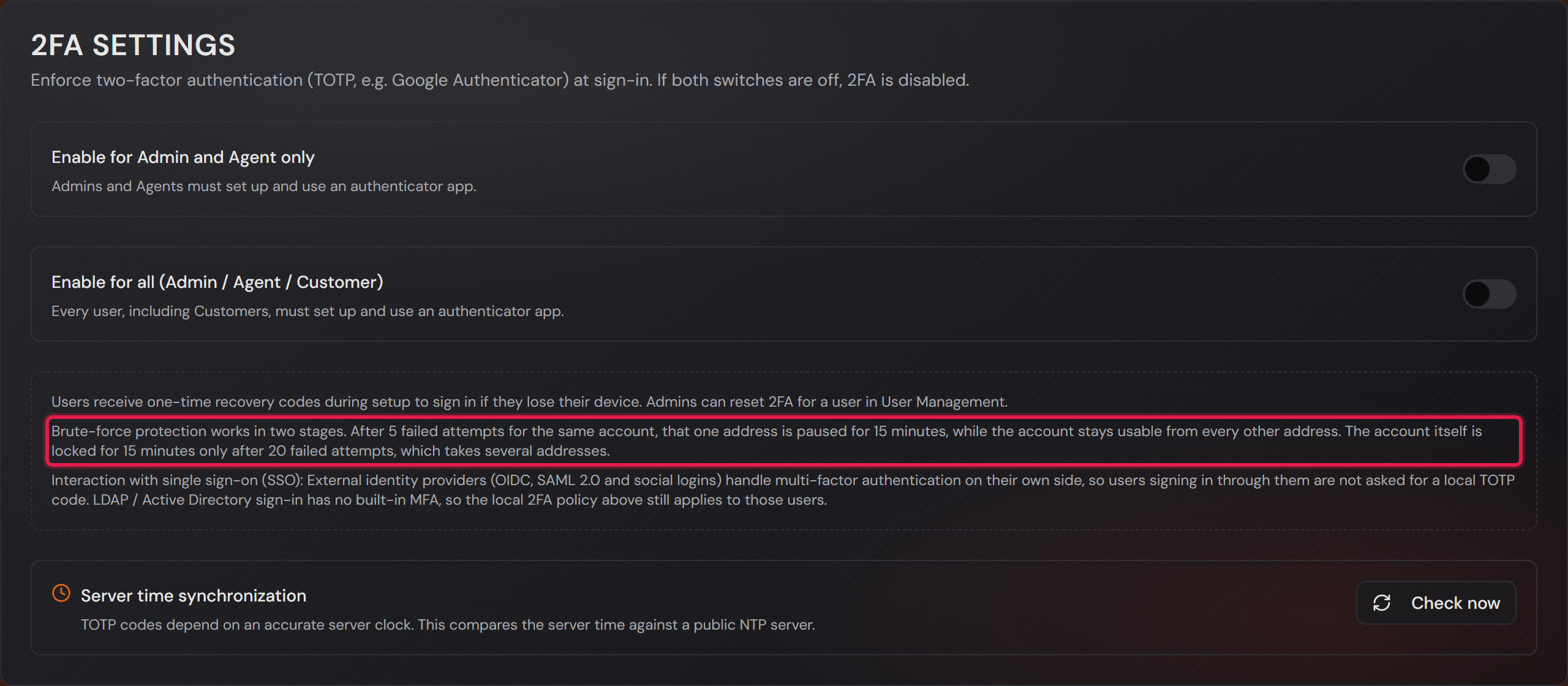
The protection runs without any setting. There is nothing to switch on. The note about it stands in the “2FA Settings” card.

It works in two stages. After five failed attempts for the same account, the address they came from is paused. The pause ends at the latest 15 minutes after the first of those attempts. From every other address the account stays usable straight away.

That is the important part. Otherwise anyone who knows a sign-in name could lock a colleague out with five wrong passwords. They would never need a password to do it.

The second stage is the account itself. It is locked for 15 minutes after 20 failed attempts. Because a single address can contribute at most five of them, that takes several addresses.

A successful sign-in resets both counters. After a server restart the address pause is gone, the account lock remains. The same counters apply to sign-in through a directory. An unreachable directory does not count as a failed attempt. If there is no account for the name in the ticket system yet, only the address pause applies.

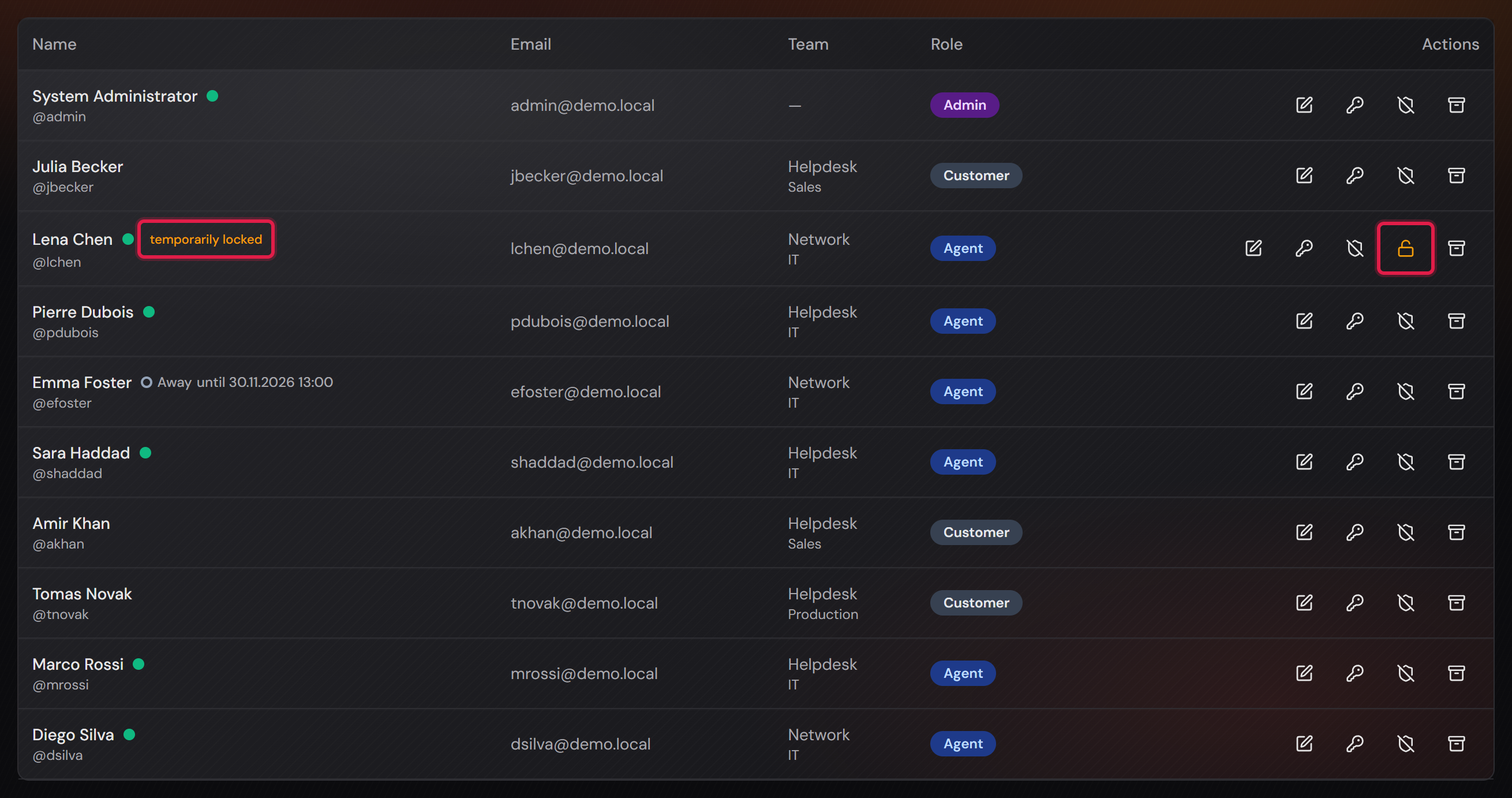
In the user list an account locked this way carries the “temporarily locked” badge. It stays in the list. After 15 minutes the badge disappears on its own.

You do not have to wait. In the same row there is a button with an open padlock. It lifts the lock immediately and clears both counters.

This is not the same as “Archive”. That button shuts an account down for good, and only it takes or frees a staff seat.

The note about protection against password guessing in the “2FA Settings” card.
The red frame sits on the note. It names both stages: the address first, the account last.Open image at full size
The user list with the “temporarily locked” badge and the unlock button.
The red frames sit on the badge and on the open padlock. The padlock only appears in the row where there is something to lift.Open image at full size
4

The security log

Before you start: The log is under “Settings → Security log”. By default only administrators see it. You give it to other roles with the “Security log” permission in the “Permission concept” card. It cannot be given to customers.

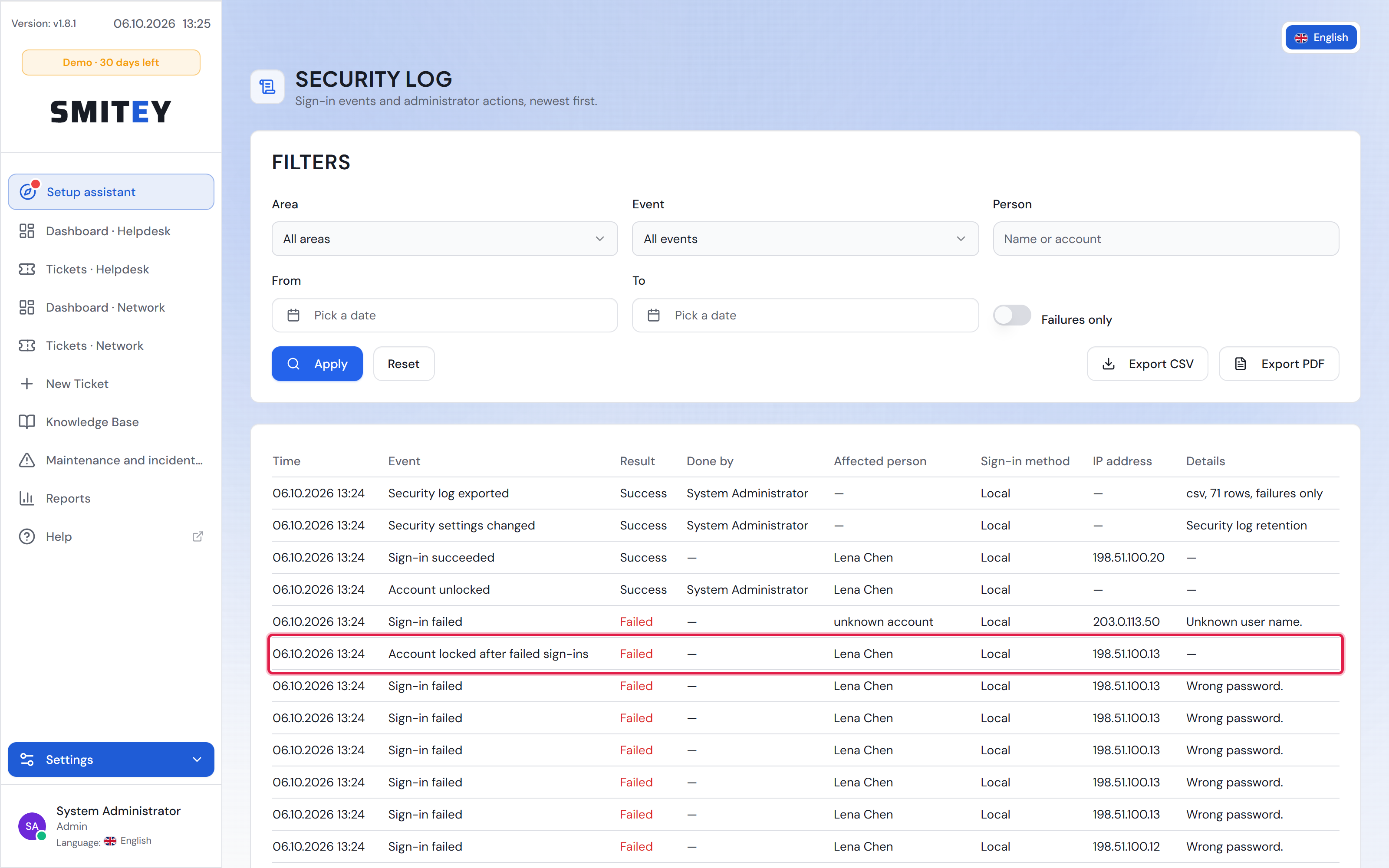
The security log records two kinds of events. The “Sign-in” area holds failed sign-ins, locked accounts, sign-in attempts during a lock, rejected two-factor codes and password changes. This applies to sign-in with a password, through a directory and through SSO.

The “Administration” area shows who changed what. That covers accounts, roles, permissions, security settings and archives. Every export of the log is recorded there as well.

Successful sign-ins are only recorded in two cases. The first case is an administrator. The second case is a sign-in after failed attempts on the same account. The ordinary sign-in of an agent or a customer is not in the log. The log is not an attendance list.

If someone signs in with a name that does not exist, the entry says “unknown account”. The system does not store the typed name. Sometimes it is a password that ended up in the wrong field.

Sign-in events store the IP address and the browser. Administrator actions store who carried them out, but no IP address. Passwords, codes and the contents of tickets or e-mails are never in the log.

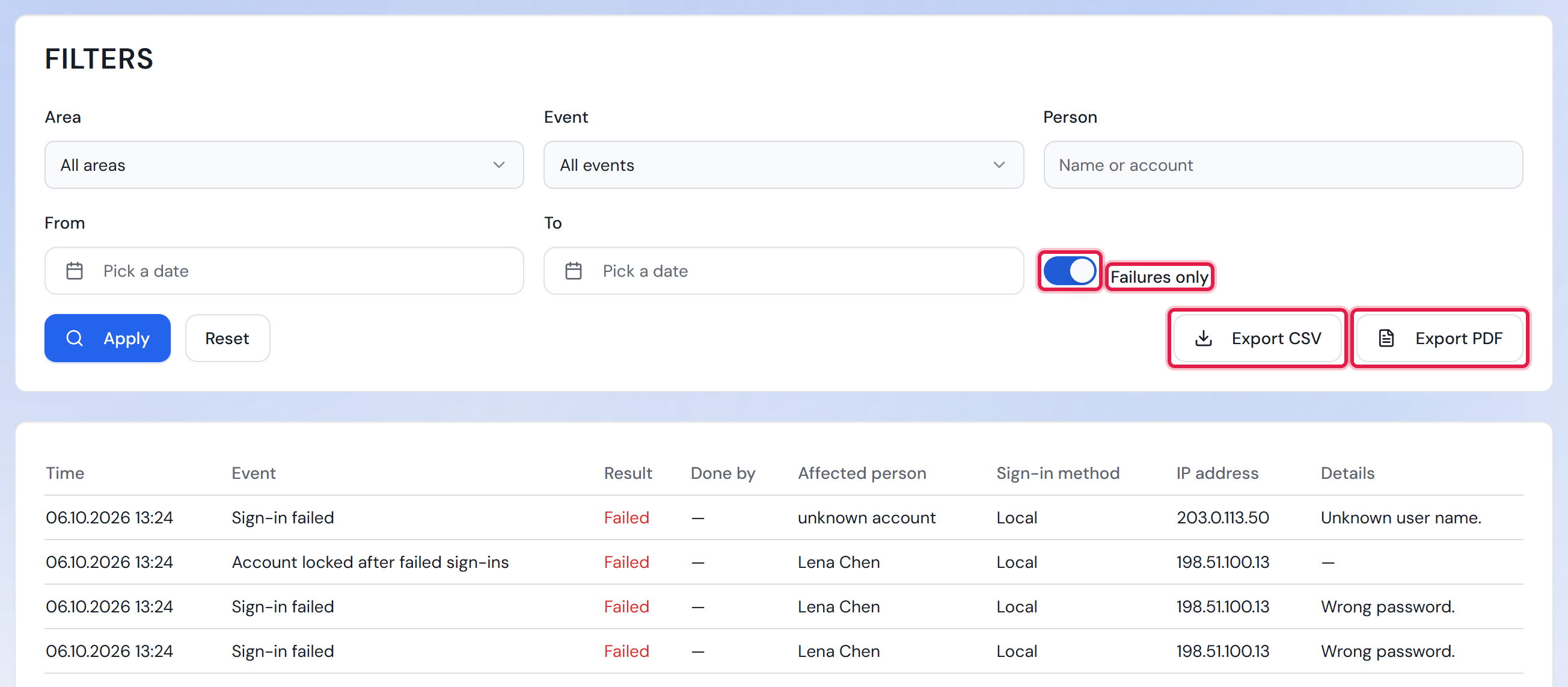
The page shows the newest entries first, 50 per page. The “Filters” card narrows the list. “Area” picks sign-ins or administration, “Event” a single kind of event. “Person” searches the name of whoever acted and of whoever was affected. “From” and “To” limit the days. “Failures only” hides everything that succeeded.

The filters only take effect after a click on “Apply”. “Reset” removes them again.

“Export CSV” and “Export PDF” download exactly what the filters show. Each file holds at most 10,000 entries. If more entries match the filters, a note at the export buttons says so. The PDF is in your language and names the filters and the period at the top. Date and time use the format set under “Settings → General Settings”.

The CSV file always stays in English, and the times are in UTC. That way a program can read it regardless of the language. Every export is itself in the log, as “Security log exported”.

Six events raise an alert. These are an account locked after failed attempts, a role changed to “Admin”, an account created with the “Admin” role right away and a reset two-factor sign-in of an administrator. Then there are archived tickets removed from the live data, and an administrator’s sign-in after failed attempts.

After an alert, everyone with the permission sees a yellow banner at the top of every page. It names the number of alerts since their last visit to the log. The “Open security log” link leads there. Opening the log makes the banner disappear. Before the first visit it counts the alerts of the last seven days.

In addition, every active account with the permission and an e-mail address receives an alert mail. The system collects the alerts every 15 minutes and sends one mail per person, not one per event. The mail names the event, the affected person and the time. It contains no IP address. The alert mail is part of Professional.

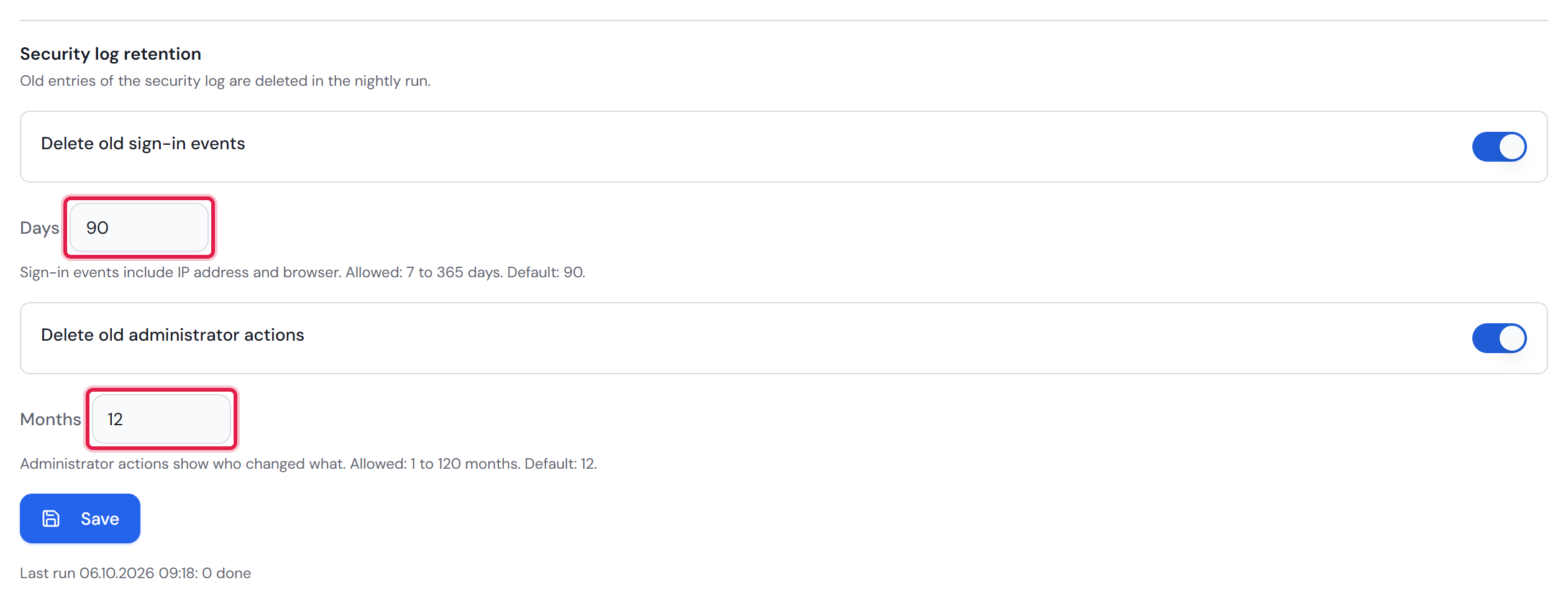
The nightly run deletes old entries. The time limits are under “Settings → Security” in the “Data protection” card, in the “Security log retention” block. Sign-in events are kept for 90 days by default, 7 to 365 days are allowed. Administrator actions are kept for 12 months by default, 1 to 120 months are allowed.

Each time limit has its own switch: “Delete old sign-in events” and “Delete old administrator actions”. If a switch is off, those entries stay. The card “Retention periods” explains the nightly run.

In a data export, the person receives every entry in which they acted or were affected. IP address and browser are only included for entries they triggered themselves, for example their own sign-in. If the person is anonymized, the system deletes their sign-in events. Their administrator actions stay. Their name there is replaced by the placeholder.

A note for you as the operator: successful sign-ins are only in the log for administrators and after failed attempts. Even so, the log shows who did what and when. In a company with a works council it is therefore a matter for co-determination.

More on this in the card: Protection against password guessing, Retention periods

The “Security log” page with the “Filters” card and the list of entries.
The red frame sits on the lock of Lena Chen’s account. Below it are the failed attempts that led to it, each with its IP address. The entries in the picture come from a test system.Open image at full size
The “Filters” card with “Failures only” switched on, the two export buttons and the first failures.
The red frames sit on “Failures only” and on the two exports. The exports take over the filters set here.Open image at full size
The yellow banner above the dashboard with the number of security events and the “Open security log” link.
The red frame sits on the link to the log. Here the lock of Lena Chen’s account raised the alert.Open image at full size
The “Security log retention” block with two switches, the days and the months.
The red frames sit on the two time limits. The picture shows the factory setting: 90 days and 12 months.Open image at full size
5

Signing in through a directory or an external service (SSO)

Professional only

Before you start: The settings live under “Settings → SSO Settings”. Without a configured provider nothing changes on the sign-in page.

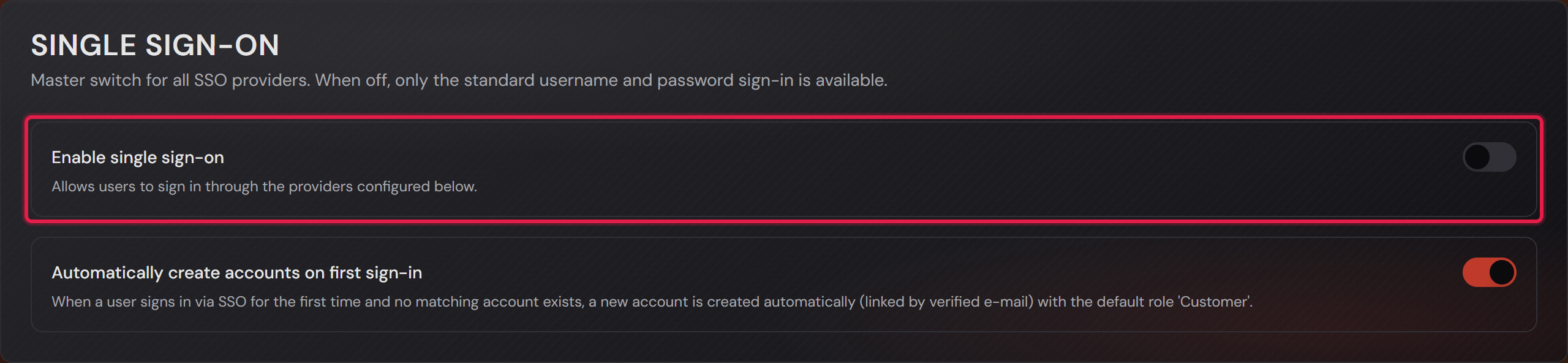
At the very top sits the master switch “Enable single sign-on”. While it is off, it stays with username and password. Everything you set up below it is saved and only takes effect once you switch it on.

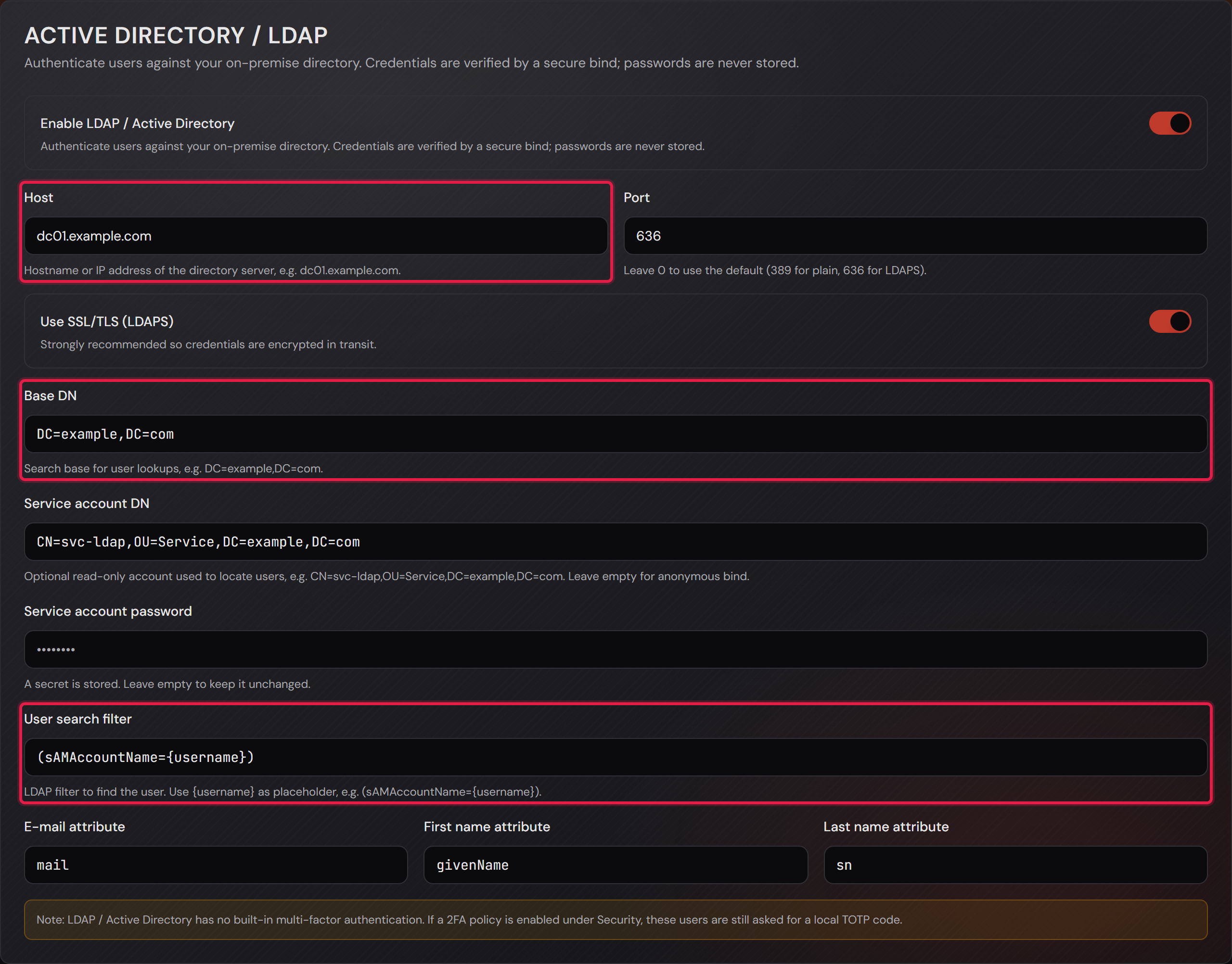
The “Active Directory / LDAP” card connects an on-premise directory. You enter the server, the search base, the filter that finds a person, and the fields for the e-mail address and the names.

The account used for lookups is optional. Without one the system asks anonymously. A person’s password is only used to bind against the directory and is never stored.

A directory brings no second factor of its own. If the security page requires two-factor sign-in, these people are asked for it as well.

The “Identity providers” card holds the external sign-in services. Each gets its own tile and its own button on the sign-in page. “Add provider” creates a new one.

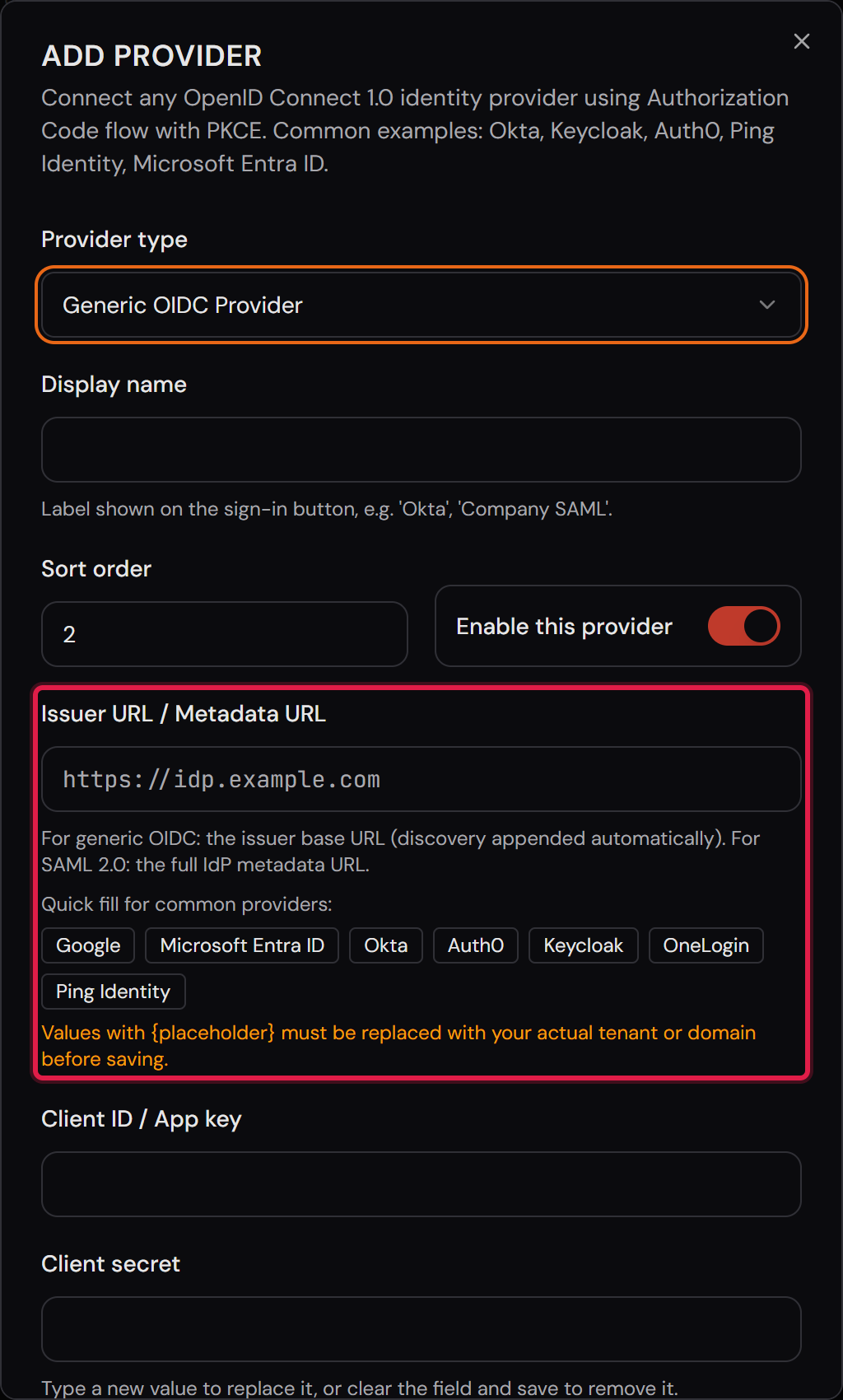
Under “Provider type” you pick the kind. “Generic OIDC Provider” fits services such as Google Workspace, Microsoft Entra ID, Okta, Keycloak, Auth0 or Ping Identity. “SAML 2.0 Provider” fits the same houses when they are to be connected over SAML.

Alongside them are six regional services: LINE, Kakao, Naver, WeChat, WeCom and DingTalk. Their addresses are pre-filled and appear as grey text in the field.

The name under “Display name” later appears on the button. The switch next to it applies to this one provider only.

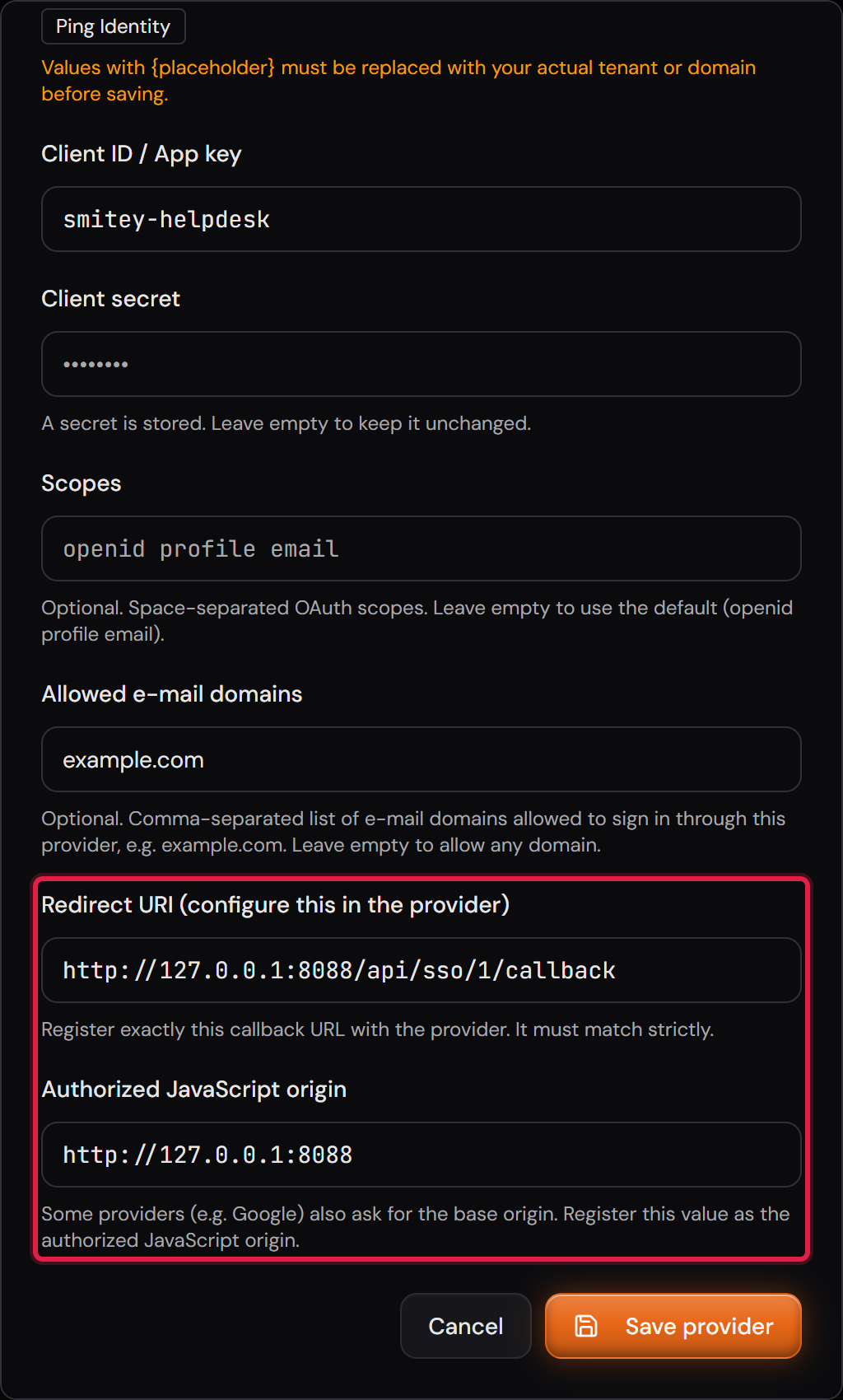
For the callback address, work in this order. First enter only a name and click “Save provider”. Only then does the system know the provider’s number and show the finished address under “Redirect URI”. It is built from the public address of this installation, the one stored under “Settings → Security”. That is exactly the address the system uses when someone signs in.

You copy that address and register it with the provider. It has to match there character for character. In return the provider gives you an ID and a secret, and you enter those here via “Edit”.

The “Allowed e-mail domains” field limits who may come in through this provider. Left empty, every domain is allowed.

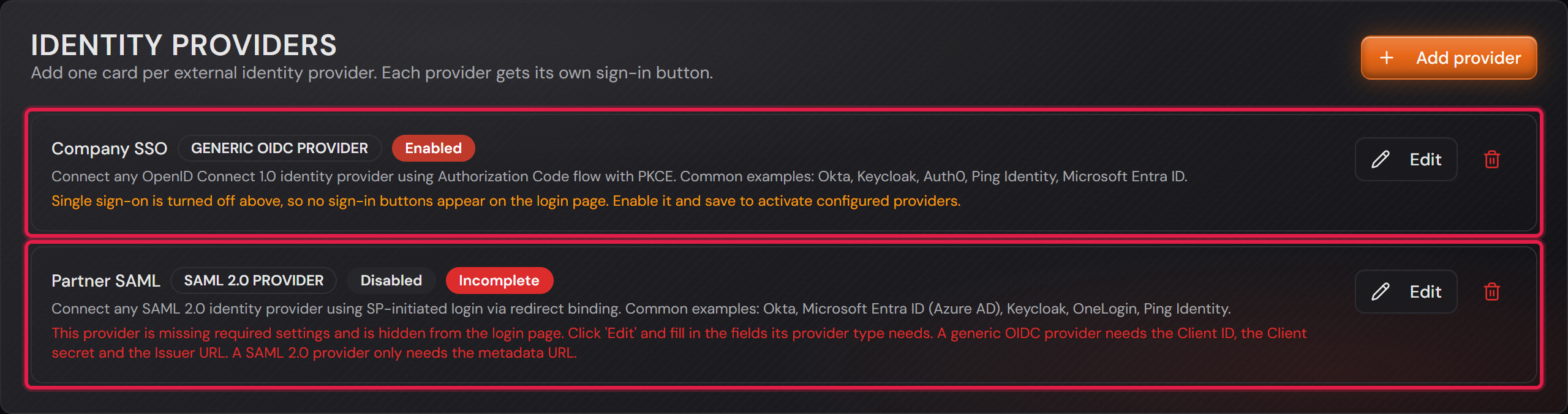
If a provider is still missing something, its tile carries the red “Incomplete” badge. It then does not appear on the sign-in page. The text beside it says which fields its type needs.

Fully configured providers still do not appear while the master switch is off. The tile says so in a yellow line.

If your licence falls back to Basic, sign-in through SSO and the directory keeps working. On this page you can then only switch providers and the directory off. The log of sign-in attempts stays readable.

The “Single sign-on” card with the master switch.
The red frame sits on the master switch. With it off, only username and password sign-in remains.Open image at full size
The “Active Directory / LDAP” card with the fields filled in.
The red frames sit on the server, the search base and the search filter. The values in the picture come from a test system.Open image at full size
Two provider tiles, one configured and one carrying the “Incomplete” badge.
The red frames sit on both tiles. The upper one is complete and only waits for the master switch. The lower one is missing its provider’s address.Open image at full size
The “Add provider” dialog with type, display name, switch and the provider’s address.
The red frame sits on the address field. Below it, “Quick fill” pre-fills the well-known providers. Whatever stands in curly brackets you replace first.Open image at full size
The dialog of a saved provider showing the finished callback address.
The red frame sits on the callback address. It only comes into being on saving and starts with your own installation’s address.Open image at full size
6

The account on first sign-in, and the log

Professional only

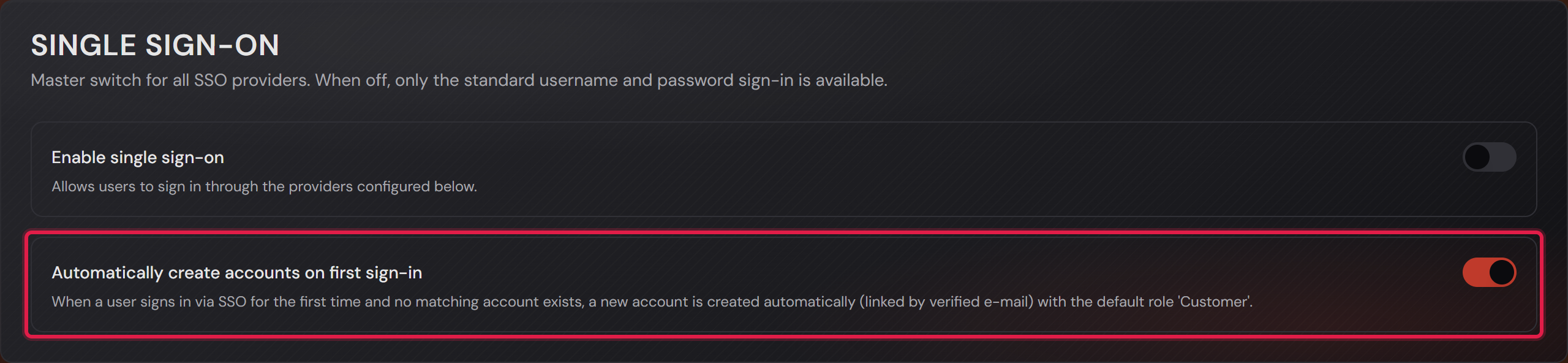
The “Automatically create accounts on first sign-in” switch sits in the same card as the master switch. It is on by default.

When someone signs in through a provider for the first time, the system first looks for an account that already belongs to that provider. If it finds none, a new one is created.

The new account gets the “Customer” role and no team. A customer needs no membership to create a ticket and is therefore able to work straight away.

Customers are unlimited in both editions, so an account created this way uses no staff seat. Anyone who is meant to become an agent gets the role afterwards in user management.

If an account with the same e-mail address already exists, the two are linked. This only happens when the provider reports the address as verified. If it does not, the sign-in is refused.

If you switch it off, only people who already have an account get in. Everyone else is turned away.

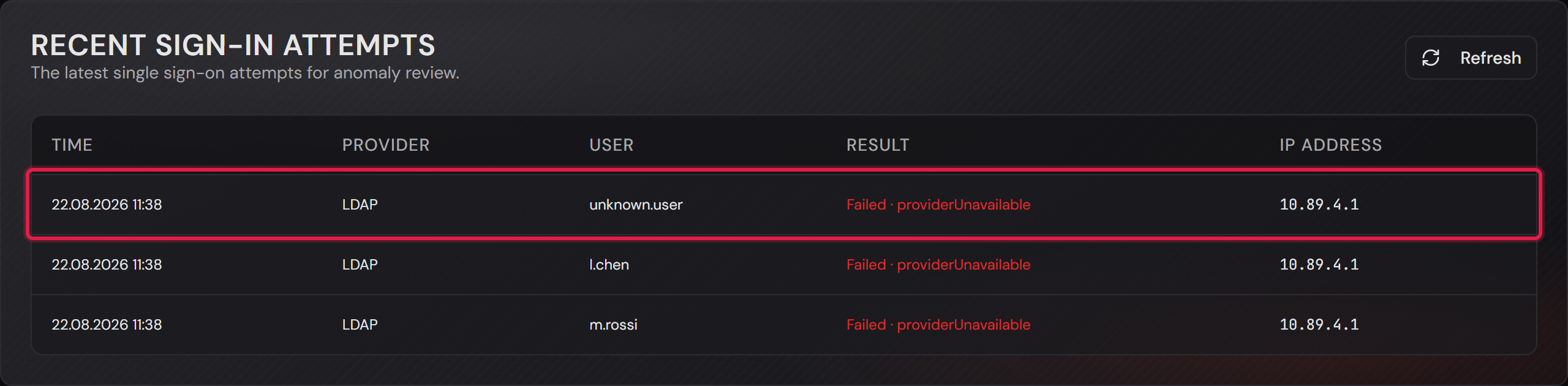
The “Recent sign-in attempts” card at the bottom shows the last 100 sign-in events through SSO and the directory. They come from the security log. Failed attempts are always listed. A successful sign-in is only listed for administrators and after failed attempts on the same account. So not every sign-in appears in the list.

Each row names the time, the provider, the result and the source address. On a failed attempt the reason stands next to it. The “User” column shows the name of the account. If there is no account, it shows the address the provider reported, otherwise “unknown account”. The system does not store the name that was entered.

Sign-in with a username and password does not appear in this table. It is not SSO. You find it in the security log.

By default the entries are deleted after 90 days. The sentence below the card title names the time limit that is set. The card “Retention periods” explains the setting.

More on this in the card: The security log

The “Automatically create accounts on first sign-in” switch.
The red frame sits on the switch. The text below it names the role such an account is given.Open image at full size
The “Recent sign-in attempts” table with three failed attempts through the directory.
The red frame sits on the top row. It shows a failed attempt with its reason. The entries in the picture come from a test system whose directory does not exist.Open image at full size
7

The five ways to reach the system

Before you start: You choose how the system is reached in the SMITEY installer on the server. You can change it later at any time.

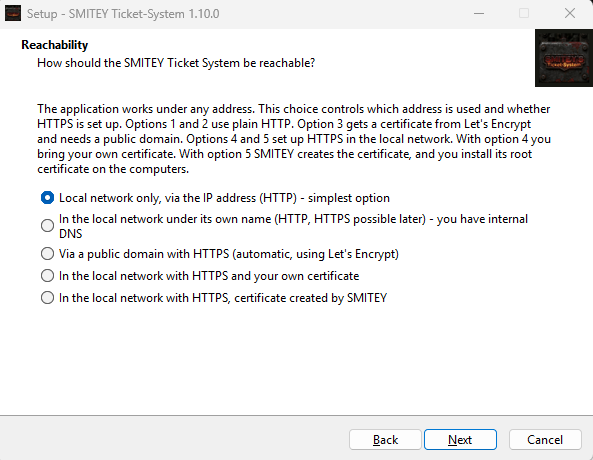
After the installation, your team uses the system in every web browser. The installer asks how the system should be reached. In the Windows installer you choose this on the “Reachability” page. On Linux, install.sh asks the same question and numbers the options from 1 to 5. Later you change it with “Change how SMITEY is reached”. Your data stays where it is.

The option “Local network only, via the IP address (HTTP) - simplest option” is the default setting. Your team opens the system at http:// followed by the IP address of the server and the port, for example http://192.168.1.20:8088. The port is 8088 unless you choose another one. Port 80 works too. Then the address needs no port. This option needs no name and no certificate.

The option “In the local network under its own name (HTTP, HTTPS possible later) - you have internal DNS” works like the first one, but under a name such as ticket.company.local. You create the name yourself in your internal DNS. It points to the IP address of the server. Then your team reaches the system by the name and still by the IP address. The installer then shows the address with this name.

With both HTTP options, passwords and tickets travel through your network in plain text. Administrators then see a notice at the top of the page.

The other three options use HTTPS: “Via a public domain with HTTPS (automatic, using Let’s Encrypt)”, “In the local network with HTTPS and your own certificate” and “In the local network with HTTPS, certificate created by SMITEY”. They need ports 80 and 443 on the server. The next card describes them.

For a first test, the first option is enough. If your network has internal DNS, choose the second one. If the system should be reachable from the internet, choose the public domain. If your company has its own certificate authority, choose your own certificate in the local network. Otherwise let SMITEY create the certificate.

Change how SMITEY is reached on Linux

sudo bash /opt/smitey/install.sh --change-access

Shows options 1 to 5. Enter alone keeps the current option and changes nothing.

More on this in the card: Reaching the system over HTTPS

The “Reachability” page in the Windows installer with the five options.
The text above the list counts the options from 1 to 5. On Linux the same texts appear with these numbers.Open image at full size
8

Reaching the system over HTTPS

Before you start: You choose the way to HTTPS in the SMITEY installer on the server, not in the browser.

Without HTTPS, passwords and tickets travel through your network in plain text. A new installation starts with plain HTTP, so it works right away in every web browser. As long as an administrator opens the system over plain HTTP, a notice appears at the top of the page: “This connection is not encrypted.” If the system is opened on the server itself under “localhost”, the notice does not appear. Agents and customers never see it.

“How to switch on HTTPS” leads to this card. “Hide for 30 days” hides the notice for you. The setting belongs to your account, so it also applies in another browser. After 30 days the notice comes back as long as the connection is still not encrypted.

The SMITEY installer sets up HTTPS in three ways. In the Windows installer you choose it on the “Reachability” page, and on Linux install.sh asks the same question. On a system that is already running, open “Change how SMITEY is reached” on the Windows desktop or in the Start menu. On Linux the command below does the same. Your data stays where it is.

The option “In the local network with HTTPS and your own certificate” uses your own certificate, for example from your company CA. The installer asks for the name of the system and for the certificate file with its key. A PFX file with its password works too. Before it changes anything, it checks the certificate. The key must match, the certificate must be valid, and the name must be in the certificate.

The option “In the local network with HTTPS, certificate created by SMITEY” needs no certificate of your own. SMITEY creates one itself and renews it on its own. The installer saves the root certificate as SMITEY-root-ca.crt in the installation folder. Install this file as a trusted root certificate on every computer, for example with a group policy. Until then, browsers show a warning.

The option “Via a public domain with HTTPS (automatic, using Let’s Encrypt)” gets its certificate from Let’s Encrypt. It needs a public domain that points to the server. For that, the server must be reachable from the internet.

For both options in the local network the name can be a name like ticket.company.local, a single word like helpdesk or an IPv4 address. All three ways need ports 80 and 443 on the server. If another program uses them, the installer stops and changes nothing. The system is then reached at https:// followed by the name, without a port.

Your own certificate expires at some point. From 30 days before, administrators see a notice with the date at the top of the page. From 7 days before, it is red. In Professional, all administrators with an e-mail address also get a mail 30 and 7 days before. To renew, open “Change how SMITEY is reached” again, choose the option with your own certificate and give the new files.

The file HTTPS-GUIDE.txt that comes with the installation describes every step. That includes distributing the root certificate and the steps by hand.

Change how SMITEY is reached on Linux

sudo bash /opt/smitey/install.sh --change-access

Shows options 1 to 5. Enter alone keeps the current option and changes nothing.

The notice “This connection is not encrypted.” above the ticket list, with the link and “Hide for 30 days”.
The red frames sit on the link to this card and on “Hide for 30 days”. Only administrators see the notice.Open image at full size

The screenshots are from version 1.3.1. Nothing on the screens shown changed up to version 1.13.3. The only thing that looks different is the version number at the bottom of the sidebar.