Email integration

The ticket system collects mail from a mailbox and sends mail itself. How to set that up is on the card “Tickets from e-mail, replies and follow-ups” in the Ticket management block. This block shows what becomes of an incoming mail, how you block senders, and which messages the system sends on its own. The whole mail channel is part of the Professional edition.

1

What becomes of an e-mail

Professional only

When someone writes to a team mailbox, a ticket is created from it. The subject becomes the title, the text becomes the description, and the sender address is recorded as the requester. The channel on the ticket says “E-mail”.

If the mail carries a sender name, that name goes into the field next to the address. If it does not, the field says “E-Mail”. The channel already says the matter arrived by mail.

Prefixes such as “Re:” or “Fwd:” are dropped from the title. The ticket then carries the name of the matter and not that of a reply to it.

The formatting of the mail is kept. Bold text, lists and tables appear in the ticket exactly as they did in the mail.

Links are kept. Your agent can click them in the ticket instead of typing the address out.

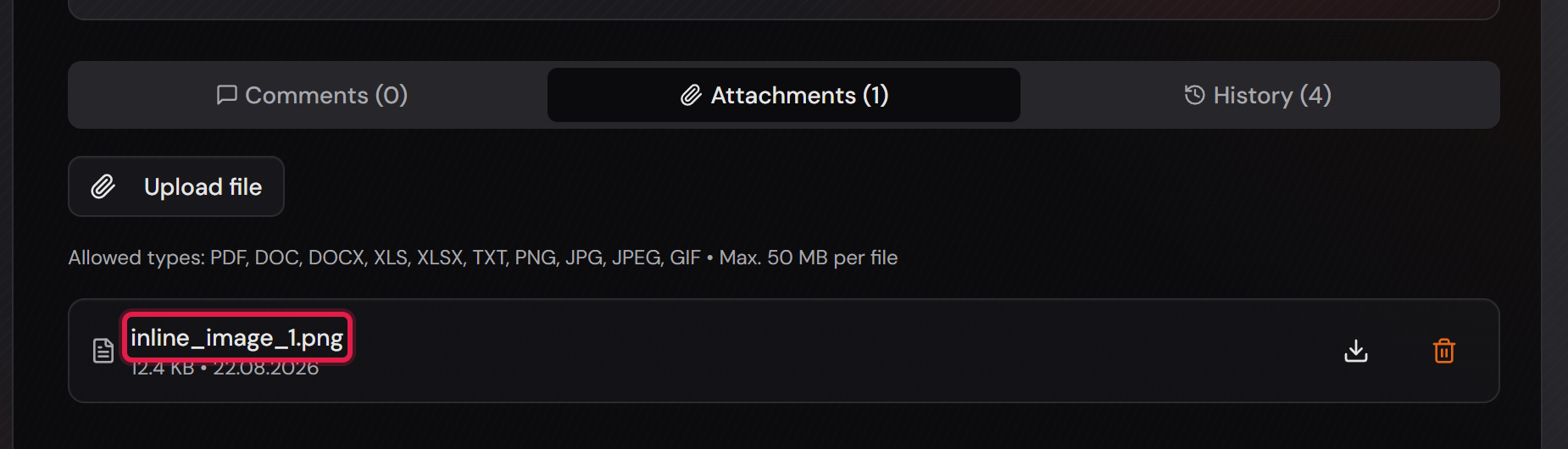
A picture that is embedded in the mail stays where it was in the text. It is also stored as an attachment on the ticket.

A picture that the mail only loads from the web is removed. Such pictures often report back to the sender when and where a mail was read. Anyone who wants a picture to arrive should embed it in the mail or attach it.

Files attached to the mail become attachments on the ticket. Only the file types pdf, doc, docx, xls, xlsx, txt, png, jpg, jpeg and gif are taken over. Other files are dropped. The same size limit applies as for a file an agent uploads.

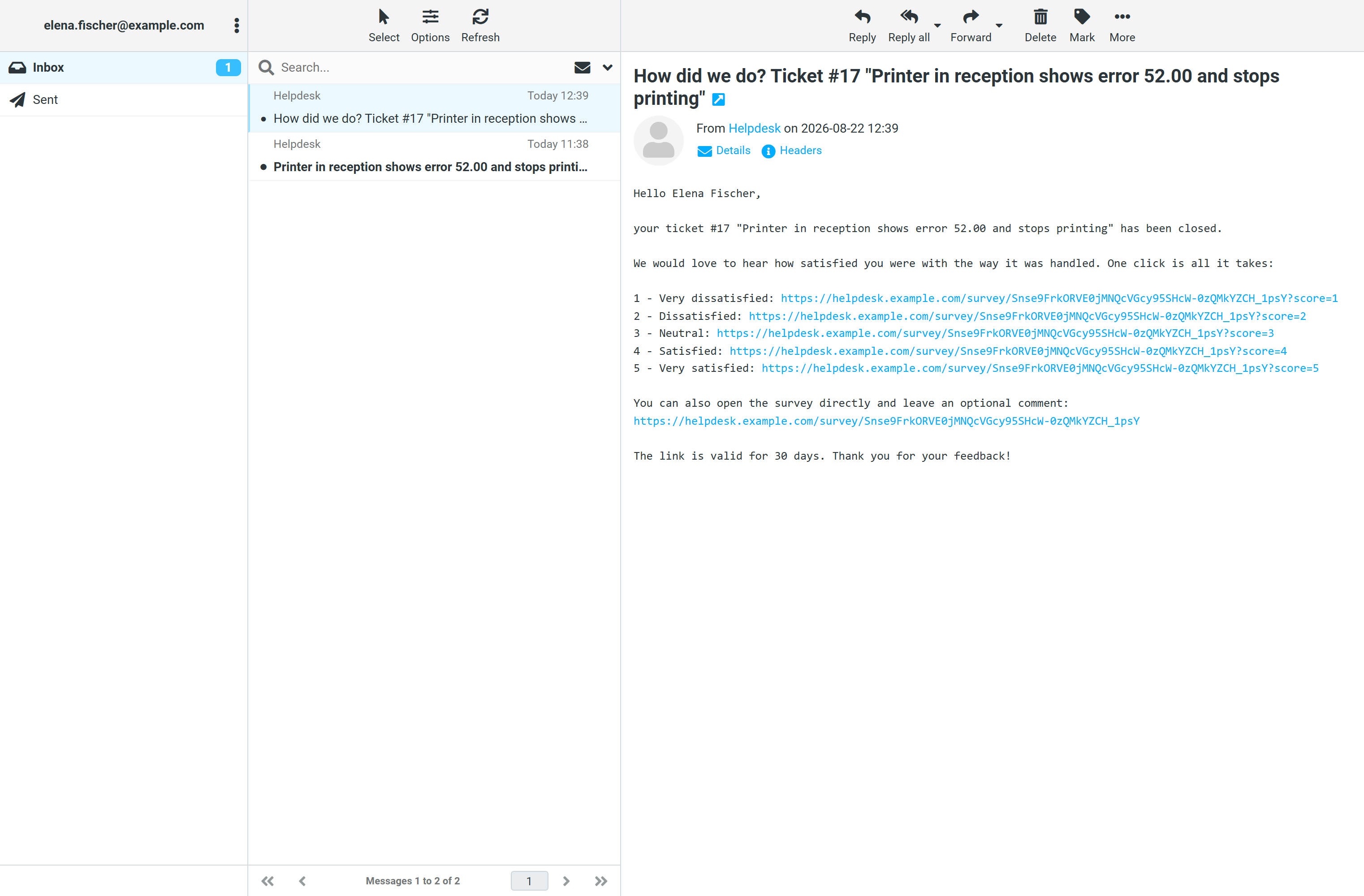
If the auto-reply is switched on in the workflow, the sender gets a confirmation straight away. With the reference in the subject, every further reply finds the same case again and becomes a comment on it.

A picture embedded in such a reply appears on the comment it belongs to.

If the requester replies to a ticket that is resolved or closed, it goes back to “Reopened”. The same happens when the requester comments in the customer portal. Replies from people in copy, from observers and from agents reopen nothing.

More on this in the card: Tickets from e-mail, replies and follow-ups
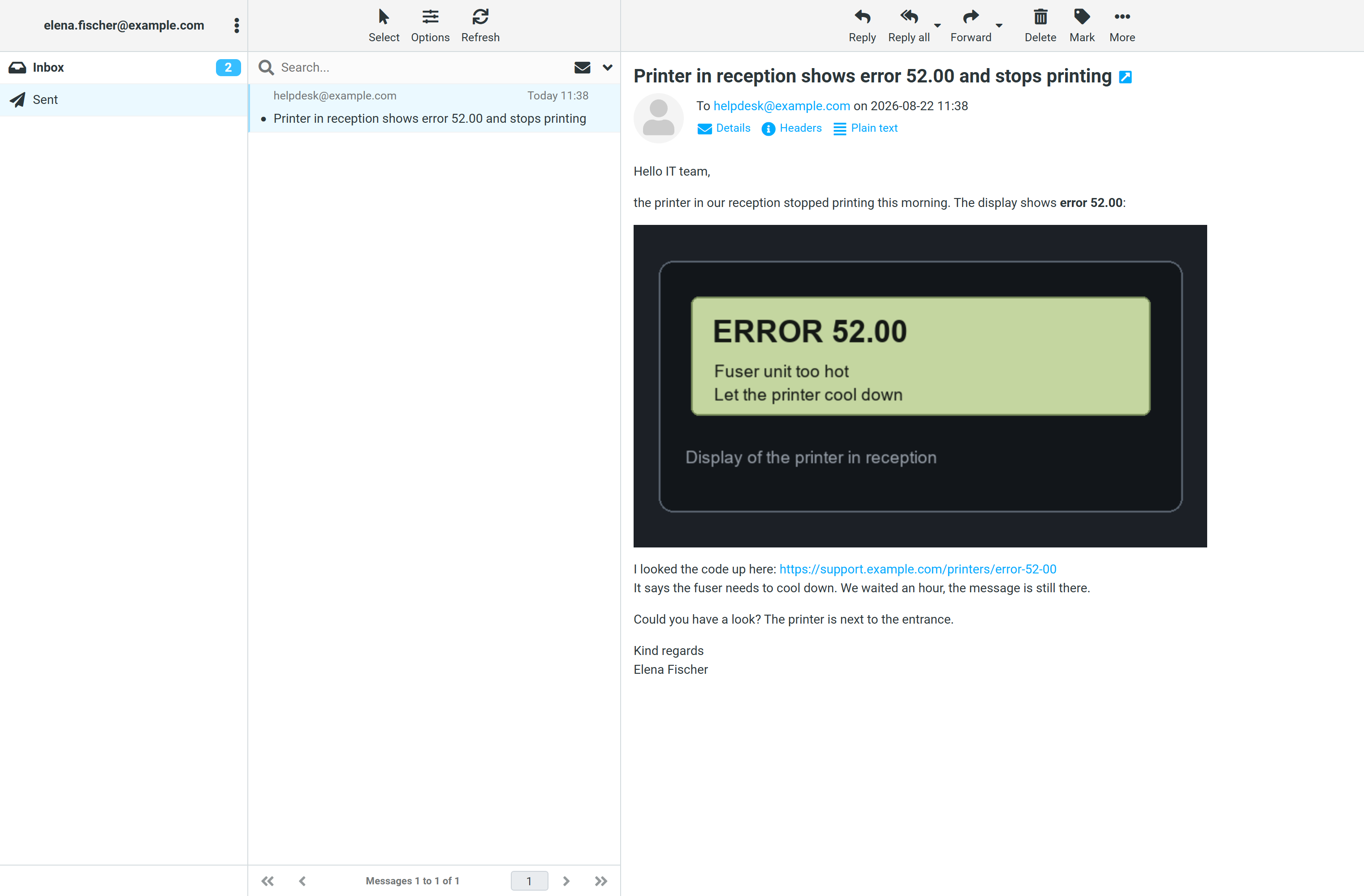
The sent mail in the sender’s mail program, with an embedded picture and a link.
This window is not the ticket system, it is the sender’s mail program. The mail contains an embedded picture and a link.Open image at full size
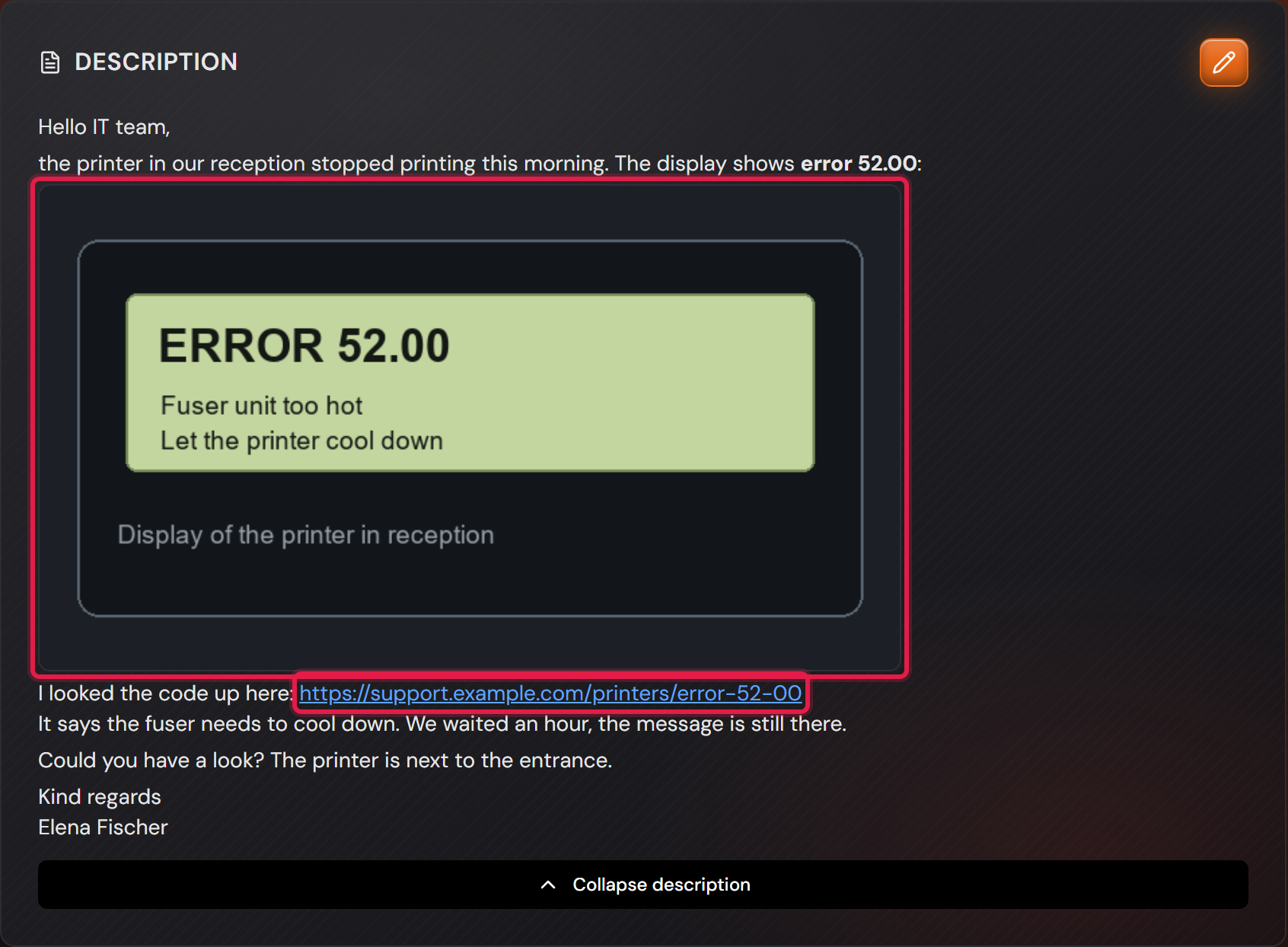
The description of the resulting ticket with the picture in place and the link.
The same mail as a ticket. The red frames sit on the picture and on the link. Both are in the same place as in the mail, and the link can be clicked.Open image at full size
The “Attachments” tab of the ticket with the file inline_image_1.png.
The embedded picture is also stored as an attachment. That way it can be downloaded without pulling it out of the text.Open image at full size
The confirmation in the sender’s inbox, with the reference in the subject.
The confirmation as it arrives at the sender. The subject carries the reference of the case. If the sender replies to it, the reply lands on the same ticket.Open image at full size
2

Blocking senders

Professional only

Before you start: The blocklist sits at the very bottom of the “E-Mail Settings” page. It applies to all teams at once.

Some senders should not create a ticket. Newsletters are one example, and mailboxes that only send machine reports are another.

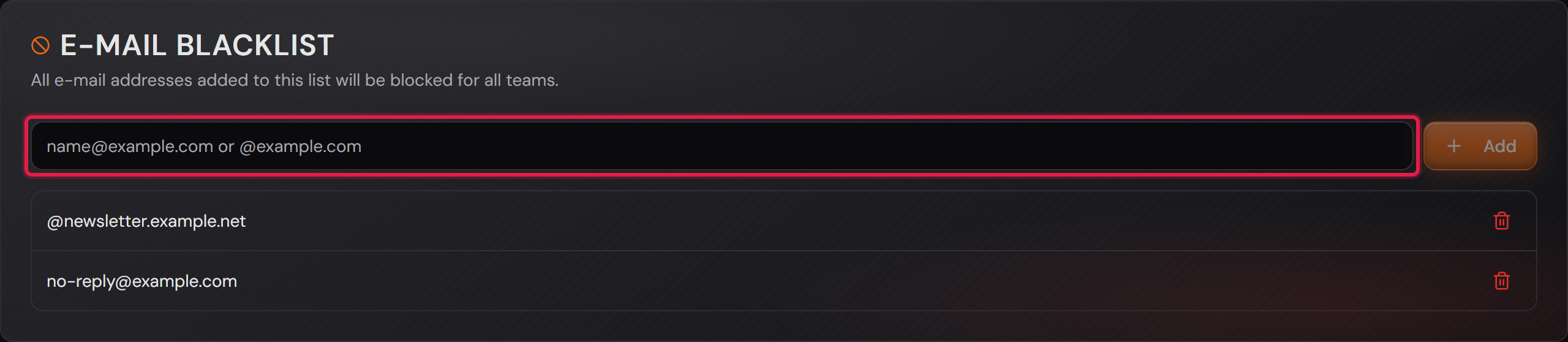
Enter a full address when exactly one sender is meant. In the picture that is no-reply@example.com.

Enter the domain with a leading @ when every address of one sender is meant. In the picture that is @newsletter.example.net. Subdomains are blocked along with it.

A mail from a blocked sender creates no ticket. It is marked as read and moved to the processed folder. Nothing piles up in the inbox.

The block works in the other direction as well. The system sends no mail to a blocked address.

That is the real point with addresses nobody reads. Without the block, the confirmation would go to a mailbox that never answers.

“Add” puts an entry on the list. The bin icon next to it removes the entry again. A change takes effect immediately, there is nothing to save.

Mails that were generated automatically need no entry on the list. This covers bounce messages, out-of-office replies and bulk mail. They create no ticket either and get no reply. The system marks them as read and moves them to the processed folder.

This also applies to alarms from a monitoring system if they are marked as automatically generated mail. An alarm without that marking becomes a ticket like any other mail.

The “E-Mail Blacklist” card with two entries: a full address and a domain.
The red frame sits on the input field. Its placeholder names both permitted forms. Below it are the two entries of this installation.Open image at full size
3

What the system sends on its own

Professional only

Before you start: The switches on this card sit per team under “Team mailboxes” on the “E-Mail Settings” page, directly below that team’s mailbox address.

Besides the replies to your customers, the system sends messages of its own. These include the assignment of a ticket, a breached deadline, an invitation, a new password, the satisfaction survey and the approval of a request.

These texts come ready made and are English to begin with. They sit in the language pack together with every other text of the interface.

Once a language pack is imported, each of these messages goes out in the language set on the recipient. Two people on the same matter therefore receive the message in two languages. Recipients without an account have no language of their own. Mails to them go out in the language set on the team under “Default e-mail language”. That covers, for example, the survey, the resolution of an incident, a rejection and the mail of a rule.

You change the wording on the languages page. There you download the texts of one language as a file, edit it and upload it again. English is the source and stays as it is.

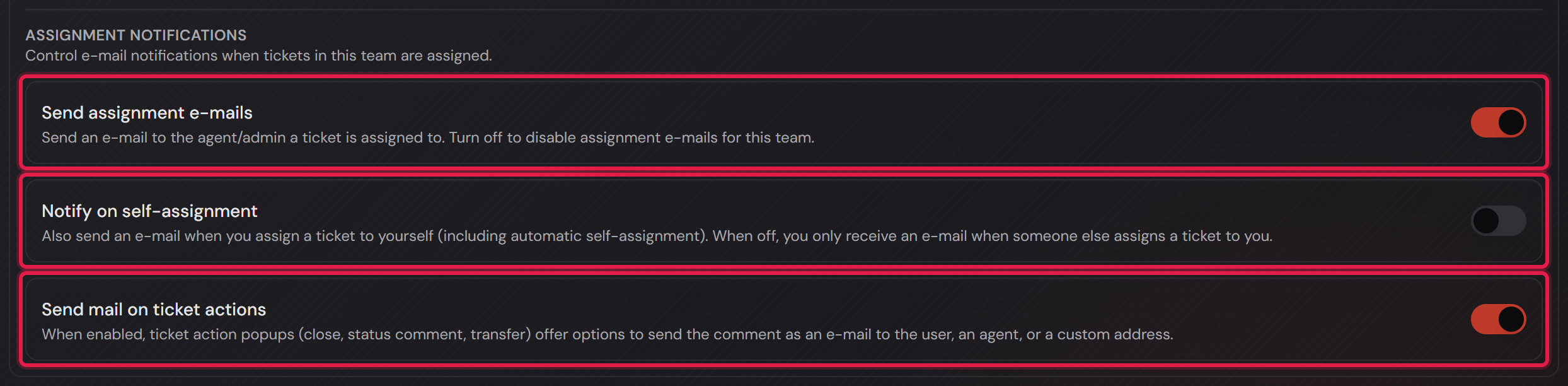
Whether an assignment is announced at all is decided per team. Three switches sit below the mailbox for that.

“Send assignment e-mails” sends a mail to the agent who receives a ticket. With the switch off, this team announces no assignments at all.

“Notify on self-assignment” decides whether a mail is also sent when someone takes a ticket themselves. This switch is off by default.

“Send mail on ticket actions” takes effect elsewhere. With it on, the dialogs for closing, for changing the status and for handing over offer to send the comment as a mail as well.

The confirmation to your customers does not belong here. You write its text yourself, in the workflow of the mailbox.

More on this in the card: Tickets from e-mail, replies and follow-ups
The “Assignment notifications” section with three switches.
The red frames sit on the three switches. They belong to the team mailbox above them. Every further team has the same three switches of its own.Open image at full size

The screenshots are from version 1.3.1. Nothing on the screens shown changed up to version 1.13.3. The only thing that looks different is the version number at the bottom of the sidebar.