Reply & ticket templates

Two kinds of template for two moments: a reply template fills the comment editor on an open ticket, a ticket template fills the new-ticket form. Both are part of Basic. Only sending a reply as e-mail depends on the mail channel and therefore on Professional — the template itself does not.

1

Reply templates: text + field actions (status, assignment, priority …) in one pick

Before you start: Managing and applying are two different rights. Administrators and agents can do both out of the box. Applying is open to anyone who may work on the ticket. The actions of a template also need the right to steer the ticket, so a team that had the ticket earlier may comment but cannot run actions. Even if a role cannot manage the settings, it can still apply a template.

Templates live under “Settings → Templates”. The line below the heading says what they do and what they do not: “Reply templates fill the comment editor and suggest field actions. Nothing is sent automatically.” A template is a prepared move, not a machine — you always send it yourself.

There are two kinds and you pick one when you create it: “Add reply template” for the answer on an open ticket, “Add ticket template” for the new-ticket form. The kind cannot be changed later, because it decides which fields the form shows at all. The badge above each template tells you which one you are looking at: blue “Reply template”, green “Ticket template”.

A reply template is made of the answer text (“Reply text”), the “Internal note” checkbox and any number of actions. There are six actions: “Set the status”, “Set the priority”, “Assign to a user”, “Remove the assignee”, “Hand over to another team” and “Set a follow-up”.

The “Assign to a user” list starts with the entry “The agent who applies it”. Take that one when several people share the template: the ticket then belongs to whoever applied it, not to one fixed person from the list. “Set a follow-up” asks for an amount and a unit (minutes, hours, days, business minutes, business hours, business days) plus the note that will later tell you why the ticket is back.

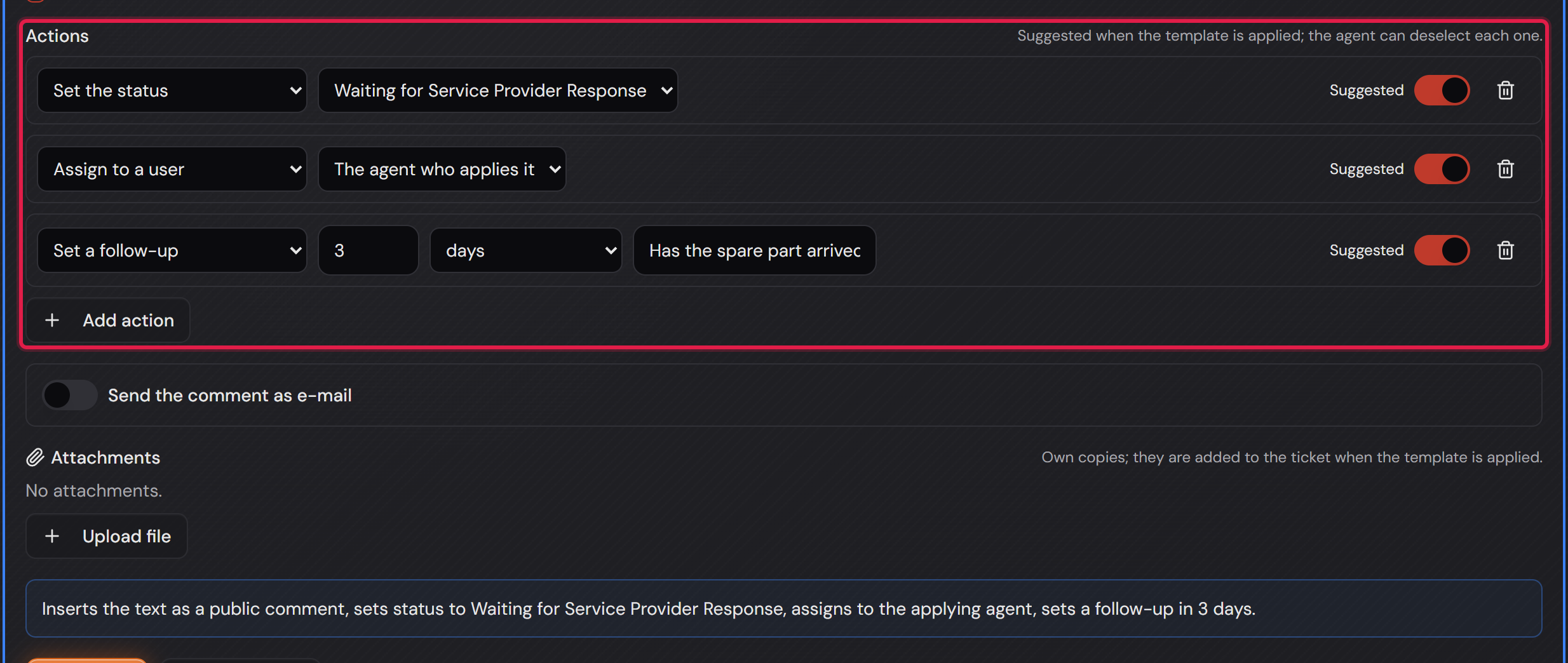
The blue box at the end of every template writes down in one sentence what it will do — for example “Inserts the text as a public comment, sets status to Waiting for Service Provider Response, assigns to the applying agent, sets a follow-up in 3 days.” The sentence rebuilds itself while you edit. It is your counter-check: if it says something other than what you intended, one setting is wrong.

Text is not required. “Hand this over to the network team without writing a word” is a valid template — the sentence then reads “Suggests actions without a reply text”. The “Set the status” action follows the same rules as a status change by hand. Applied to several tickets at once, the template skips locked tickets and names the reason.

The “Close ticket” window offers reply templates as well, in the “Template” field. It only lists templates whose active “Set the status” action sets a status that counts as resolved or closed. Internal templates are not offered there. If you pick one, the window takes over its text as the comment. If the template sends a mail and the window offers mail sending, it only takes over the recipient if that is “Requester” or a fixed address. The other actions and the attachments of the template do not run there. The ticket is closed as usual.
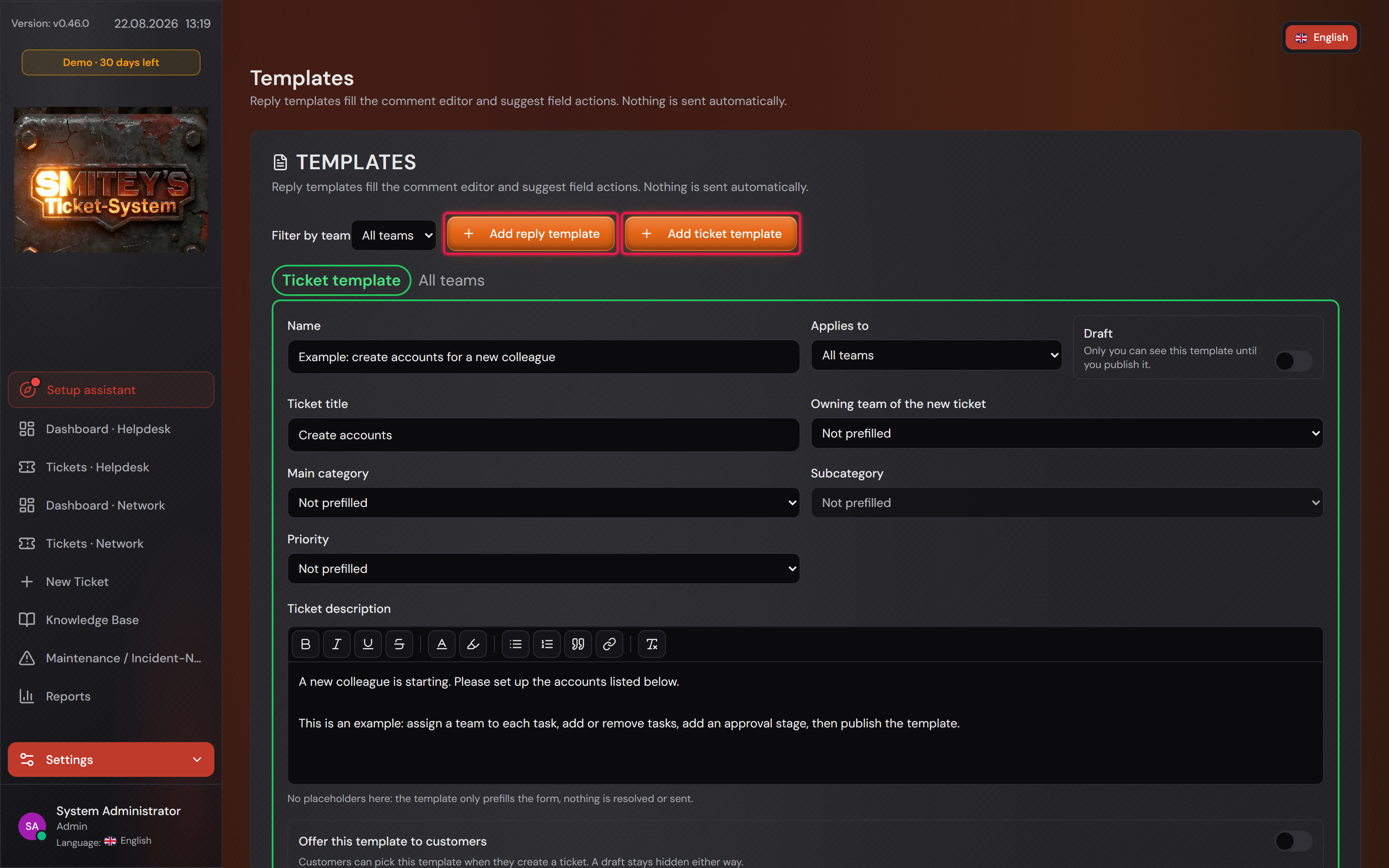
The “Templates” page with the red-framed “Add reply template” and “Add ticket template” buttons.
The kind is chosen when you create it: two buttons instead of a switch. Below them the templates lie open — each with its badge and its scope.Open image at full size
The three action rows of a reply template, red-framed, with the blue plain-text sentence below.
Three actions on one template: status, assignment to whoever applies it, follow-up in three days. The sentence below says the same thing in one piece.Open image at full size
2

Suggested actions individually deselectable before sending

On an open ticket the “Template” button sits above the comment editor. A click opens the type-ahead search (“Search templates…”), picking one fills the comment editor. Nothing else happens, and the line below says so: “Nothing happens until you add the comment.”

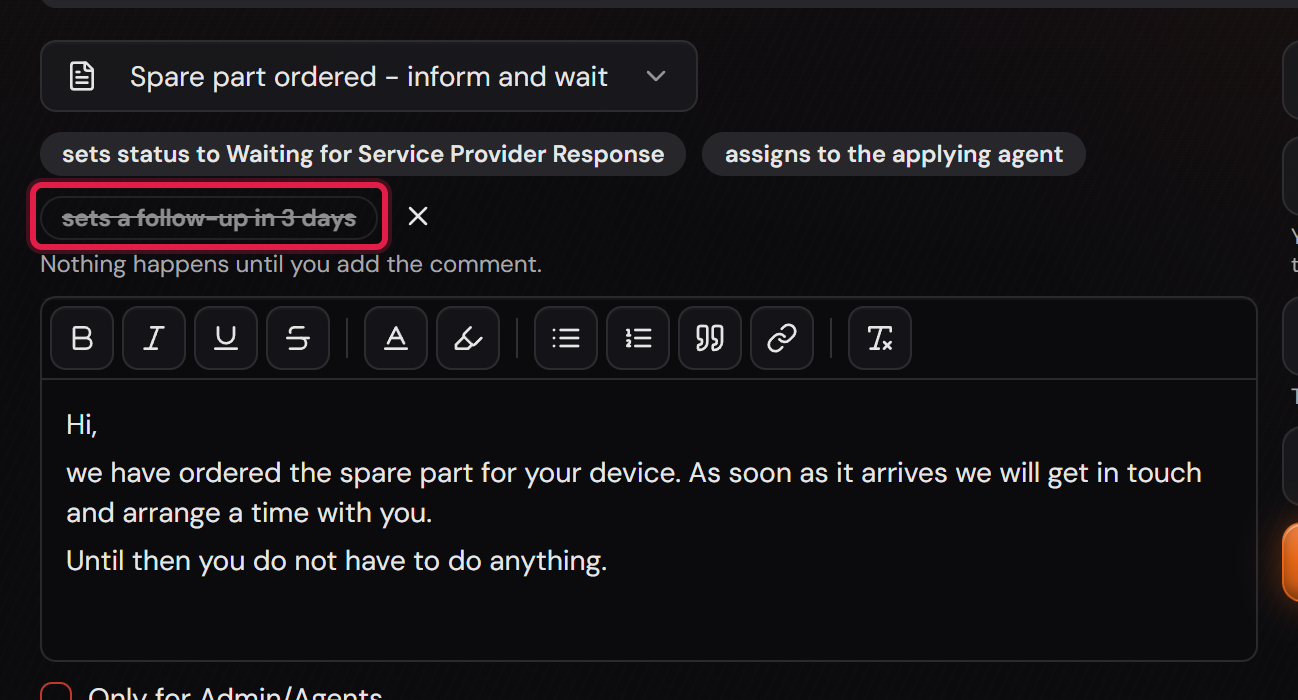
Every action of the template becomes a chip next to the button — in plain words, not in jargon: “sets status to Waiting for Service Provider Response”, “assigns to the applying agent”, “sets a follow-up in 3 days”. Clicking a chip strikes it through: it is deselected and will not run. Another click brings it back.

Deselected actions are struck through, not removed. That keeps visible what the template would have suggested — and it keeps the decision reversible for as long as you have not sent.

Which chips start out active is decided by the template: in the settings every action carries a “Suggested” switch. That switch is the proposal for every case; the chip on the ticket is the decision for this one.

The “×” behind the chips removes the template again. The text stays in the editor — you may well have rewritten it already; only the effect goes away, meaning actions, mail and attachments.

You send with the usual comment button. Only then is the comment created, and only after that do the actions that are still active run.

The comment editor of a ticket with the applied template, three chips beside it, the last one struck through, and the inserted text below.
Two actions will run, the third is deselected: the follow-up in three days does not fit this case, the rest does. The text sits in the editor and can still be changed.Open image at full size
3

Placeholders (requester, ticket number, title …) – inserting the template puts the real values into the text

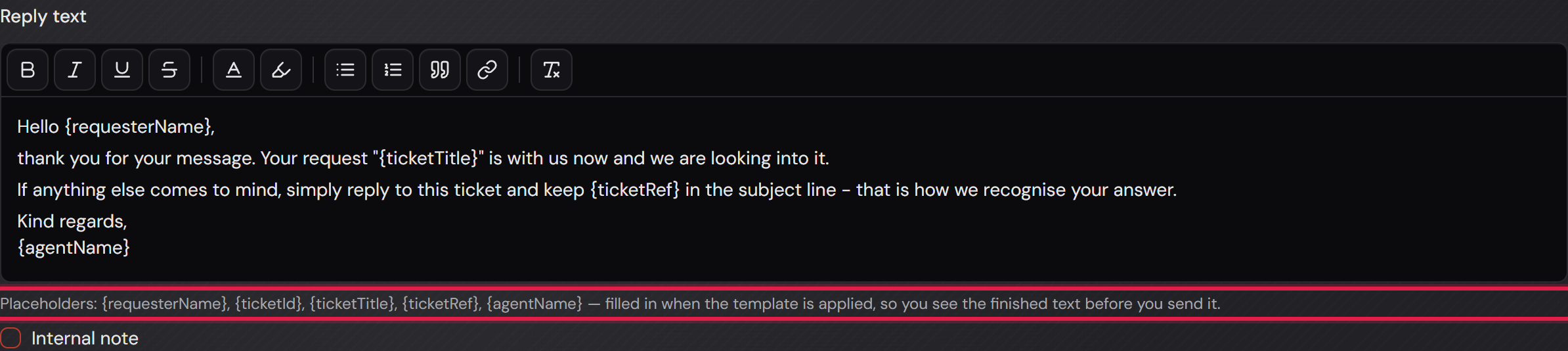
The answer text may use five placeholders; the list sits below the field: “{requesterName}, {ticketId}, {ticketTitle}, {ticketRef}, {agentName}”. Write them with curly braces, exactly as they appear there.

“{ticketRef}” is the ticket reference in the shape “[TICKET-8-…]”. It is how the system recognises a customer’s answer when it comes back by e-mail. “{ticketId}”, in contrast, is just the bare number.

They are resolved when the template is APPLIED, not when it is saved: the settings page keeps showing “{requesterName}”, the comment editor on the ticket shows the real name. The reason is a practical one — resolving on save would burn the values of ONE ticket into the template for good.

That way you read the finished text before anything leaves the company. If the salutation does not fit, you change it in the editor like any other text.

Who counts as the “requester” is decided by the ticket, not by the account: the requester recorded on the ticket comes before the account that filed it. If an agent files a ticket for a colleague after a phone call, the answer still greets the colleague and not the agent.

A mistyped placeholder is rejected when you save, and it is named: “Reply text: unknown placeholders {requesterNam}. Available here: {requesterName}, {ticketId}, {ticketTitle}, {ticketRef}, {agentName}.” So you notice it while writing the template, not on a customer.

The e-mail subject has its OWN, shorter list (“{originalSubject}, {ticketTag}, {ticketId}”) — which is why it is printed there a second time. “{ticketRef}” works there as well and means the same as “{ticketTag}”. “{requesterName}”, “{ticketTitle}” and “{agentName}” do not work in the subject and are rejected just the same.

The “Reply text” field of a template with placeholders in the text, red-framed, and the list of allowed placeholders below it.
This is how the template looks in the settings: with the placeholders, not with values. The line below lists which ones exist.Open image at full size
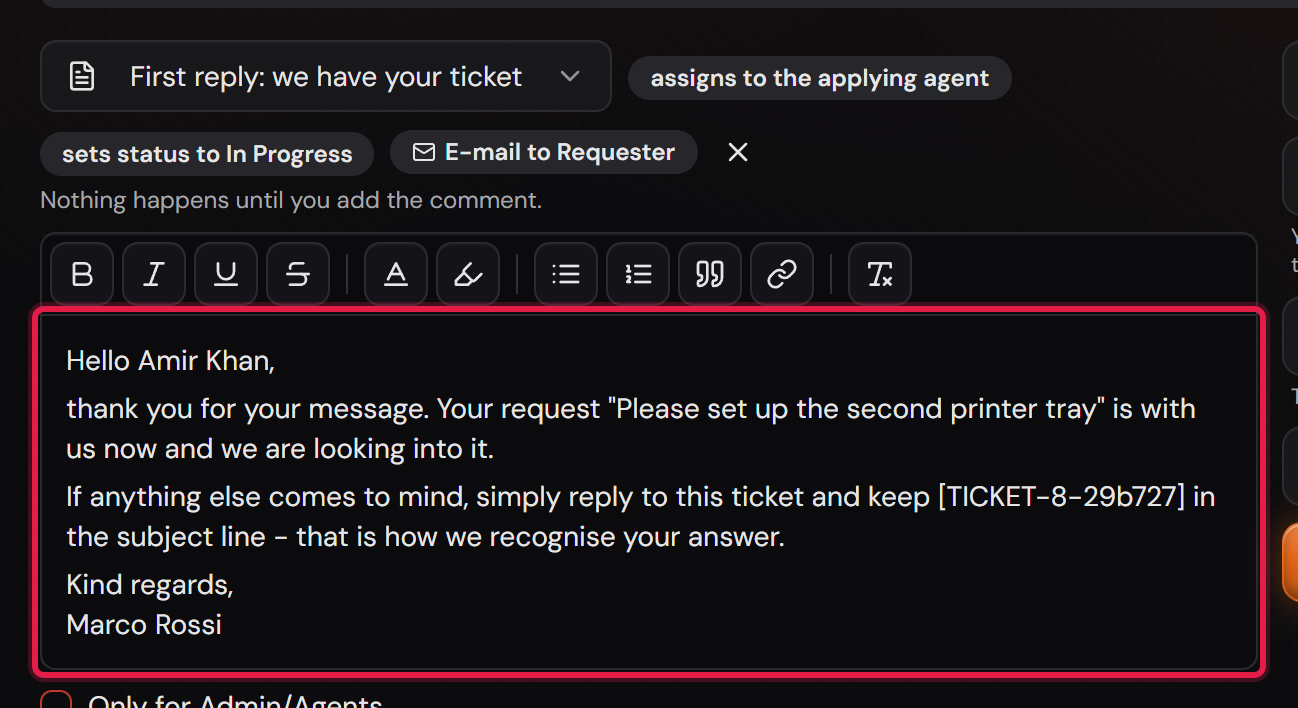
The same template applied on a ticket: the comment editor holds the name, the title and the ticket reference spelled out.
The same text on the ticket: “Hello Amir Khan”, the ticket’s title, the reference “[TICKET-8-…]” — and, as the signature, the agent who inserted the template. Nothing has been sent yet.Open image at full size
4

Reply optionally sent as e-mail to the requester

Professional only

Before you start: The mail channel as a whole is Professional — inbound as well as outbound. On top of that, the team’s mailbox must have sending on ticket actions switched on. If it does not, the mail chip is not offered on the ticket at all; the template’s actions run as always, only the mail is dropped. There is no warning about it either.

The “Send the comment as e-mail” switch turns the comment into the mail as well. There is deliberately no second text field for it: what stands in the ticket is what the customer reads — two texts would drift apart sooner or later.

Under “Recipient” you choose between “Requester”, “Assignee”, “Observers” and “Fixed address”. Who the requester is gets resolved by the server when the template is applied — a template does not know the ticket yet. The mail inbox account itself is never written to; that would be a message to ourselves. If the “User” field holds a name without an address, no mail goes to the requester. It is not sent to whoever recorded the ticket instead either.

The subject may carry “{originalSubject}”, “{ticketTag}” and “{ticketId}”. Keep “{ticketTag}” in there: that reference is how the system recognises the customer’s answer and appends it to the same ticket. Without it, every reply becomes a new ticket.

The mail goes out as plain text. Bold, lists and links are stripped before sending, otherwise the customer would read the raw markup. Inside the ticket the comment keeps its formatting.

On the ticket the mail is one more chip next to the actions (“E-mail to Requester”) and just as deselectable as they are. So a template never sends anything without you having seen it. The chip only appears when the team’s mailbox sends ticket action mails.

A template’s attachments (“Attachments”) are its own copies of the files. Applying the template adds them to the TICKET, with their own row in the history — they are not part of the mail. Carrying attachments on a template needs no Professional licence; only sending does. A template with the “Internal note” tick adds no files.

The mail block of a template with the red-framed “Send the comment as e-mail” switch, the recipient and the subject.
Switch, recipient and subject. The subject holds “{ticketTag}” — the reference by which the customer’s answer is recognised.Open image at full size
5

Create a template straight from an existing ticket

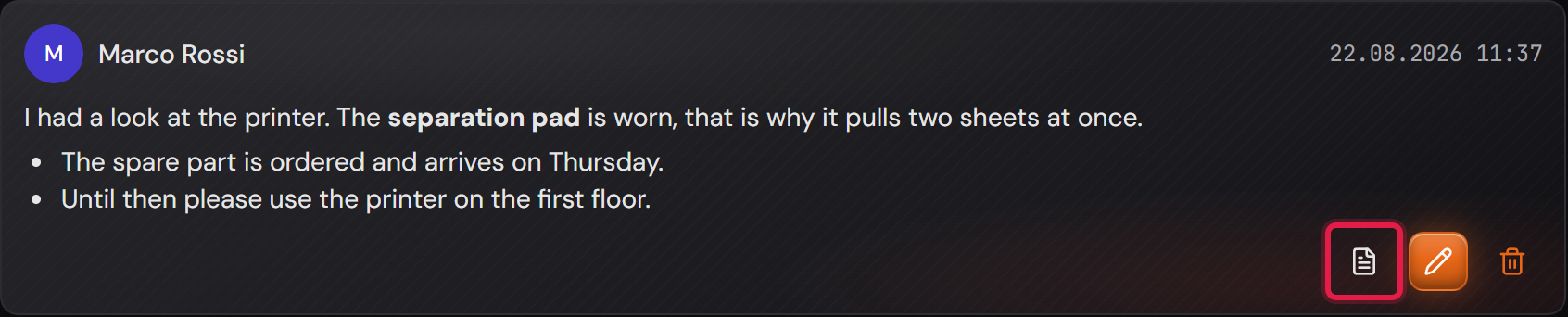
Most templates are not born at a drawing board but in the moment you write the same answer for the second time. That is why every comment on a ticket carries a small sheet icon on the right, labelled “Make template”. It takes exactly that comment as the starting text — a colleague’s comment as well. Only people who may manage templates see the icon.

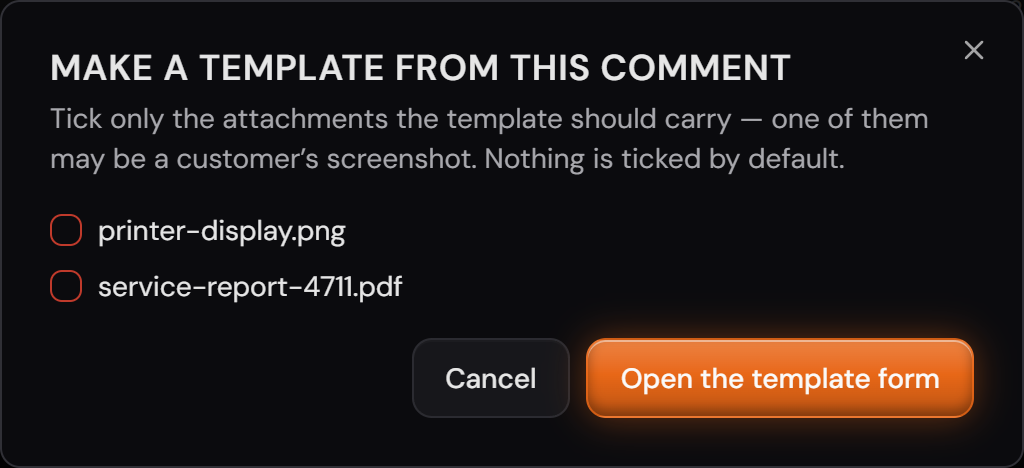
If the ticket has attachments, a dialog first asks which ones should come along: “Tick only the attachments the template should carry — one of them may be a customer’s screenshot. Nothing is ticked by default.” Nothing is pre-ticked, and that is on purpose.

After that you land on the templates page with a draft that is NOT saved yet. At the top sits the amber banner “Draft from ticket #… — name it and review the text (it may contain customer details), then save.” The name is empty: you have to give one, otherwise it will not save.

What is carried over: the text, the “Internal note” checkbox, the ticket’s team, and the ticket’s state as a suggestion — its status and its priority are already sitting there as two actions. What is not carried over: requester, address and title. Those belong to this one case.

Read the text before you save. It comes from a real case and may hold a person’s name, an order number or a room. Nothing is anonymised for you — the banner says so, but doing it is your job.

Only “Save” creates the template; the ticked attachments are then copied over and confirmed with a message.

A comment on a ticket with the red-framed “Make template” sheet icon next to the edit and delete buttons.
The path starts at the comment, not in the settings: the sheet icon on the right of the answer you want to reuse.Open image at full size
The “Make a template from this comment” dialog with the ticket’s two attachments, neither of them ticked.
Two attachments hang on this ticket, neither is ticked. One of them is the customer’s own screenshot — that does not belong in a library of stock answers.Open image at full size
6

Drafts stay private until published; scoped per team or global

“Applies to” decides who gets offered the template: one particular team or “All teams”. A new template starts with a concrete team — “All teams” is a choice somebody has to make, not a silent default.

On a ticket you are offered the templates of the owning team plus the global ones. If the ticket moves to another team after a hand-over, the list moves with it — the new team’s templates are what you can pick from.

The “Draft” switch turns the template into your workshop: “Only you can see this template until you publish it.” Somebody else’s draft appears in no list and cannot be reached by its address either — not even by administrators. A new template starts as a draft; only when you switch that off and save do the others see it.

Two templates may not share a name if they can meet: a global one collides with any template of the same name, in any team. A reply template and a ticket template may share a name, though — they never appear side by side in the same list.

“Duplicate” makes a copy, and the copy is always a draft: “Duplicated. The copy is a draft only you can see.” That is the comfortable way to a variant without anyone else being offered the half-finished version.

The head of a template with the “Reply template” and “Draft” badges, the red-framed “Applies to” field and the equally framed “Draft” switch.
This template belongs to the helpdesk and is a draft. Nobody but its author sees it.Open image at full size
7

Ticket templates: new-ticket form prefilled (title, description, category, priority, team)

A ticket template fills the “Create new ticket” form. It has no answer text, no actions and no mail — at this moment there is no ticket for anything to act on. The form therefore shows different fields than for a reply template, and the green frame tells you that you are looking at a ticket template.

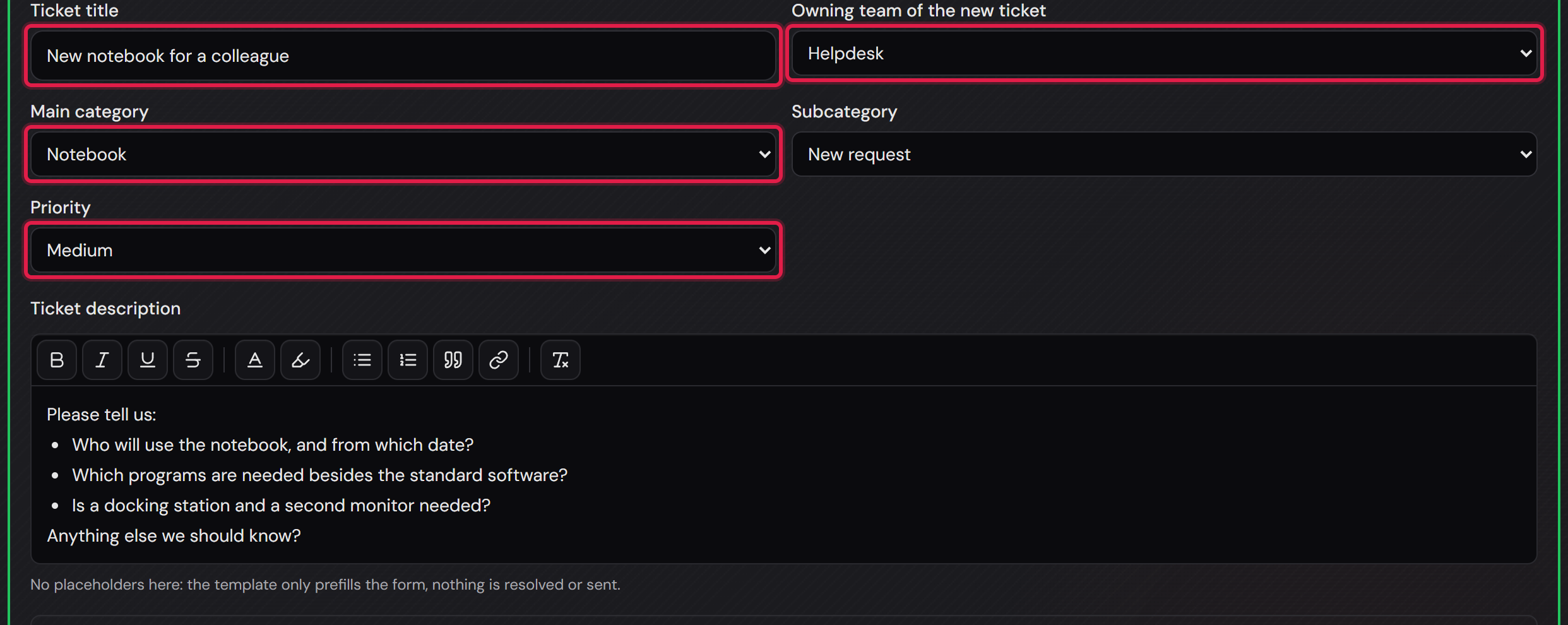
You can prefill “Ticket title”, “Owning team of the new ticket”, “Main category”, “Subcategory”, “Priority” and the “Ticket description”. Every field may stay “Not prefilled” — whatever stays empty is filled in later by whoever uses the form.

Watch the difference between the two team fields: “Applies to” at the top says WHO sees the template. “Owning team of the new ticket” says WHERE the new ticket goes. Those are two different questions, and they may have different answers.

The categories are grouped by team, because a category belongs to a team. If you pick one from another team, the form tells you and saving is refused: on the target team’s new-ticket form that category would not be on offer at all, so the prefill would come to nothing.

There are no placeholders here, and the hint below the text says so: “No placeholders here: the template only prefills the form, nothing is resolved or sent.” A “{requesterName}” would end up literally in the new ticket — which is why it is refused at save time.

The blue box sums up what the template does here as well: “Prefills the new ticket with title ‘New notebook for a colleague’ · category Notebook / New request · priority Medium · team Helpdesk · the description.”

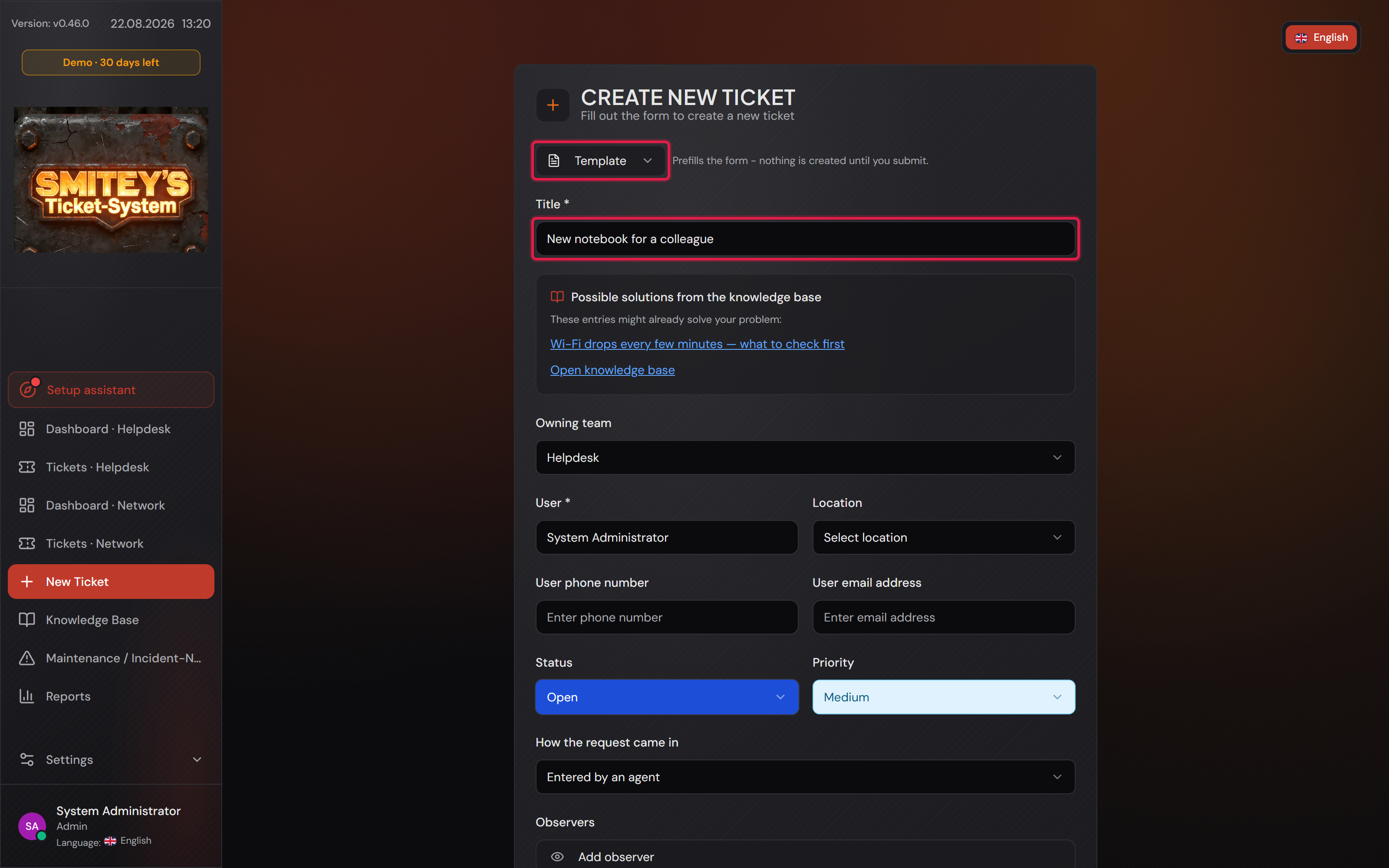
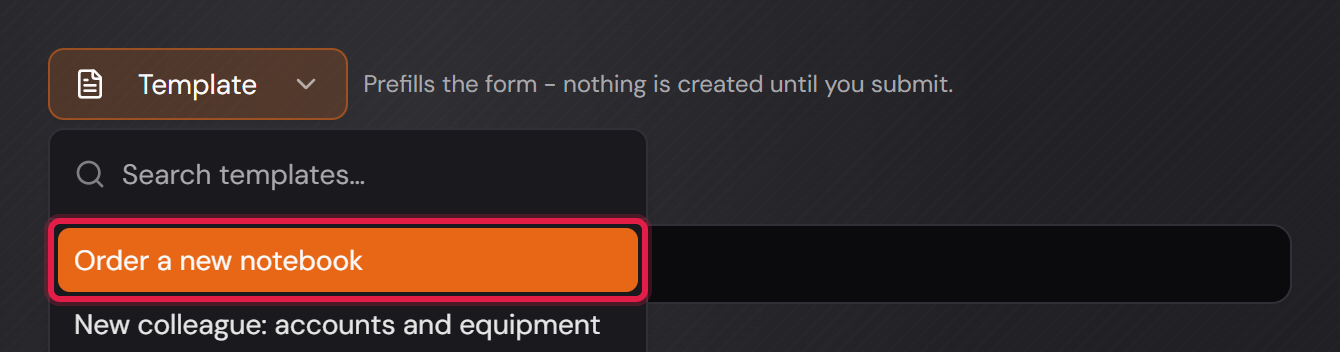
On the form itself you pick the template with the “Template” button; next to it stands “Prefills the form - nothing is created until you submit.” Everything prefilled can still be changed, and nothing is created until you submit.

One example template is shipped with the system: “Example: create accounts for a new colleague”. It shows the shape of the thing and does nothing on its own — rebuild it or delete it.

The editor of a ticket template with the red-framed fields for title, target team, category and priority.
Five prefills plus the description. The “Owning team of the new ticket” field is not the scope above it — it says where the ticket goes.Open image at full size
The “Create new ticket” form after picking a template: the “Template” button and the prefilled title are framed in red.
The same form as always, only already filled in: title, team and priority are there. Category and description follow further down the same page.Open image at full size
8

Ticket templates can be released to customers per template

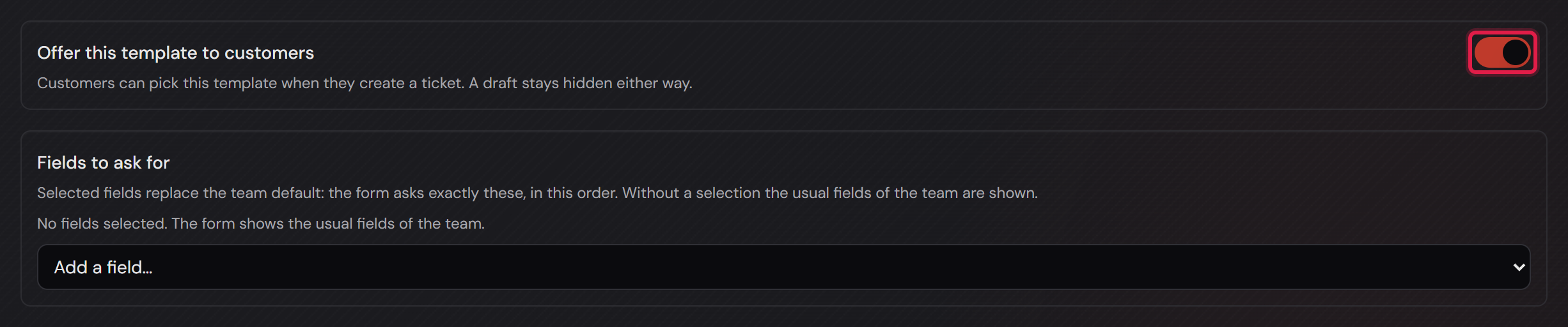
The “Offer this template to customers” switch is off out of the box. The hint next to it says both things you need to know: “Customers can pick this template when they create a ticket. A draft stays hidden either way.”

Why it is off by default: a template is often named in internal vocabulary and written for colleagues. Making it visible to customers is a statement to the outside world — somebody should make it deliberately, not by accident.

The customer sees the same “Template” button above the new-ticket form, but only the released templates. A draft stays hidden even with the switch on — the two rules sit one behind the other, not side by side.

The point is not convenience, it is the first contact: a request that arrives complete saves the round of questions that would otherwise cost two days. Put those questions into the template’s description — the customer answers them while creating the ticket.

You can go further with “Fields to ask for”. The template then decides which custom fields the form asks for, in which order, and which of them are required. That selection REPLACES the usual fields of the team, it does not add to them. That is exactly its purpose. Custom fields themselves are part of Professional; their card is called “Custom fields”. Releasing a template to customers works in every edition.

A field that is hidden from customers stays hidden, even if a template lists it. The field selection is a tool for order and for cut, not a way around the field settings.

The red-framed “Offer this template to customers” switch with its hint text.
One switch per template — here it is on, so this template is offered to customers. The hint says outright that a draft stays hidden regardless. Below it sits the field selection.Open image at full size
The new-ticket form as a customer sees it, with the template list open and the released templates in it.
The same list on the customer’s side: it holds only the released templates. The other ticket templates of this installation do not appear here.Open image at full size
9

Every use traceable in the ticket history

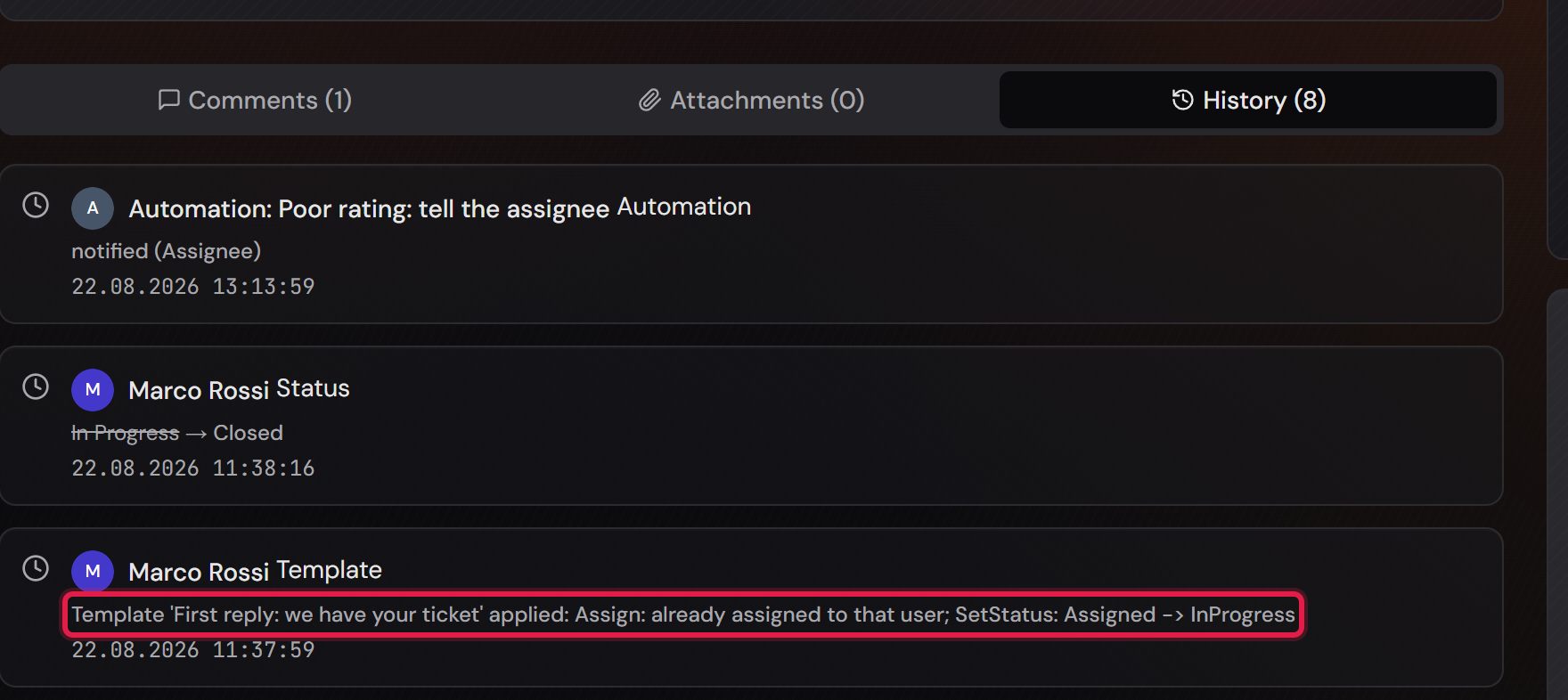
Every use that does more than insert text writes ONE entry into the history, under the field name “Template”. It names the template. The actions that ran write rows of their own. Without it there would be no way to explain later why a ticket suddenly jumped to “In Progress”: the individual actions do write their own rows, but none of them names the template.

The picture reads: “Template ‘First reply: we have your ticket’ applied”. What the template did stands in the rows of its own actions, such as the change of status.

Deselected actions are not in it: they did not happen. A failure is in it, and it is named as one, behind the word “failed”. A plain text template without actions, mail or attachments leaves no “Template” entry on a single ticket. It only inserted text. Applied to several tickets at once, the entry is always written, together with the internal “Bulk” row.

The entry is INTERNAL — the requester does not see it. A template’s name is internal vocabulary (“standard rejection”), and the history is open to the ticket’s creator as well. The field changes themselves stay visible to them; only their origin in a template does not.

The author is the agent, not “system” and not the template. That is deliberate: applying it was their decision. Unlike an automation rule, what stands on the ticket here is a person.

The history of a ticket with the red-framed “Template” entry naming the applied template, and the rows of its actions.
One entry per use, with the agent as its author. Every action that ran writes a row of its own. The template entry says where they came from.Open image at full size

The screenshots are from version 1.3.1. Nothing on the screens shown changed up to version 1.13.3. The only thing that looks different is the version number at the bottom of the sidebar.