Backup & restore

Backups have an application of their own. It ships with the system and the installation sets it up, so there is nothing to buy and nothing to configure. This block shows what it saves, when it runs and how you get everything back when it matters. This whole block is part of Basic.

1

The application for backup and restore

The application is called “Ticket System Backup & Restore”. It sits next to the ticket system and has its own shortcut on the desktop.

There is a version for Windows and one for Linux. It is the same application, just built for each operating system.

It has six tabs. “Restore” lists the backups you have, “Create Backup” makes a new one, “Schedule” handles the timing, “Encryption” shows the recovery key, “Settings” shows the paths and “Log” the protocol.

The settings are filled in already. On its first start the application works out for itself where the ticket system lives.

The folder for the backups is under “Backup directory”. You can change it, for example to a different drive.

On Windows the application asks for administrator rights when it starts. Its settings apply to every administrator of the computer and live in “%ProgramData%\SMITEY\backup-app”.

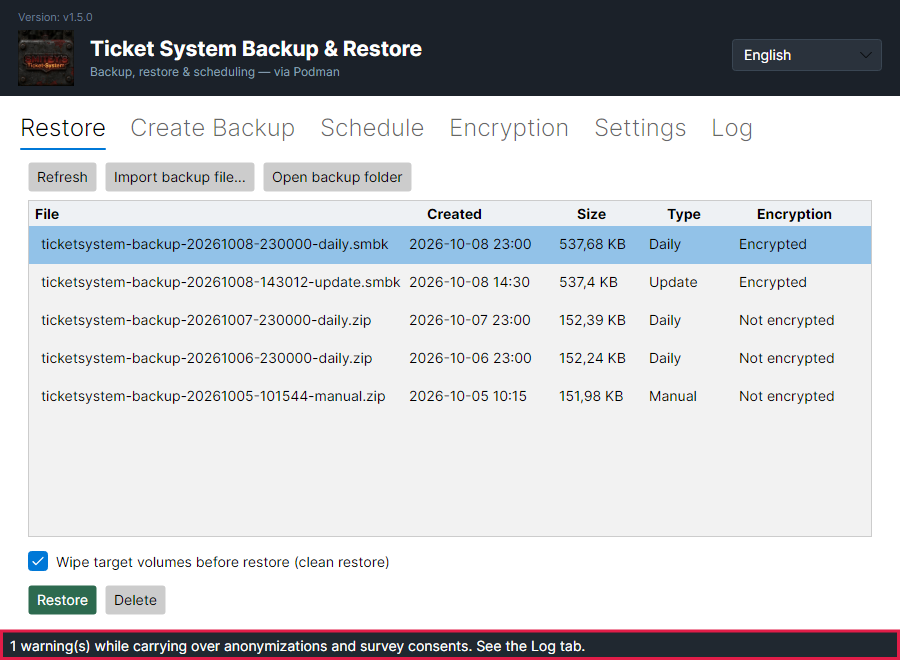
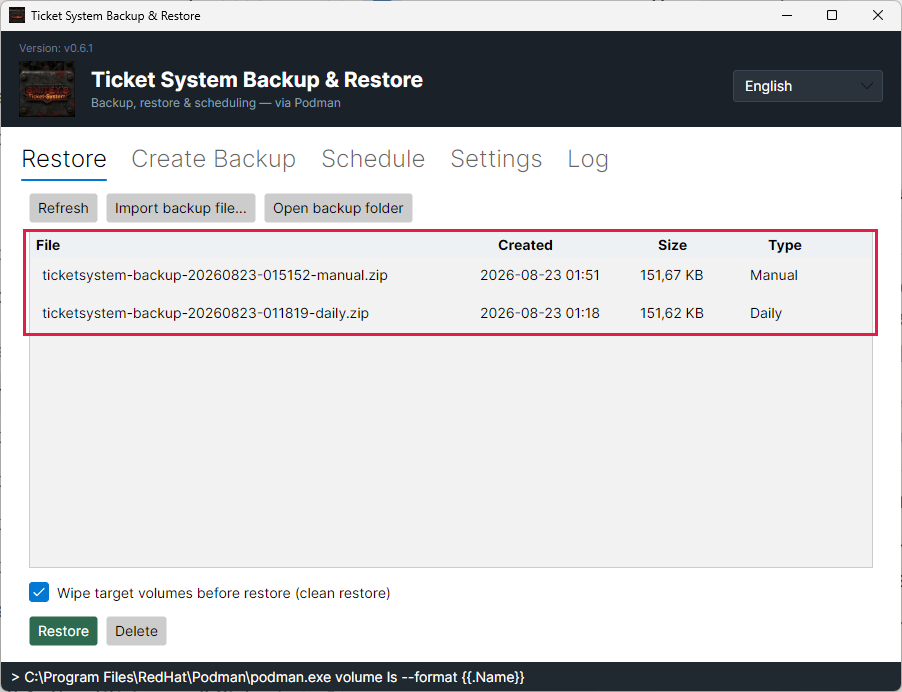
The “Restore” tab with five backups, each with time, size, type and encryption.
The red frame sits on the “Encryption” column. New backups end in “.smbk” and are “Encrypted”. Older backups in ZIP format show “Not encrypted”. The “Type” column says whether a backup came from the schedule, was made by hand or was taken before an update.Open image at full size
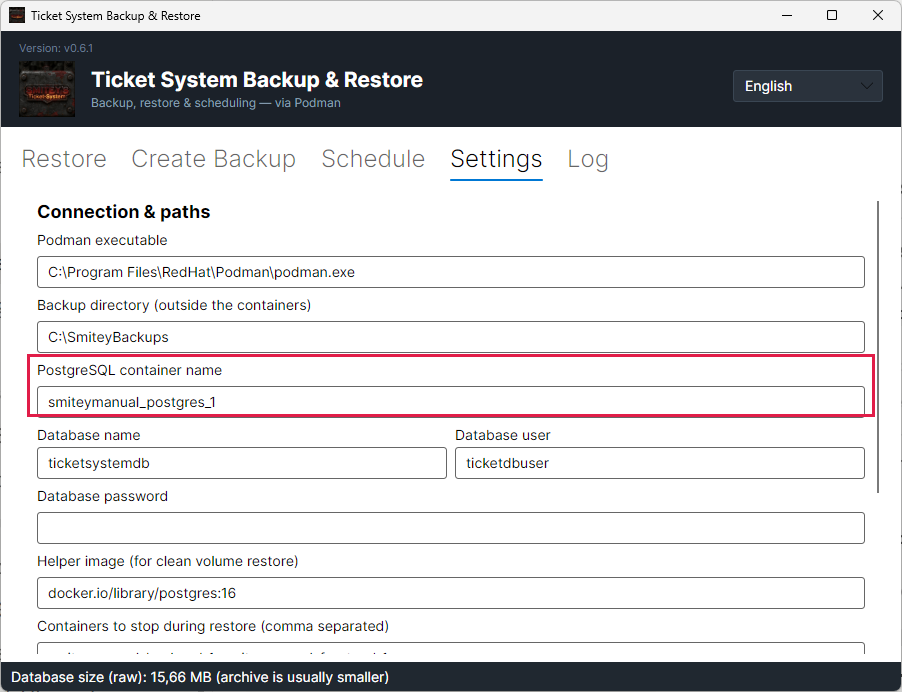
The “Settings” tab with the backup folder and the database details.
The red frame sits on the name of the PostgreSQL container. Further down are the volumes that get saved along with it.Open image at full size
2

The schedule runs from the moment you install

Before you start: On Windows the application always starts with administrator rights and registers the schedule with those rights. If Windows does not let the task run without a signed-in user, it stays bound to a sign-in, and the application tells you so.

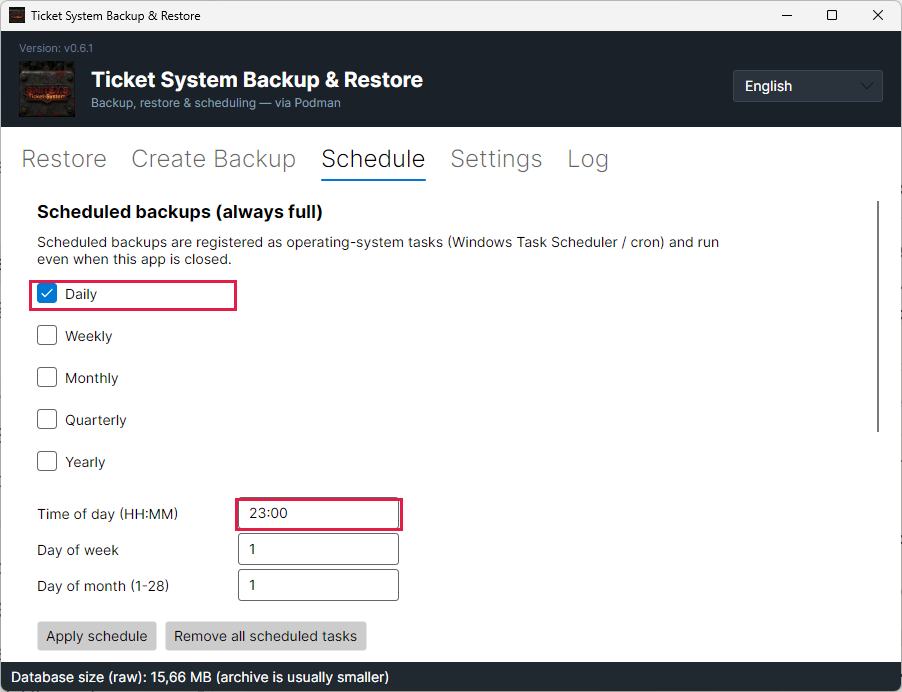
The installation sets up the daily backup by itself. It runs at 23:00 in the time zone of the ticket system.

The schedule lives in the operating system. On Windows that is Task Scheduler, on Linux the cron service. So there is no extra service running just for backups.

The backup does not need anyone signed in. On a server where nobody ever logs on it still runs.

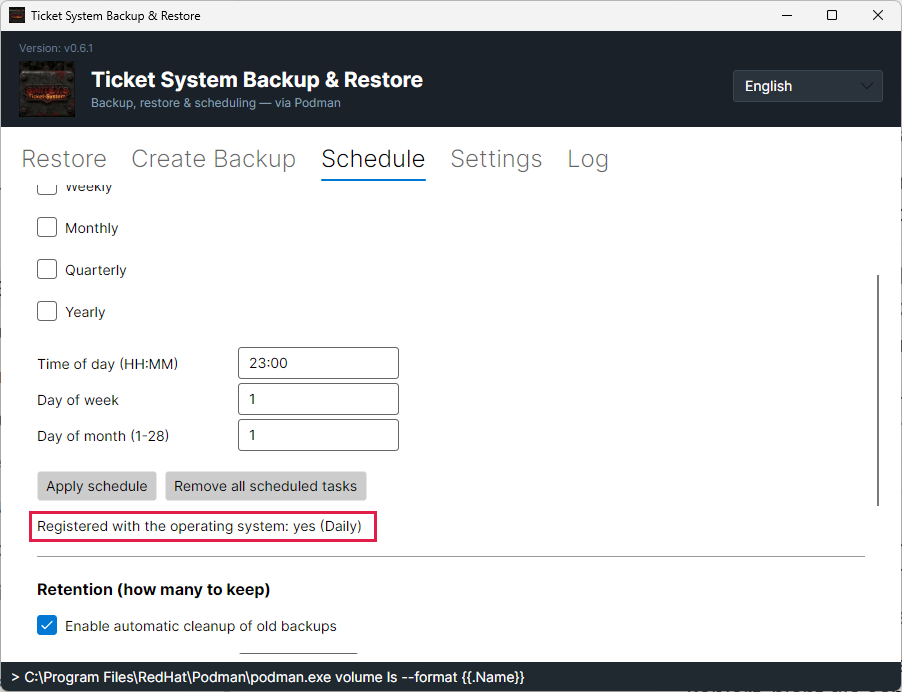
The line below the buttons tells you whether the task really exists in the operating system. A ticked box only says what was saved.

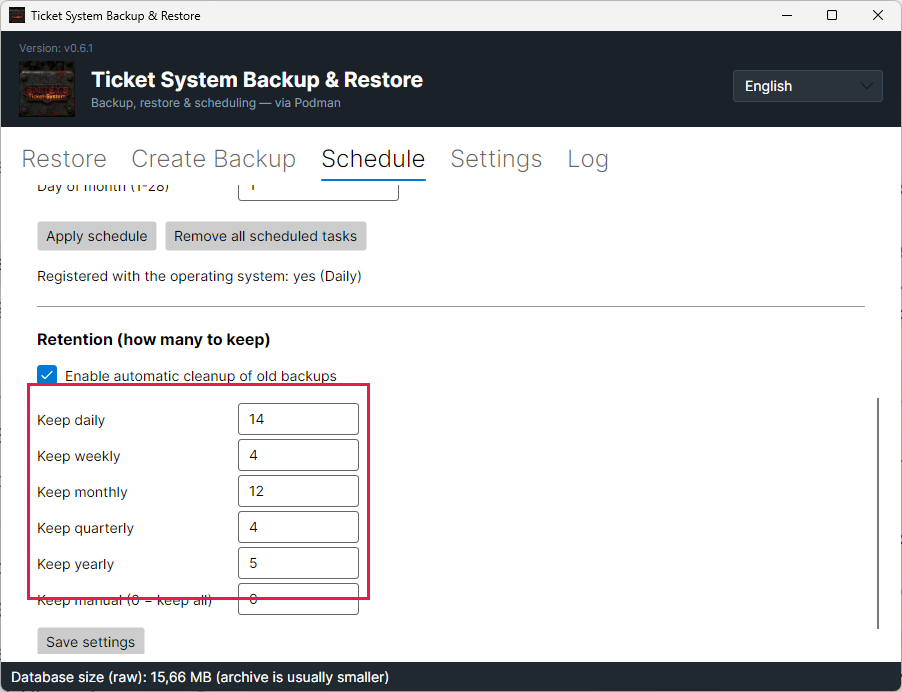
Backups are kept in five tiers: 14 days, 4 weeks, 12 months, 4 quarters and 5 years. A backup stays as long as it is the newest of its period in one of those tiers.

What counts are calendar days, not files. Two backups on one day are one day.

Backups you create by hand are never deleted automatically. That is what the 0 at “Keep manual” means.

If you change the schedule, your change survives an update. The installation only sets it if you have never set a schedule. If you switched the backup off, it stays off. “Remove all scheduled tasks” lasts as well: an update does not set the schedule up again afterwards.

The “Schedule” tab with “Daily” ticked and the time set to 23:00.
The red frames sit on “Daily” and on the time. The sentence above names both ways: Task Scheduler and cron.Open image at full size
The line “Registered with the operating system: yes (Daily)” below the buttons.
This line is checked again on every start. If it says “NO”, nothing runs on its own — then use “Apply schedule” as an administrator.Open image at full size
The six retention fields: 14, 4, 12, 4, 5 and 0.
The red frame sits on the tiers. “Keep manual (0 = keep all)” means backups made by hand are kept.Open image at full size
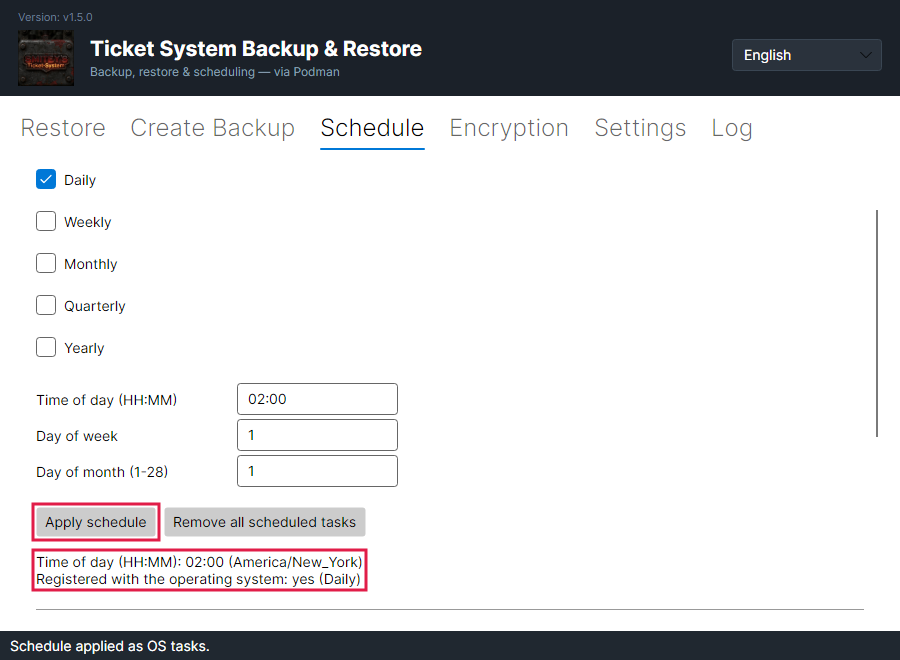
The “Schedule” tab after “Apply schedule”, with “02:00 (America/New_York)” and “Registered with the operating system: yes (Daily)” below.
The red frames sit on “Apply schedule” and on the lines below it. The brackets show the time zone of the ticket system. The time applies in that zone and not in the time zone of the computer.Open image at full size
3

What a backup contains

A backup contains everything that makes up the state of your system. That is the database, the file attachments, the archive and the keys. Only a database outside SMITEY is missing from it.

The keys are the part that is easy to miss. They decrypt stored credentials, for example those of your mail account. Without them a restore would come back with dead credentials.

Each new backup is a single encrypted file ending in “.smbk”. It holds one file per volume, a list of its contents and the database as a text file if it is included.

The system keeps running while this happens. Your agents do not notice a backup at all.

“Estimate size” tells you up front how big the database is. The volumes with the attachments come on top. The backup is not compressed.

Nothing is ever overwritten. Every backup is a file of its own, and only the cleanup removes old ones.

Only administrators can read the backups. The same applies to the configuration file and the file with the first login in the installation folder. The installer and every update set these permissions themselves.

If your database runs on its own server and not in the SMITEY container, the application cannot back it up. Back it up with your own tools then. In that case the backup holds only the attachments, the archives and the keys, encrypted as usual. An update detects such a database by itself and switches the application over. Until then the daily backup fails on such an installation, unless you switch it over by hand first. On the command line you can also do this by hand with “config --database external”. With “config --database bundled” you switch back.

More on this in the card: Encryption and recovery key

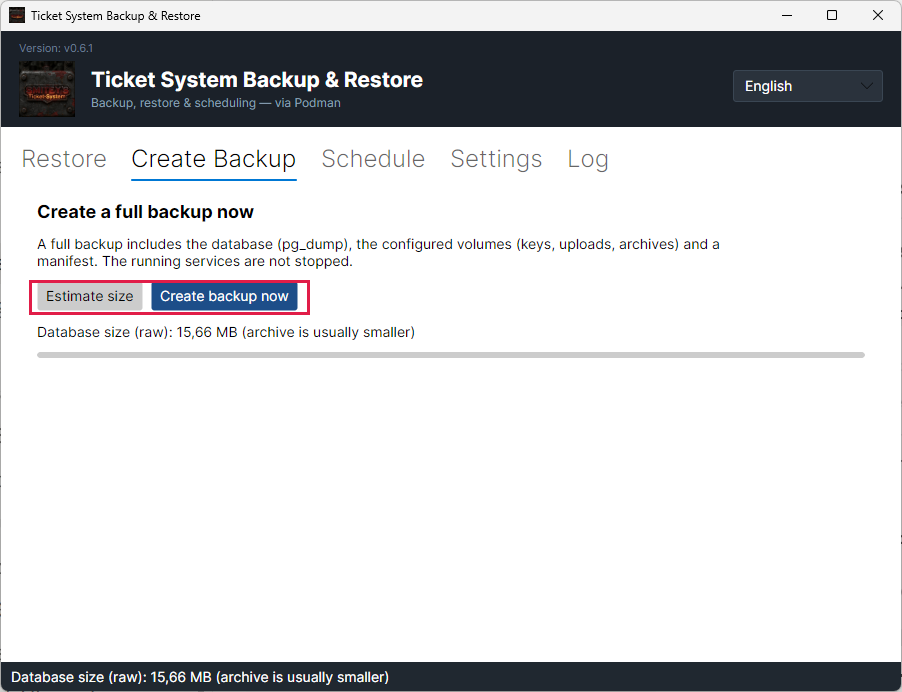
The “Create Backup” tab with the buttons “Estimate size” and “Create backup now”.
The red frame sits on both buttons. The sentence above lists what is included.Open image at full size
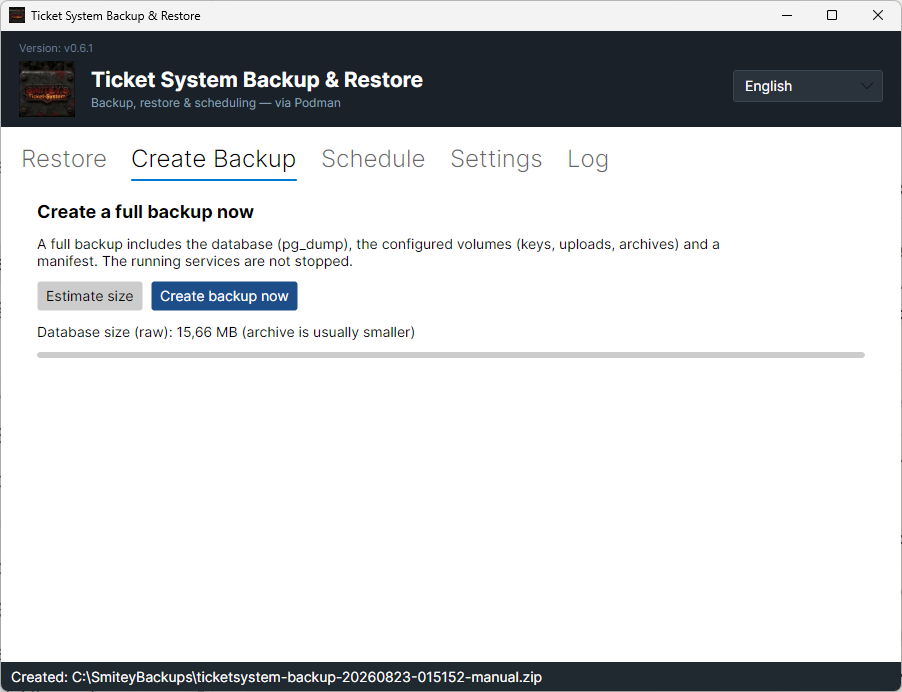
The message at the bottom with the full path of the file that was created.
After it is made the file name appears at the bottom of the window. The time is part of the name.Open image at full size
4

Encryption and recovery key

Before you start: Keep the recovery key outside the server. Without it, no backup can be opened once the server is lost. Nobody can recover it for you.

Every new backup is encrypted. This applies to backups from the schedule, backups made by hand and backups before an update. You do not have to switch anything on.

Backups are encrypted with AES-256. The installation creates the key by itself. On an existing installation it is created with the first update to a version with encryption. It is stored protected on the server. Only administrators can read it.

This protects copies outside the server. Anyone who finds a backup on a network drive, a USB stick or in online storage cannot read it without the key. Anyone who controls the server itself also has the key.

The recovery key is the same key in a form you can write down. It starts with “SMBK-”. You find it on the “Encryption” tab and in the file “SMITEY-credentials.txt” in the installation folder. If you deleted that file, you still find the key on the “Encryption” tab.

“Copy” puts the key on the clipboard. “Save to file...” saves it with the key ID and the date in a text file. Keep it for example in a password manager or on paper in a safe.

Until you confirm that the key is stored, the application shows a yellow bar at the top. To confirm, click “I stored the key outside this server” and answer the question with “Yes”. The bar then disappears. The tab then shows when you confirmed.

The key ID tells you which server a backup belongs to. If a backup does not belong to this server, the application names its key ID. It then asks for the matching recovery key.

If the application cannot read the key, it makes no backup. It does not make an unencrypted one either. In that case the “Encryption” tab says that the key cannot be read. If the key file is missing altogether, the next backup creates a new key. The yellow bar then appears again, because the new key has to be stored as well. Older backups can still only be opened with the old recovery key.

Older backups in ZIP format are not encrypted. You can still restore them. The tab shows how many there are. The cleanup removes them by the same rules as any other backup.

On a server without a desktop, “key --show” shows the same on the command line.

More on this in the card: Getting everything back, On a server without a desktop

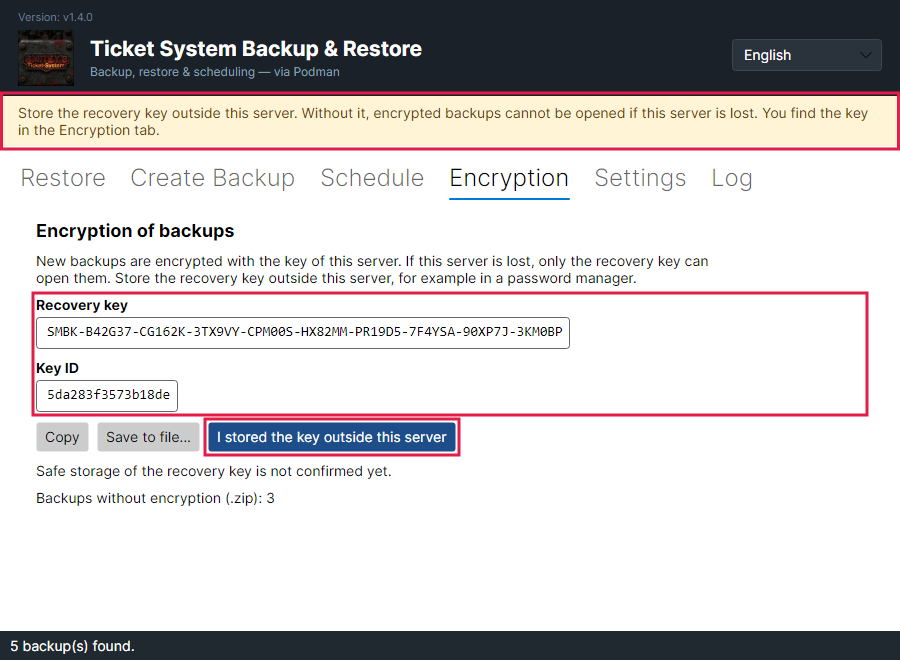
The “Encryption” tab with the recovery key, the key ID and three buttons. The yellow notice bar is at the top.
The red frames sit on the notice bar, on the key and key ID and on “I stored the key outside this server”. The key in the picture comes from a test environment.Open image at full size
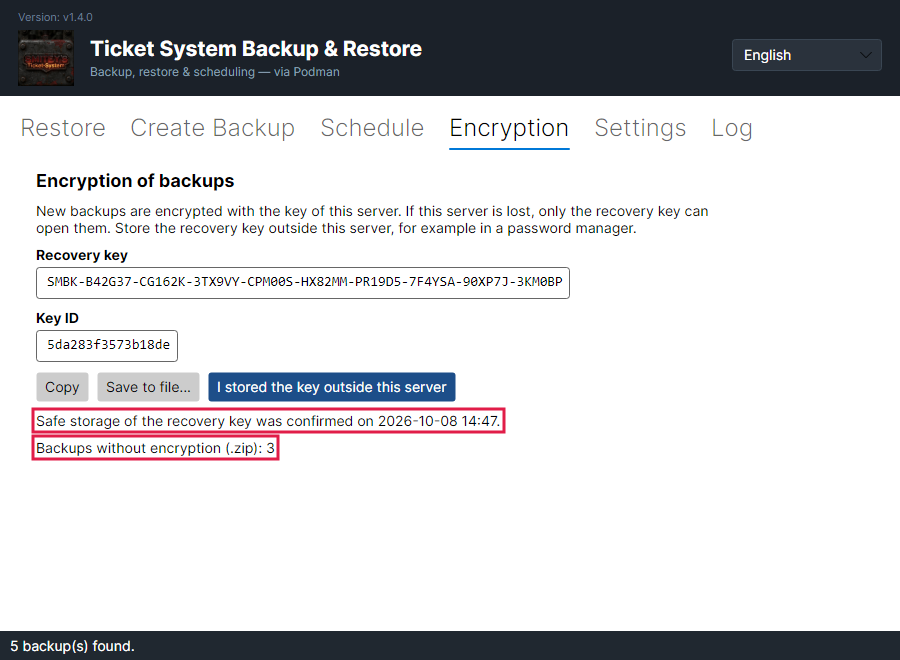
The same tab after the confirmation, without the notice bar.
The upper frame sits on the time of the confirmation. The lower one shows how many backups are still not encrypted.Open image at full size
5

Getting everything back

Before you start: A restore overwrites today’s state. Everything created since the chosen backup is gone afterwards.

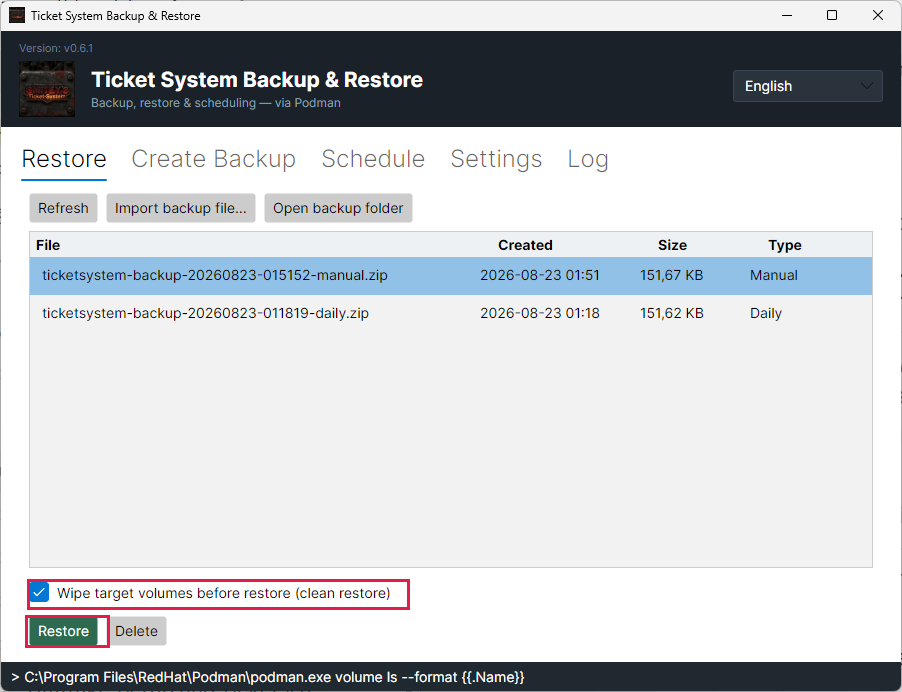
In the “Restore” tab you pick the backup you want back. Then you click “Restore”.

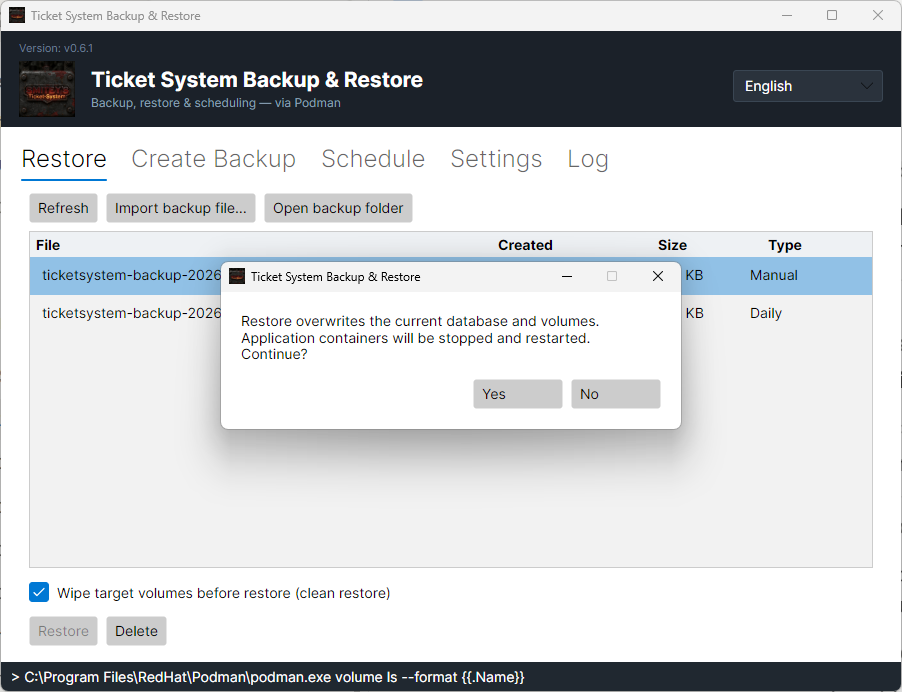
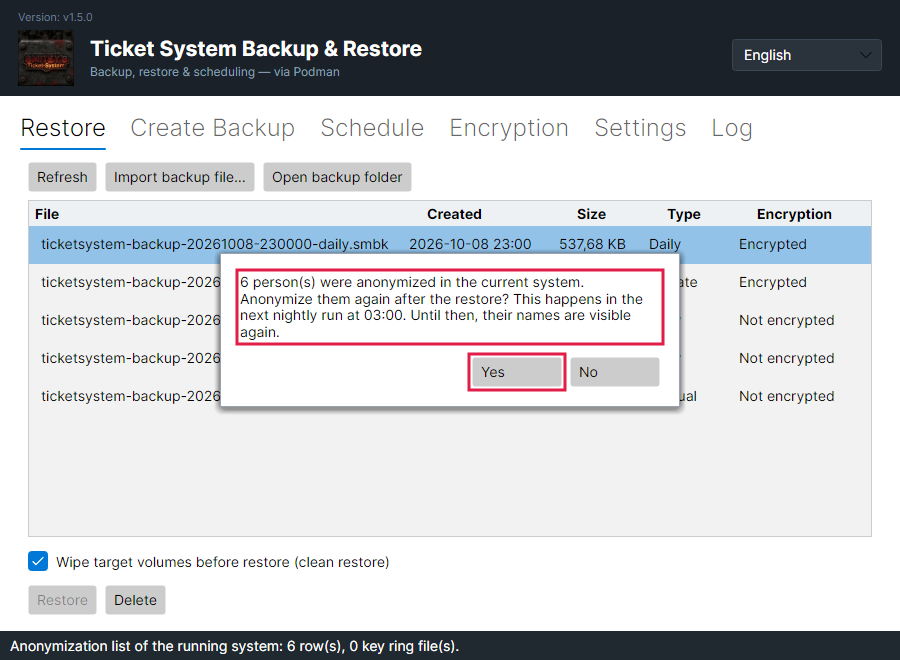
The application asks first. It says what will happen: today’s state is overwritten, and the application restarts the containers. If people are anonymized in today’s state, a second question follows. It names how many and asks whether to anonymize them again after the restore. “Yes” is preselected. With “No” the backup is restored without this step. If you close the window instead, nothing is restored.

The tick “Wipe target volumes before restore” empties the volumes first. That way no file is left behind that did not exist when the backup was made.

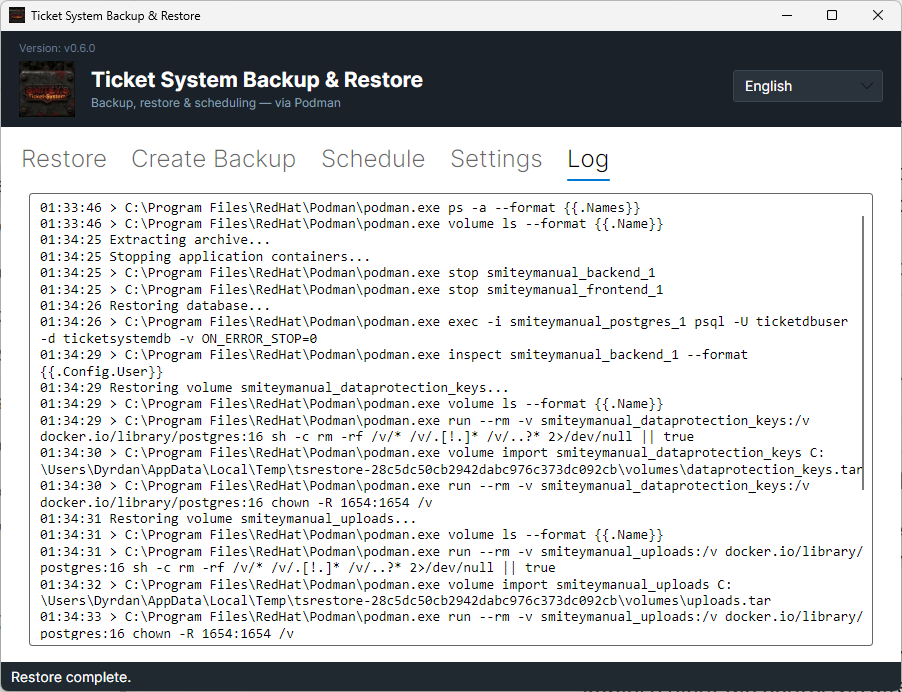
The steps appear in the “Log” tab. There you see one by one what the application did. If you answered “Yes” to the second question, a line at the end says how many anonymizations the ticket system applies again in the nightly run. If they cannot be carried over, the log shows a warning instead. If there were warnings, the status line at the bottom of the window says how many.

If the backup contains the database, the complete state comes back. Tickets, comments, history, file attachments, logged time and the knowledge base are all there again as they were at the time of the backup.

After that the system is usable again. On a small installation this takes less than a minute.

If the backup contains the database, it comes back completely or not at all. The volumes follow after it. If a volume fails, the database is already back but files can be missing; the “Log” tab shows which step failed. In every case the application starts the containers again afterwards, even if the restore failed.

A backup from an older version can be restored into a newer one. On its next start the system brings the database up to its own version.

Consents and unsubscribes for the satisfaction survey are carried over without a question. This also applies if you answer the second question with “No”. The application reads them from the running installation before the restore. Afterwards a line in the “Log” tab gives the number, for example “12 consent and unsubscribe record(s) were carried over.” The ticket system takes them over at its first start. A consent or unsubscribe made after the backup therefore stays valid. If the transfer fails, the log shows a warning. The restore still counts as successful.

The application first checks an encrypted backup completely. Meanwhile the status line says “Checking the encrypted backup before anything is changed...”. Only then does it stop the containers. If the file is damaged or was altered, it stops and reports “The backup file is damaged. Nothing was changed.”

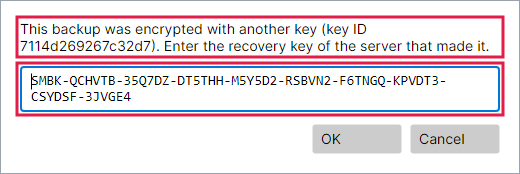
If the backup comes from another server, the application asks for that server’s recovery key. This happens after the questions. The window “Recovery key needed” names the key ID of the backup. The same window appears if the key of this server is missing.

A typing error is noticed before anything is changed. The status line then reports “The recovery key has a typing error. Check each character.” After that the window asks again. If the key belongs to another backup, the status line reports “This recovery key does not belong to this backup.” With “Cancel” the application stops and reports “Restore cancelled. Nothing was changed.”

The application does not adopt the key you entered. It keeps its own. New backups are still made with the key of this server. If you restore on a new server, store that server’s recovery key as well.

A backup without a database restores only the attachments, the archives and the keys. Existing keys are kept. The database stays as it is. The application says so before the restore and asks. With “No” nothing is changed.

If the installation is set to its own database, the application skips the database part even when the backup contains a database. This applies to an older backup, for example. The application asks first. With “No” nothing is changed.
A selected backup in the list, with the tick and the “Restore” button below.
The red frames sit on the tick and on “Restore”. Without a selected row the button stays off.Open image at full size
The confirmation before the restore with the buttons “Yes” and “No”.
The question names both consequences: today’s state is overwritten, and the containers are restarted.Open image at full size
The protocol after the restore, with the message “Restore complete.” at the bottom.
Every step is there with its time. At the end the application reports “Restore complete.”Open image at full size
The second question “6 person(s) were anonymized in the current system.” with the buttons “Yes” and “No”.
The red frames sit on the question and on “Yes”. “Yes” is preselected. The number counts the people who are anonymized in today’s state.Open image at full size
The status line after the restore: “1 warning(s) while carrying over anonymizations and survey consents. See the Log tab.”
The red frame sits on the status line. It only gives the number of warnings. What exactly happened is in the “Log” tab.Open image at full size
The request for the recovery key with the key ID of the backup, an input field and the buttons “OK” and “Cancel”.
The red frames sit on the question with the key ID and on the input field. Hyphens, spaces and upper or lower case do not matter when you type the key. The key in the picture comes from a test environment.Open image at full size
6

On a server without a desktop

A server often has no desktop. So the same application also works as a command.

Five commands are what you need day to day: “backup” saves, “list” shows the backups you have, “restore” brings one back, “schedule” sets the timing and “config” shows the settings. For the key, “key” and “decrypt” come on top.

Behind them is the same application as in the window. There is no second path that does something different.

The application sits in “/opt/smitey/Backup”. You call it with “sudo” and add the command. The containers run as “root”, so the backup needs those rights too.

You can copy the six boxes below. They cover what is really needed in day-to-day use.

A restore asks here as well. It only runs when you add “--yes”. It then also carries over the anonymizations of today’s state, like “Yes” in the window. With “--no-reapply” it runs without this step.

There is a file on the server to read up on all this. It is called “BACKUP-RESTORE.txt” and sits in “/opt/smitey”. It goes through the schedule, every command and the way back once more, at your own pace. It exists in German and in English: if you chose German during the installation, you get the German one, otherwise the English one. Both versions also sit under “/opt/smitey/docs”.

“key --show” shows the recovery key, the key ID and the number of unencrypted backups. Once the key is stored outside the server, you confirm that with “key --confirm-stored”.

You restore a backup from another server with “--key-file”. The file you name contains the recovery key. The file from “Save to file...” works for this as well. Instead of the file you can also use the environment variable “SMITEY_BACKUP_KEY”. With “sudo” you put it directly before the program, that is “sudo SMITEY_BACKUP_KEY=<key> /opt/smitey/Backup/TicketSystemBackup restore …”. The key then ends up in the shell history. If the key does not match, nothing is changed.

“decrypt” writes the content of a backup as unencrypted files into an empty folder. These files are not encrypted. They contain passwords and personal data. Delete them as soon as you are done.

Show the backups you have

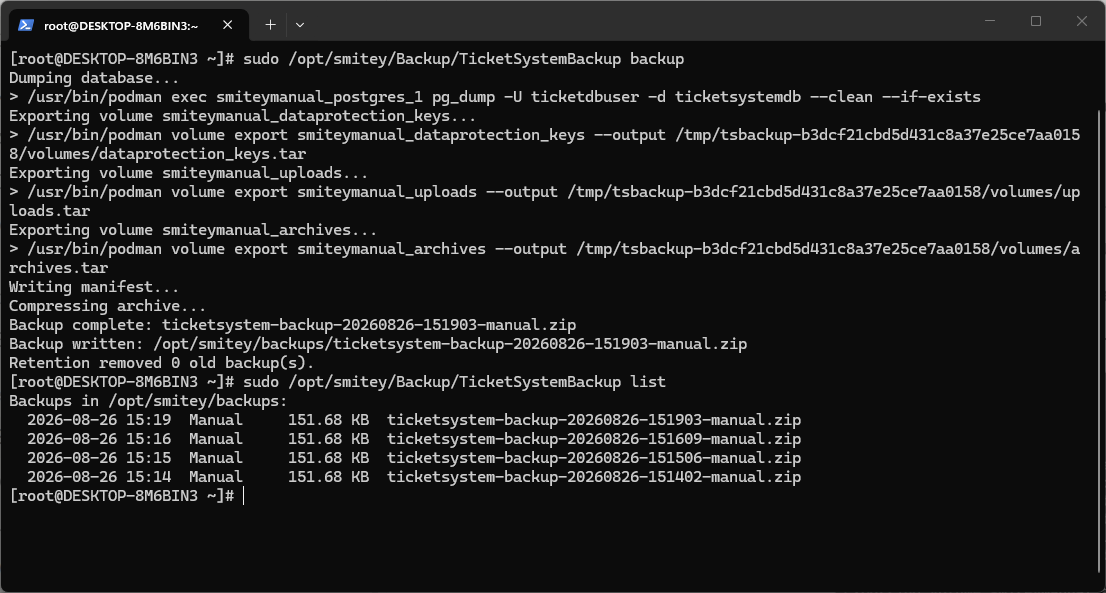
sudo /opt/smitey/Backup/TicketSystemBackup list

Each line carries the time, the reason, the size and the file name. It is the same list as in the window.

Show the schedule

sudo /opt/smitey/Backup/TicketSystemBackup schedule --show

The first line names the time that is set, with its time zone. The last one says whether the task really exists in the operating system. If it says “NO”, nothing runs on its own.

Change the schedule

sudo /opt/smitey/Backup/TicketSystemBackup schedule --daily 23:00 --keep 14

The time applies in the time zone of the ticket system. “--keep” says how many daily backups are kept. “schedule --off” switches the daily backup off.

Create a backup right now

sudo /opt/smitey/Backup/TicketSystemBackup backup

This backup counts as “Manual”. Backups made by hand are never deleted automatically.

Show the recovery key

sudo /opt/smitey/Backup/TicketSystemBackup key --show

The last line says whether you have already confirmed that the key is stored. The command does not create a key.

Restore a backup from another server

sudo /opt/smitey/Backup/TicketSystemBackup restore <file>.smbk --yes --key-file /root/recovery-key.txt

Replace <file> with the name or the path of the backup. You create the file “/root/recovery-key.txt” beforehand. It contains the recovery key. The file from “Save to file...” works too.

A command line on a Linux server with the list from “list” and the output of “key --show” below it.
At the top “list” shows the backups. Older backups in ZIP format carry the note “(Not encrypted)”. Below it “key --show” gives the recovery key, the key ID and the number of unencrypted backups. The key in the picture comes from a test environment.Open image at full size
7

The backups sit on the same machine

Before you start: A backup next to the system does not protect you from a disk failure. Copy the files to another place regularly.

The backups are files in the folder you set. That folder is on the same machine as the ticket system.

For the common cases that works well. Data deleted by mistake, an update that went wrong or an error in the data are all covered.

It does not help against the disk failing. If the disk is gone, the backups are gone with it.

So copy the files somewhere else. A network drive, a second server or storage in the network are enough.

A copied file can be loaded back on any server. On a different server you need the recovery key for that. With “Import backup file…” you bring the file back into the list.

The copies are encrypted. Nobody can read them without the recovery key. So do not keep the key next to the copies. Older backups ending in “.zip” are not encrypted.

The “Settings” tab with the “Backup directory” field.
The “Backup directory” field says where the files are. That is the folder you should copy elsewhere on a regular basis.Open image at full size
8

Before every update the system saves by itself

An update takes a backup of its own beforehand. That happens independently of your schedule and without you ticking anything.

It saves the same as always: the database, the attachments, the archives and the keys. If the database runs outside SMITEY, the update backs up only attachments, archives and keys.

This backup is made by the application “Ticket System Backup & Restore”. It is encrypted like any other and sits in the same folder. In the list its type is “Update”. The three newest of these backups are kept. The application deletes older ones by itself.

The notice before the update tells you so. You do not have to remember to save first yourself.

If this backup fails, the update stops before anything is replaced. A database outside SMITEY does not hold the update up. The update then switches the application so that the daily backup leaves the database out as well. Back up this database with your own tools.

More on this in the card: An update at the press of a button

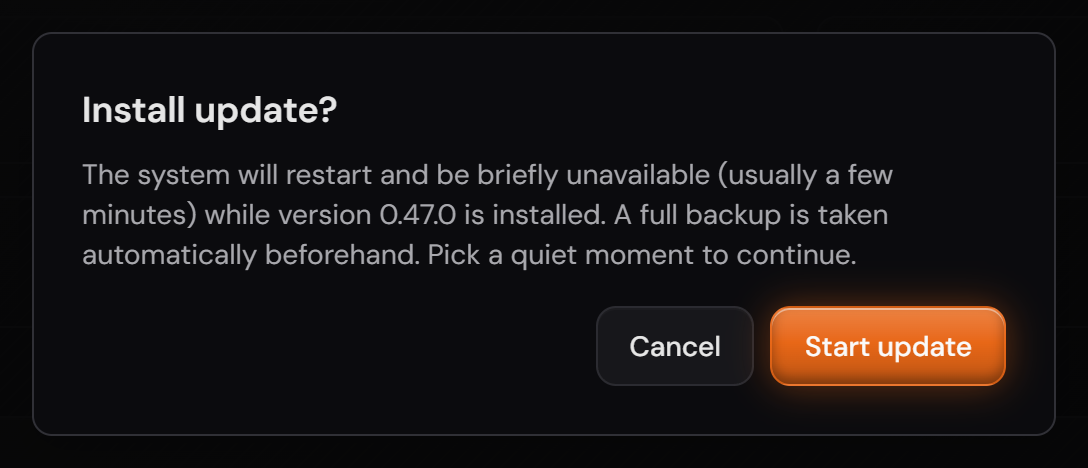
The confirmation before the update with the note about the backup.
The sentence “A full backup is taken automatically beforehand” is part of the question. The backup runs before anything is replaced.Open image at full size

The screenshots are from version 1.3.1. Nothing on the screens shown changed up to version 1.13.3. The only thing that looks different is the version number at the bottom of the sidebar.