Requests with tasks & approval

Some requests are not a single ticket. A request creates its tasks when it is filed, each as its own ticket in the team that handles it, and approvals are possible but not mandatory. This whole block is part of Professional.

1

A request creates its own tasks

Professional only

“A new colleague is starting” is not a single ticket. It is a notebook, two accounts, a phone extension and perhaps access from outside. Each piece belongs to a different team, and you still want one case that tells you where things stand.

That is what a request is for. It is a ticket that creates its tasks the moment it is filed, and each task becomes a ticket of its own in the team that handles it.

A request is not a second thing to maintain. It lives on a ticket template: under “Settings → Request workflows” you find every ticket template, and you attach the tasks to one of them.

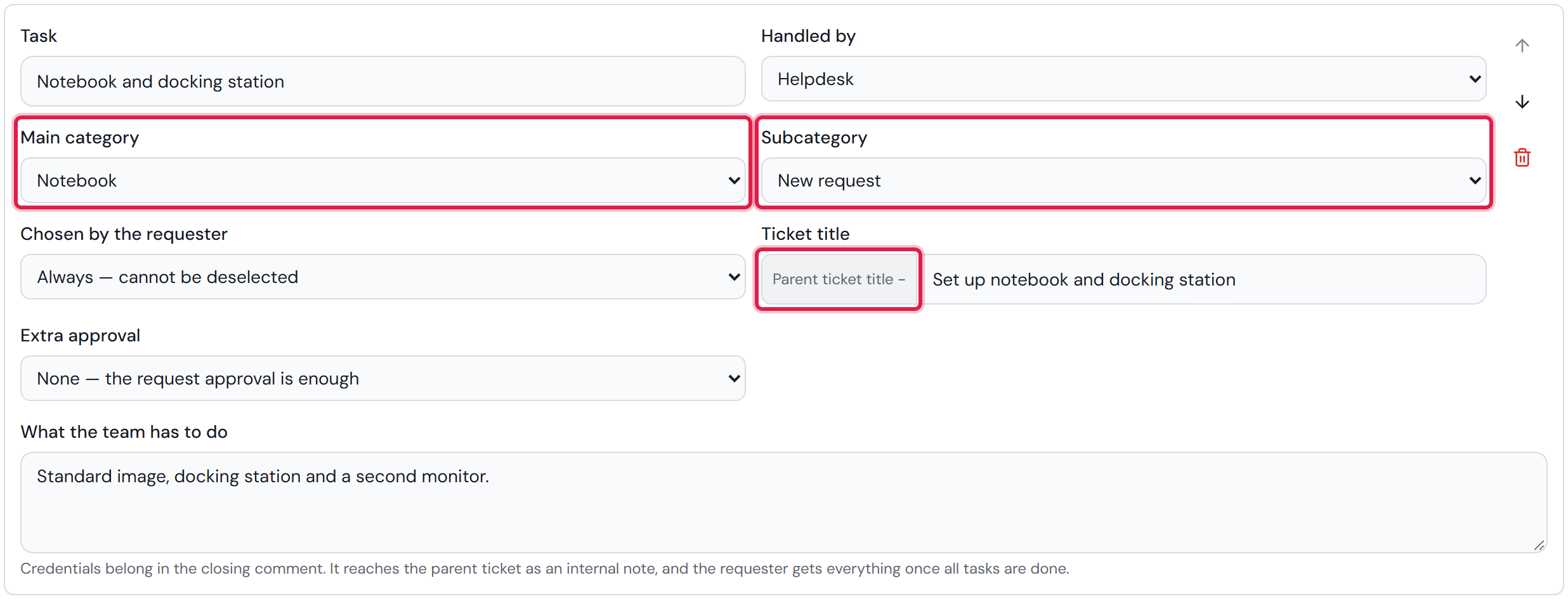
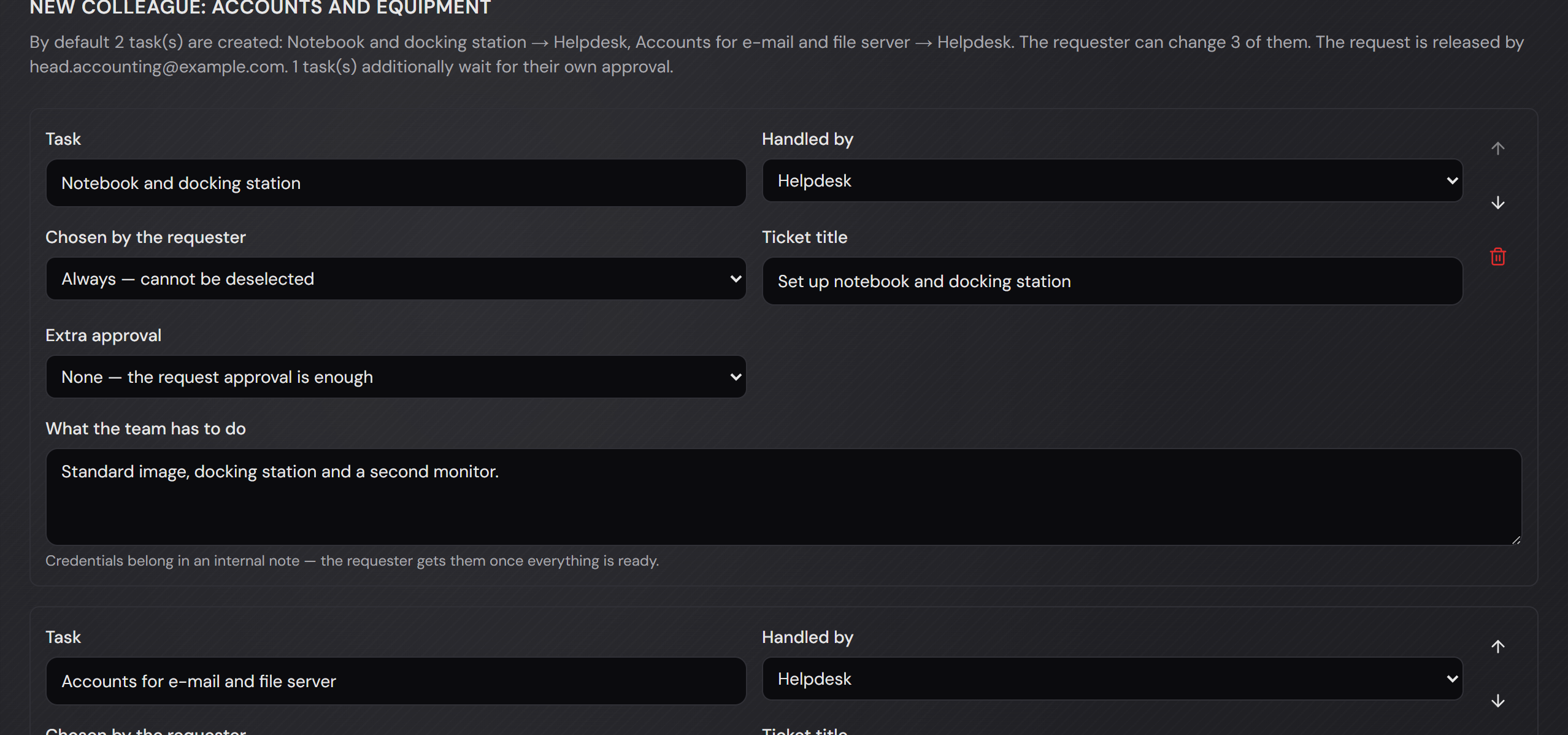
For each task you fill in a few fields. “Task” is the name the requester reads, “Handled by” is the team that gets it, and “Ticket title” and “What the team has to do” fill the ticket that comes out of it.

Several tasks may point at the same team. That team then gets several tickets, not one ticket with a list inside it.

A task without a team is not offered at all. The field says so itself: “Not assigned yet — this task is not offered”. That way you can save a plan that is not finished yet.

Above the tasks stands a sentence that sums up the whole plan: what is created as a factory setting, how much the requester may change, and who releases it. Change a setting and the sentence rewrites itself.

In front of “Ticket title” stands the fixed text “Parent ticket title -”. The new ticket starts with the title of the request, followed by your title, for example “New colleague in accounting - Set up notebook and docking station”. That way the specialist team sees which request a task belongs to. If you leave the field empty, the name of the task follows instead.

“Main category” and “Subcategory” prefill the category of the new ticket. You only get the categories of the team in “Handled by”, because that is where the ticket is created. If you change the team, both fields are cleared. You set both or neither, and if they stay empty the ticket is created without a category.

The name of the request stands above the tasks. Use the pencil next to it to rename it. The name belongs to the ticket template, so it also changes under “Settings → Templates” and in the new-ticket form.
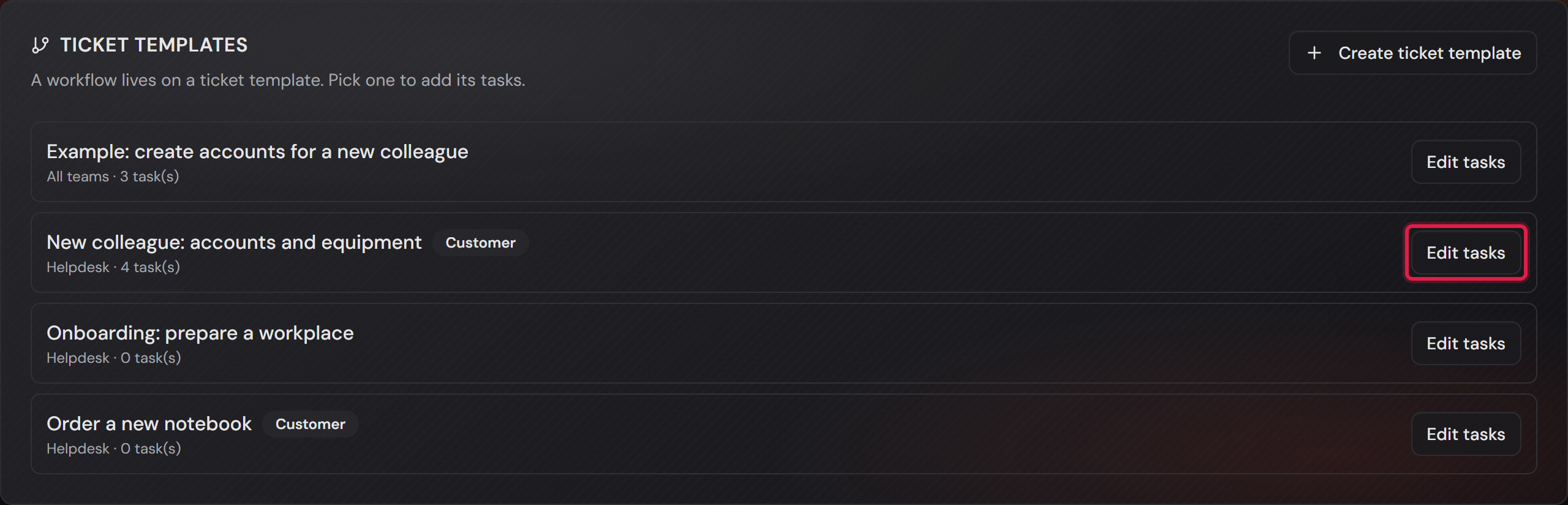
The list of ticket templates under “Request workflows”, each with its number of tasks and an “Edit tasks” button.
Every ticket template in one place, each showing how many tasks it carries. The red frame sits on the way into the plan.Open image at full size
The plan with the name of the request, the pencil for renaming, the summary sentence and the first task.
At the top the name of the request, with the red frame on the pencil for renaming. Below it stands the sentence that sums up the plan, and then the tasks follow.Open image at full size
The first task with “Handled by” set to Helpdesk, the category Notebook and New request, and the fixed text “Parent ticket title -” in front of the ticket title.
The categories come from the team in “Handled by”. The title of the request always stands in front of the ticket title.Open image at full size
2

The requester ticks what they need

Professional only

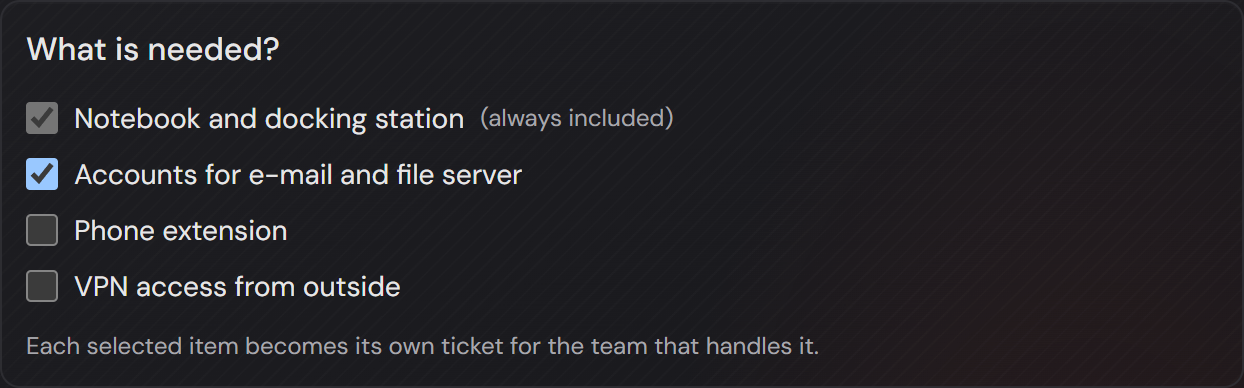
When somebody picks the template in the new-ticket form, the box “What is needed?” appears with one line to tick per task.

There are three kinds, set per task. “Selectable, off by default” starts empty, “Selectable, on by default” starts ticked and can be unticked, and “Always — cannot be deselected” always runs.

A task that always runs is still shown, marked “(always included)”. The requester should see what happens anyway.

Below the box you read what will come of it: “Each selected item becomes its own ticket for the team that handles it.”

A customer can file a request too, as long as the template is released to customers. The switch for that sits on the template.

The customer then sees only their own request. The tickets in the specialist teams stay hidden from them, even though their request created them — those tickets carry credentials and internal notes. Their internal notes do not show up in the history of the request either. When a specialist team closes its ticket, its attachments are copied into the request with the “Internal” badge, and the customer neither sees nor downloads them.

If a request arrives by e-mail, it becomes an ordinary ticket. You then start the workflow afterwards. The button “Start workflow” in the header of the ticket does that.

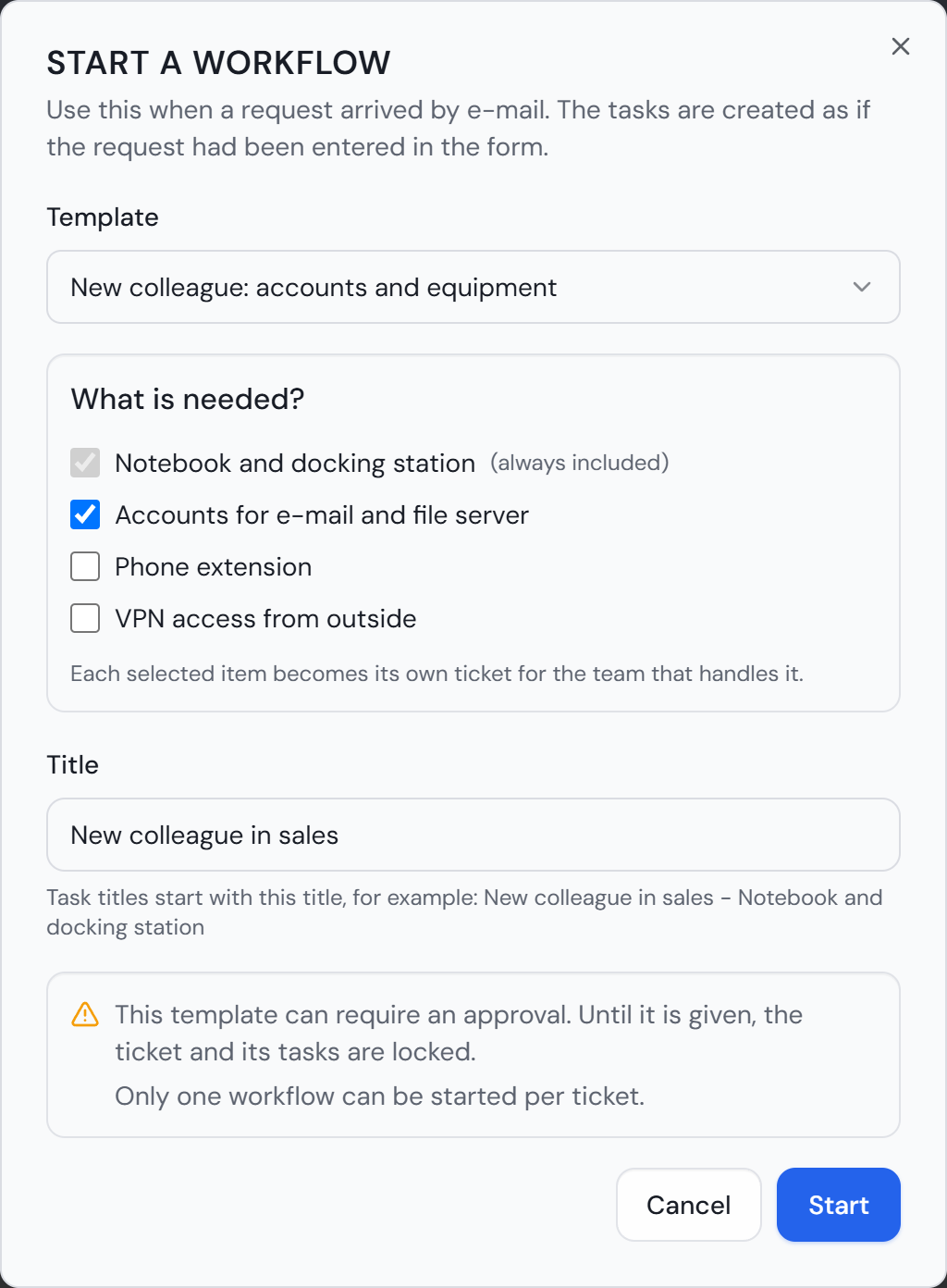
In the dialog you pick the matching template under “Template”. Below it you get the same box “What is needed?” as in the new-ticket form. Tick what the request asks for.

Under “Title” you adjust the title of the ticket. The titles of the tasks start with it. Below that you find the additional fields of the template. Enter the details from the request there. Mandatory fields carry a star.

With “Start” the tasks are created just as for a request from the form. If the template needs an approval, the ticket and its tasks stay locked until it is given.

Only one workflow can be started per ticket. After that the button disappears. It is also missing on closed tickets and on tickets that are a task themselves. Anyone who may work on the ticket can start it.

More on this in the card: Ticket templates can be released to customers, one by one

The “What is needed?” box in the new-ticket form with four tasks to tick.
The box in the requester’s new-ticket form. The first line always runs and cannot be unticked, the second is ticked as a factory setting, and below them stands what each tick will become.Open image at full size
The dialog “Start a workflow” on a ticket with the template, the tasks to tick and the title field.
The dialog on a ticket. The first task always runs. Below the title field you read what the tasks will be called.Open image at full size
3

Progress on the request

Professional only

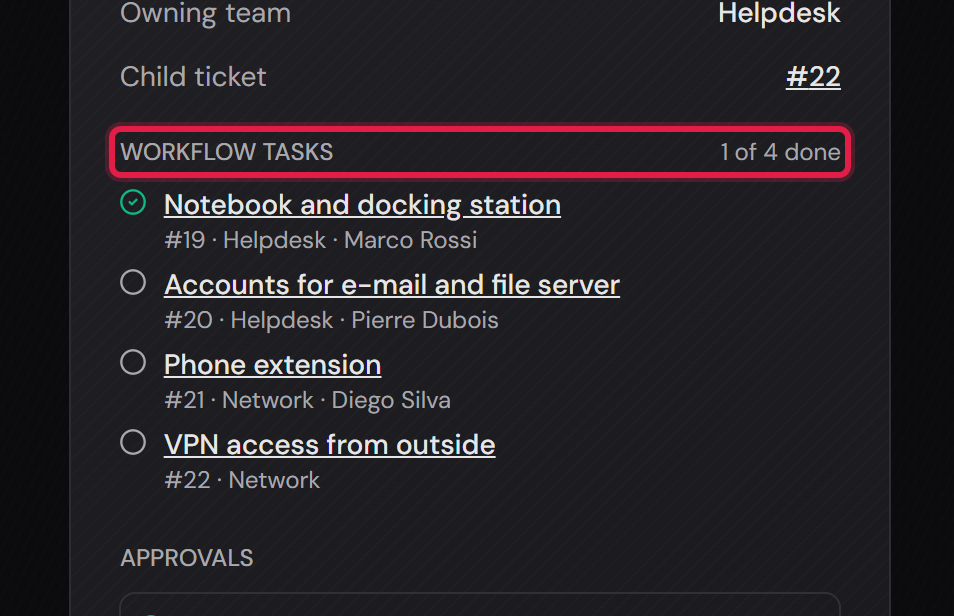
On the request itself the tasks are listed under “Workflow tasks”, with the count next to it, for example “1 of 4 done”.

Each row shows the name of the task, the number of its ticket, the team and the assignee, and the name is a link into that ticket.

“Done” comes from the status of the ticket, not from a separate tick. Whatever counts as closed in the ticket list counts as done here — two ways of counting the same thing would drift apart sooner or later.

The block only appears on a request. An ordinary ticket does not show it.

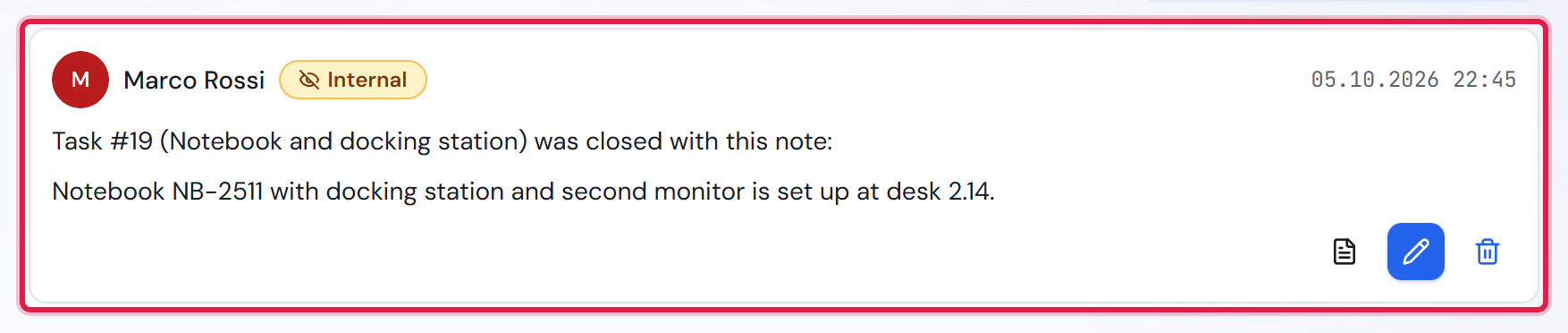
When a specialist team closes its ticket, its “Closing comment” arrives in the request. It stands there as an internal note, and its first line names the number and the name of the task. The customer does not see this note.

Credentials and everything the agent of the request should pass on belong in the closing comment. All other comments of the specialist team stay in its own ticket. If the team closes without a comment, no note is created.

The “Workflow tasks” block on the request with four tasks, their ticket numbers and teams.
The red frame sits on the row with the count. Below it, each task shows which ticket and which team it sits in; the tick on the left comes from the status.Open image at full size
An internal note on the request: the header “Task #… (Notebook and docking station) was closed with this note:” and below it the closing comment of the specialist team.
The helpdesk closed the task with a closing comment. On the request it stands as an internal note with the “Internal” badge.Open image at full size
4

One approval for the whole request

Professional only

An approval covers the whole request, not each single task. Eight applications are one mail to the manager, not eight.

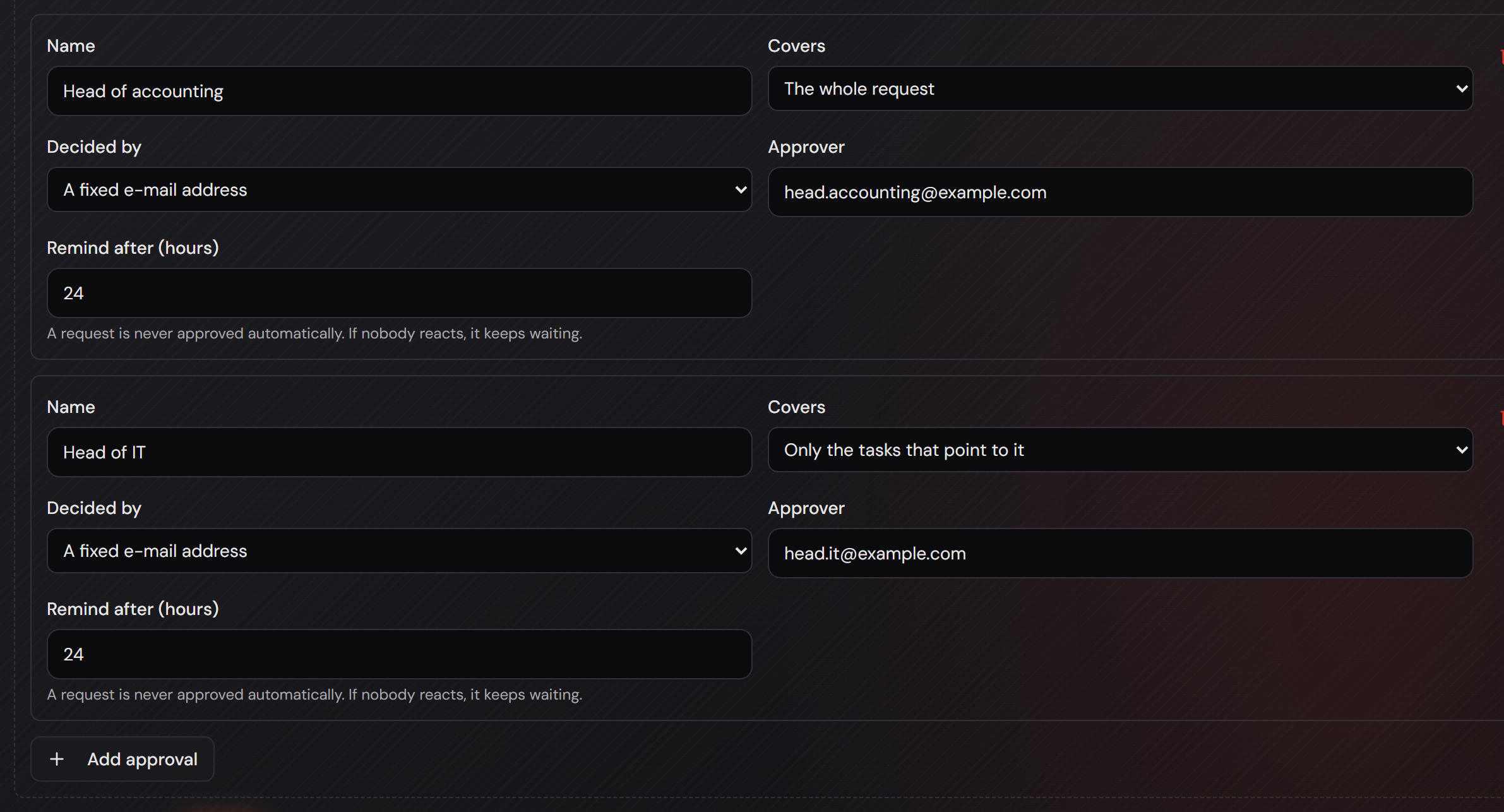
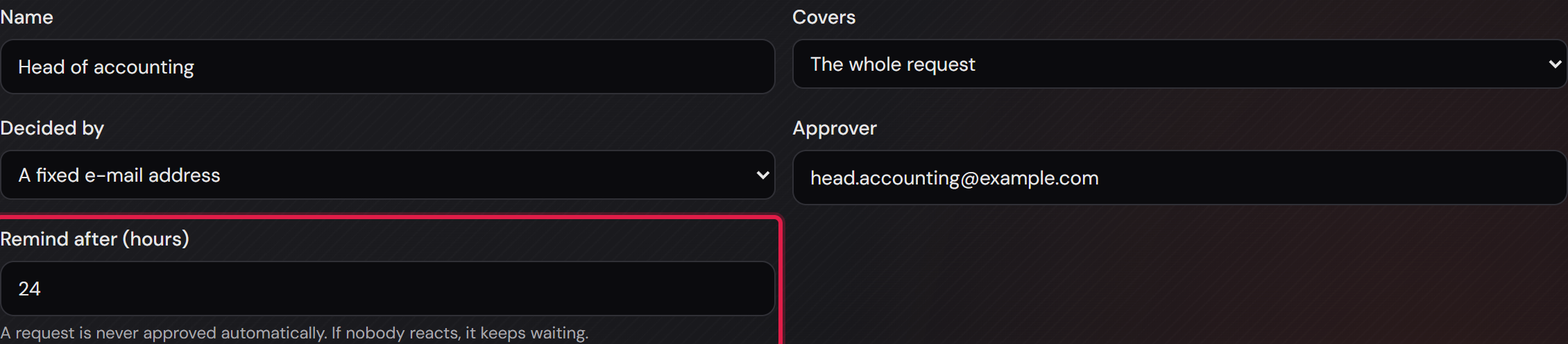
You set this up under “Approvals” in the same plan, and the sentence above it states the rule: “One approval covers the whole request. Add a second stage only when single tasks need their own release.” Each stage has five fields: “Name” is the name of the stage, “Covers” says what it applies to, “Decided by” says where the approver comes from, “Approver” holds the person, and “Remind after (hours)” sets the reminder.

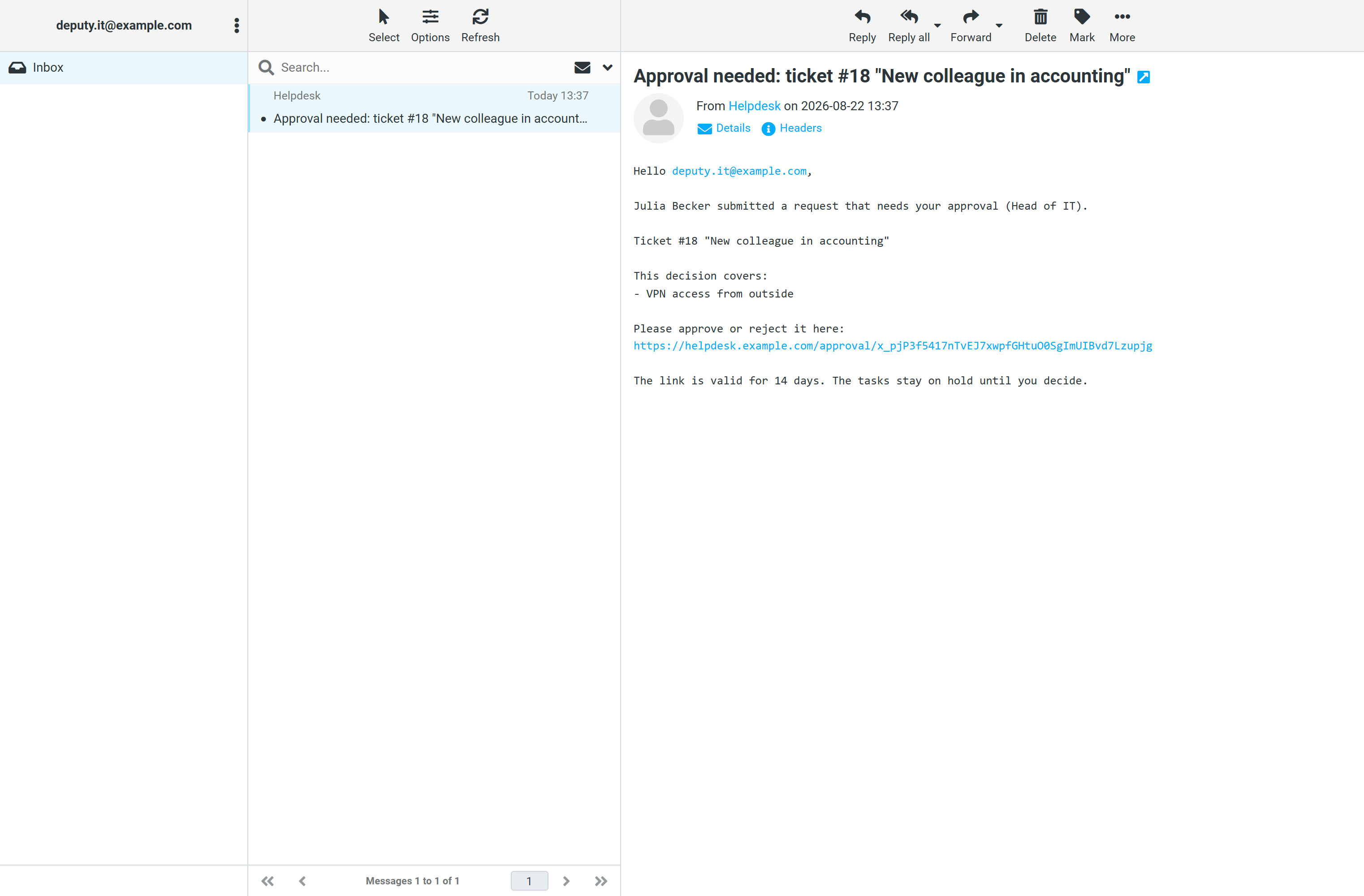
The approver needs no account in the ticket system: you enter an e-mail address and they decide over a link. A manager who approves twice a quarter therefore costs no agent seat.

The mail contains exactly one link to a page. There are deliberately no approve or reject buttons in the mail itself: a virus scanner that opens every link would otherwise approve.

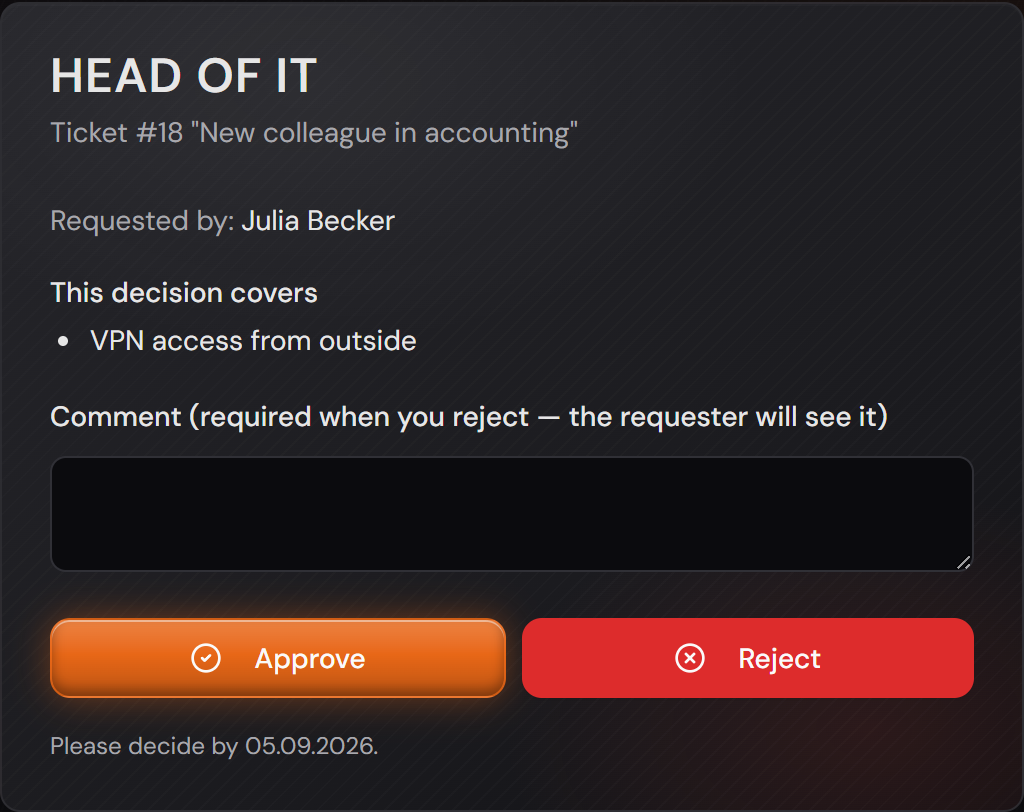
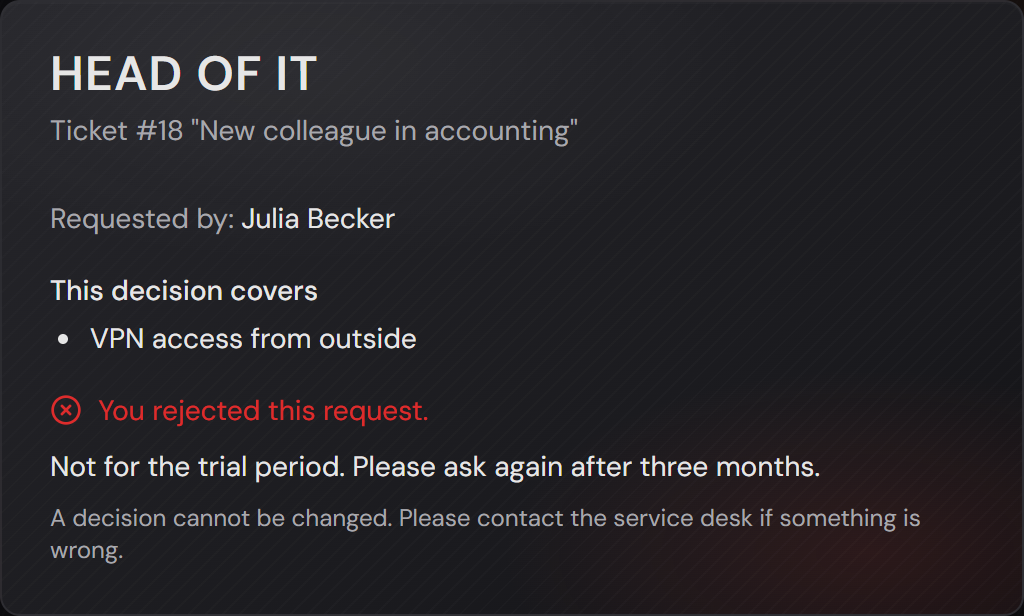
The page carries the name of the stage as its heading. It shows the number and title of the request, the requester, and under “This decision covers” the tasks this decision is about, with a comment field and the two buttons below.

The link does not last forever, and the page names the deadline: “Please decide by …”. It is valid for 14 days. After that the page only says that the link is invalid or has expired, and an administrator sends the request out again with “Reassign”.

A decision cannot be taken back, and afterwards the page says so: “A decision cannot be changed.”

The “Approvals” section of the plan with two stages, each with a name, an address and a reminder.
Two stages on one plan: the first covers the whole request, the second only the tasks that point at it. The approver is an address, not an account.Open image at full size
The approval mail in the mailbox with a single link to the decision page.
This is how the request reaches the approver. The mail holds one link and nothing else to click; the decision happens on the page behind it.Open image at full size
The decision page for the stage “Head of IT” with the request, the requester, the task covered, the comment field and the “Approve” and “Reject” buttons.
The decision page. “This decision covers” says what it is about. The approver is not signed in and has no account.Open image at full size
5

A second stage for single tasks

Professional only

Some tasks need a release of their own. Access from outside is not the same thing as a notebook.

For that you add a second stage and pick it on the task under “Extra approval”. While it says “None — the request approval is enough”, the release of the request is all that is needed. Both stages are asked at the same time, not one after the other. A stage is only asked if one of the chosen tasks concerns it. The stage for the whole request is always asked.

A task is released once every stage that concerns it has agreed. A task without a stage of its own starts right away, unless the stage for the whole request is still waiting. Then it starts as soon as the request is approved.

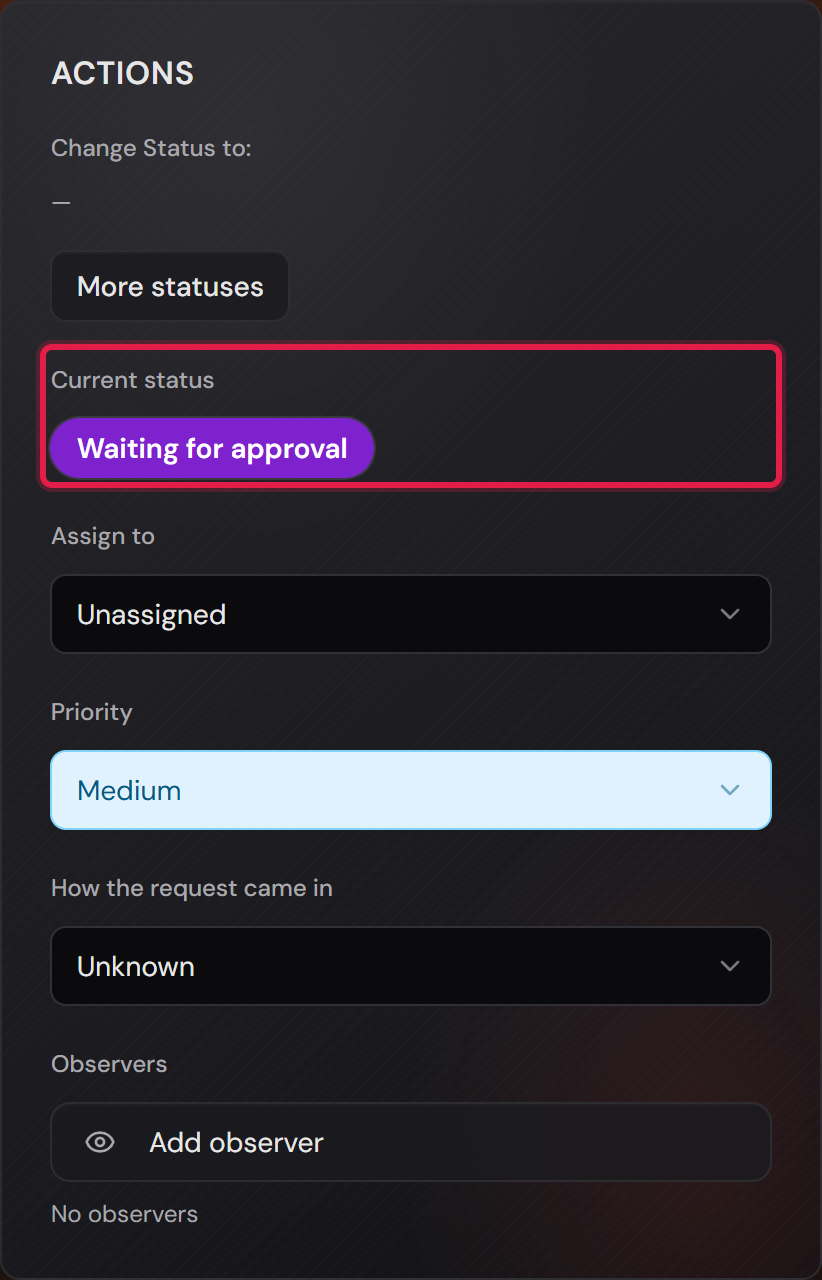
Until then the task is locked. Its ticket sits on “Waiting for approval” and has no assignee. Instead of status buttons the card reads “This ticket is waiting for approval and cannot be worked on yet.” No route gives it an assignee before then.

The lock also holds for bulk actions on the ticket list. Select such a ticket there and you read the reason: “This ticket is waiting for approval and cannot be worked on yet.”

The ticket is still created immediately, so the specialist team sees what is coming and nobody has to keep an eye on the request.

The actions card of a locked task with the status “Waiting for approval” and the note that the task cannot be worked on yet.
The task that is waiting for its own stage. The red frame sits on the current status. Above it the card says why no status can be chosen.Open image at full size
6

A reminder, but no release by time

Professional only

You can set a reminder per stage, given in hours.

If no answer comes, the same mail goes out again after that time, carrying the same link as the first one. Anyone who kept the first mail can still use it.

Without a reminder the request simply waits, without asking again.

What does not exist is a release by expiry. Below the field it says so in as many words: “A request is never approved automatically. If nobody reacts, it keeps waiting.” A deadline that agrees on its own would not be an approval, it would be a formality.

One approval stage with the reminder field, given in hours, framed in red.
The reminder belongs to the stage and is given in hours. Leave it empty and the system does not ask again.Open image at full size
7

A rejection reaches the requester with its reason

Professional only

Rejecting requires a reason. Without a text the page does not accept the rejection.

The field says where the text goes: “Comment (required when you reject — the requester will see it)”. An internal note does not belong here.

The requester receives an e-mail with the reason and does not have to ask why nothing is moving.

Approving needs no reason. It is the expected outcome.

If only a second stage rejects, the refusal concerns only that stage’s tasks. The rest of the request carries on.

A rejected task gets the status “Rejected” and counts as finished, so the request does not hang forever on something that will never arrive.

Once the request is rejected, the other approvers receive no more mails. Their link then reads “This request has already been rejected. Your decision is no longer needed.” In the list on the ticket their stage shows “No longer needed: the request was rejected.”

The decision page after the rejection, with “You rejected this request.” and the note that a decision cannot be changed.
After the decision: the page confirms what the approver did and says that it stands.Open image at full size
8

The audit trail and the approver on holiday

Professional only

On the request, “Approvals” shows one row per stage with the approver, the state, and for an open request how long it has been waiting.

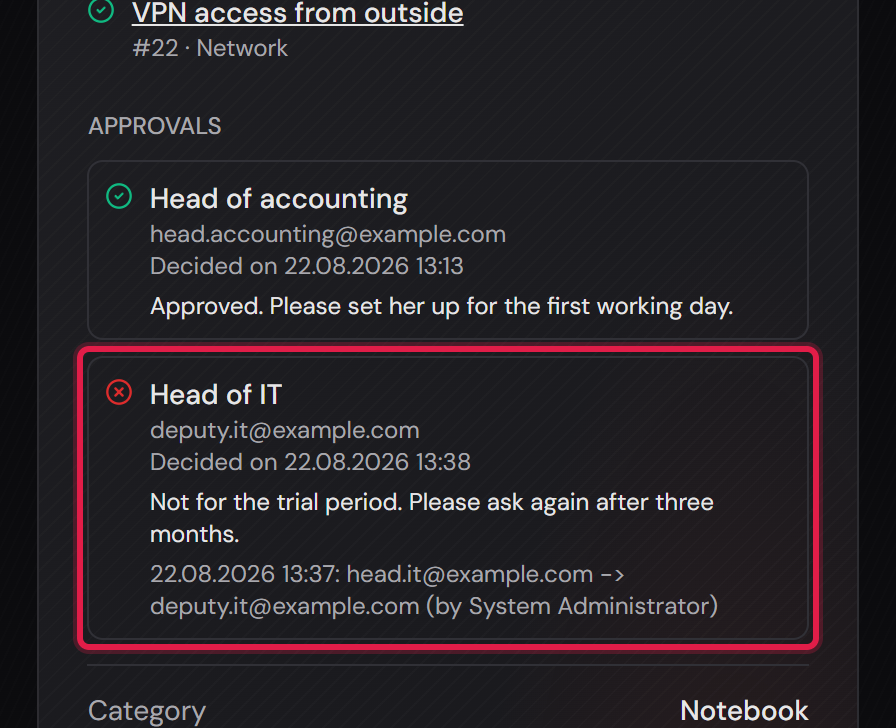
After the decision the row shows when it was made and with which comment. That is the audit trail, and it stays with the case.

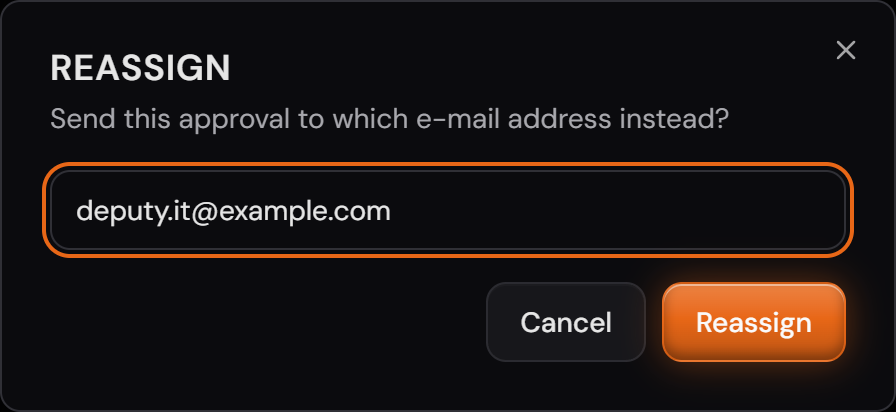
If the approver is on holiday, an administrator moves the request to another address. The button is called “Reassign” and only appears while the request is open.

Only an administrator may do this. An agent who could reassign would be able to reassign to themselves and then decide.

Reassigning creates a new link, and the old one dies immediately — even if somebody forwarded it.

The move itself appears in the same list: who moved it, when, from whom to whom.

Nobody can decide in somebody else’s name. The link is the only route, and who received it is recorded on the case.

The “Reassign” dialog asking for the new address, with the field filled in.
The dialog asks for the address the request should go to instead. You confirm with the same word that opened it.Open image at full size
The “Approvals” list with the approved first stage, the rejected second stage, both comments and the note about the reassignment.
Both stages with their decision, their time and their comment. The red frame sits on the stage that was moved, and below it stands who moved it from whom to whom.Open image at full size

The screenshots are from version 1.3.1. Nothing on the screens shown changed up to version 1.13.3. The only thing that looks different is the version number at the bottom of the sidebar.