Reporting and dashboards

The dashboard shows where a team stands. The report answers a question you ask yourself. Both only read; neither ever changes a ticket. Apart from your own fields, this whole block is part of Basic.

1

The dashboard: where things stand

At the top there is one tile per status with its count. Below them stand three figures for the whole team: “Total tickets”, “Tickets which are not Closed” and “Avg. resolution time”.

The middle figure is the important one. It says how much work is currently open. Resolved tickets count towards it until they are closed.

“Avg. resolution time” stays empty while no ticket has been resolved. A dash is more honest than a zero.

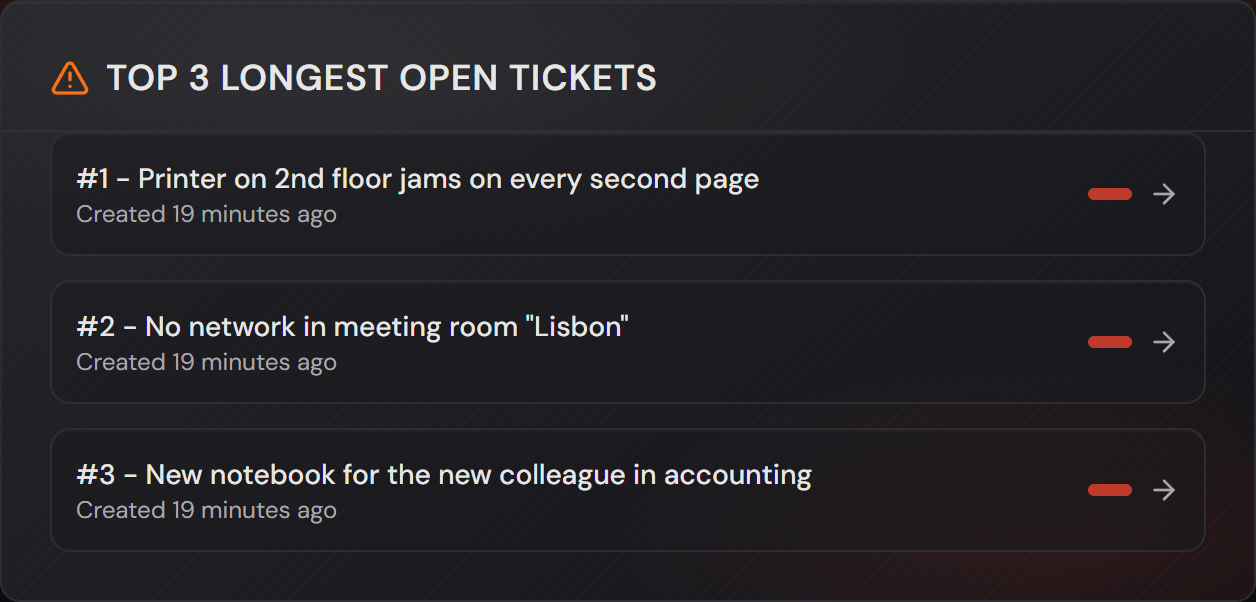
The card “Top 3 longest open tickets” names the three oldest open cases with their age. These are the ones nobody brings up any more. The card “Top agents closed tickets” counts the tickets each agent closed. A selection on the card sets how many days it looks back.

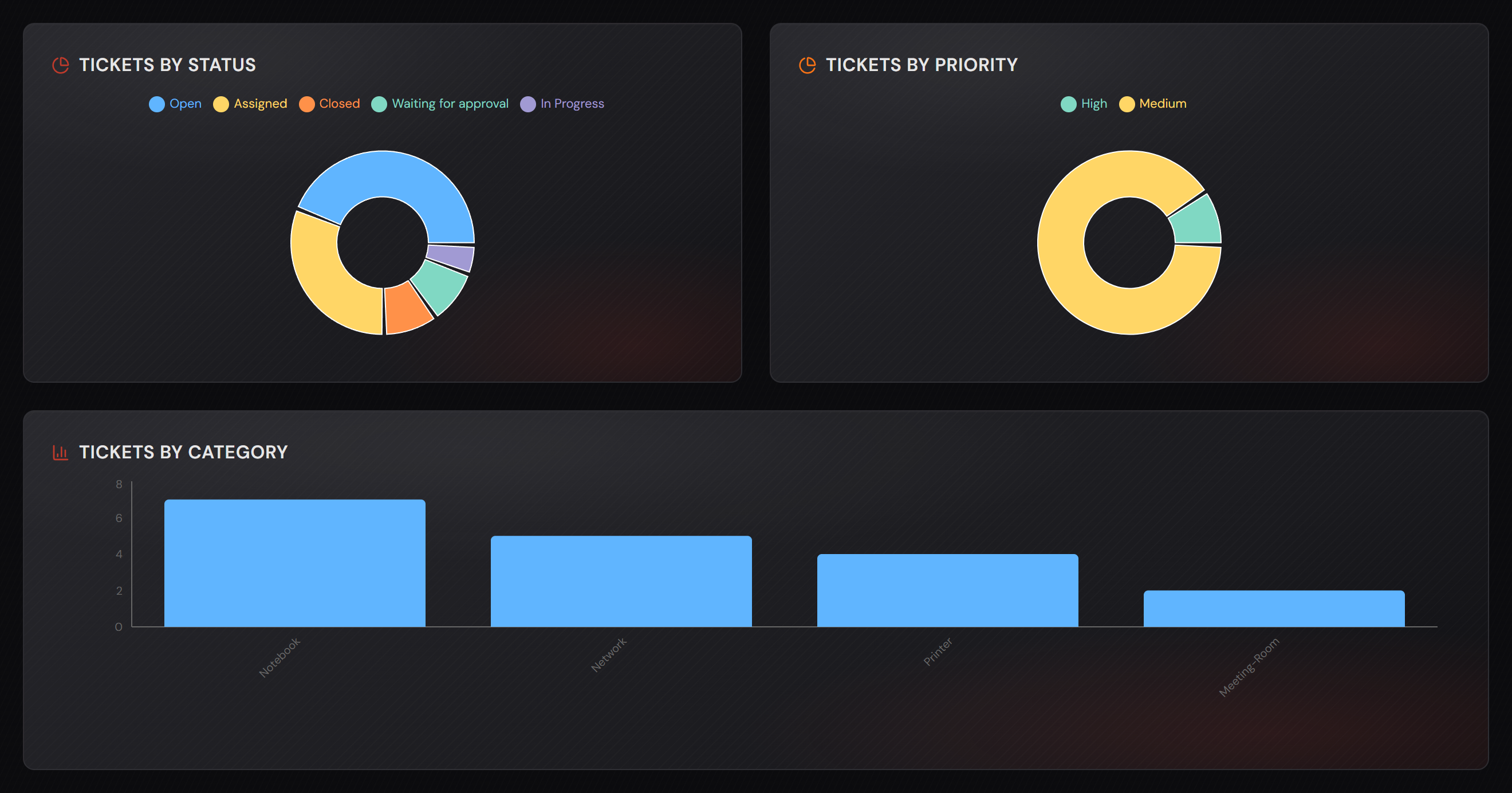
Below that sit three charts: “Tickets by status”, “Tickets by priority” and “Tickets by category”.

The dashboard shows the current state. You cannot pick a period for the whole dashboard here; that is what the report is for.
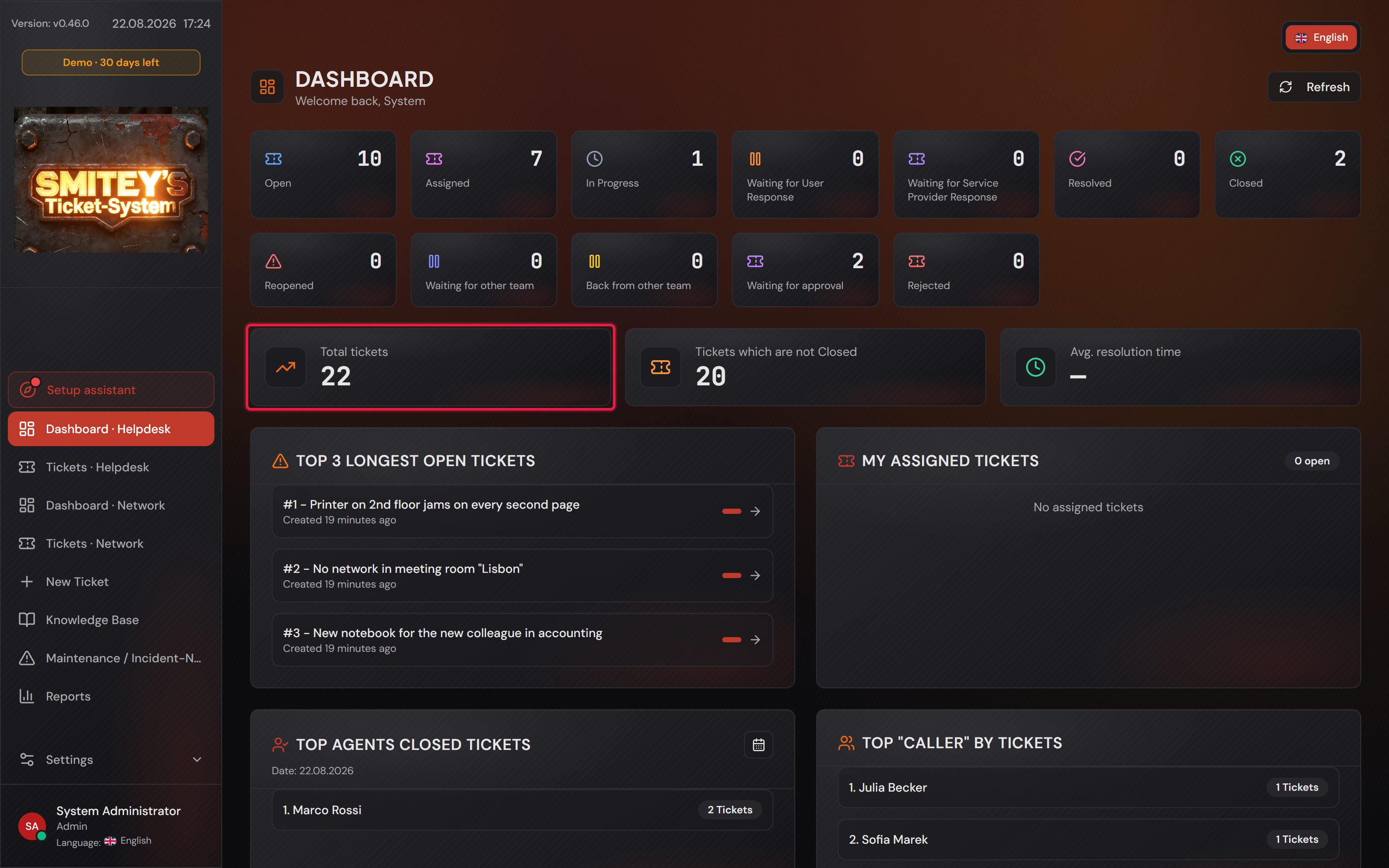
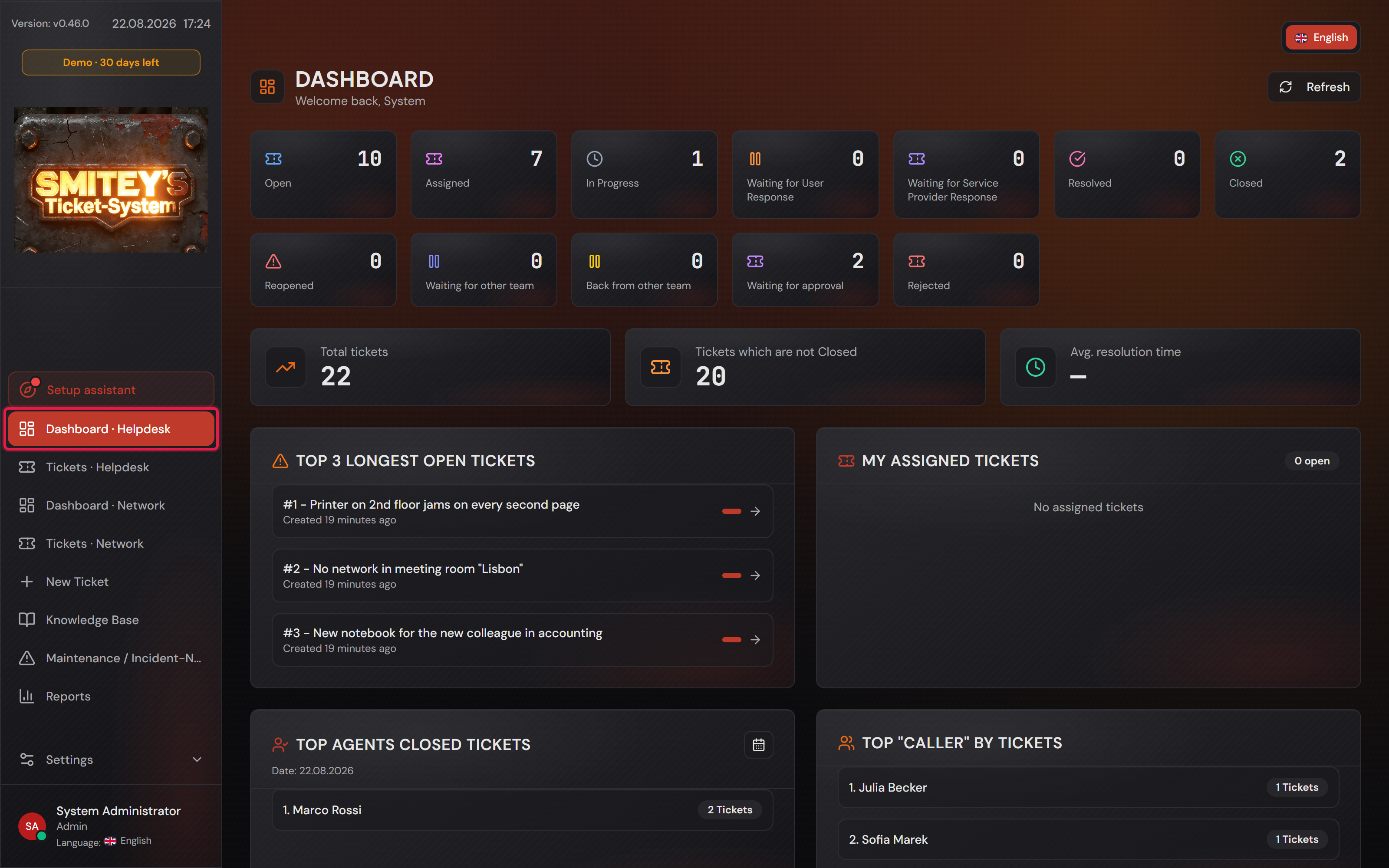
The Helpdesk team dashboard with the status tiles on top and the three key figures below.
The red frame sits on the total. In this example world the team has 22 tickets, 18 of them not closed.Open image at full size
The “Top 3 longest open tickets” card with three cases and their age.
One click on an entry opens the ticket.Open image at full size
The charts “Tickets by status”, “Tickets by priority” and “Tickets by category”.
The categories are the team’s own. A different team shows different ones here.Open image at full size
2

Every team has a dashboard of its own

The sidebar carries one entry per team. It is called “Dashboard” followed by the team name.

Each entry shows only its own team’s tickets. The figures, the categories and the oldest cases are therefore different per team.

There is no permission per dashboard. Agents see the dashboards of every team they belong to, administrators see all of them. Customers only see a team’s dashboard if the team’s switch “Can see their own tickets of this team in the dashboard and in reports” is on.

Anyone without the right to a dashboard does not see the entry at all. A blocked entry that is still visible only raises questions.

The Helpdesk team dashboard, with the sidebar entry “Dashboard · Helpdesk” highlighted.
The red frame sits on the sidebar entry. In this example world Helpdesk shows 22 tickets.Open image at full size
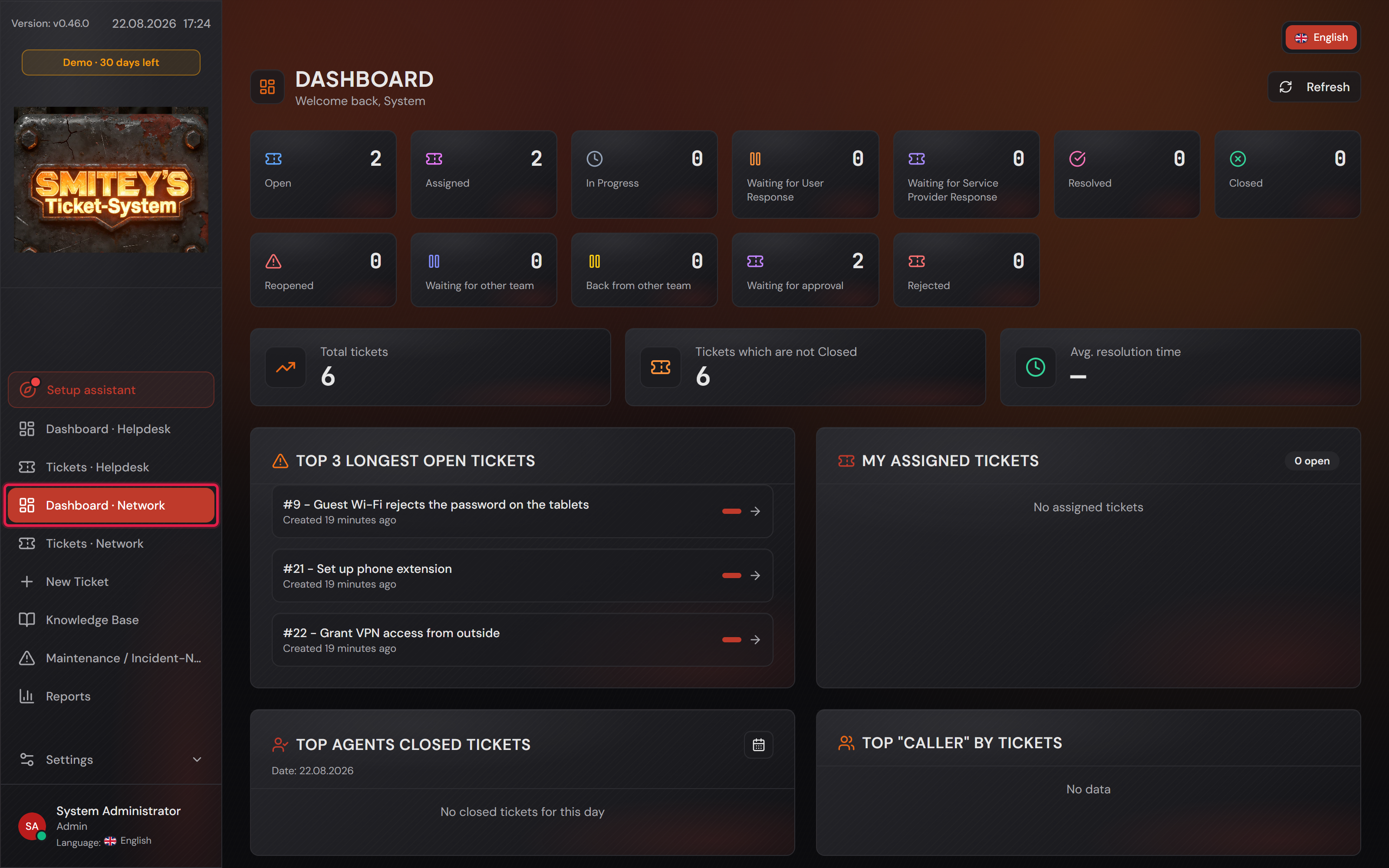
The same dashboard for the Network team with different figures and different categories.
The same page, a different team. Here it is 6 tickets, and the categories are “Wi-Fi” and “Firewall”.Open image at full size
3

Generating and filtering the report

The “Reports” page is empty when you open it. Only the filter box is there.

Only the click on “Generate report” starts the calculation. It takes a moment, because every section is computed at once.

That is deliberate. A report that recalculates on every keystroke would be unusable on a large data set.

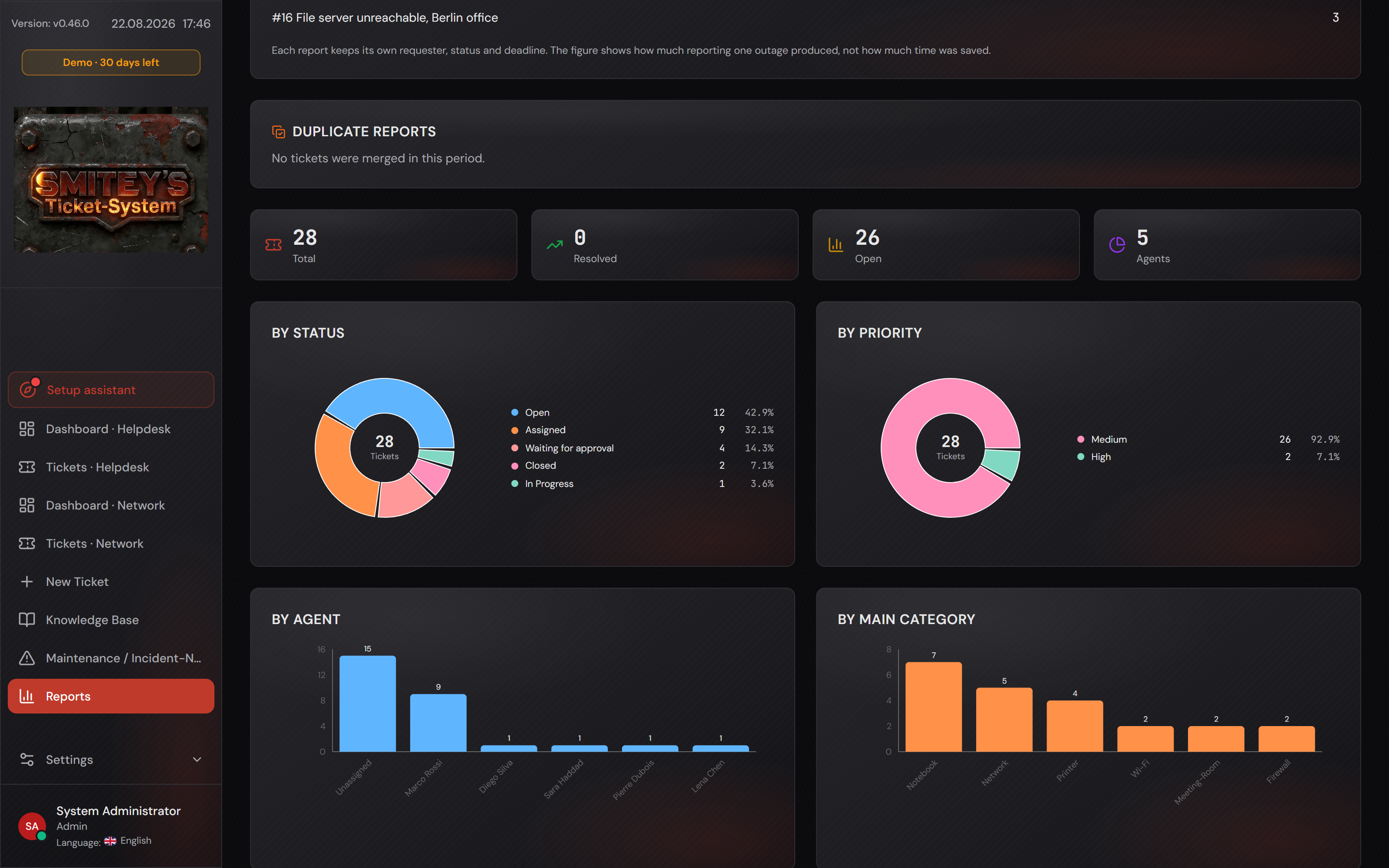
Afterwards four key figures stand at the top and the charts below them.

Every chart names its figures. The rings print count and share in the legend beside them; the bars print the count above the bar.

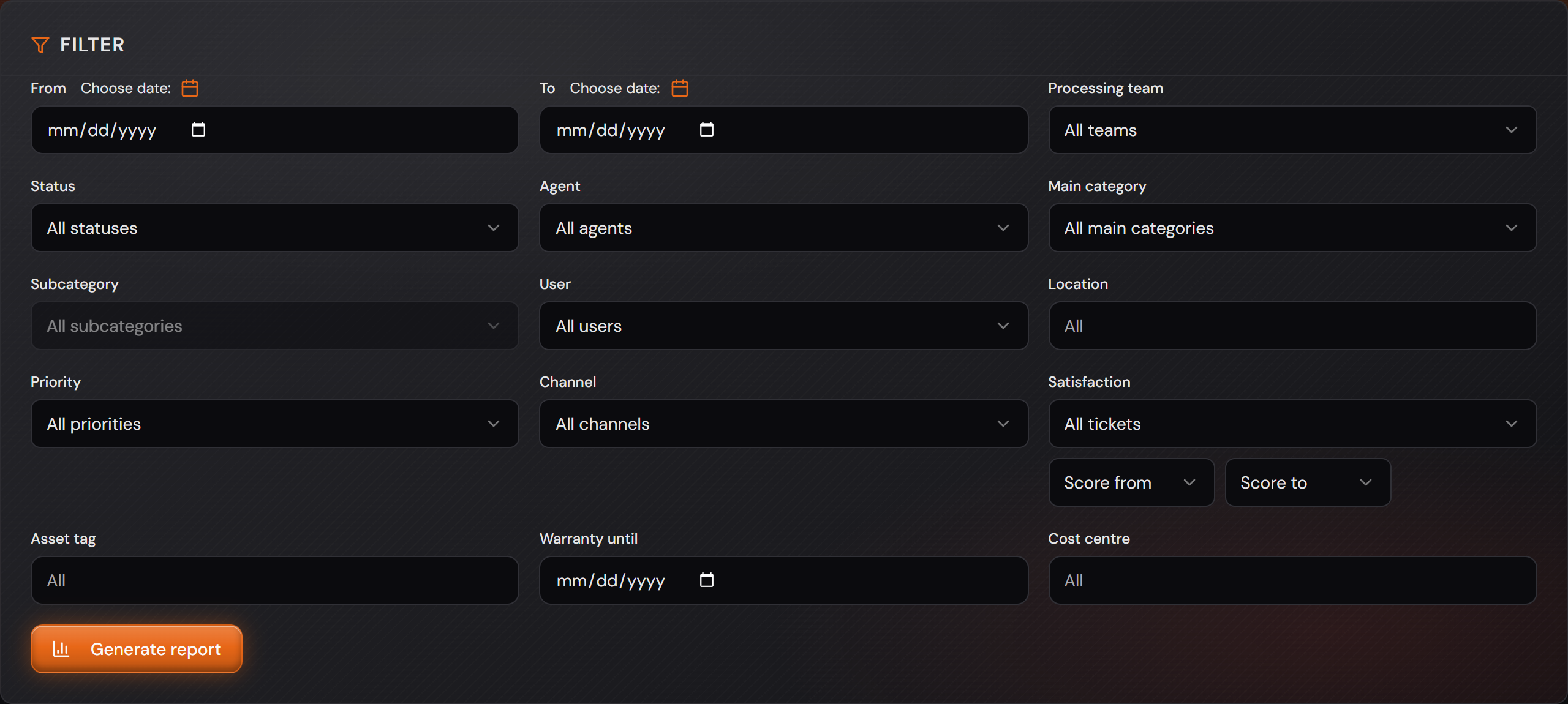
The filter box above is where you ask the question. You can choose the period through “From” and “To”, the team, the status, the agent, the requester, the site, the priority, main and sub category, and the channel the ticket arrived through.

If you set several fields they apply at the same time. “Period July, team Helpdesk, priority High” is a single question.

The period goes by the day the ticket was created.

There is one exception. The time report goes by the day the work was done. July work on a June ticket therefore appears in the July report.

After every change to the filter you have to click “Generate report” again.

This page also carries the analyses of other features. They only appear when the feature is switched on and something happened in the chosen period.

They are explained where they belong: deadlines under “SLA figures in reporting”, ratings under “The evaluation of the ratings”, distribution under “What the distribution did” and effort under “The time report”.

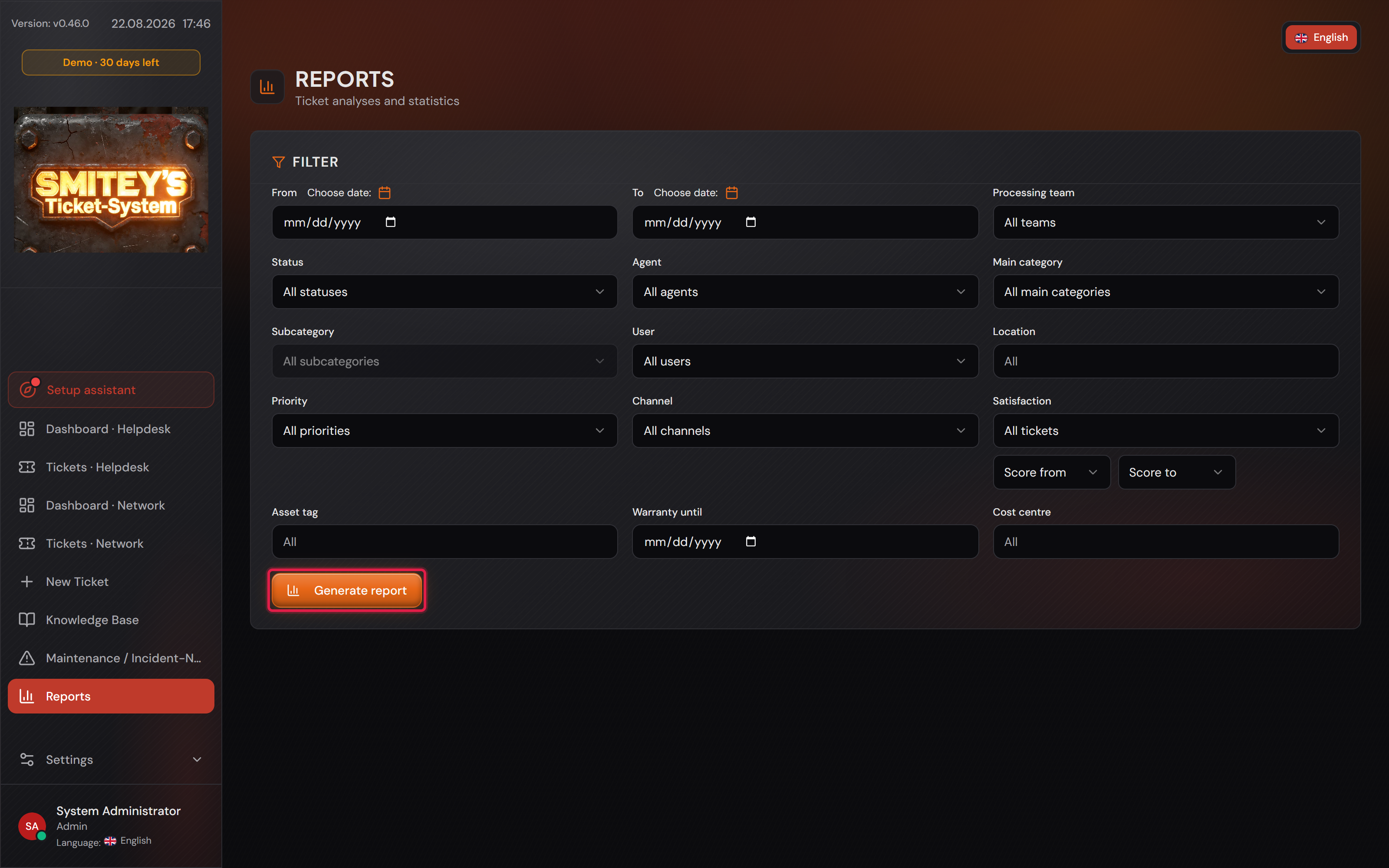
The report page right after opening: only the filter box, no figures.
The red frame sits on “Generate report”. Until someone clicks it, the page stays empty.Open image at full size
The report page filter box with period, team, status, agent, categories and channel.
All fields apply at the same time. Empty means “all”.Open image at full size
The generated report with four key figures and the first charts below.
In this example world there are 28 tickets. Every bar carries its count above it, and the rings show count and share beside them.Open image at full size
4

Filtering and grouping by your own fields

Professional only

If you have created your own fields, the report offers them just like the built-in ones. That holds for every field type, including “Integer”, “Decimal”, “Date” and “Yes / No”.

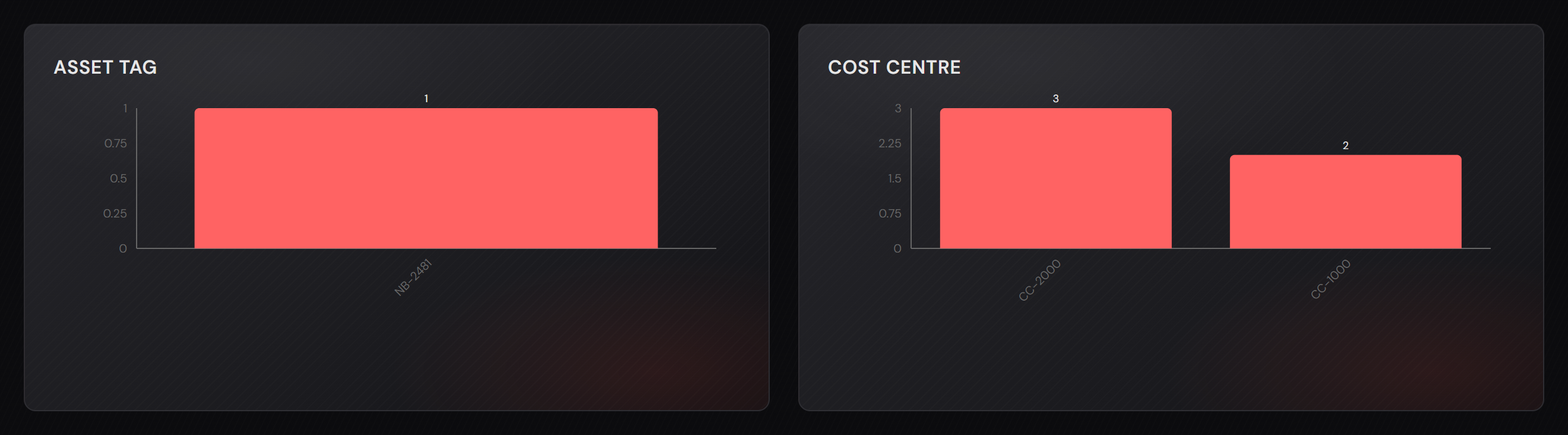
Every one of your fields gets a filter in the box and a chart of its own in the report.

That answers questions only your company asks. “How many tickets go to which cost centre?” is one of them.

The chart names are the names of your fields. They are not translated, because they come from your installation.

Where you create your own fields is described under “Custom fields”.

Two charts built from custom fields: “Asset tag” and “Cost centre”.
This example world has the fields “Asset tag” and “Cost centre”. Your installation shows your own here.Open image at full size
5

Which columns the report shows

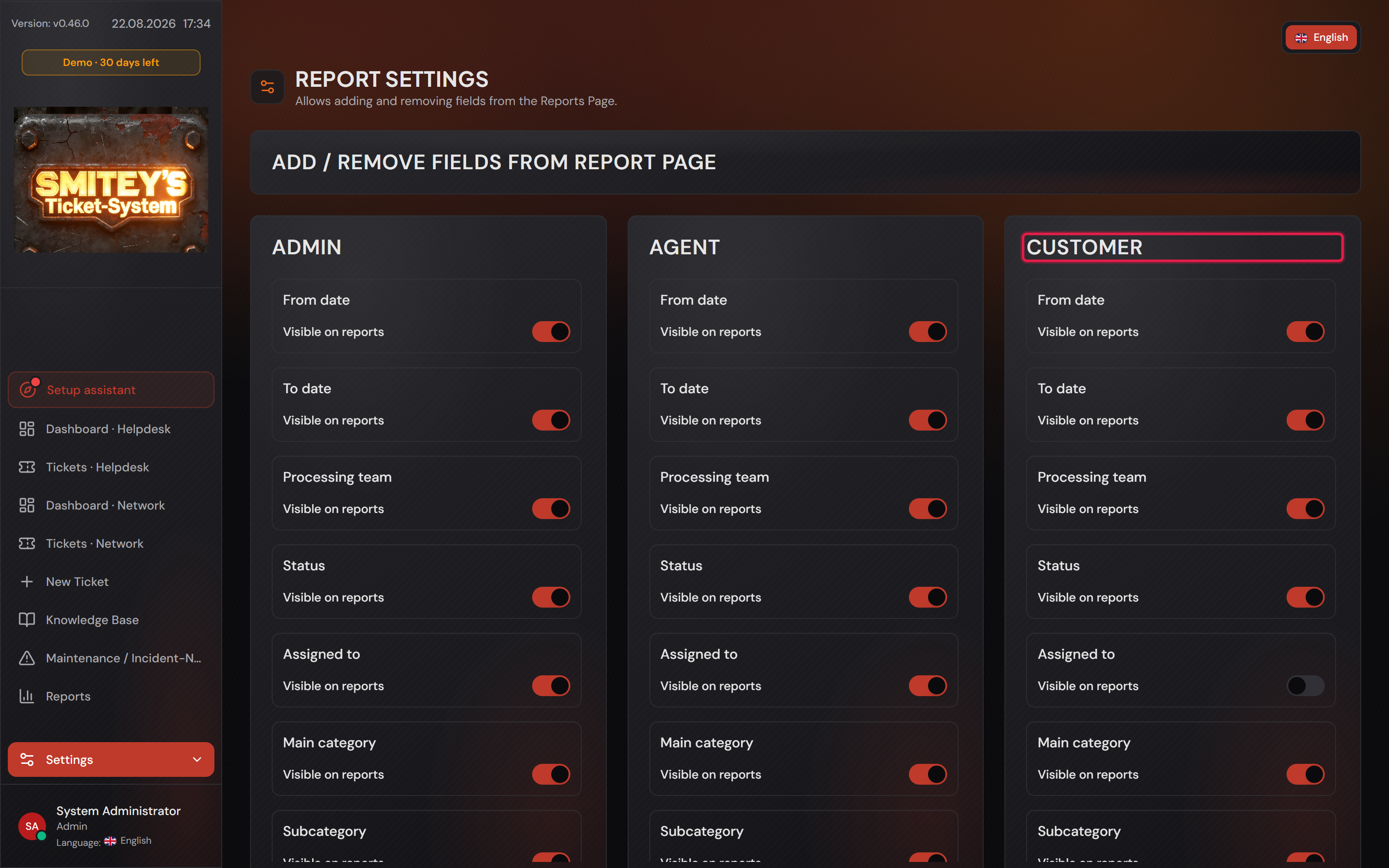
Under “Settings → Report Settings” you decide which fields the report offers.

The page has three sections: “Admin”, “Agent” and “Customer”. Each section carries the same list with its own switches.

A field you switch off here disappears for that role from the filter and from the export. That includes the CSV and Excel files.

As a factory setting administrators and agents see everything. Customers see less, because they do not need the agent, the site or the priority.

Your own fields appear under “Custom fields” in the same list.

The “Report Settings” page with the three sections “Admin”, “Agent” and “Customer”.
The red frame sits on the “Customer” section. Every role has a list of its own.Open image at full size
6

Customers pull a report of their own

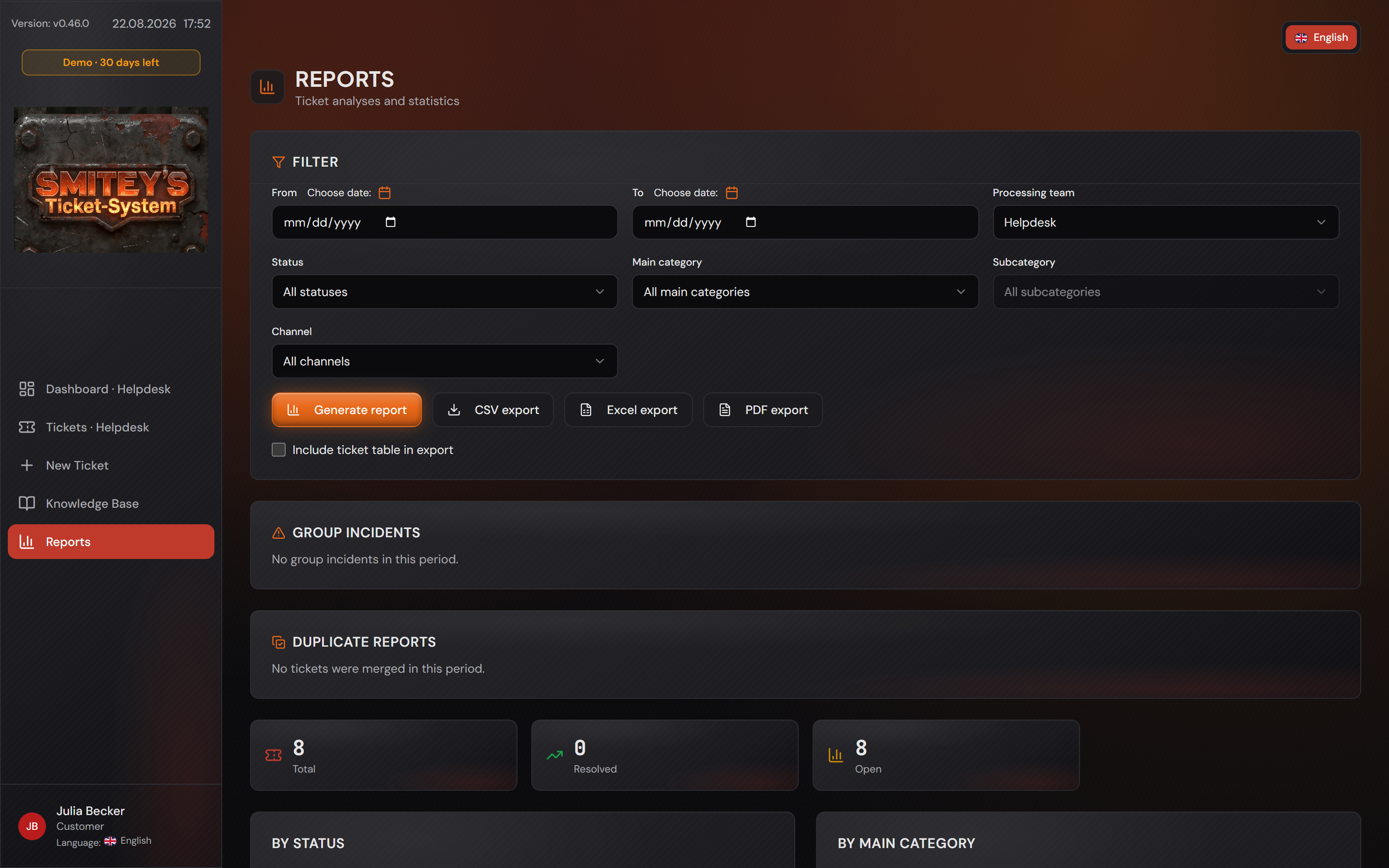
A customer can open the same report as an agent. In it they see only their own tickets.

The limit sits in the system, not in the filter. A customer cannot get around it even by typing the address by hand.

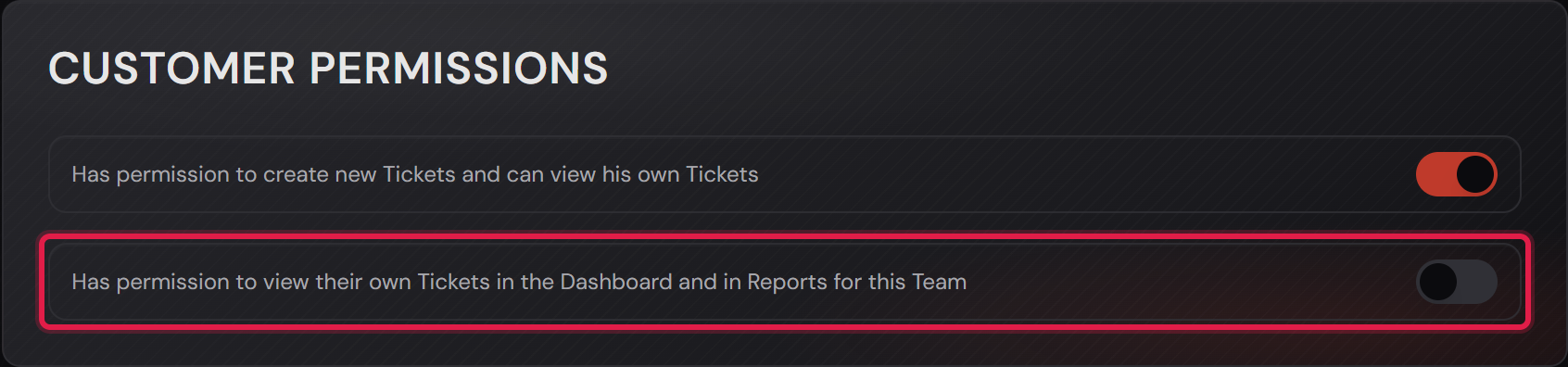
You unlock it on the team. The switch sits under “Settings → Teams” and is called “Can see their own tickets of this team in the dashboard and in reports”.

As a factory setting it is off. While it is off a customer finds neither the dashboard nor the reports.

Which columns the customer sees comes from the “Customer” section of the report settings.

The file output is open to them as well. A customer can download their own tickets as CSV, Excel or PDF.

The team switch that opens dashboard and reports to a customer.
The switch sits in the “Customer permissions” box. It applies to this one team.Open image at full size
The report page from a customer account, with fewer filters and smaller figures.
The same page from Julia Becker’s account. In this example world she sees 8 tickets instead of 28, and the agent filter is missing.Open image at full size
7

Exporting as CSV, Excel or PDF

Below the filter box stand three buttons: “CSV export”, “Excel export” and “PDF export”.

All three use the filters as they stand at the moment you click.

The Excel file has the “Key figures” sheet with the figures. The “Tickets” sheet with the individual cases is only added when you tick “Include ticket table in export”.

Figures and charts are always included. The list of individual tickets only when you tick “Include ticket table in export”.

When you tick it, the real ticket count and the estimated page count appear below.

With a great many tickets a red warning appears as well. It says the export can take a while.

CSV and Excel contain every row. The PDF stops at 20,000 tickets and writes that into the document.

The limit already appears on the page before you export. A limit you only learn about in the finished document comes too late.

The three export buttons and below them the ticket table tick box.
The red frame sits on the tick box. Only when it is set does the line with the ticket count appear. In this example world that is 28 tickets and about 4 pages.Open image at full size
8

The PDF prints the figures next to the charts

The PDF is meant to be handed on. It contains the same charts that stand on screen.

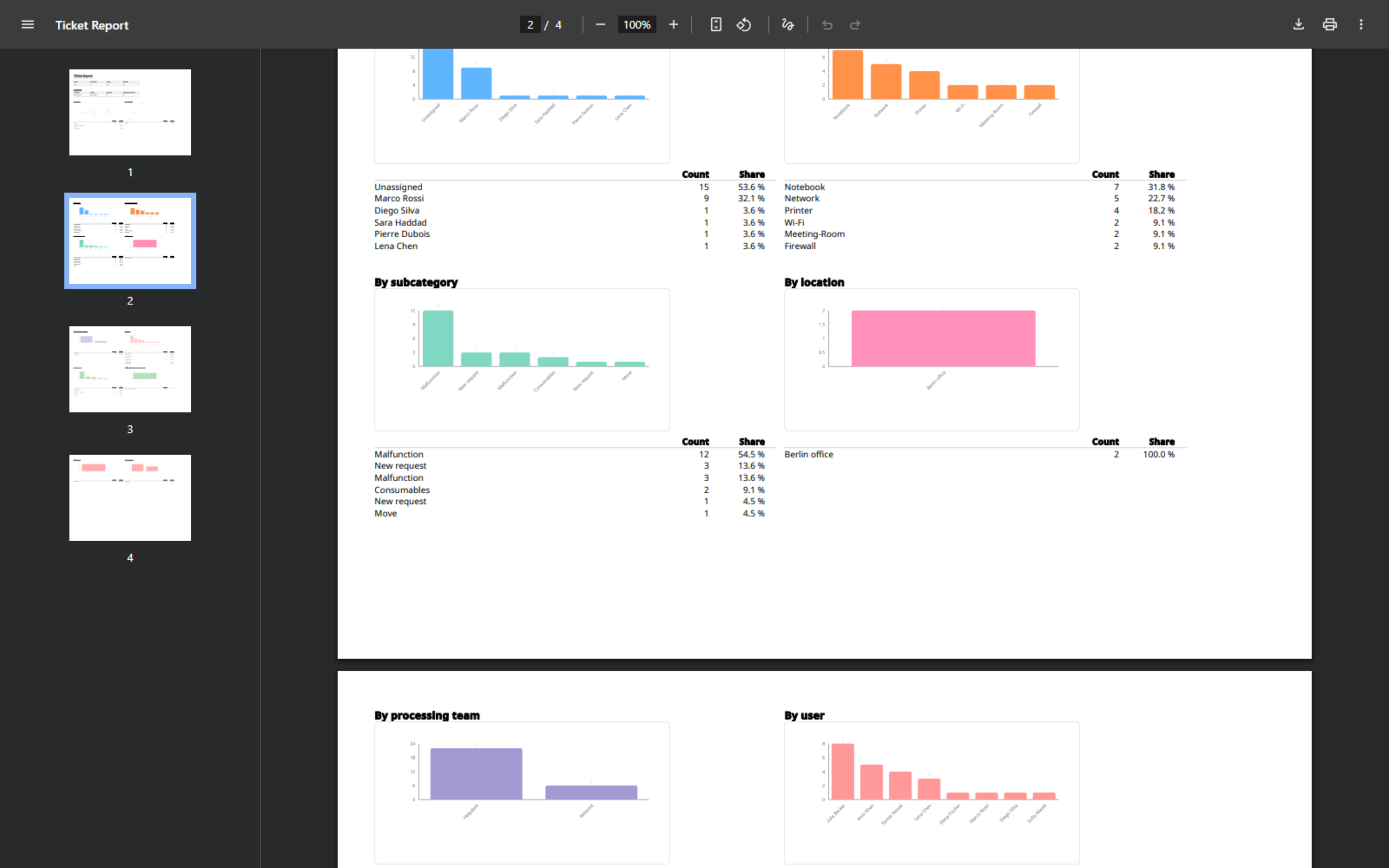
Below every chart stand the figure it was built from and the share as a percentage.

That is why they are there. A bar can be looked at, but not checked.

On screen the mouse pointer shows the same figure. On a printed sheet there is no mouse pointer.

The document names the period and the day it was created at the top. Without a date in the filter there is no period to name.

A page of the generated PDF with charts and their figures below them.
The document as the recipient gets it. Below every chart stand the count and the share.Open image at full size

The screenshots are from version 1.3.1. Nothing on the screens shown changed up to version 1.13.3. The only thing that looks different is the version number at the bottom of the sidebar.