SLA, calendar & escalations

Deadlines that match your opening hours: a policy says how quickly you have to reply and to solve, a calendar says when the clock runs at all. Everything in this block is part of Professional.

1

SLA policies with deadlines for first response and resolution

Professional only

Before you start: Without an active policy the system measures nothing — no deadline, no column, no mail. And clocks are created when a ticket is CREATED: whatever came in before you switched the policy on gets no deadline backdated. That is on purpose — otherwise a thousand old tickets would stand there as breached the next morning.

You set up deadlines under “Settings → SLA”. The page itself tells you at the top when no policy is active. A policy has three parts: a name, the conditions and the targets. New policies are deliberately created inactive — so you can finish setting them up before they do anything.

The conditions are “Team”, “Priority”, “Main category” and “Subcategory”. Empty means “Any”, that is “applies to everything” — not “applies to nothing”. If several policies match, the one with the lowest number under “Order” wins; that is why the narrow policy sits at the top and the general one below it.

The two category fields are grouped by team, because categories belong to a team — but you are offered all of them, including those of other teams. That is deliberate: on a handover the ticket moves, the category does not. A ticket the helpdesk handed to the network team still carries the helpdesk’s classification, and a policy may point at exactly that. Once you pick a main category, the field below only offers the subcategories linked to it — a pair that cannot exist on a ticket is rejected on saving.

Every policy has two targets. “Time to first response” ends with the first public reply by an agent — an automatic acknowledgement and an internal note explicitly do not count. “Time to resolution” ends as soon as the ticket reaches a status that counts as resolved (which one that is, you set under “Settings → General → Status”). Both targets have their own minutes, their own calendar and their own reaction to a breach.

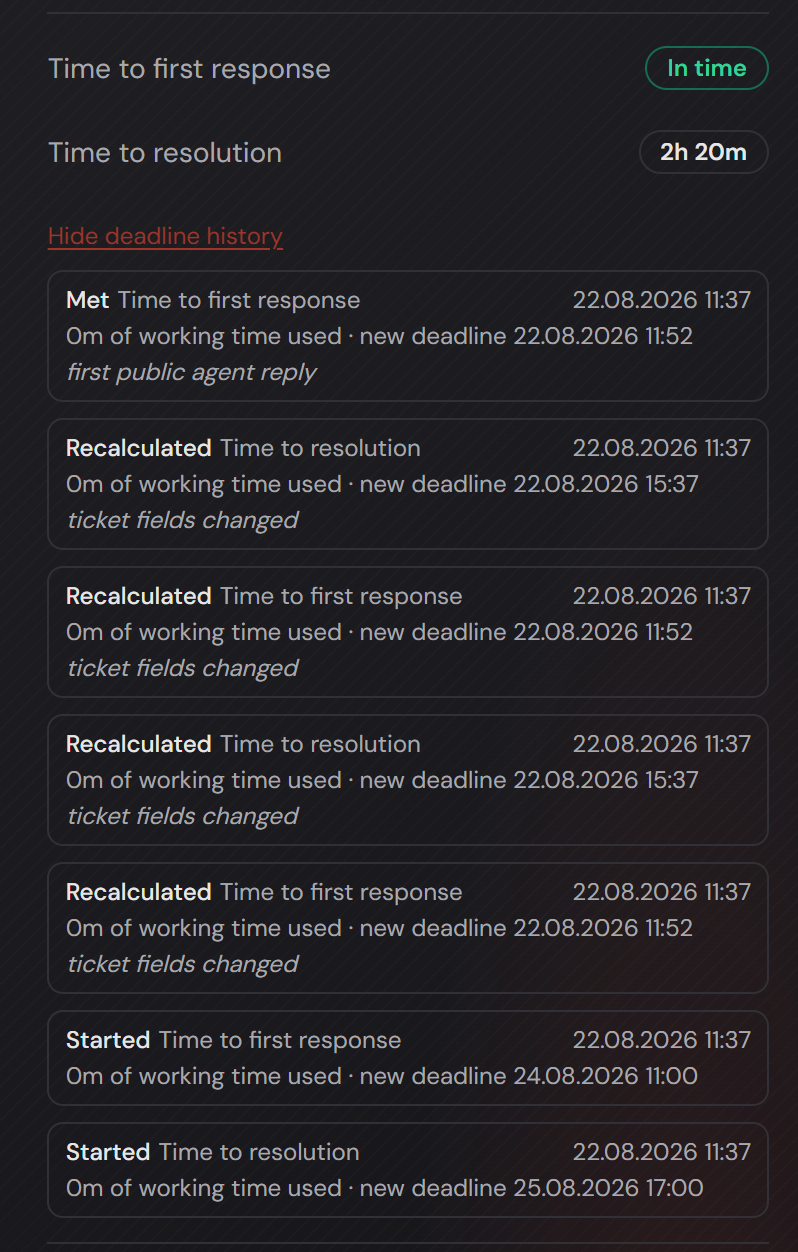
On the ticket the deadlines sit on the right in the “Details” card, below them “Show deadline history”: a log that records every step — started, paused, resumed, met, missed — each with a reason and the working time used. Only agents and administrators see it; for customers it cannot be retrieved.

If somebody changes the priority or the team later, the clock switches to the policy that matches then: the working time used so far is settled with the old calendar, after that the new values apply. If no policy matches any more, the clock ends without a verdict — it counts neither as met nor as breached.

If no policy matched when the ticket was created, the clock starts the first time a policy matches after a change, for example a higher priority. It counts from that moment. The clock for the first response only starts if nobody has replied yet.

New clocks only come into being when a ticket is reopened. Other status changes create no new clocks.
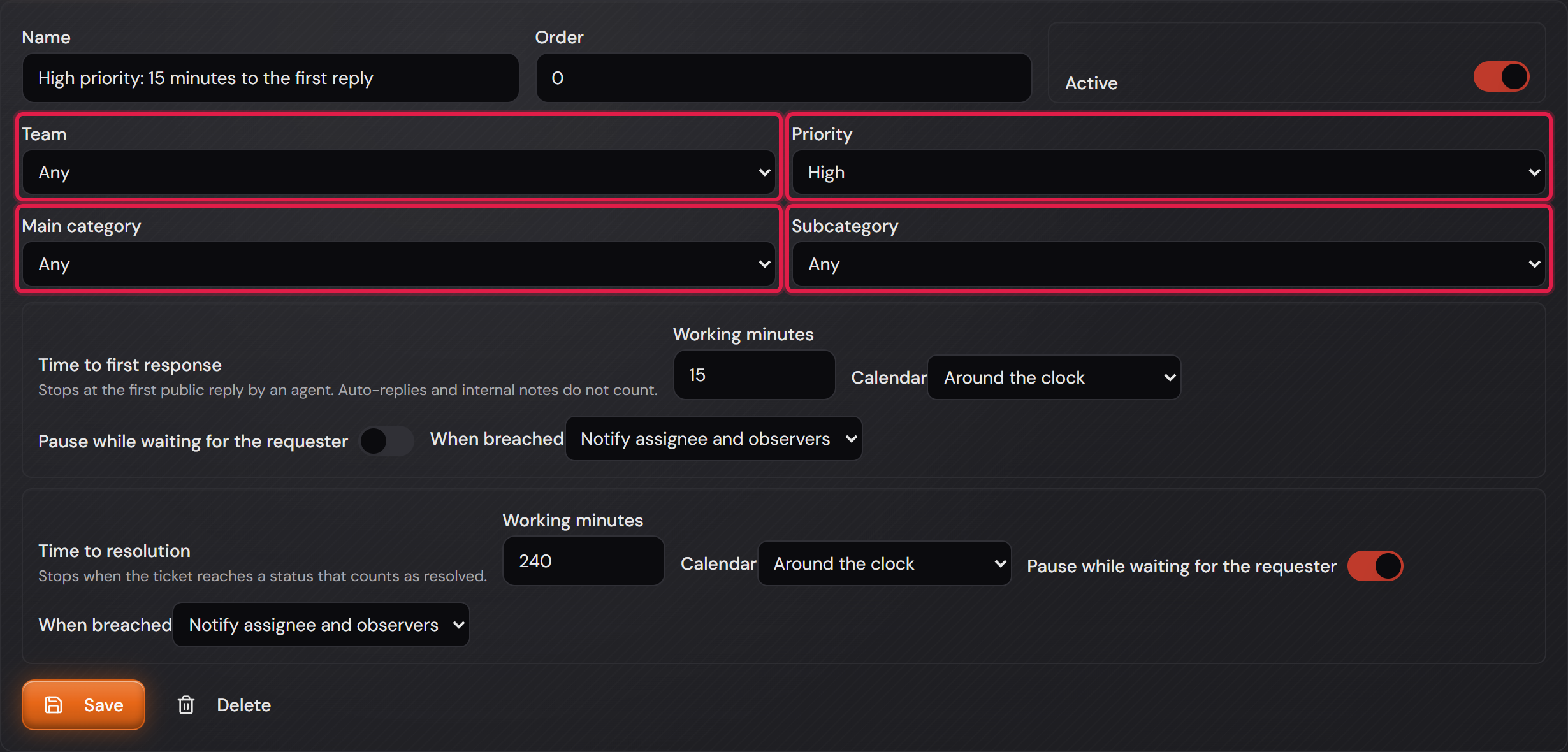
An SLA policy with name, order, active switch, the four red-framed conditions Team, Priority, Main category and Subcategory and the two targets below.
The policy applies to every team, but only to the “High” priority. Below it the two targets: 15 minutes to the first reply, 240 to the resolution.Open image at full size
The deadlines of a ticket: “Time to first response” with the “In time” badge, below it “Time to resolution” with remaining time and the opened deadline history.
The first reply came in time, the resolution is still running. The log names the reason for every step. Read from the bottom up: started, recalculated with “ticket fields changed”, and finally met with the first public reply.Open image at full size
2

Business-hours calendar per team

Professional only

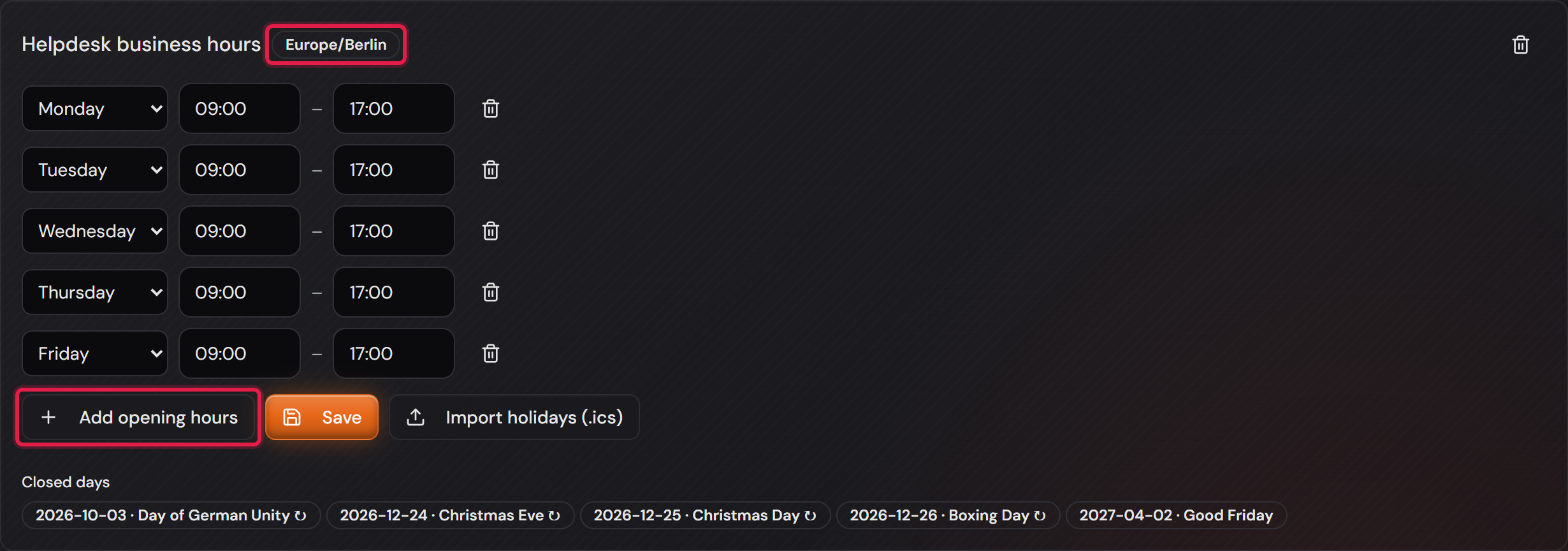
A calendar says when the clock runs. It has a name, its own time zone and any number of windows per weekday — a lunch break is simply a day with two windows. A window may run past midnight; then “ends next day” appears beside it.

Which calendar applies to a team is set on the team (“Settings → Teams”). On the individual target of a policy you can override it: “From the team” takes the team’s one, or you pick another. That is exactly what produces the usual case — faults count around the clock, everything else only during office hours.

What is counted is the time that actually passes inside the window, not the difference between the clock readings. At the daylight-saving switch that makes a difference: a 24/7 day in October has 25 hours, a night shift from 22:00 to 06:00 in spring seven instead of eight. An office window from 09:00 to 17:00 is never affected, because in the EU the switch happens at night.

If no calendar with open hours can be found, no deadline is created — better none than a guessed one. On the ticket a note appears instead of a date.

The “Helpdesk business hours” calendar with the red-framed Europe/Berlin time zone, the Monday-to-Friday 09:00–17:00 windows and the “Add opening hours” button.
Five days, one window per day. The time zone belongs to the calendar, not to the server — a second location simply gets a second calendar.Open image at full size
3

Public holidays via .ics import or entered by hand

Professional only

Before you start: We do not ship any holiday data. Public holidays depend on the LOCATION, not on the language — 16 German states, 26 Swiss cantons, 50 US states, and new every year. A shipped list would be wrong at some point without anybody noticing. Take the official .ics file of your region; that is a one-minute job per year.

Below every calendar sits the “Closed days” list. A click on “Import holidays (.ics)” takes a calendar file and afterwards reports four numbers: how many days were taken over, how many replaced, how many unreadable and how many were already there. You can also enter single days by hand.

The ↻ symbol behind a day means “repeats annually”. It is only correct for fixed dates: 3 October falls on the same date every year, Good Friday and Whit Monday hang on the date of Easter and move. Moving holidays therefore stand in the list with their concrete date per year — in the picture “Good Friday” without the symbol.

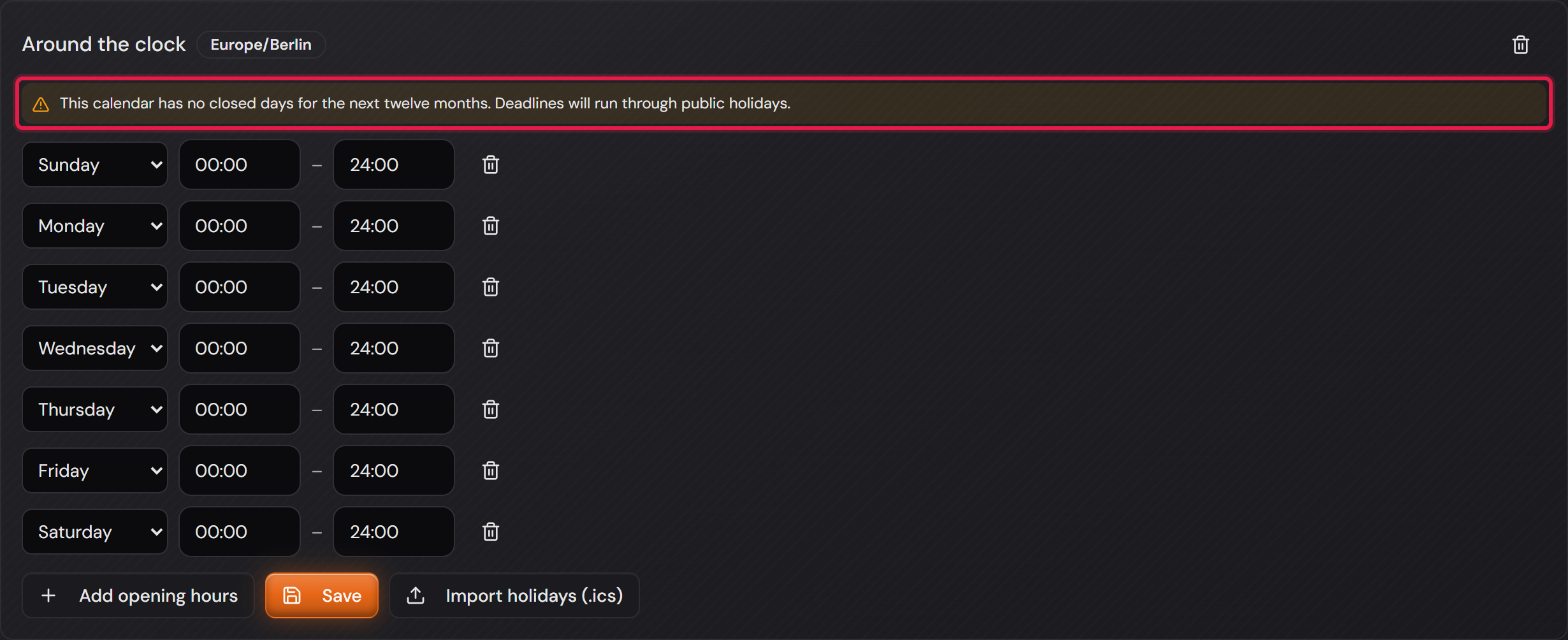
A closed day swallows the whole window of that day, including the part that reaches into the next day. And when a calendar knows no closed day at all for the next twelve months, the page says so explicitly — otherwise the system silently counts through public holidays and produces wrong deadlines.

The red-framed “Import holidays (.ics)” button and below it the equally framed list of closed days.
Five closed days. Four carry the ↻ symbol for “same date every year”, Good Friday does not — it moves.Open image at full size
The “Around the clock” calendar with the red-framed amber note that it knows no closed days for the next twelve months.
The note is not an error but a warning: this calendar counts through every public holiday. For an on-call calendar that is exactly right.Open image at full size
4

The clock pauses while waiting for the requester

Professional only

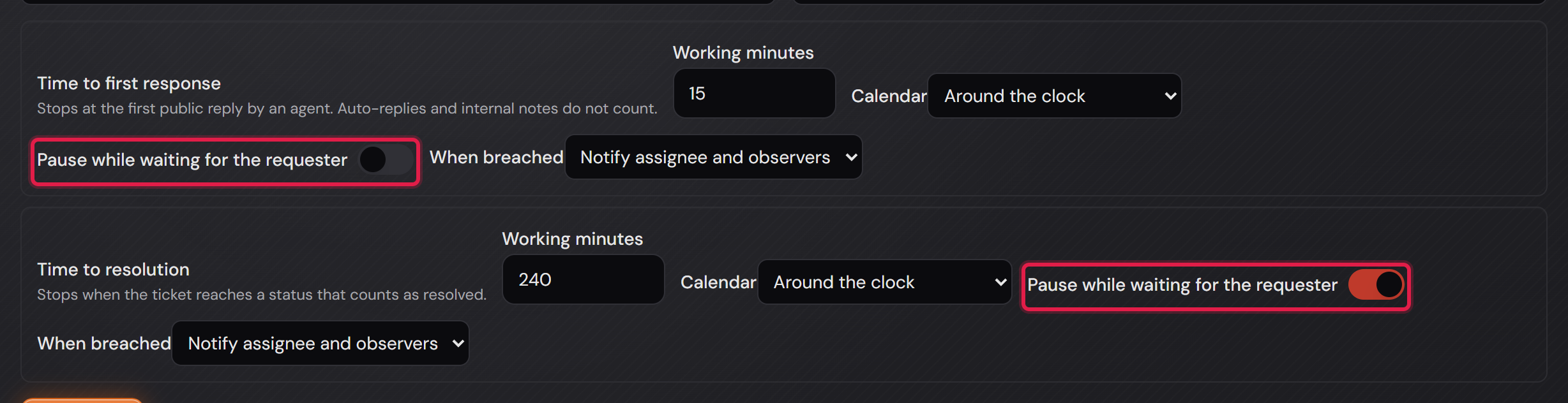
The most common argument about deadlines is this one: the ticket has been waiting three days for the customer’s answer, and the clock keeps running anyway. That is why every target has the “Pause while waiting for the requester” switch — individually, not for the whole policy.

Whether you are waiting is decided by the status: under “Settings → General → Status” every status carries a mark for whether it counts as “waiting for the requester”. With the switch on, the deadline rests while the ticket sits in such a status. The wall clock keeps running — that is why the list shows “Paused” instead of a remaining time, and the deadline history holds “Paused” and “Resumed” with their times. The waiting time does not count either if the ticket is resolved straight out of such a status.

For the first response you usually leave the switch off: you owe the first reply regardless of what is being waited for. For the resolution it is usually on. The picture shows exactly that setting.

The two targets of a policy with the red-framed “Pause while waiting for the requester” switches — off on the first target, on on the second.
The same switch, two answers: the clock for the first reply runs through, the one for the resolution rests while it is the customer’s turn.Open image at full size
5

Time remaining in the ticket list, with a filter for breached deadlines

Professional only

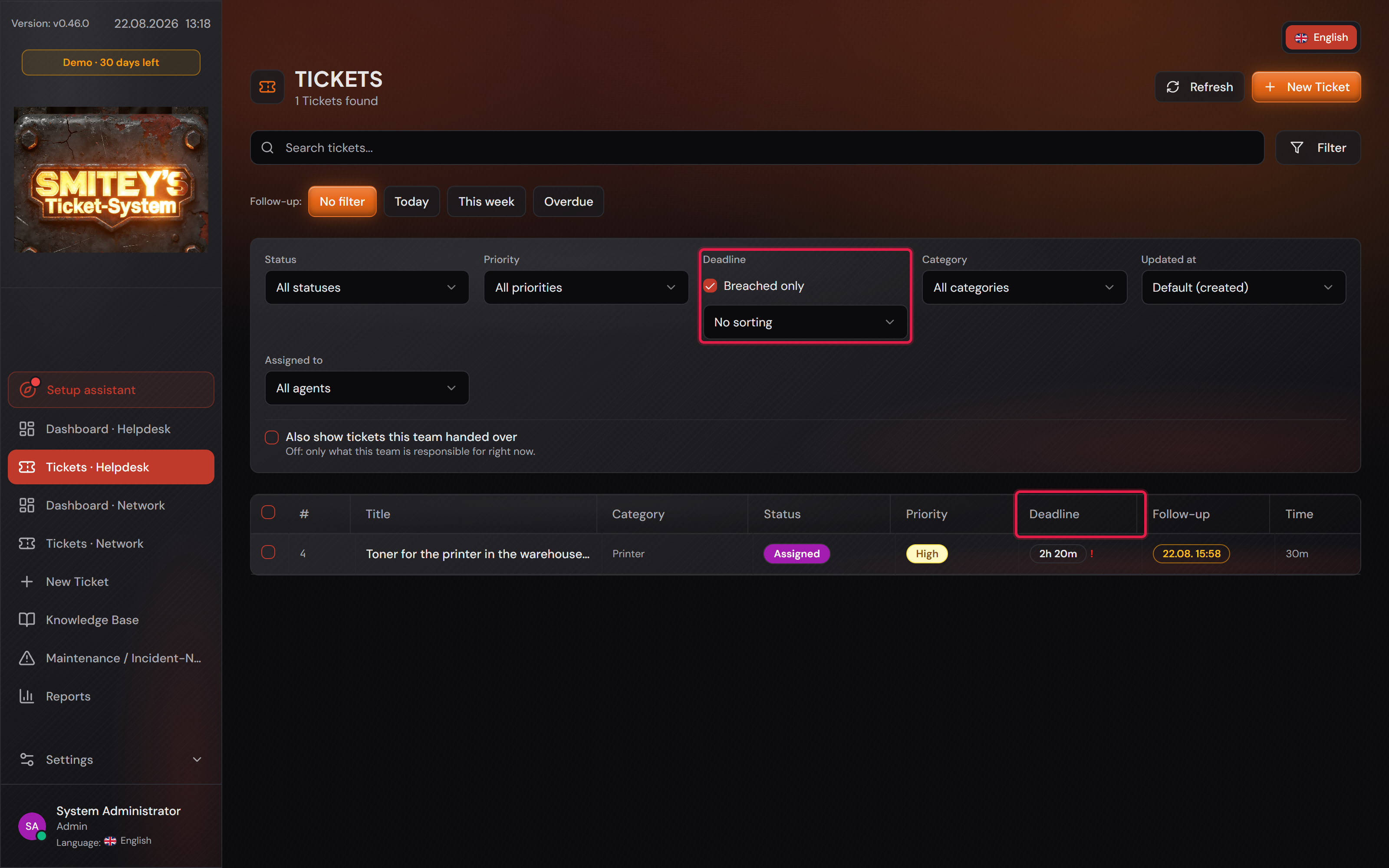
As soon as a policy is active, the ticket list gets the “Deadline” column. It shows the remaining time of the next open deadline (“14h 53m”). Once no deadline on the ticket is running any more, the verdict stands there: the “In time” badge for a met one, the red “Breached” for a missed one. A ticket without any clock gets a neutral dash, and that is deliberate: a ticket from before the policy is not a failure.

If no policy is active the column is missing entirely — it does not stand there empty. The same holds for the filter: under “Filter” the “Breached only” box only appears when there are deadlines at all.

A ticket has two clocks but the column has only one slot — it shows the most urgent OPEN deadline. If the first response was missed and the resolution is still running, the column shows the remaining time of the resolution with a red “!” next to it. That mark says: a deadline on this ticket has already been breached — and that is exactly how the “Breached only” filter finds it, because it asks for any breached deadline, including one that is long finished. Which of the two it hit is written in the ticket itself.

You can also sort by it: under the same “Deadline” heading sits a field with “Due soonest first” and “Due latest first”. Tickets without a running clock always end up last — they are not the least urgent, they are simply not affected. Sorting by deadline takes precedence over sorting by “Updated at”: no list can satisfy two orders at once.

The ticket list with the “Breached only” box ticked, the red-framed filter and the equally framed “Deadline” column.
With the “Breached only” box ticked, a single ticket is left. On ticket 4 the first response was missed. The column still shows a running remaining time, because it shows the next OPEN deadline, and here that is the resolution. The red “!” next to it names the breach.Open image at full size
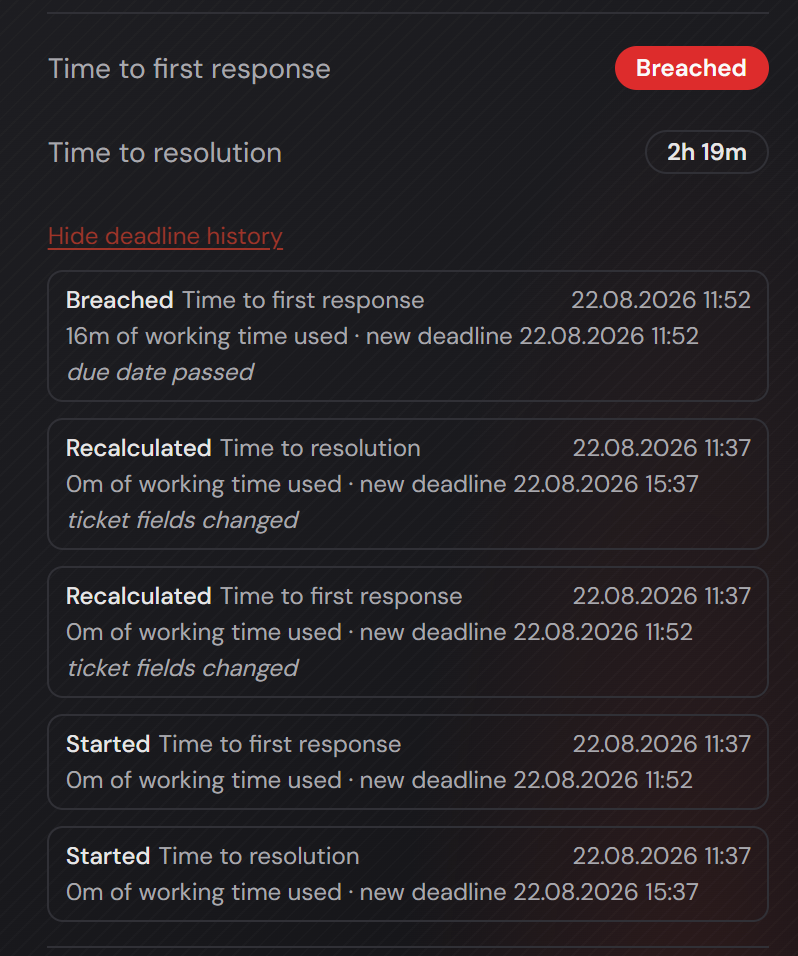
A ticket with the red “Breached” badge on the first response and a running remaining time on the resolution, below it the deadline history.
The same ticket, two clocks, two states. The log holds the reason: “due date passed”, after 16 minutes of working time used.Open image at full size
6

On breach: notify, or hand the ticket over to another team

Professional only

Before you start: Handing over is deliberately not the default. It moves the responsibility, clears the assignee and resets the status — a ticket somebody is working on right now afterwards lies somewhere else. Choose it only when exactly that is intended.

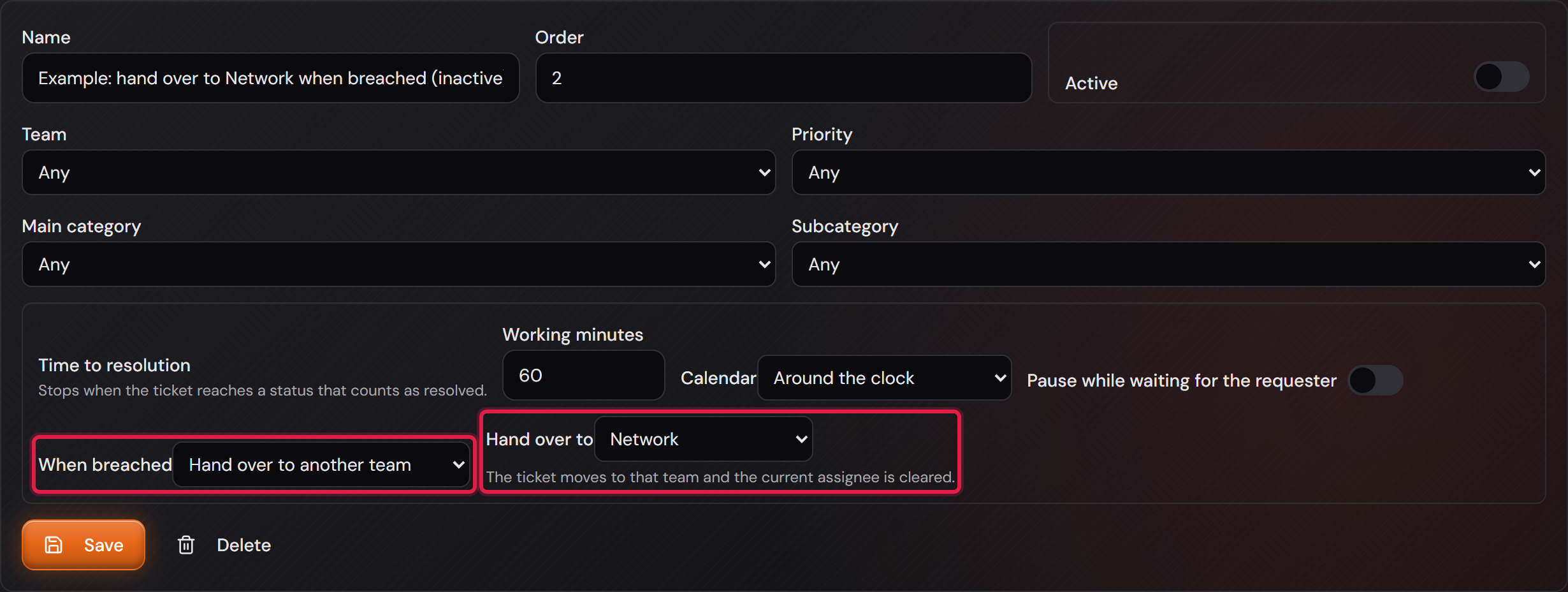
Per target you set under “When breached” what happens on a breach: “Record only” just records it, “Notify assignee and observers” sends a mail to the assignee and the observers (not to the whole team), “Hand over to another team” hands the ticket over. For the handover you have to pick a target team — a policy without one is rejected on saving, because it would look configured and do nothing.

The action runs exactly once per clock. Without that latch a restart of the server would send the same mail again. The “already done” mark is set even when sending failed — a mail that did not arrive is better than a loop that sends a new one every minute.

The breach itself is dated to the moment it fell due, not to the check run — otherwise the reporting would hang on the rhythm of the checking service. And it is measured against the working time used: a paused clock cannot breach, even when the due date is long gone.

The handover resets the status to “Open”. The history rows about it are internal; the customer only sees the new status and the new team on the ticket.

An inactive example policy with the red-framed “When breached: Hand over to another team” choice and the “Network” target team.
The sentence below the target team says what happens: the ticket moves to that team, the current assignee is cleared. The “Active” switch is off here — an inactive policy does nothing.Open image at full size
7

SLA metrics in reporting

Professional only

Under “Reports” you choose the period and press “Generate report” — without that click the page stays empty. The report then holds the “Service level agreements” block with one row per target: met, breached, still running, achieved rate and the average time used.

Counting happens per target, not per ticket — it says so below the table as well. A ticket with both targets therefore appears twice, once in each row.

The achieved rate counts only decided clocks. Running ones do not belong in the denominator, otherwise every freshly switched-on SLA would look catastrophic at first and get better on its own. If there is not a single decided clock yet, a dash appears — not “0 %”.

If you work with group incidents, there is an additional “Achieved without group incidents” line: a single outage with a hundred attached tickets would otherwise distort the rate in both directions. It leaves out every ticket that is linked to an incident.

Agents only see their own teams in this block. Without Professional the block only appears if there is deadline data from before; it then stays readable.

The “Service level agreements” report block with the Met, Breached, Still running columns, the red-framed “Achieved” column and the average time used.
For the first response three deadlines are met and one is breached, ten are still running. That makes 75 %. The two columns to the right of it only appear when group incidents exist: they leave out every ticket that is linked to an incident.Open image at full size

The screenshots are from version 1.3.1. Nothing on the screens shown changed up to version 1.13.3. The only thing that looks different is the version number at the bottom of the sidebar.