Bulk actions on the ticket list

Tick several tickets and change them in one go. All of it is part of Basic. Only the customer e-mail of a template depends on the mail channel and therefore on Professional. The real point is not the number of tickets but the honest handling of a partial result: every rule applies to the single ticket, so the system says beforehand how many the action fits, and afterwards which ones did not come along and why.

1

Change the status of several tickets at once

The ticket list has a column of checkboxes on the far left. It is there for administrators and agents. A customer never sees it.

The checkbox in the header row selects every row of the page you are looking at. It does not select the whole result set. If you need more than that, narrow the filter — a filter is the more honest way to state a quantity than a checkbox that also covers tickets you cannot see.

The selection clears as soon as you page, filter, search or switch team. That way no selection travels along that is no longer on screen.

The list in the picture does not show every ticket. At the top right, next to “Filter”, stands the word “active”, and beside it “Reset”: closed tickets are hidden, because a bulk action is aimed at cases that are still running. A selection always covers only what the list is showing at that moment.

From the first tick onwards a bar appears above the list. It shows “20 selected”, next to it “Clear selection” and the buttons “Change status”, “Assign”, “Assign to me” and “Apply template”. Further right sit “Multiple report” and “Group into incident” — those two belong to duplicate reports and are explained in the next block.

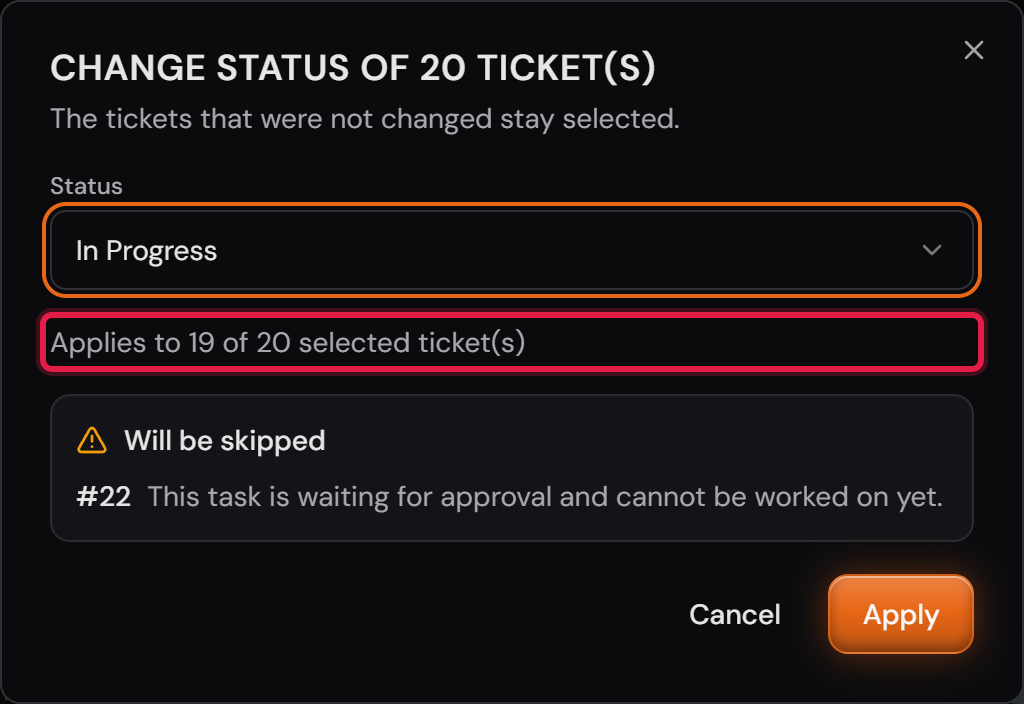
“Change status” opens a small dialog. You pick the target status, and the line below immediately says how many of the selected tickets it applies to.

If the target status requires a comment, a text box appears. Below it stands how many tickets the text goes to. It goes to every changed ticket, not just to the first one.

Not every status appears in the list. System statuses are missing because nobody sets them by hand. “Waiting for other team” is missing as well: that status creates a sub-ticket for a target team, and you choose that team per ticket. In a bundle there would be only one single input for it.

A ticket without an assignee is assigned to you when you change its status on the detail page. In a bundle that does not happen: “close 30 tickets” would otherwise quietly mean “30 tickets assigned to me” and 30 e-mails.

This dialog changes nothing else. Priority, category and everything beyond it are set in a bundle through a reply template.

More on this in the card: A second stage for single tasks
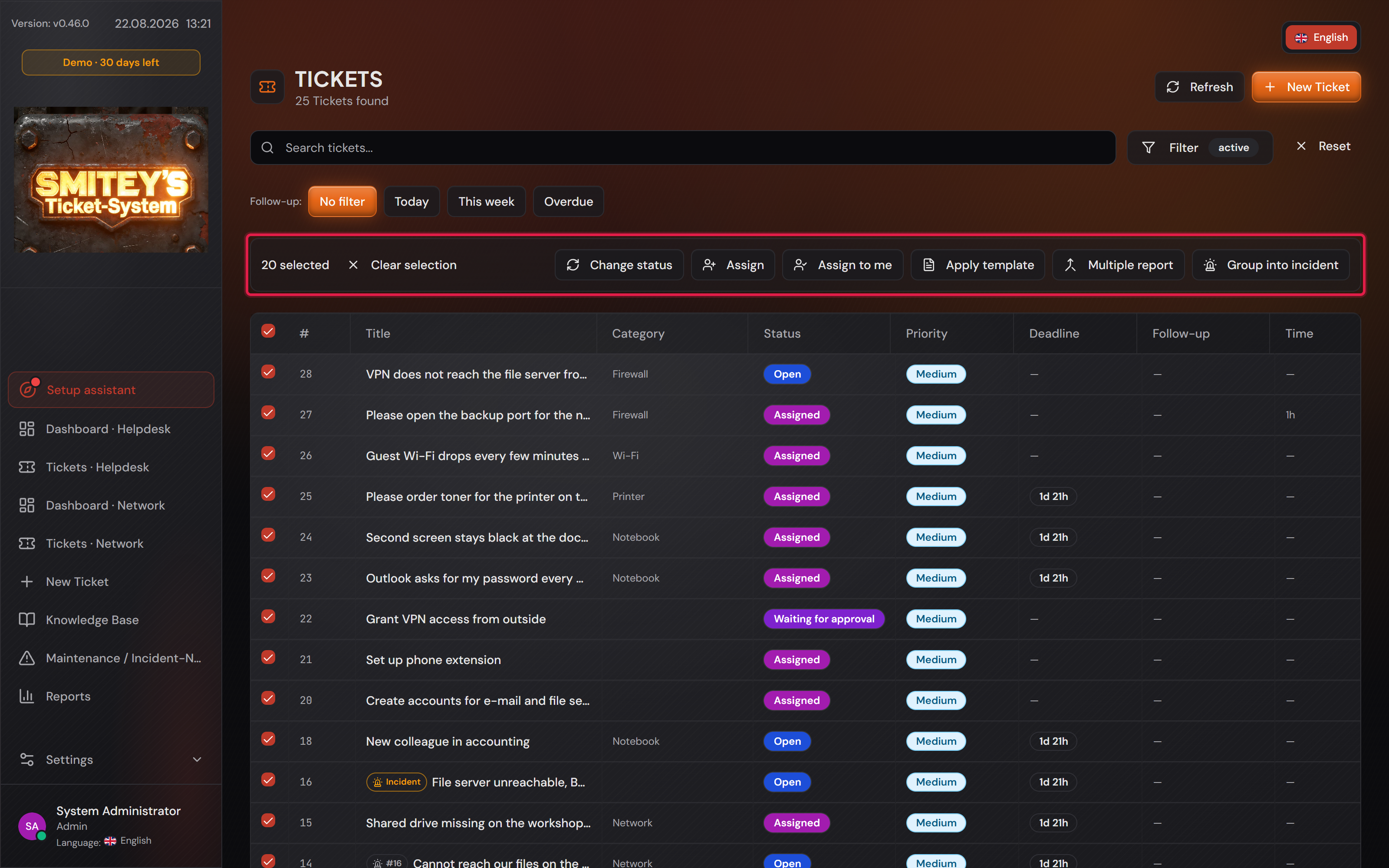
The ticket list with ticked rows and the bar above it showing the number of selected tickets and the bulk action buttons.
The red frame sits on the bar that only appears with the first tick. On the left the number of selected tickets, on the right the actions.Open image at full size
The “Change status” dialog with a chosen target status and the line stating its reach.
The target status is chosen; below it the reach and the reason for every ticket that will not come along. Both stand there before you click “Apply”.Open image at full size
2

Assign several tickets to one agent at once

“Assign” opens the list of agents. Agents who are away stay selectable and are only marked as such, exactly as on a single ticket.

“Assign to me” is the same dialog with your own name preselected. It is a shortcut, not a second route, and the same rules apply to it.

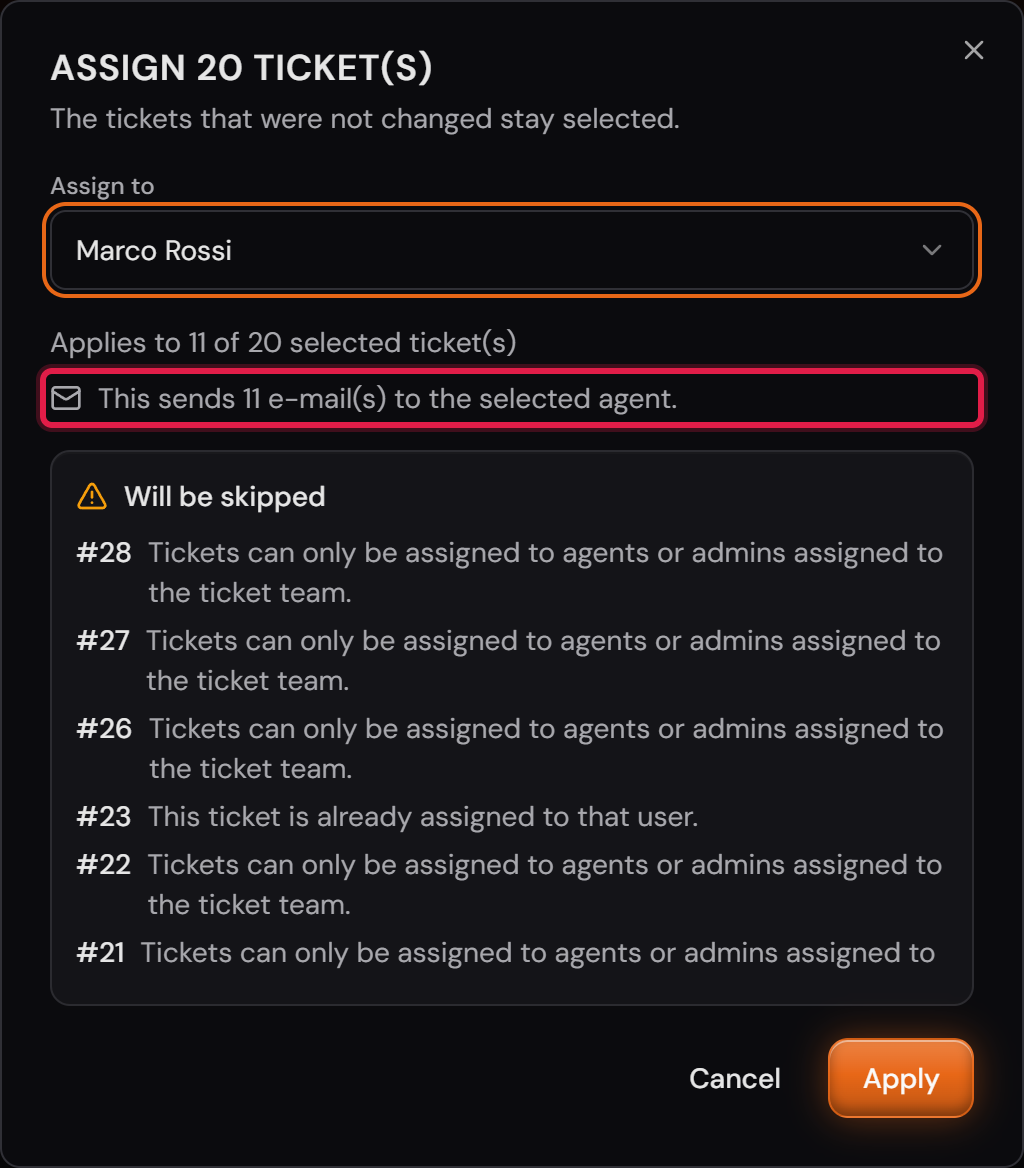
An assignment can send an e-mail to the agent. That needs Professional and the team’s “Send assignment e-mails” switch. Mails on self-assignment are off by default. The dialog states the number beforehand: “This sends 11 e-mail(s) to the selected agent.” Eleven tickets are eleven mails.

The agent has to belong to the team of that particular ticket. A selection spanning two teams therefore cannot be handed to one person in one piece. That is not a limitation of the bulk action — the same rule applies on a single ticket.

An assignment cannot be reset to “nobody”. That does not exist on a single ticket, so it does not exist in a bundle either.

The “Assign” dialog with the chosen agent, the reach and the notice about the number of e-mails.
Below the picker stand the reach and the number of e-mails. The box beneath names every ticket that will not come along, with its reason. Some already belong to Marco Rossi, the others belong to a team he is not part of.Open image at full size
3

Apply a reply template to several tickets, placeholders resolved per ticket

“Apply template” applies a reply template to all selected tickets. Each ticket gets the same comment it would get if you applied the template by hand.

The list offers the templates of every team that occurs in the selection. A template appears as soon as it fits at least one selected ticket; how many it really fits is what the preview says next.

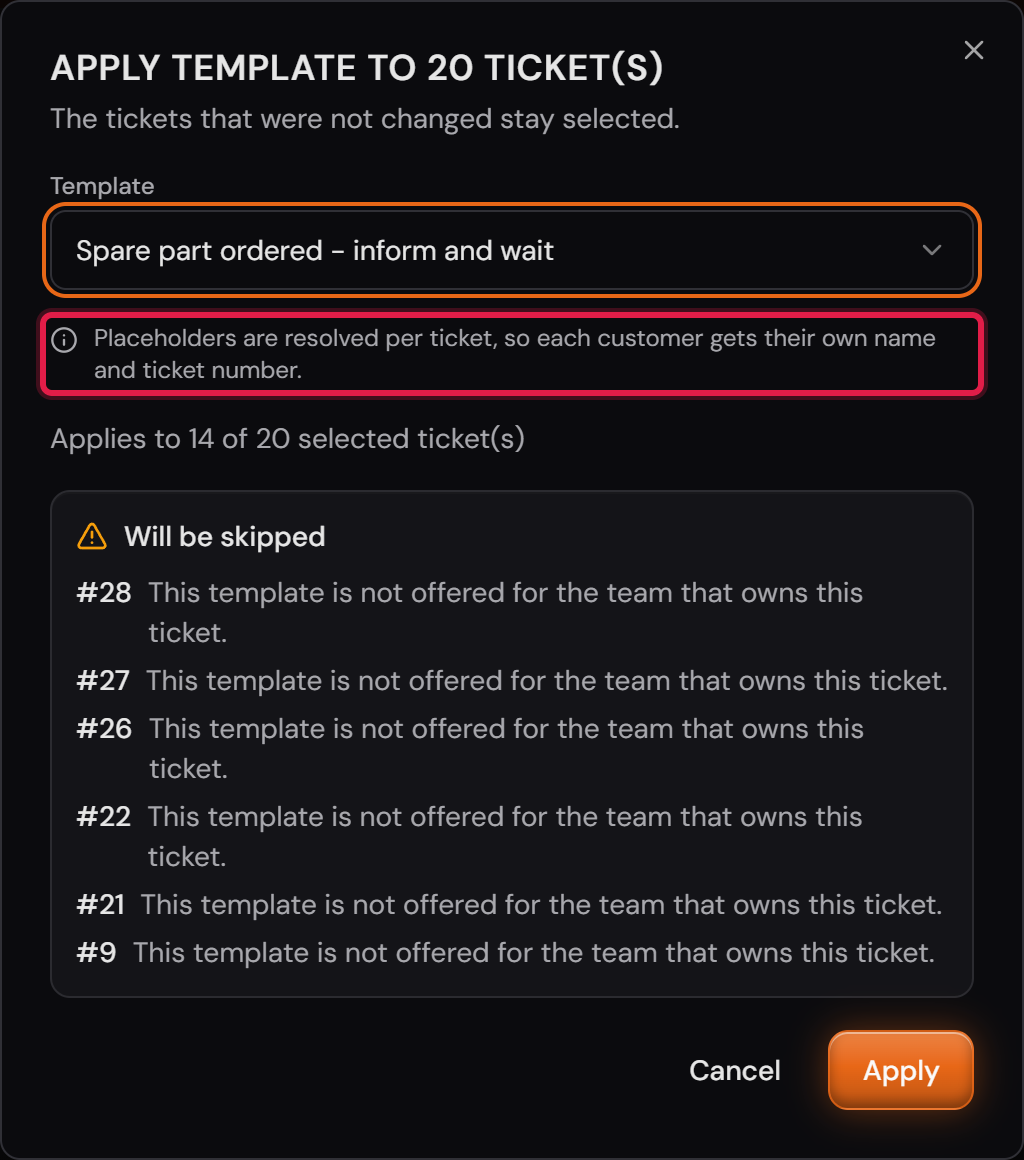
The server resolves the placeholders per ticket, so every customer gets their own salutation and their own ticket number. The note in the dialog says so as well.

The field actions of the template run along, and its attachments are copied to every ticket.

In a bundle all actions of the template run. You can deselect individual ones only on a single ticket; if you do not want an action, use a template without it.

If there is no template for the teams in the selection, the dialog says so: “No reply template is available for the teams of the selected tickets.”

The “Apply template” dialog with a chosen template and the note that placeholders are resolved per ticket.
The red frame sits on the note about the placeholders — what separates this from one text worded the same for everybody. Below it stands the reason the template fits 14 of the 20 tickets: six of them belong to a team it is not offered for.Open image at full size
4

Preview before running, result afterwards, skipped tickets stay selected

All three dialogs show the same line before anything happens: “Applies to 19 of 20 selected ticket(s)”.

Below it stands the box “Will be skipped” with one line per ticket that does not come along, each naming the ticket number and the reason. So you read before the click why the number is smaller than your selection.

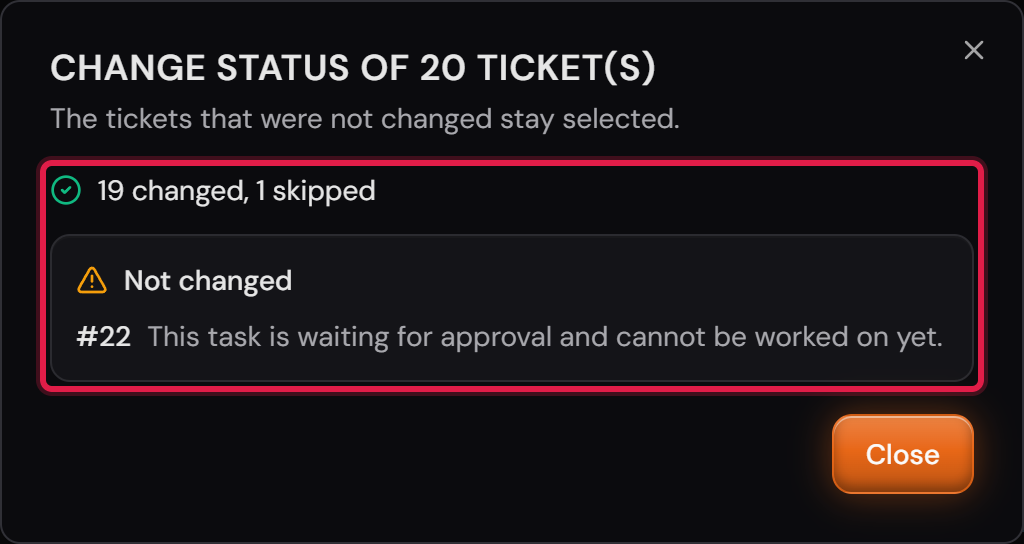
After running it says “19 changed, 1 skipped” and the same box turns into “Not changed”. The content is the same; it has only stopped being a forecast and become a statement.

The reasons are those of the single ticket. A ticket is already in the target status. The transition is not allowed from its current status. It belongs to a team you are not responsible for. The chosen agent is not part of its team. It is waiting for an approval. It is a group incident with open reports. It is a parent ticket with an open sub-ticket.

The skipped tickets stay selected, the changed ones do not. A second attempt with a different target is therefore one click away, and nobody has to guess which ones are still open.

The preview is a second opinion, not a permit. When the action runs, the server checks every ticket again — a ticket can change between the display and the click.

One call accepts at most 200 tickets. With 20 rows per page that is far away.

The dialog after running: the number of changed and skipped tickets, and below it the “Not changed” box with the reasons.
The “Not changed” box names the reason per ticket. Here one ticket is still waiting for approval.Open image at full size
5

The e-mail to the requesters is off by default

Professional only

A checkbox for sending mail appears only for templates that send one, and only if the mail channel is open. It is empty by default, so a bulk action writes nothing to the outside world until you tick it.

If the channel is closed, the reason takes the place of the checkbox: either e-mail sending is switched off, or the mailboxes of the selected teams do not send ticket action mails. You read that before the click, not afterwards in the result.

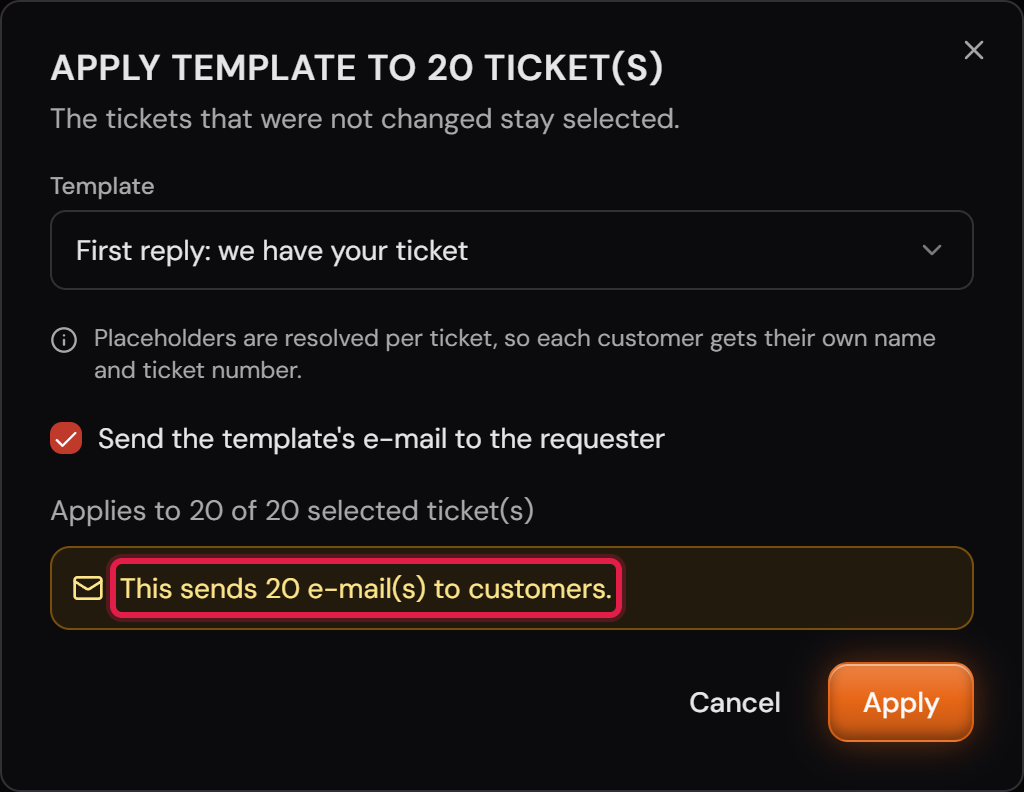
Once you tick it, an amber notice appears with the number: “This sends 20 e-mail(s) to customers.” The number comes from the preview and is the number of tickets the template really fits.

Changing the status and assigning never write to customers. The assignment does send an e-mail, but to the agent. Applying a template in a bundle is the only route on which a customer mail comes into being.

Sending depends on the mail channel and therefore on Professional. If it is off, no mail goes out and the history mentions no mail either — it never claims a delivery that did not happen.

The “Apply template” dialog with the mail checkbox ticked and the amber notice about the number of customer mails.
The checkbox is ticked and the amber notice states the number of mails. Without the tick none goes out.Open image at full size
6

Every bulk change appears in the history of the individual ticket

Every change made by a bulk action appears in the history of the individual ticket. It looks like any other change there, with an old and a new value.

The requester sees these rows as well. For them a status change is the same event whether it was triggered singly or in a bundle — hiding it would not be more discreet, only worse.

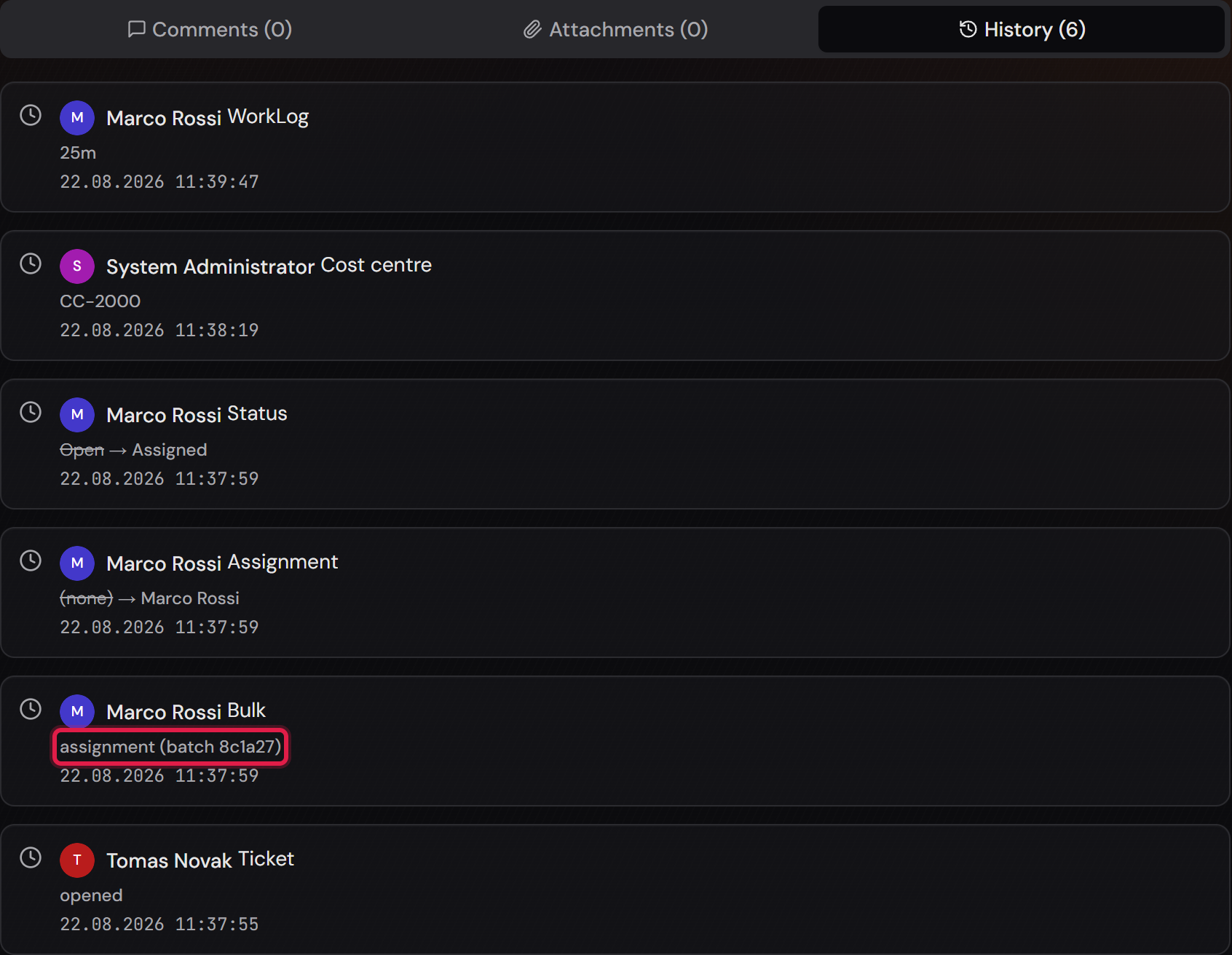
A bulk assignment writes the row with the new assignee. For a ticket that stood on “Open”, a second row follows with the status, because the assigned ticket then moves to “Assigned”.

On top of that comes an internal row carrying the reference of the run. That reference lets you find all tickets of the same run later on. The requester does not see this row.

Every row names the person who triggered the bulk action.

A skipped ticket gets no entry, not even one about the attempt. What did not happen does not appear in the history.

The history of a ticket with the assignment row and the internal row below it naming the bulk run.
The newest row is on top. Below the rows about time and cost centre stand the status, the assignment and the reference of the run. The red frame sits on the internal row, the one the requester does not see.Open image at full size

The screenshots are from version 1.3.1. Nothing on the screens shown changed up to version 1.13.3. The only thing that looks different is the version number at the bottom of the sidebar.