Automatic ticket assignment

A new ticket can be given an owner right away. The system uses the availability explained in the block before, the distribution is switched on per team, and it is off as a factory setting. This whole block is part of Professional.

1

The distribution belongs to the team

Professional only

Without a distribution every new ticket lands in the pool. Somebody has to take it or somebody has to hand it out, and both work as long as somebody is watching.

Switch the distribution on and every new ticket is given an owner as it is created. That happens immediately and not a few minutes later. A ticket that is created directly as resolved or closed is not distributed.

The setting sits on the team under “Settings → Teams” and each team decides for itself. One team can distribute while the team next to it works out of the pool.

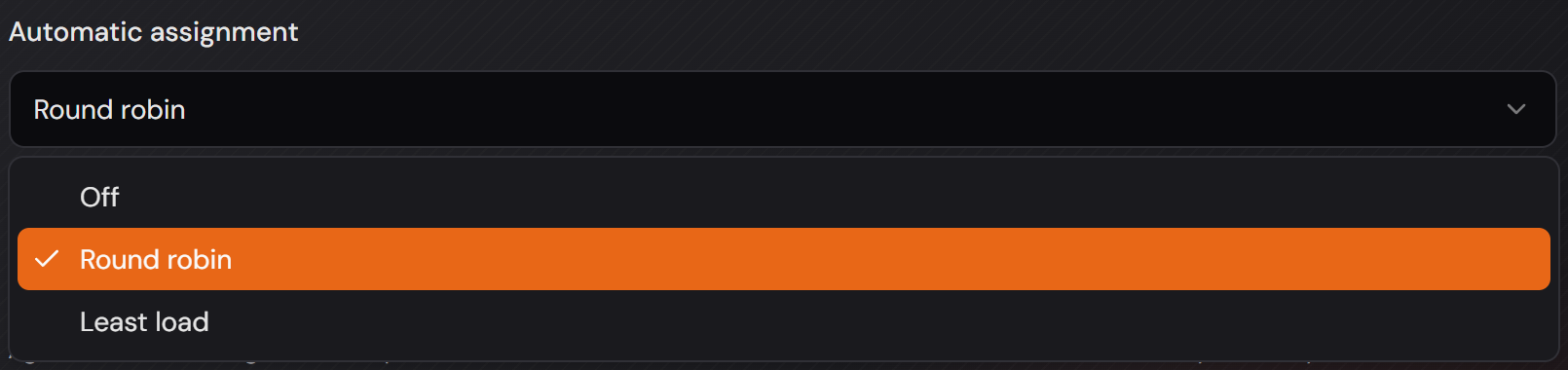
As a factory setting every team stands on “Off”. An existing environment does not change its behaviour just because the feature exists.

Tickets go to the members of the team. An administrator who works in the queue and is a member of that team receives tickets just like an agent.
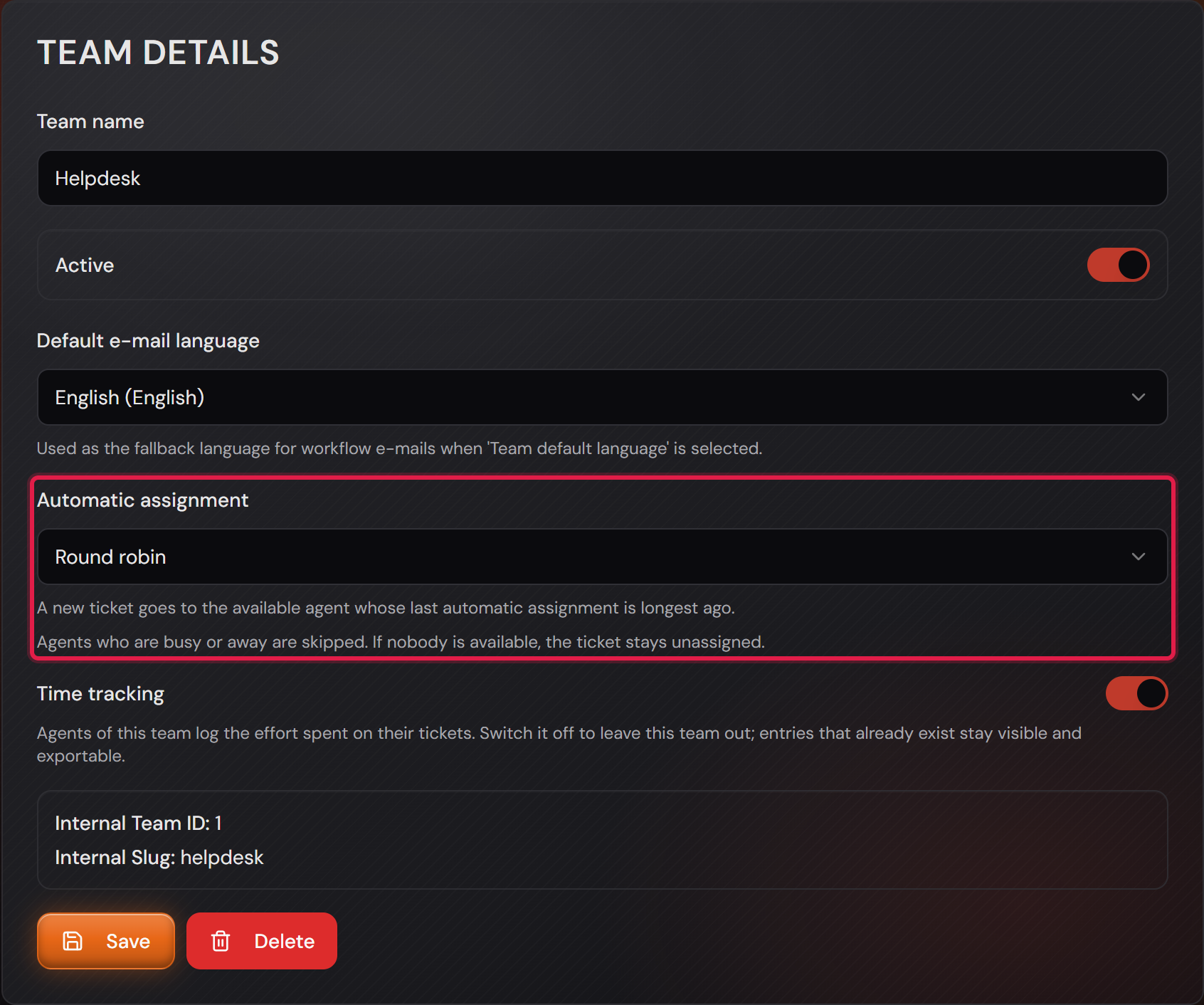
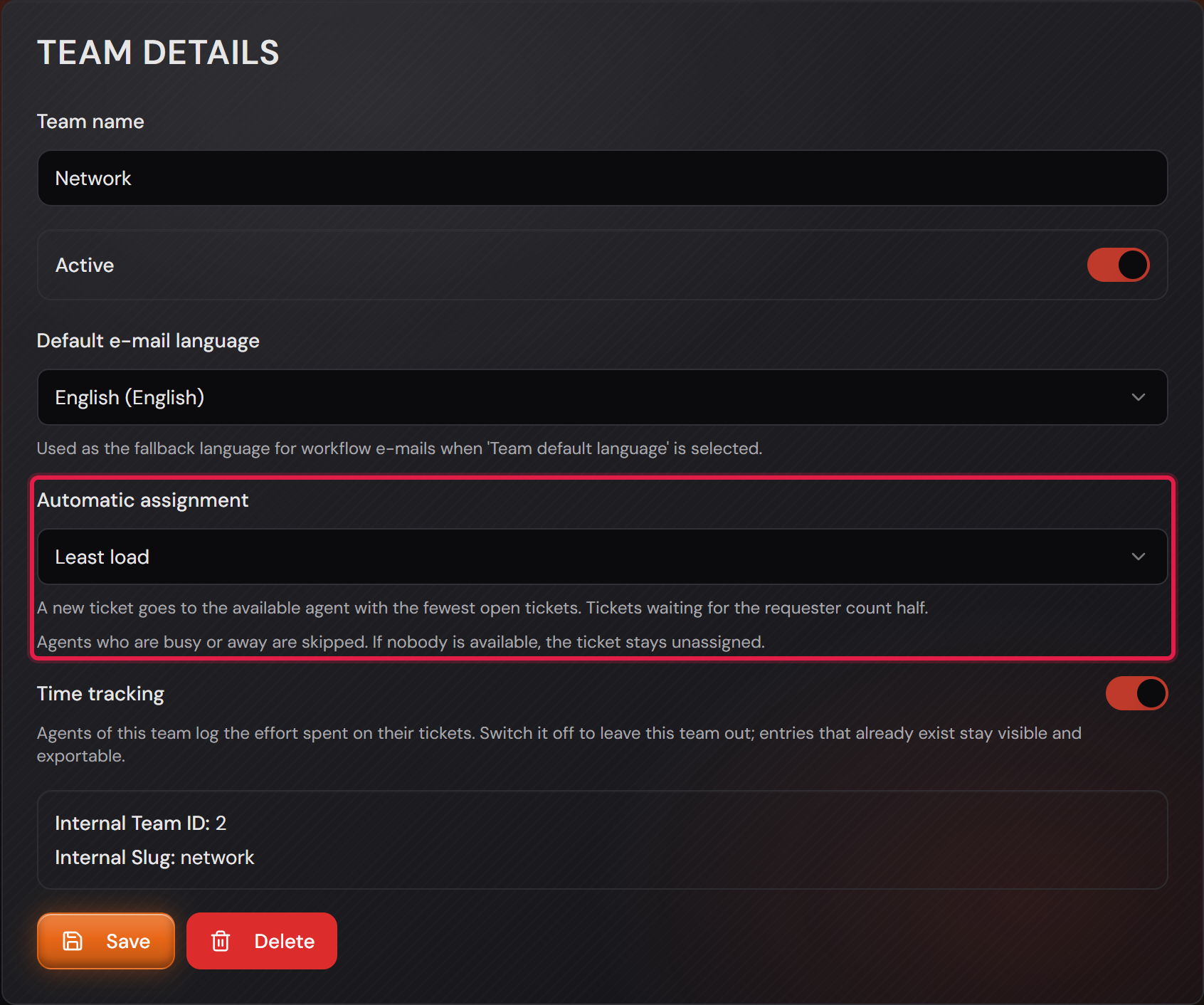
The “Automatic assignment” section in the Helpdesk team dialog, set to “Round robin”, with two explaining sentences below it.
The setting sits on the team. Below the field one sentence explains the chosen procedure, and below that stands who gets skipped.Open image at full size
The open selection field with its three entries “Off”, “Round robin” and “Least load”.
Three entries to choose from. “Off” is the factory setting.Open image at full size
2

Round robin or least load

Professional only

There are two procedures and you choose one per team.

“Round robin” goes around in turn. The new ticket goes to the available agent whose last automatic assignment is longest ago, so somebody who has just joined the team is first in line.

“Least load” looks at the desk. The new ticket goes to the available agent with the fewest open tickets.

A ticket that waits for the requester counts half. Somebody with many open questions is not busy in the same way as somebody with a pile of fresh incidents.

A resolved or closed ticket does not count at all any more. That is true for a status you created yourself as well, as long as it is marked as resolved or closed.

The result can be worked out in both procedures. When two agents are level the same rule always decides, never chance.

The same section in the network team dialog, set to “Least load”, with the sentence about tickets counting half.
The same field on a different team, here on “Least load”. The sentence below changes with the setting.Open image at full size
3

Whoever is not there gets nothing

Professional only

Before every assignment the distribution asks for the state of the agent. “Busy” and “Away” are skipped.

Locked and deleted accounts are out of the question as well, and so is anybody who is not a member of the team the ticket belongs to.

If nobody is available the ticket stays without an owner, and creating it still goes through normally.

That is deliberate. Everybody sees a ticket in the pool, and nobody sees a ticket that sits with somebody who is away.

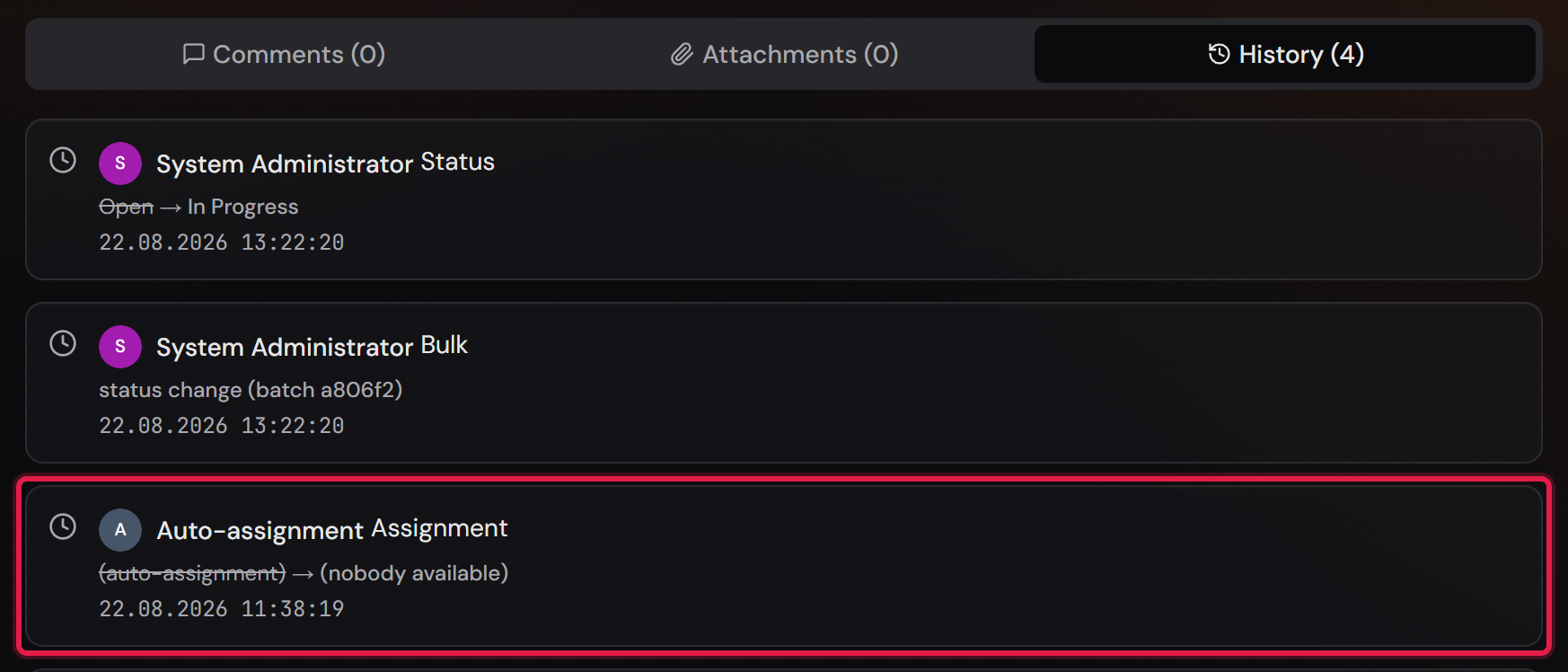
The ticket history carries the reason: it reads “Nobody available” instead of a name.

More on this in the card: Available, busy or away

The history of a ticket with an “Auto-assignment” entry that names “Nobody available” instead of a person.
Nobody was available and the ticket stayed in the pool. The red frame sits on the entry that names the reason.Open image at full size
4

What the distribution touches and what it does not

Professional only

The distribution works on every path a ticket comes into being on, and that includes tickets from the e-mail inbox. The exception is a group incident: it stays with whoever created it.

It works the same way on the sub-tickets of a request: each one is distributed inside the team that receives it.

A ticket a person has assigned is never touched by the distribution. If you pick an owner yourself while creating a ticket, your choice stands.

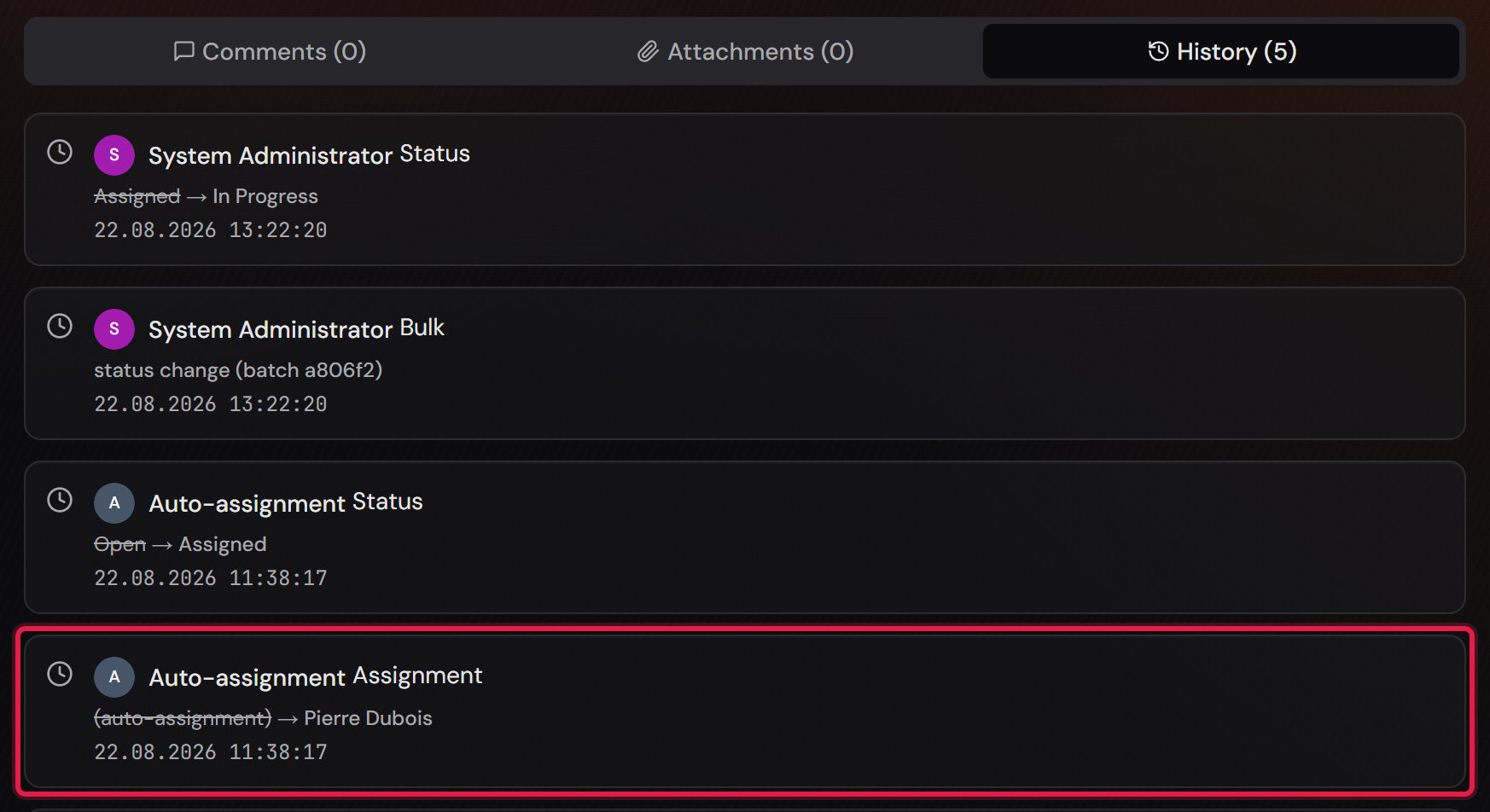
Every automatic assignment is recorded in the ticket history, with “Auto-assignment” as the author and the name of the agent next to it.

The agent receives the same mail as with an assignment by hand. If the ticket still stands on “Open” it moves to “Assigned”.

More on this in the card: An e-mail becomes a ticket

The history of a ticket with two “Auto-assignment” entries: the assignment to an agent of the team and the status change from “Open” to “Assigned”.
The history names the automation. It assigned the ticket and moved the status along with it.Open image at full size
5

The report on the distribution

Professional only

Anybody running an automation has to be able to check what it does. There is a card of its own on the report page for that.

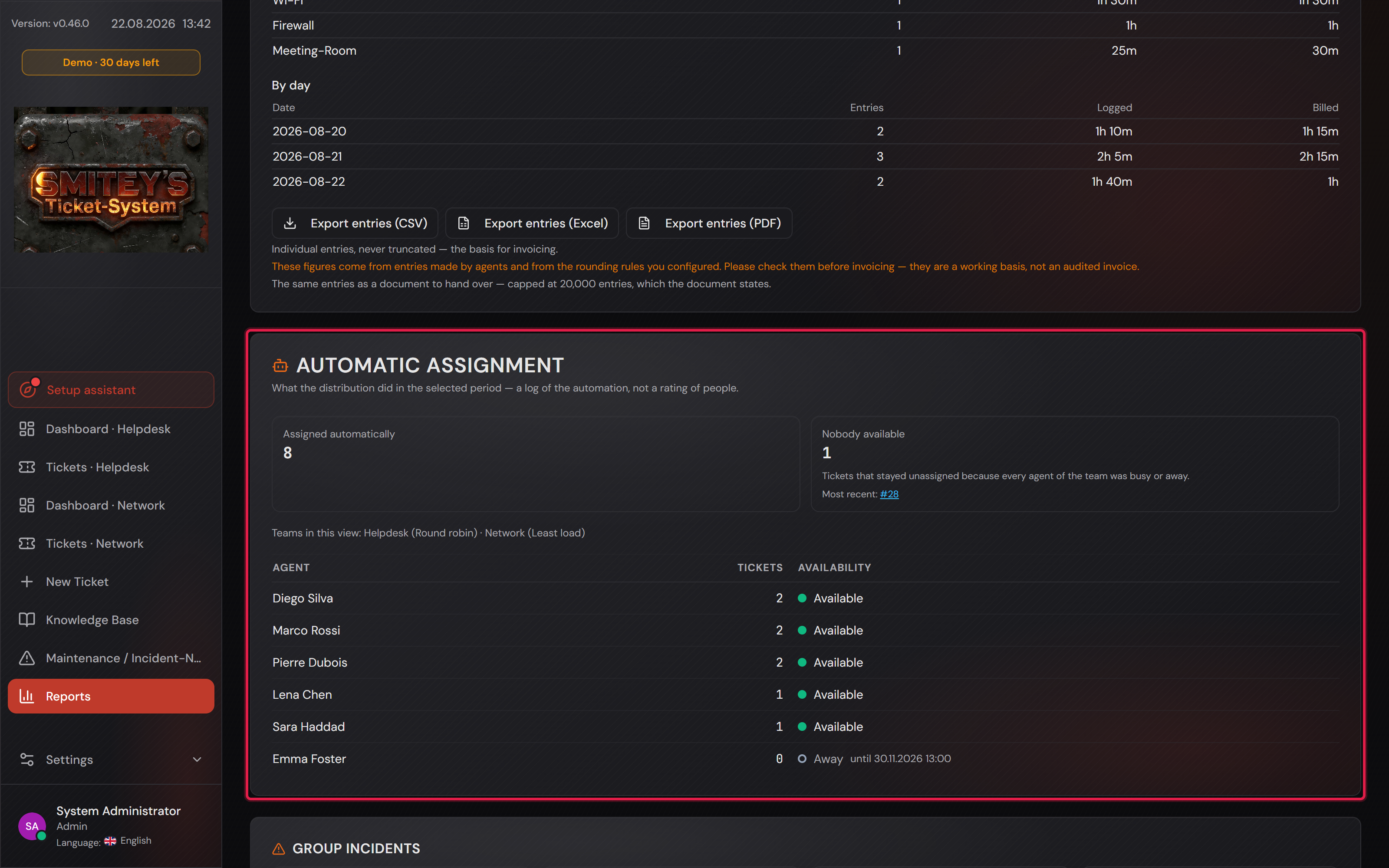
Two numbers stand at the top. On the left how many tickets the automation handed out, on the right how often nobody was available.

Under “Nobody available”, after “Most recent:”, stand up to 20 tickets it last happened to, and one click takes you there.

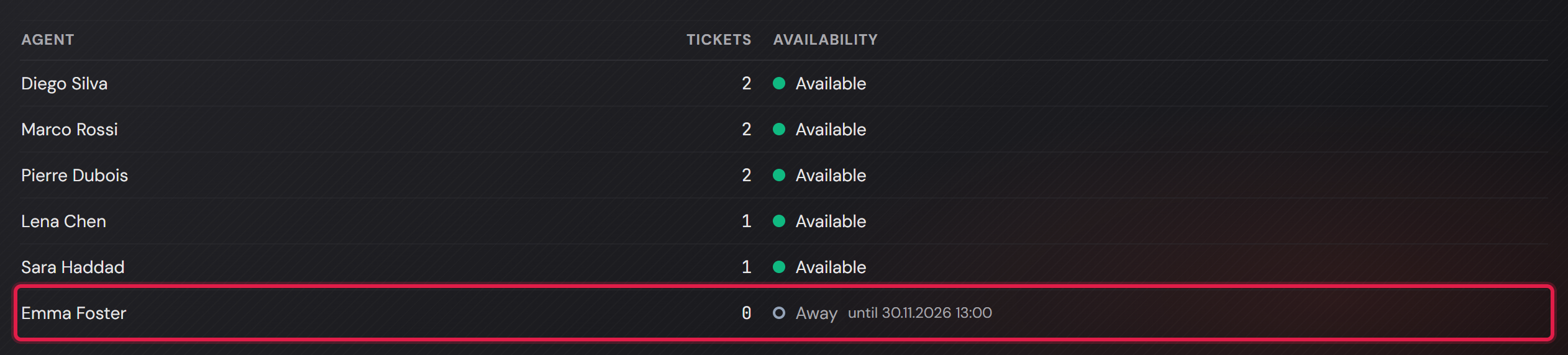
Below that stands one line per agent with their number and their availability. The lines come from the membership of the team.

A line with a zero is therefore not an error. It is what the table is for.

Somebody who has stood on “Away” for weeks has received no tickets and is still listed, with the reason next to the zero.

This card is a log of the machine and not a rating of people. There is no availability history and no report on who was present for how long.

Agents only see their own teams here, and only those whose “Agent Permissions” allow seeing reports. Without a team filter they see the first of those teams.

More on this in the card: No availability history, no per-person evaluation

The report page with the “Automatic assignment” card among the other reports.
The card sits on the report page. The red frame shows where to find it.Open image at full size
The “Nobody available” box with its number, an explaining sentence and the most recent ticket it happened to.
The second number stands next to the first with the same weight. Below it stands the most recent ticket that stayed in the pool.Open image at full size
The report table with six agents, their numbers and their availability, including one line with a zero and an “Away” note.
One line per agent. The red frame sits on the line with the zero that carries its reason next to it.Open image at full size

The screenshots are from version 1.3.1. Nothing on the screens shown changed up to version 1.13.3. The only thing that looks different is the version number at the bottom of the sidebar.