Ticket management

The daily craft: creating tickets, sorting them, finding them again. Everything in this block is part of Basic unless a card says otherwise.

1

Creating and editing tickets

Before you start: A single ticket cannot be deleted — not even by an administrator. Tickets only leave the database through the archive, and only once they are closed. That is on purpose: a case that someone can remove without a trace is worthless as a record.

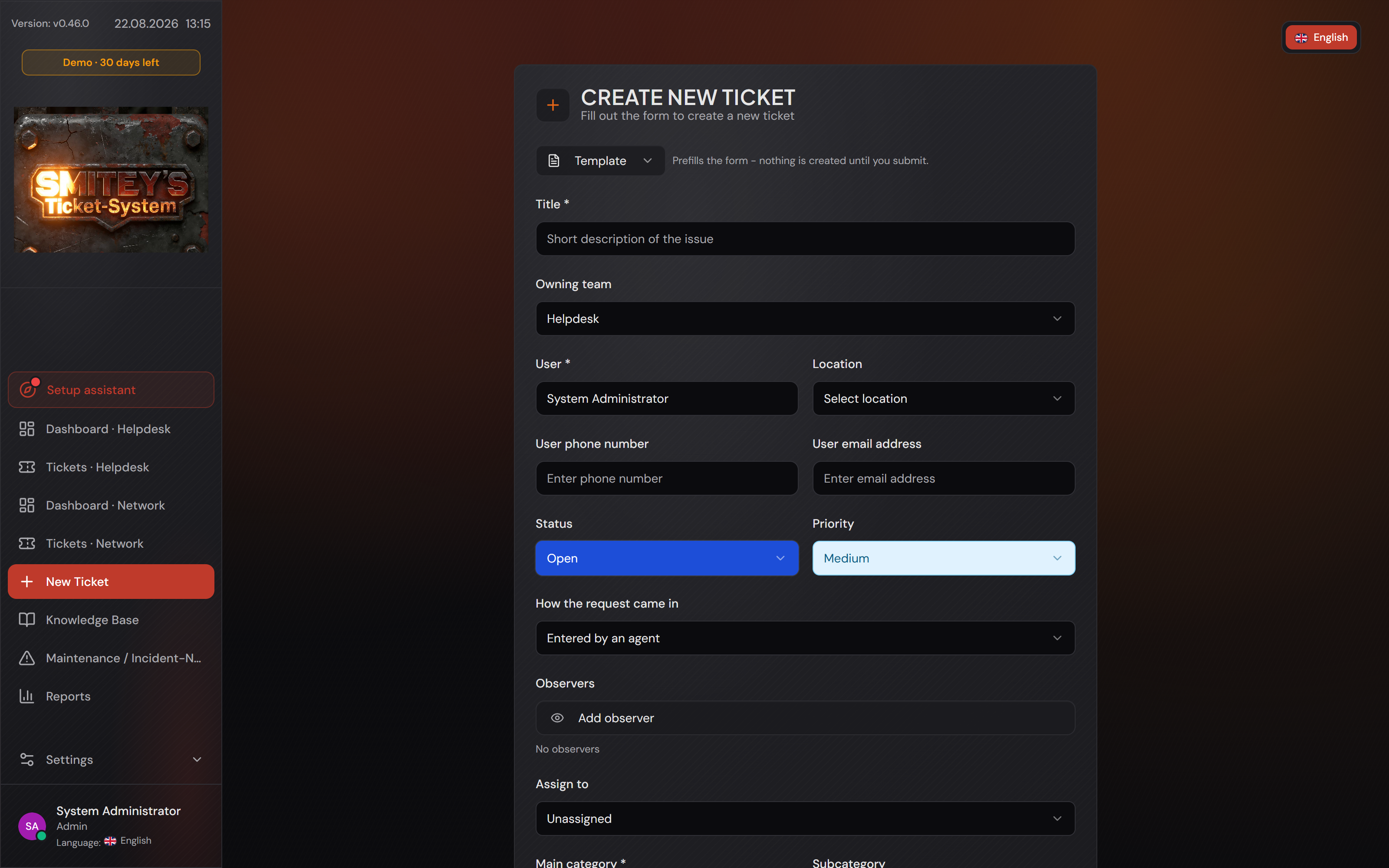
You create a new ticket with “New Ticket” in the left-hand bar. The form is called “Create new ticket”. As an agent you also record other people’s requests with it — that is what the “User” field is for: it says who the case is for, not who is typing it in.

Everything with a star is mandatory: “Title”, “User”, “Main category” and “Description”. One more that is easy to miss: the form will not save without a subcategory, even though “Subcategory” carries no star — a main and a sub category belong together and are always set as a pair.

Which fields are mandatory is set under “Settings → Ticket Settings”. The “Admin / Agent Field Settings” card only has the “Field is mandatory” switch for this. The “Customer Field Settings” card also has “Is hidden for Customer” and “Is not editable”. That is why a customer can see a shorter form than you do, without anyone having to maintain two forms. “Title” and “Description” are always mandatory. That cannot be switched off.

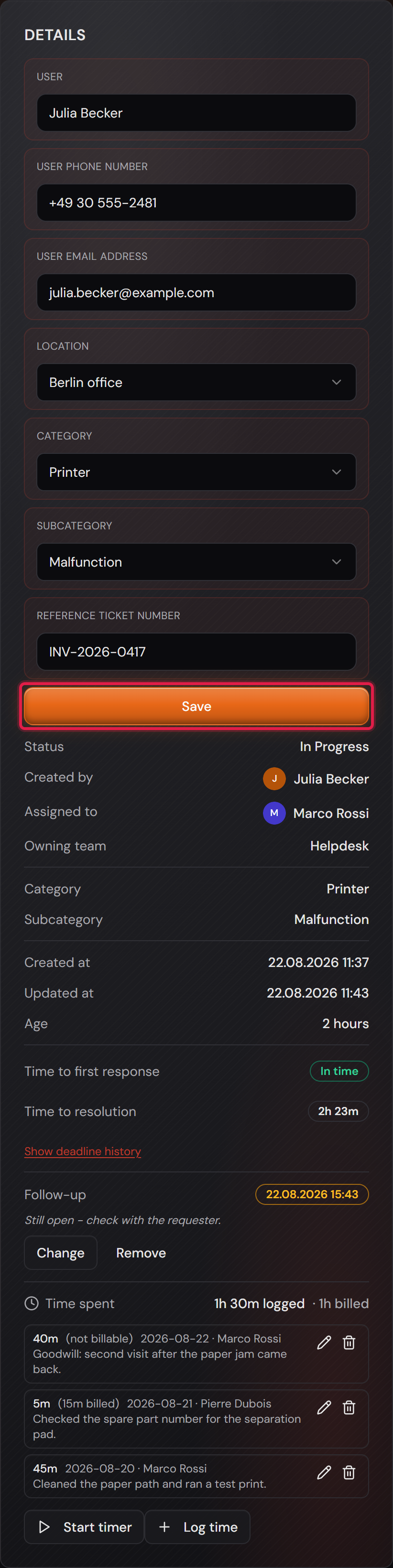
Afterwards you can change nearly everything: on the right of the ticket sits the “Details” card with requester, phone, e-mail, location, category and reference number; you change the field itself and confirm with the “Save” below it. Status, assignment, priority, channel and observers sit one card higher under “Actions”. Status and assignment take effect immediately. Priority, channel and observers are only saved with the “Save” in the “Details” card.

Only agents and administrators may change this. The requester can read the case, comment on it and attach files — but not change the classification your reporting is built on.

One side effect worth knowing once: if you edit a ticket that belongs to nobody yet, it belongs to you afterwards. The system enters you as the agent and moves the status from “Open” to “Assigned” — both end up in the history. If you did not want that, assign it to somebody else afterwards.

Every one of these changes lands in the ticket’s history, with name, time, old value and new value. You do not have to switch anything on for that.

That leaves the question of how to get rid of tickets again. Under “Settings → Archive” you pick a date range, see with “Preview” how many closed tickets it contains, and create a ZIP file with “Create archive”: tickets, comments, history, custom fields and attachments, all in one file. Creating it removes nothing. The tickets only leave the live database with the separate step “Delete from live DB” in the “Existing archives” list — and they can be restored from that same file.

The “Create new ticket” form with the fields Title, Owning team, User, status, priority, channel and observers.
The form behind “New Ticket”. The starred fields are mandatory; categories, description and attachments follow further down.Open image at full size
The “Details” card of a ticket with the requester fields and the “Save” button framed in red.
Changing things later: edit the field, press “Save”. Below it stands, unchangeable, who created the ticket and when.Open image at full size
2

Rich-text editor for description and comments

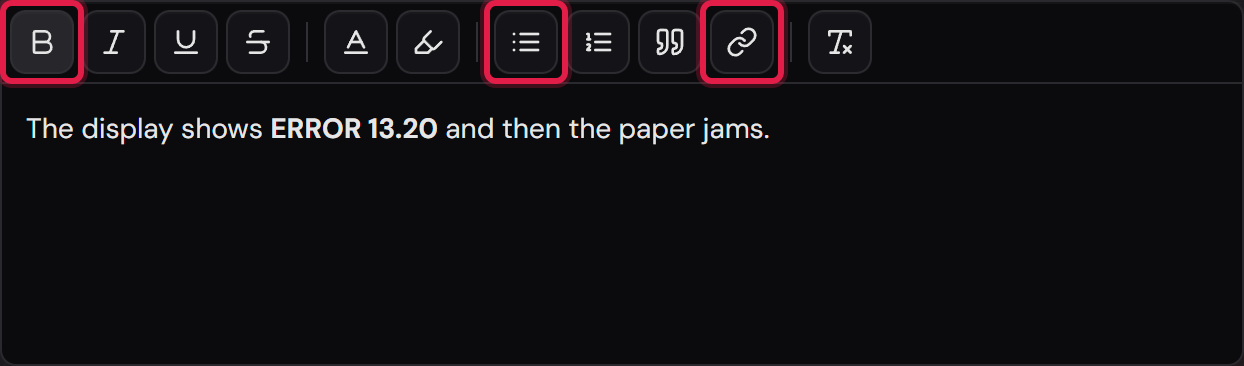
The description and the comments are not bare text boxes. Each has a toolbar above it, and the buttons say what they do when you point at them: “Bold”, “Italic”, “Underline”, “Strikethrough”, “Text color”, “Highlight color”, “Bullet list”, “Numbered list”, “Quote”, “Link” and “Clear formatting”.

This is how a link is made: select the text, click “Link”, type the address into the small prompt. An empty entry removes the link again. Web and mail addresses are allowed (http, https, mailto) — everything else is thrown away when saving, so that a comment cannot slip anything past anyone.

Images come in through the clipboard: take a screenshot and paste it straight into the editor with Ctrl+V. At first the text only shows a marker such as “[inline-image:1]”. When you save, the system uploads the image and displays it exactly there — and it also lands in the “Attachments” tab, where all files of the case live. Pasting images works in the description of an existing ticket and in a new comment. It does not work in the “Create new ticket” form or while you edit a comment.

What you see is what the others see: formatting, lists and links are kept in the ticket, and in the mail to the requester as well. Foreign markup — from a copied web page or an incoming e-mail, say — is trimmed back to this allowed set. None of your text is lost in the process, only the wrapping.

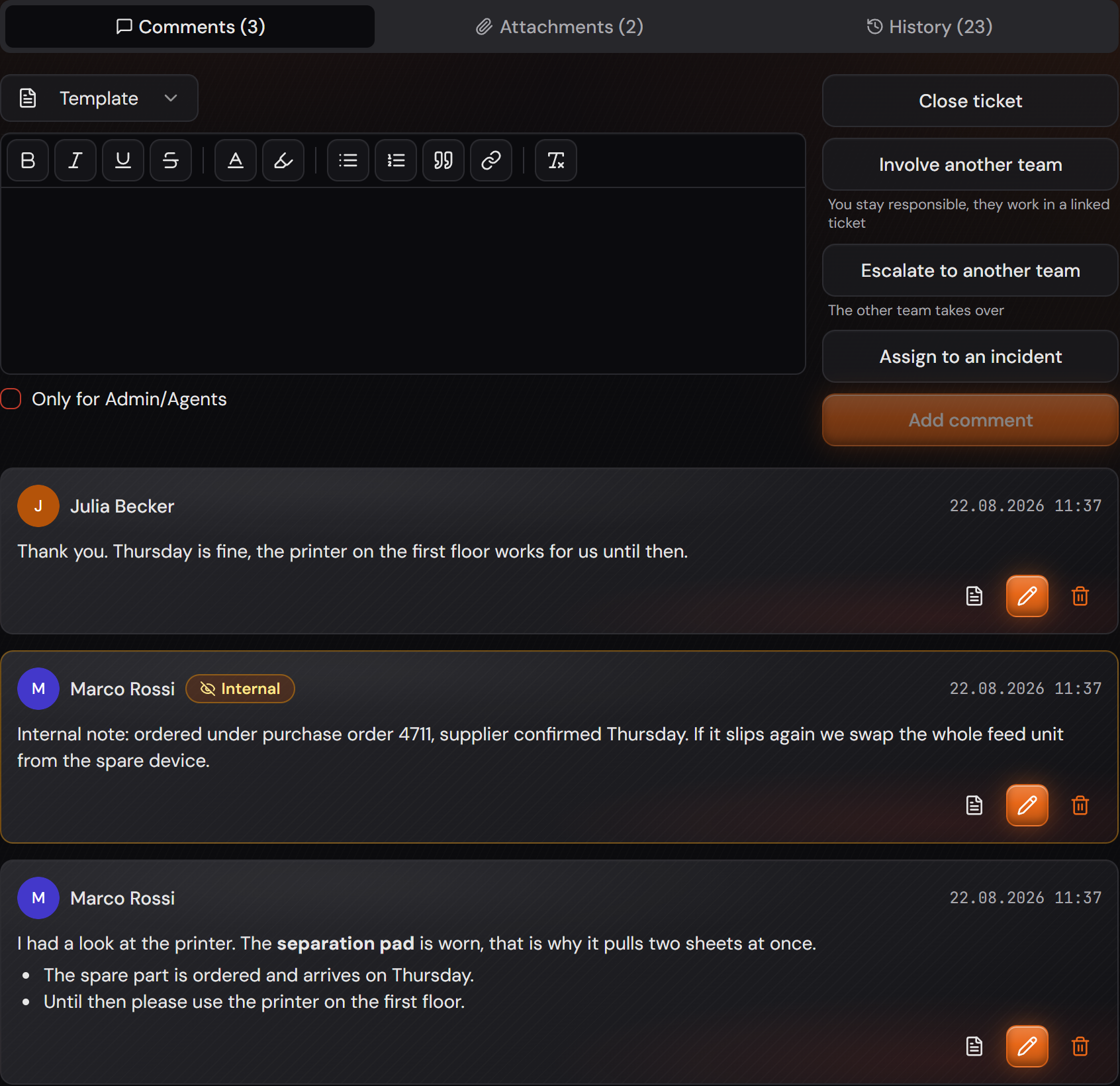
A comment can be marked internal with “Internal note (not visible to the customer)”. It then carries the “Internal” badge and is invisible to the requester — not even the search will surface it.

Everyone can change and delete their own comments. What a customer wrote can only be changed or deleted by that customer or by an administrator. That includes their mails. Comments by colleagues can be changed and deleted by every agent who may work on the ticket. That includes a team that had the ticket earlier.

The editor toolbar, below it the sentence “The display shows ERROR 13.20 and then the paper jams.” with the error code in bold.
Framed in red: “Bold”, “Bullet list” and “Link”. The bar sits above the description as well as above the comment box.Open image at full size
Three comments of a ticket, the lower one with a bold term and a bullet list, the middle one carrying the “Internal” badge.
This is how it arrives: bold text and the list are kept. The middle comment is marked “Internal” and invisible to the requester.Open image at full size
3

File attachments with preview

Before you start: Allowed are PDF, DOC, DOCX, XLS, XLSX, TXT, PNG, JPG, JPEG and GIF, up to 50 MB per file. The limit is stated in the form (“Max. 50 MB per file”), and larger files are rejected before the upload starts.

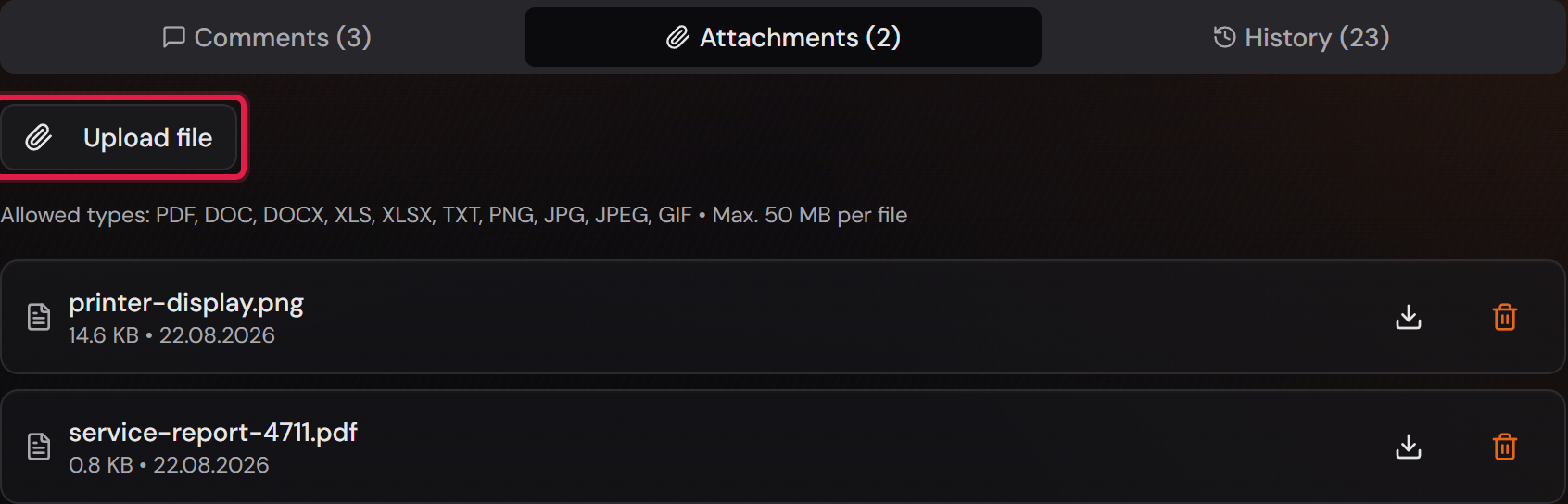
Files belong to the case, not to a single comment. On the ticket the “Attachments” tab leads to the list: “Upload file” adds one, every row names the file, its size and its date. Anyone involved in the ticket may attach something — the requester included; so nobody has to mail you their screenshot. A customer can only delete attachments they uploaded themselves. When a child ticket is closed, its attachments are copied into the parent ticket, where they carry the “Internal” badge. Agents see them; customers neither see nor download them.

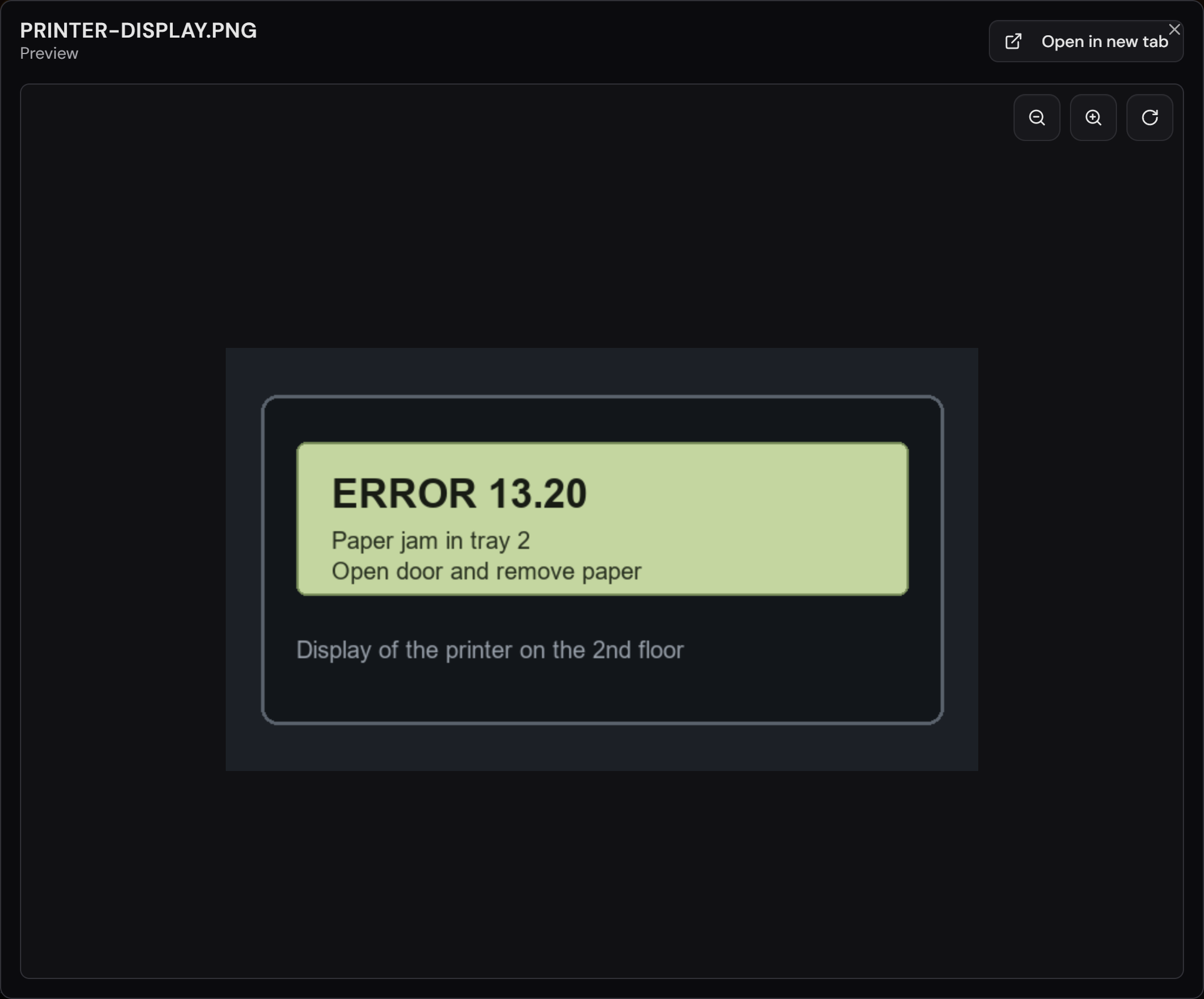
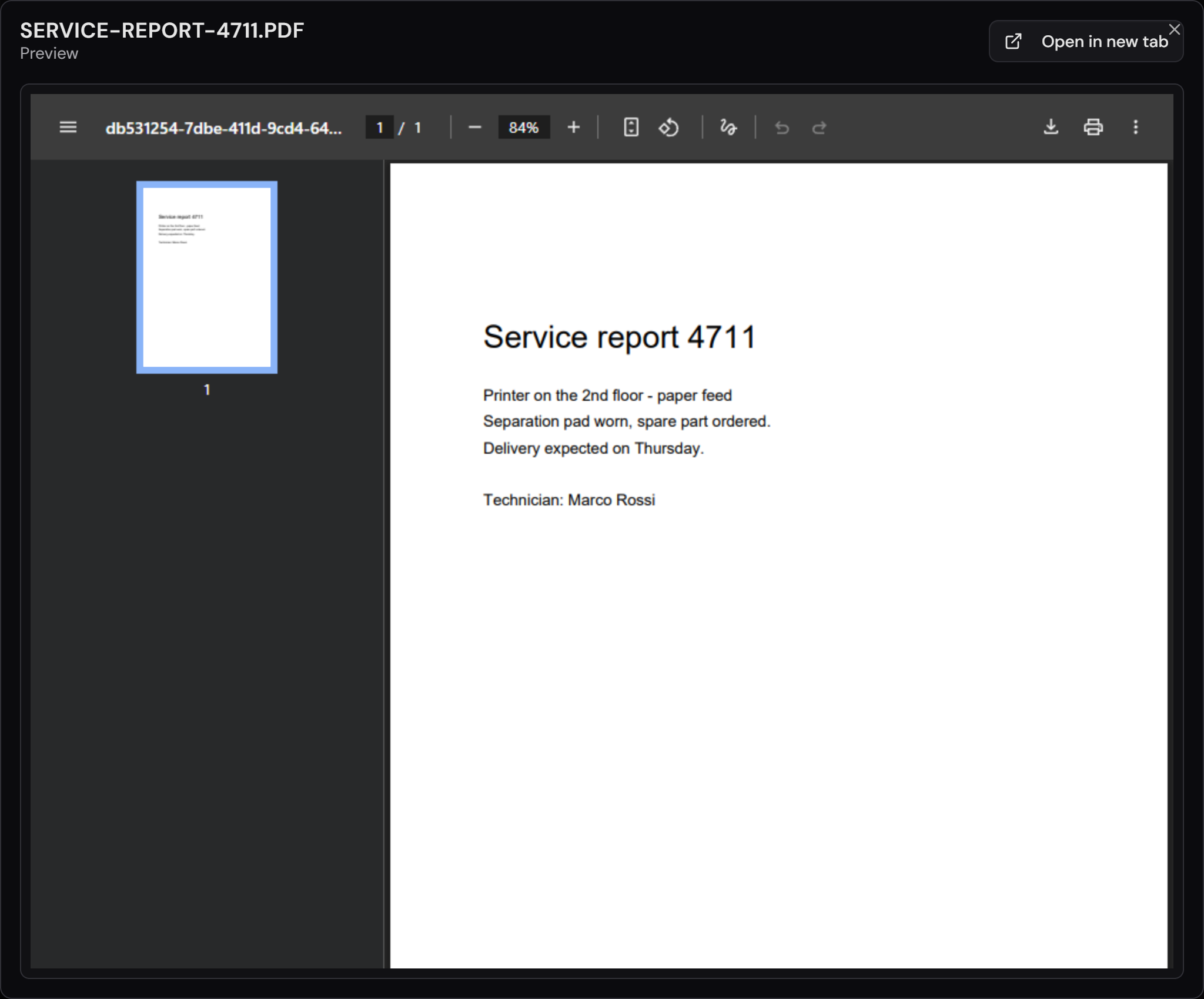
A click on the name opens the preview, without you having to download the file. For images you can zoom in, zoom out and rotate in there — useful for a display that was photographed at an angle. A PDF is displayed in the same window, with page overview, zoom and print. Text files are shown as text. With “Open in new tab” you open the file in a window of its own.

An attachment belongs to the case and travels with it: it appears in the history (“File uploaded: …”), survives a handover to another team, and ends up inside the archive file when the ticket is archived.

The “Attachments” tab with two files, above them the “Upload file” button framed in red.
All files of a case in one place. The line below names the allowed file types and the size limit.Open image at full size
The image preview of an attachment with the zoom-in, zoom-out and rotate buttons in the top right.
The preview of an image: zoom in, zoom out, rotate — top right. Nothing is downloaded in the process.Open image at full size
The preview of a PDF in the same window, with the page overview on the left and the PDF viewer toolbar on top.
A PDF opens the same way — no download, with page overview, zoom and print.Open image at full size
4

Ticket history

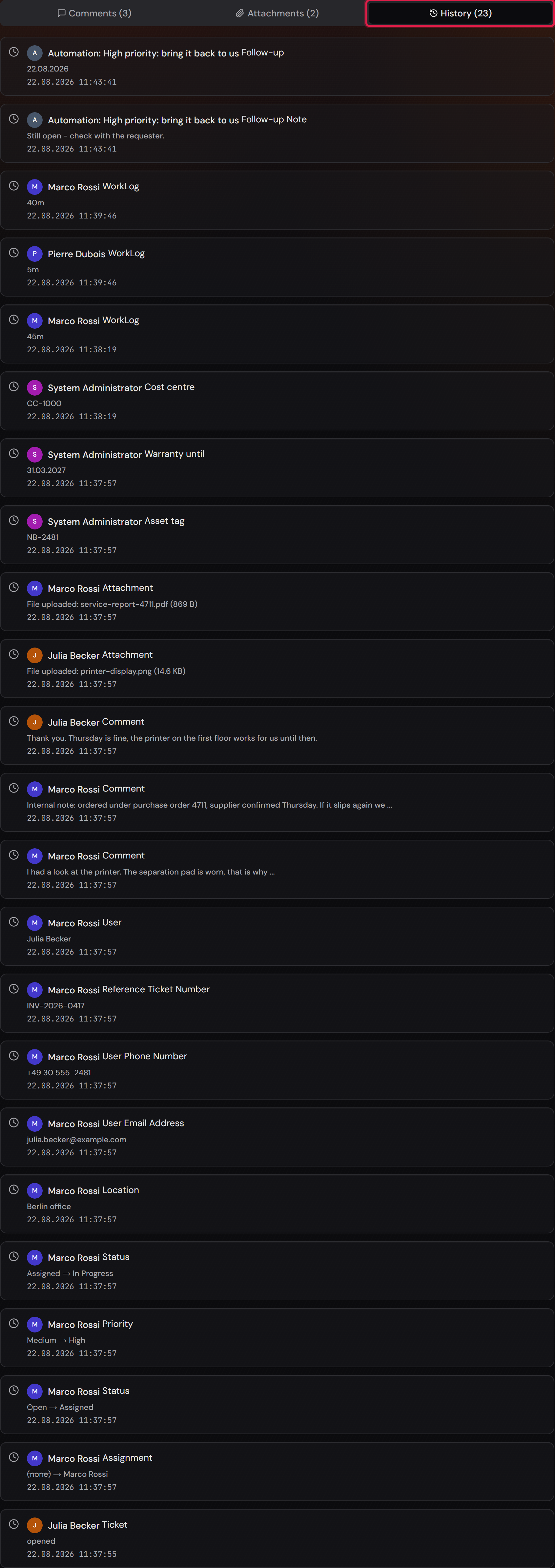
The “History” tab on the ticket answers the question behind every follow-up: who changed what, and when? Every row names the person, the field, the old value struck through, the new one behind it and the time down to the second. The newest entry is on top.

Entries are written without your doing — on status changes, priority, assignment, category, location, observers, title and description, as well as on creation (“Ticket opened”), on every comment and on every uploaded file. The number on the tab tells you in advance how much movement there was in the case.

The history cannot be edited and cannot be switched off. That is exactly what makes it useful: it is the reason a ticket cannot be deleted one by one, and it travels into the archive file when the ticket is archived.

For a comment, the history only records that it was added, edited or deleted. The wording lives in the “Comments” tab. An internal comment shows up in the history as well, but only for agents and administrators.

The “History” tab with this ticket’s entries: files, comments, status changes, priority, assignment and, at the very bottom, the opening — with two rows at the top written by a rule.
Framed in red, the tab with the count. On “Status” and “Priority” you see the old value struck through next to the new one.Open image at full size
5

Status workflow with configurable statuses & transitions

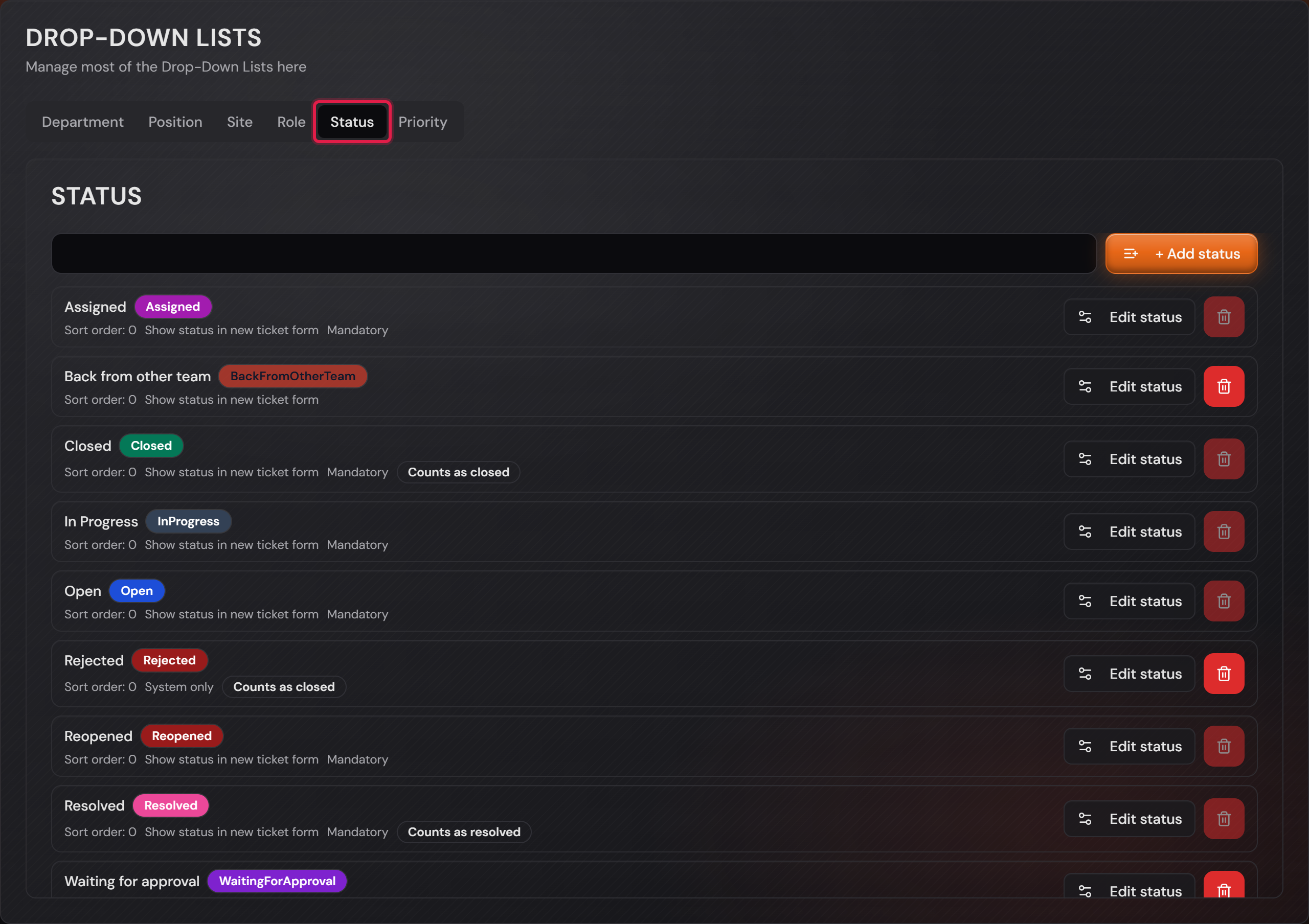
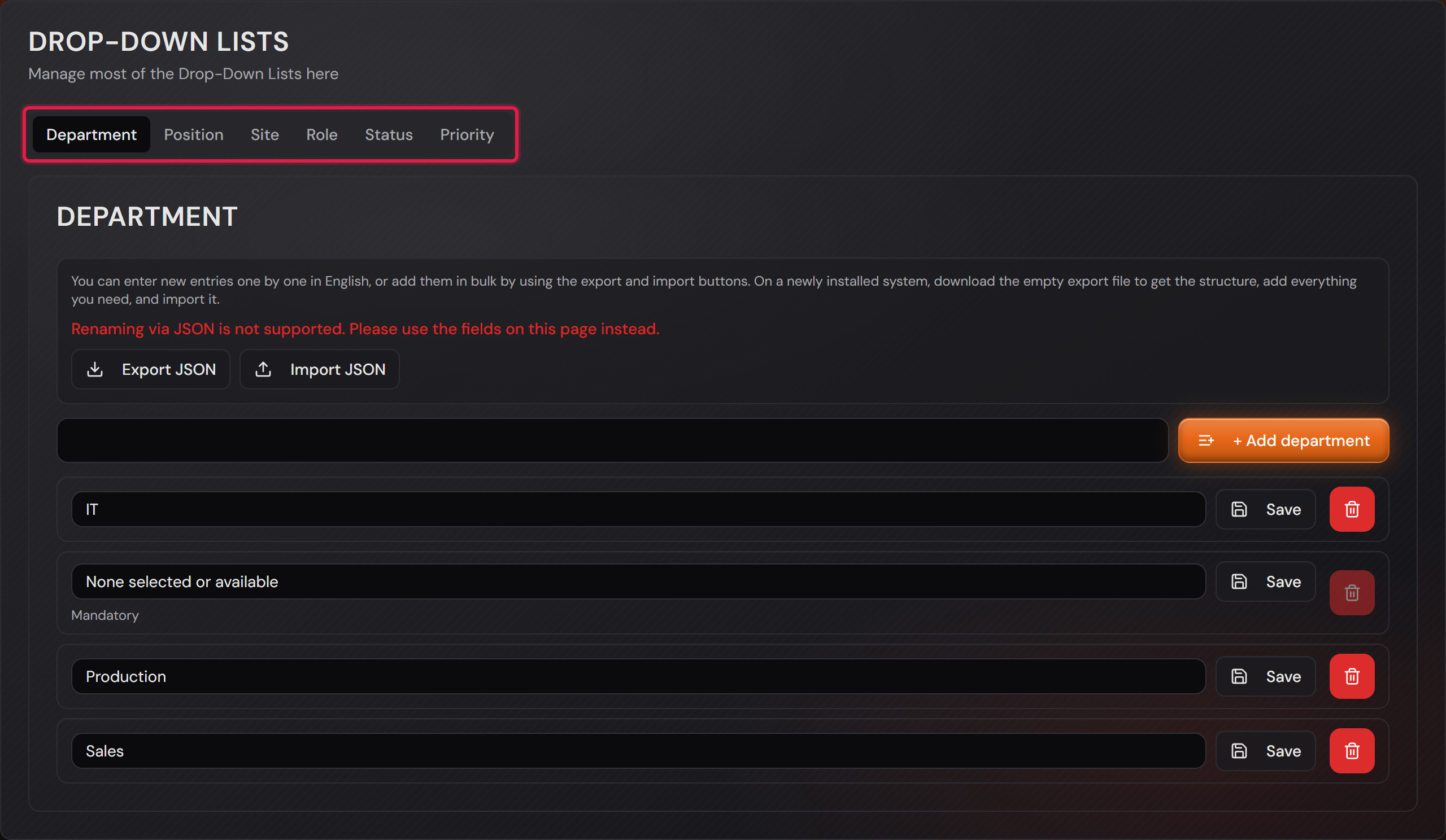
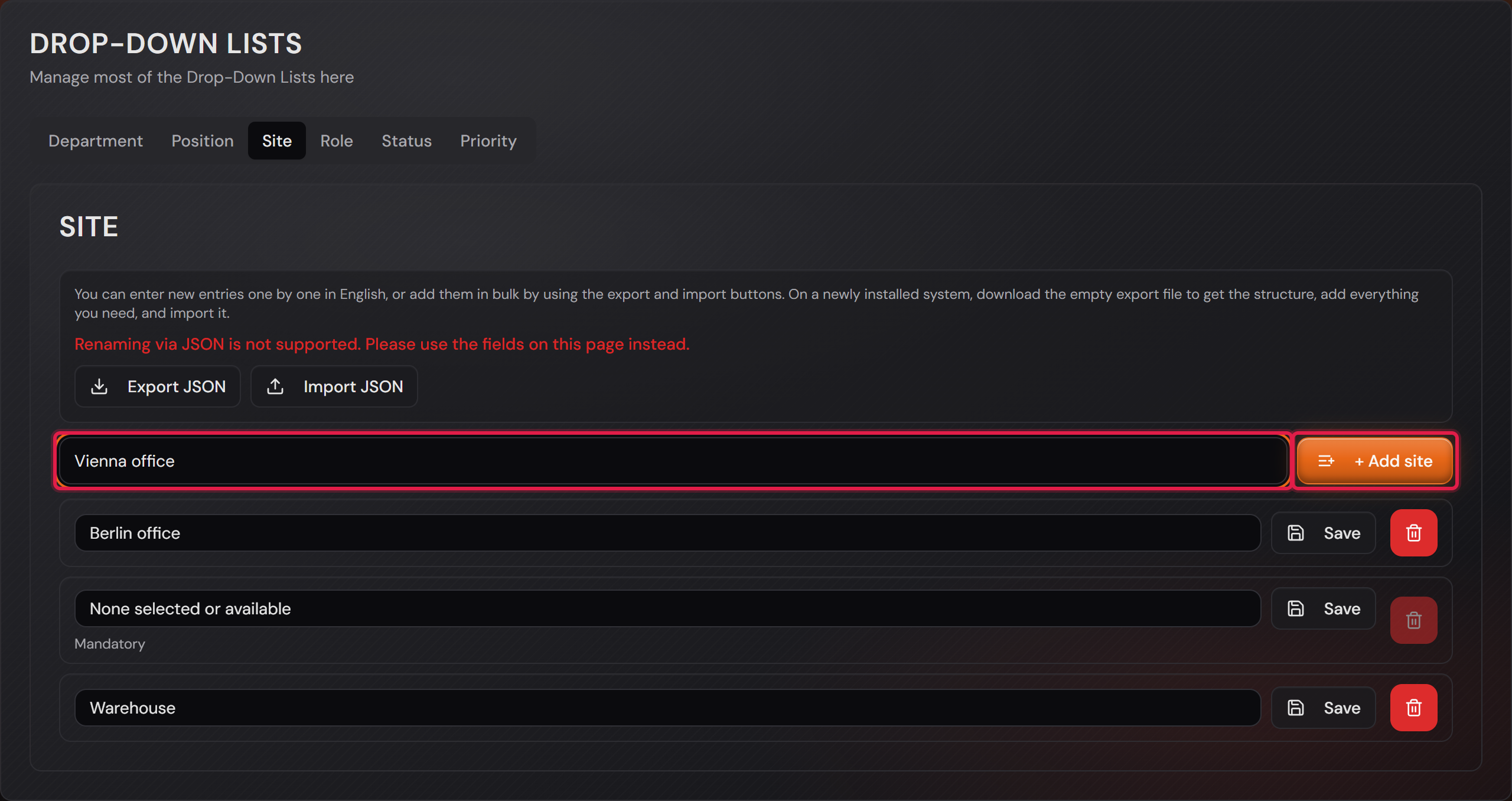
The status says where a ticket currently stands. Twelve statuses ship with the system — Open, Assigned, In Progress, Waiting for User Response, Resolved, Closed and more. You find them under “Settings → General Settings” in the “Drop-down lists” section behind the “Status” tab; “+ Add status” creates one of your own, “Edit status” opens an existing one.

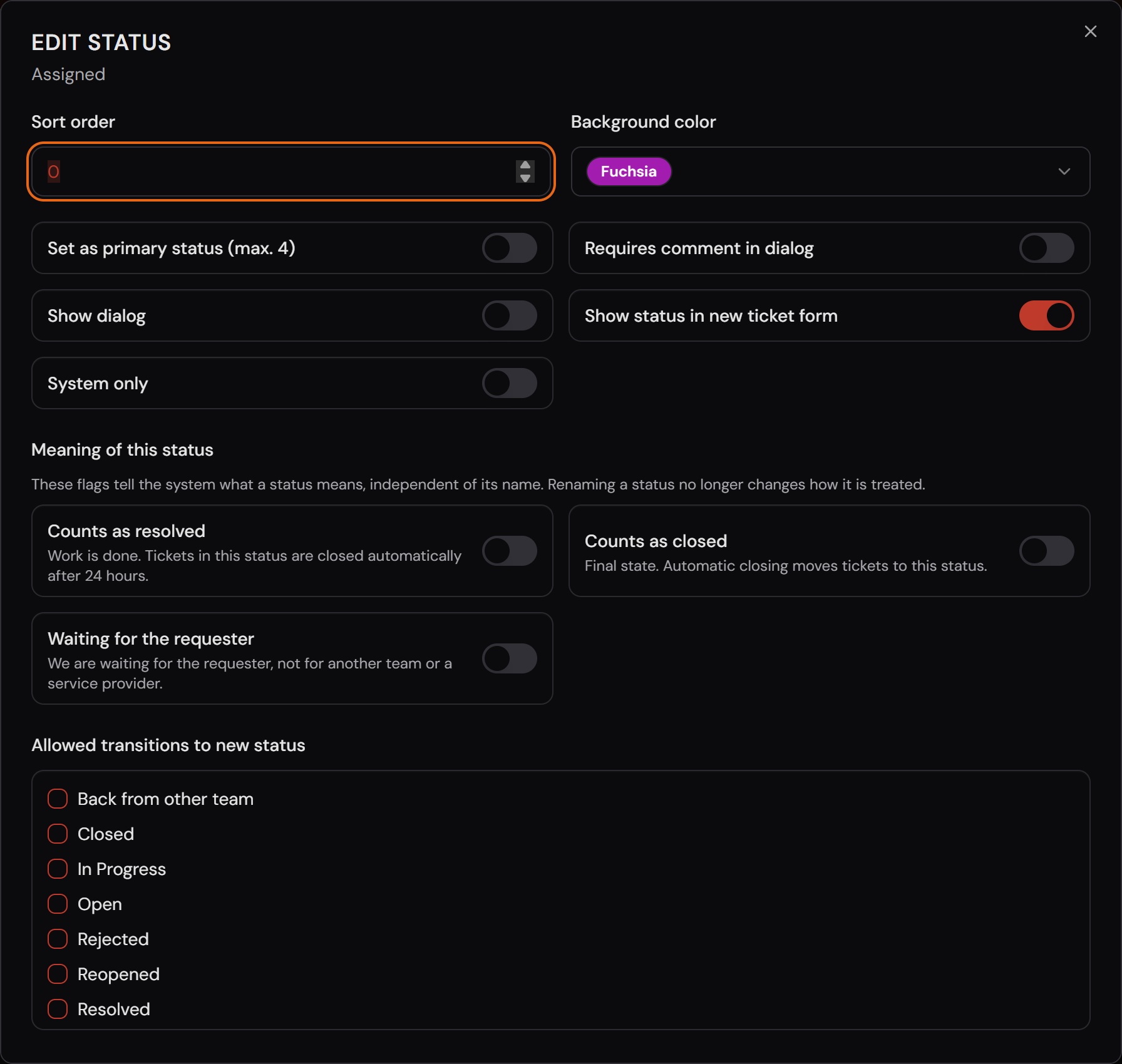
The important part is the difference between the name and the meaning. In the editor of a status, under “Meaning of this status”, there are three switches: “Counts as resolved”, “Counts as closed” and “Waiting for the requester”. Only these switches tell the system how to treat a status.

You may rename every status, including the ones that ship with the system: at the bottom of the editor, under “Translations”, there is a “Name” field per language — put in there what your people should read. The technical name behind it stays untouched, and that is exactly why nothing breaks: automation, reporting and the switches above hang on that name, not on your label. So “Resolved” can become “Done”.

Deleting, however, does not work for all of them. Eight statuses carry the “Mandatory” badge in the list — Open, Assigned, In Progress, Resolved, Closed, Reopened, Waiting for approval and Rejected. They can be renamed and reordered, but not removed; trying it ends with a clear message. That is not there to annoy you: processes hang on them that would otherwise quit without a word — for example the automatic closing, which needs a “resolved” status as its starting point.

Two statuses belong to the system itself: “Waiting for approval” and “Rejected” carry the “System only” badge. They come out of an approval process, and nobody should be able to claim by hand that something was rejected which never went up for decision.

What the three do: a status that counts as resolved closes the ticket by itself after 24 hours. A status that counts as closed is the final state the ticket is moved into. And “Waiting for the requester” means exactly that: we are waiting for the requester — not for another team and not for a service provider. That is the flag the SLA clock stops on, if you set it up that way.

Below that sits “Allowed transitions to new status”. Here you tick which statuses can be reached from this one. Leave everything empty and nothing is restricted; tick something and every other path is closed. That is how you build a flow that cannot be skipped — for example: from “Open” you can only go to “In Progress” or “Assigned”, but not straight to “Closed”.

The remaining switches in the editor are small things with a large effect: the colour for the list, “Sort order” for the order, “Show status in new ticket form” (should this status be selectable when creating a ticket at all?), “Requires comment in dialog” (force a reason) and “System only” for statuses only the system itself may set.

Up to four statuses appear on the ticket as buttons under “Change Status to:”. You choose them in the editor with the “Set as primary status (max. 4)” switch. As a factory setting these are In Progress, Waiting for User Response, Waiting for Service Provider Response and Resolved. All other statuses are under “More statuses”.

The general settings with the “Status” tab framed in red and the list of all statuses.
“Settings → General Settings”, “Status” tab: every status with its technical name and its flags.Open image at full size
The “Edit status” dialog with the switches under “Meaning of this status” and the “Allowed transitions to new status” list.
In the editor: appearance and behaviour on top, the meaning in the middle, the allowed transitions at the bottom.Open image at full size
7

Main and sub categories are freely configurable per team

Before you start: You need at least one team. The categories page is named after its team, so it only exists once you have created one.

Categories are what the requester or the agent picks when creating a ticket — and what you group your reports by later. Every team has its own: a helpdesk sorts by different things than a network department, and neither sees the other team’s lists.

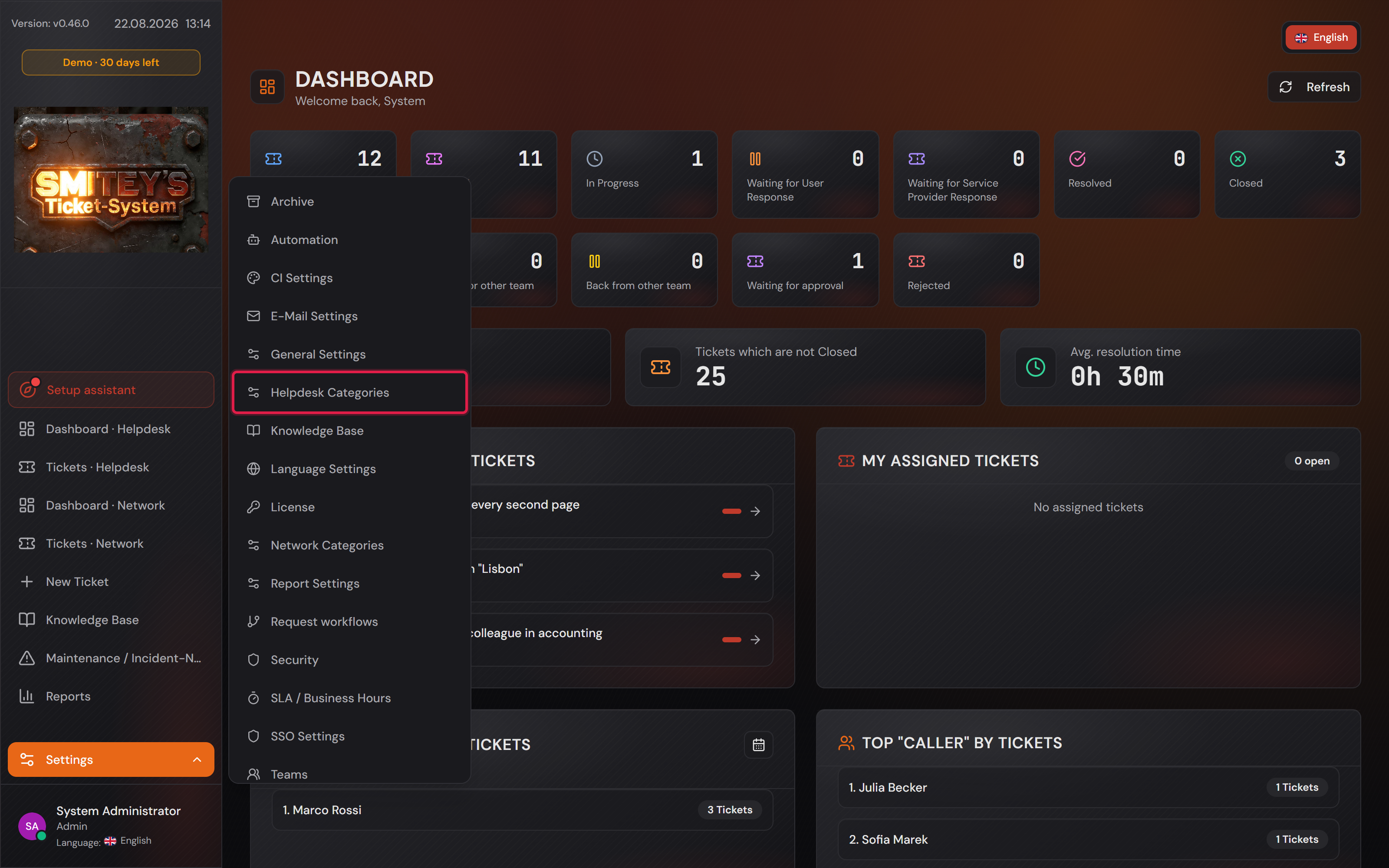
You find them under “Settings” as the entry “<team name> Categories”. In the example the team is called “Helpdesk”, so the entry reads “Helpdesk Categories”.

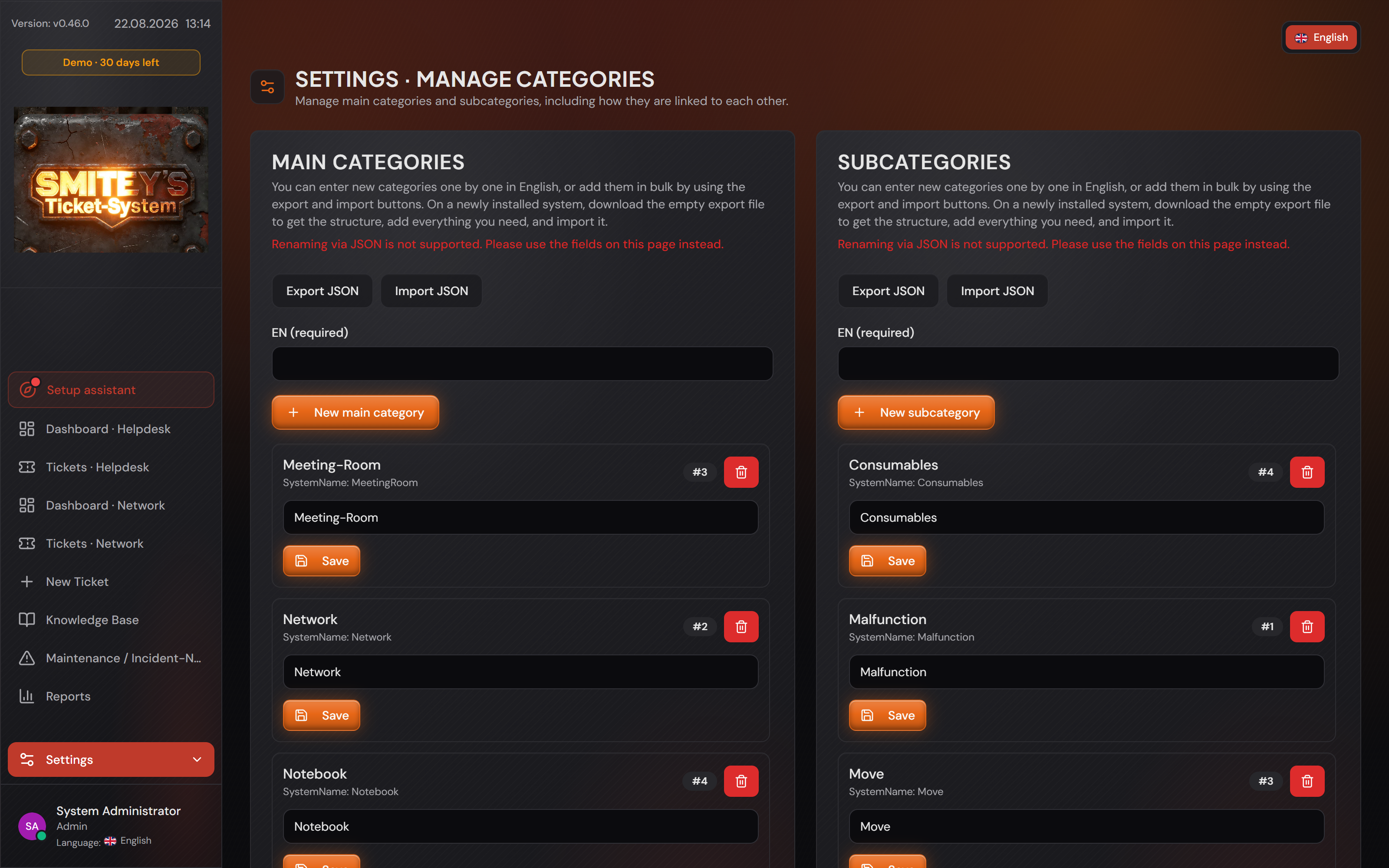
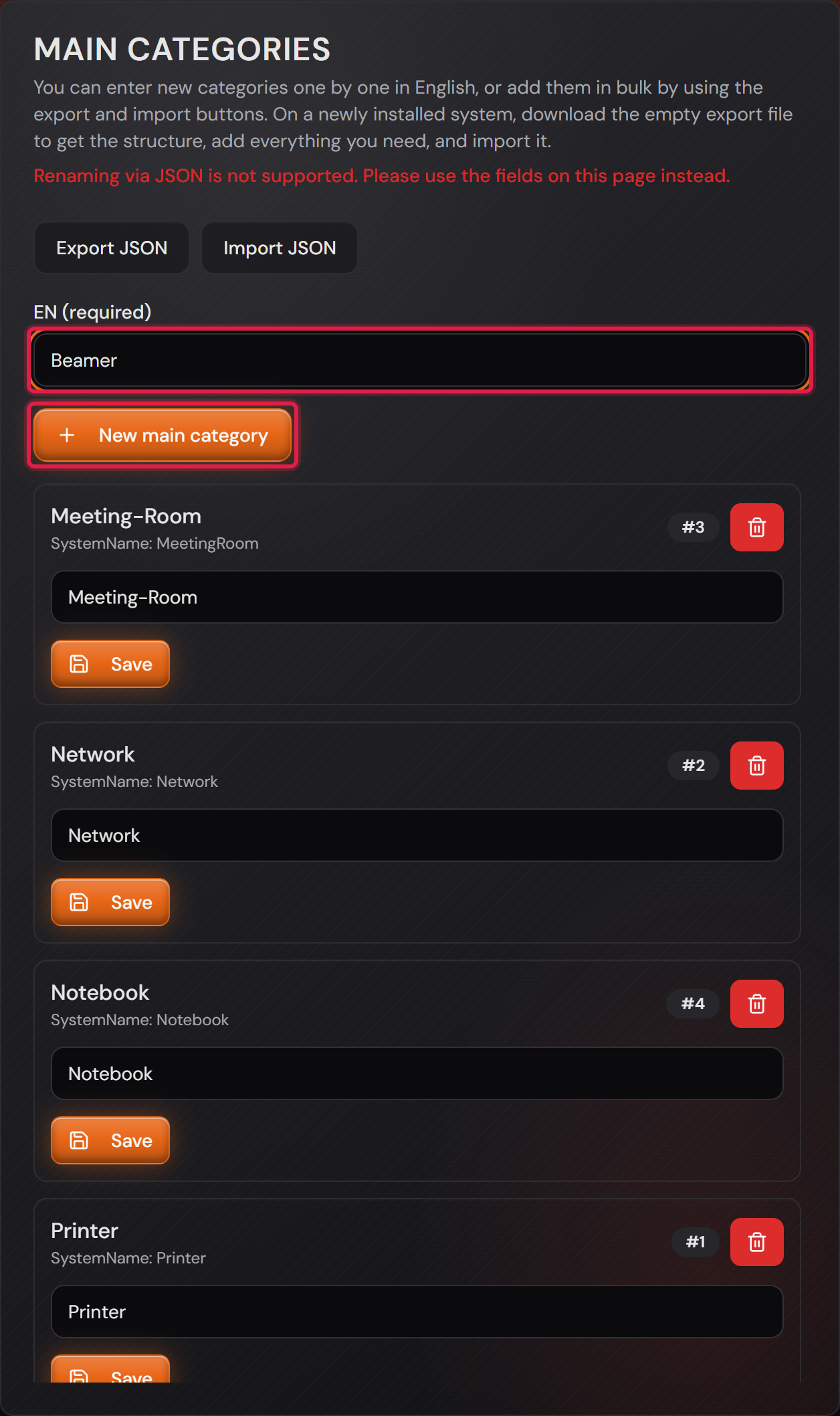
The page has three cards: “Main categories”, “Subcategories” and “Links”. The quickest start: type the English name into the “EN (required)” field and click “+ New main category” or “+ New subcategory”. You translate everything later in one go on the translation page — nothing to prepare for that here.

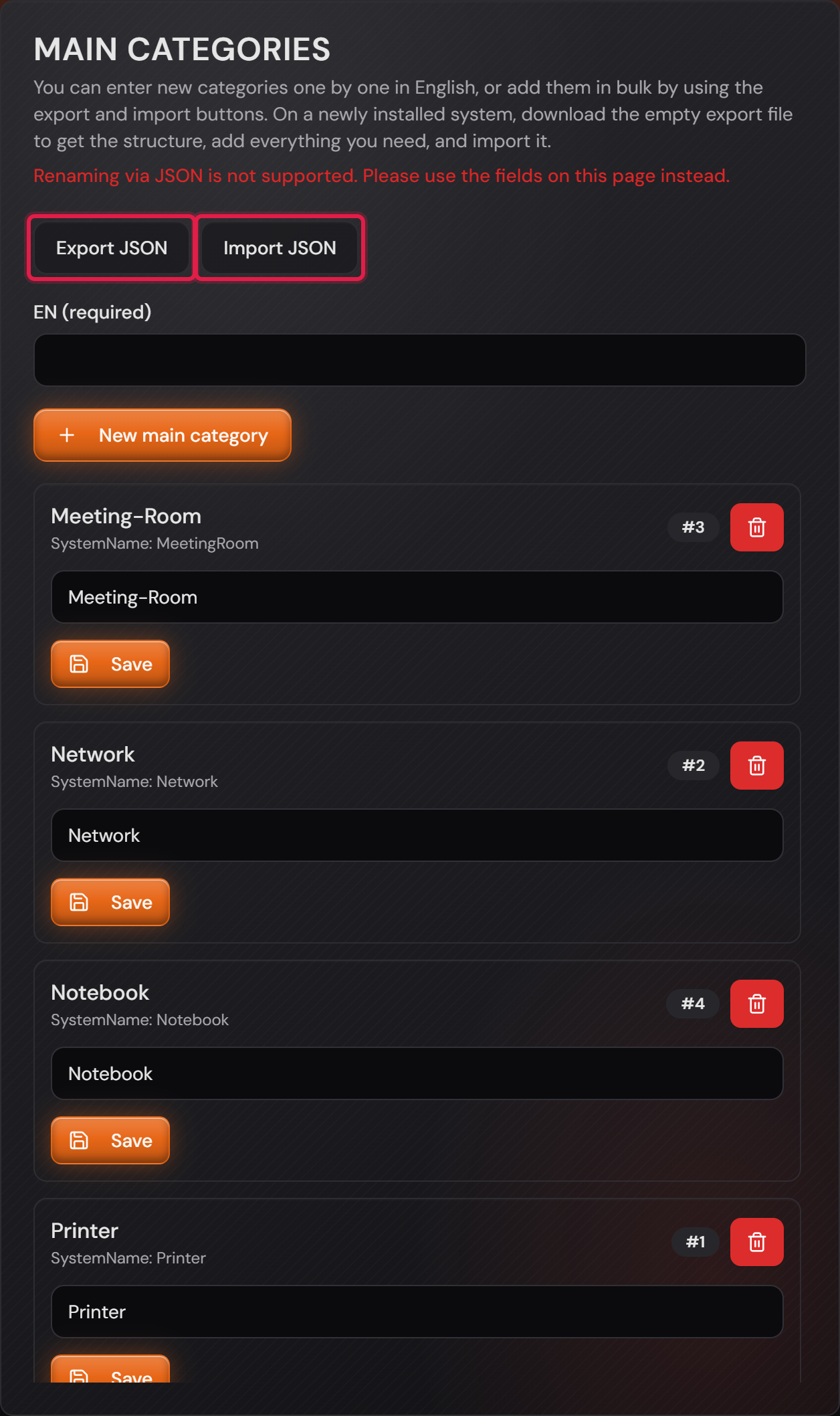
If you have a lot of categories ahead of you, take the file route: “Export JSON” downloads the structure — on a freshly installed system the file is empty and only shows you the layout. You fill it in (by hand or with the help of an AI), save it and upload it again via “Import JSON”. It is not a way to rename things: you change a name in the field of that category and confirm with the “Save” next to it — the page says so as well.

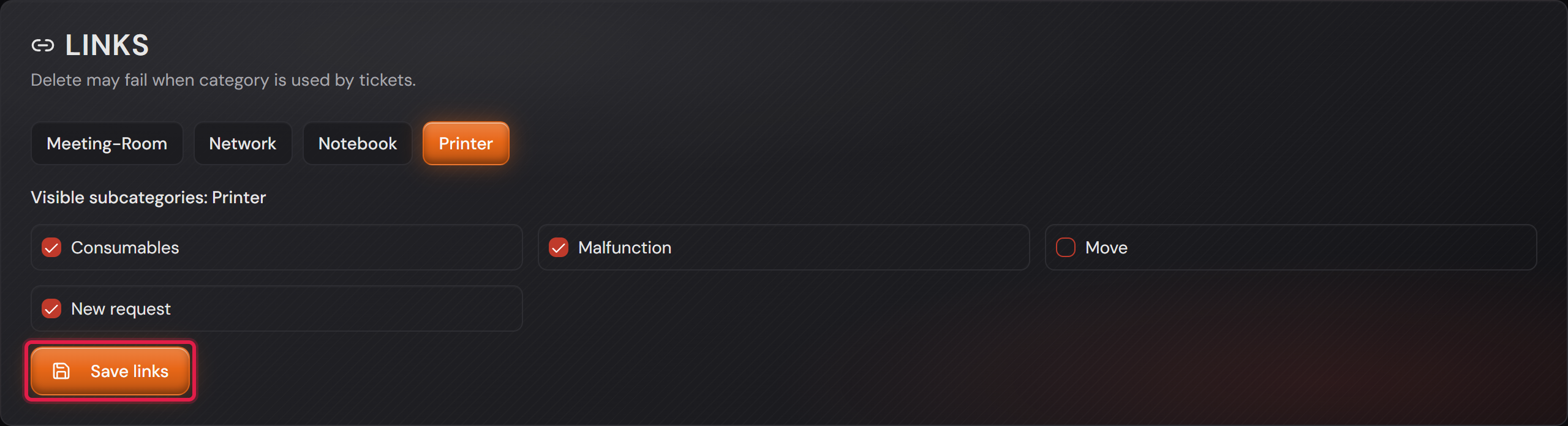
The third card, “Links”, is where the actual work happens. Pick a main category at the top, tick the subcategories that belong to it below, and save with “Save links”. The trick: one subcategory may hang on several main categories. So you only need “Malfunction” once and re-use it for Printer, Network, Meeting-Room and Notebook.

From then on the categories are available in the ticket. Deleting can fail while tickets are still using a category — that is on purpose, otherwise old tickets would lose their classification. If you remove a link, tickets that use that pair can still be saved. Only a newly chosen category is checked against the links.

If you hand a ticket over to another team, its classification stays — even when the new team does not have those categories at all. It then sits in the field together with its origin, for example “Meeting-Room · from Helpdesk”, and is greyed out: the new team can see what the case ran as so far, but cannot assign that entry itself. To re-sort it you pick from your own list — and the system then wants a main and a sub category together.

The opened settings menu with the entry “Helpdesk Categories” framed in red.
Under “Settings” the entry is named after the team — here “Helpdesk Categories”.Open image at full size
The “Settings · Manage categories” page with the “Main categories” and “Subcategories” cards.
This is the page: main categories on the left, subcategories on the right. The “Links” card sits further down the same page — it follows in a moment.Open image at full size
The “EN (required)” field containing the word “Beamer” and the “New main category” button, both framed in red.
One by one: English name into the “EN (required)” field, then click “+ New main category” below it. In the “Subcategories” card the button is called “+ New subcategory”.Open image at full size
The “Main categories” card with the “Export JSON” and “Import JSON” buttons framed in red.
For many at once: download the structure, fill it in, upload it again. The “Subcategories” card next to it has the same two buttons.Open image at full size
The “Links” card: “Printer” is selected, the subcategories Consumables, Malfunction and New request are ticked.
“Printer” selected, matching subcategories ticked, “Save links” — “Malfunction” hangs on three other main categories at the same time.Open image at full size
8

How the ticket came in

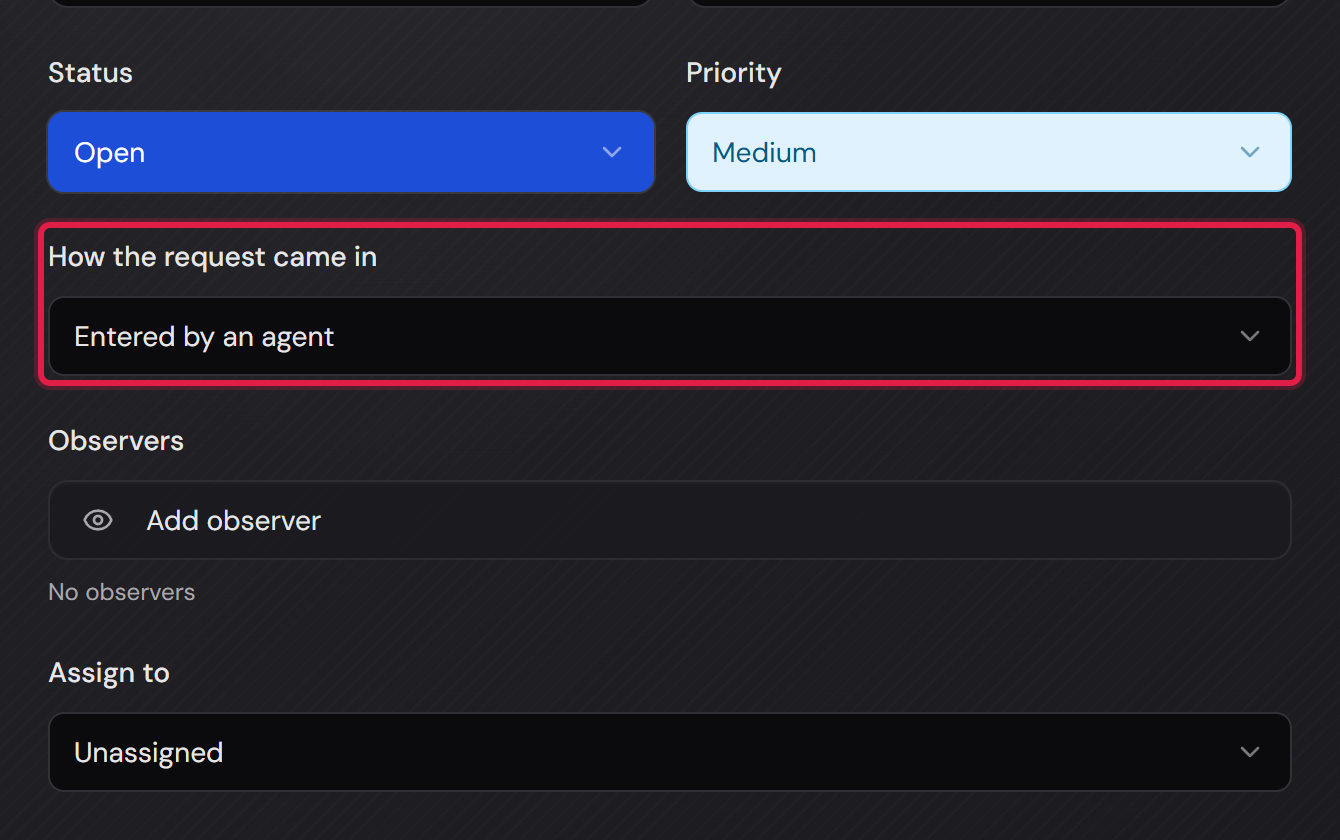
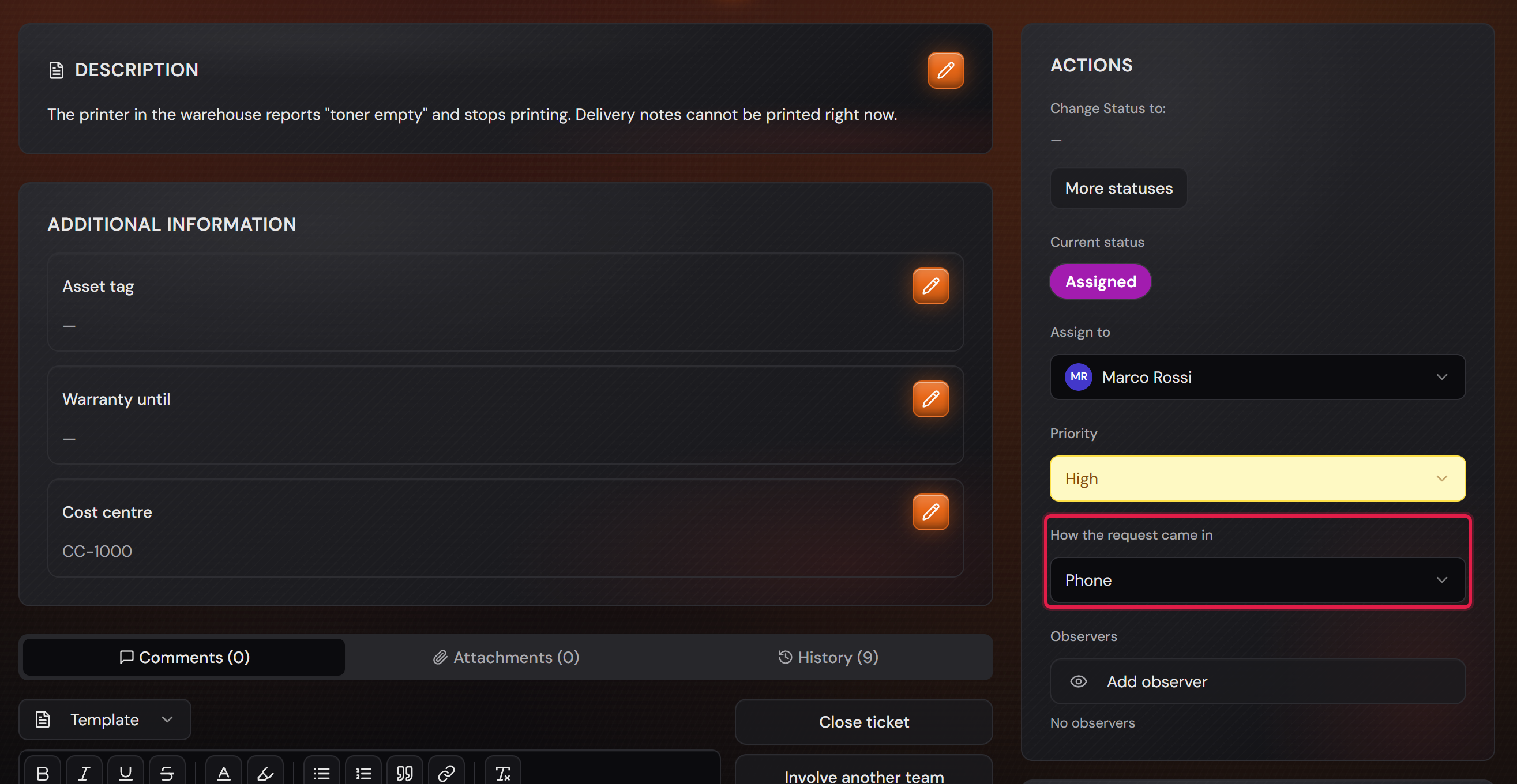
Every ticket carries a channel. It sits in the form and later on the “Actions” card under “How the request came in”, and it answers a question that becomes important in reporting quickly: does the work arrive through the portal or over the phone?

You can only choose what a person knows and the system does not: “Phone” and “Entered by an agent”. The other two values are set by the system itself — “Self-service” when the requester created the ticket in the portal, and “E-mail” when it grew out of an incoming mail. When an agent creates a ticket, the form starts with “Entered by an agent”.

A channel the system has set cannot be changed by anyone later on. The field then says “Recorded by the system. It cannot be changed.” Otherwise the field would lose exactly the statement it exists for. The other way round, on a ticket recorded by phone you may still change everything else.

Only an agent or an administrator may set the channel. For the requester it would be a statement about their own case — and the reporting would depend on everybody being honest.

“E-mail” requires a connected mailbox, which is part of the Professional edition. The other three channels exist in both editions.

The part of the form with status, priority and the open list of the “How the request came in” field, framed in red.
When creating a ticket the channel sits between priority and observers. Only “Phone” and “Entered by an agent” are on offer.Open image at full size
The “Actions” card of a ticket, the “How the request came in” field reads “Phone” and is framed in red.
On the ticket the channel sits on the “Actions” card — here a case an agent recorded after a phone call.Open image at full size
10

Choosing the columns of the ticket list

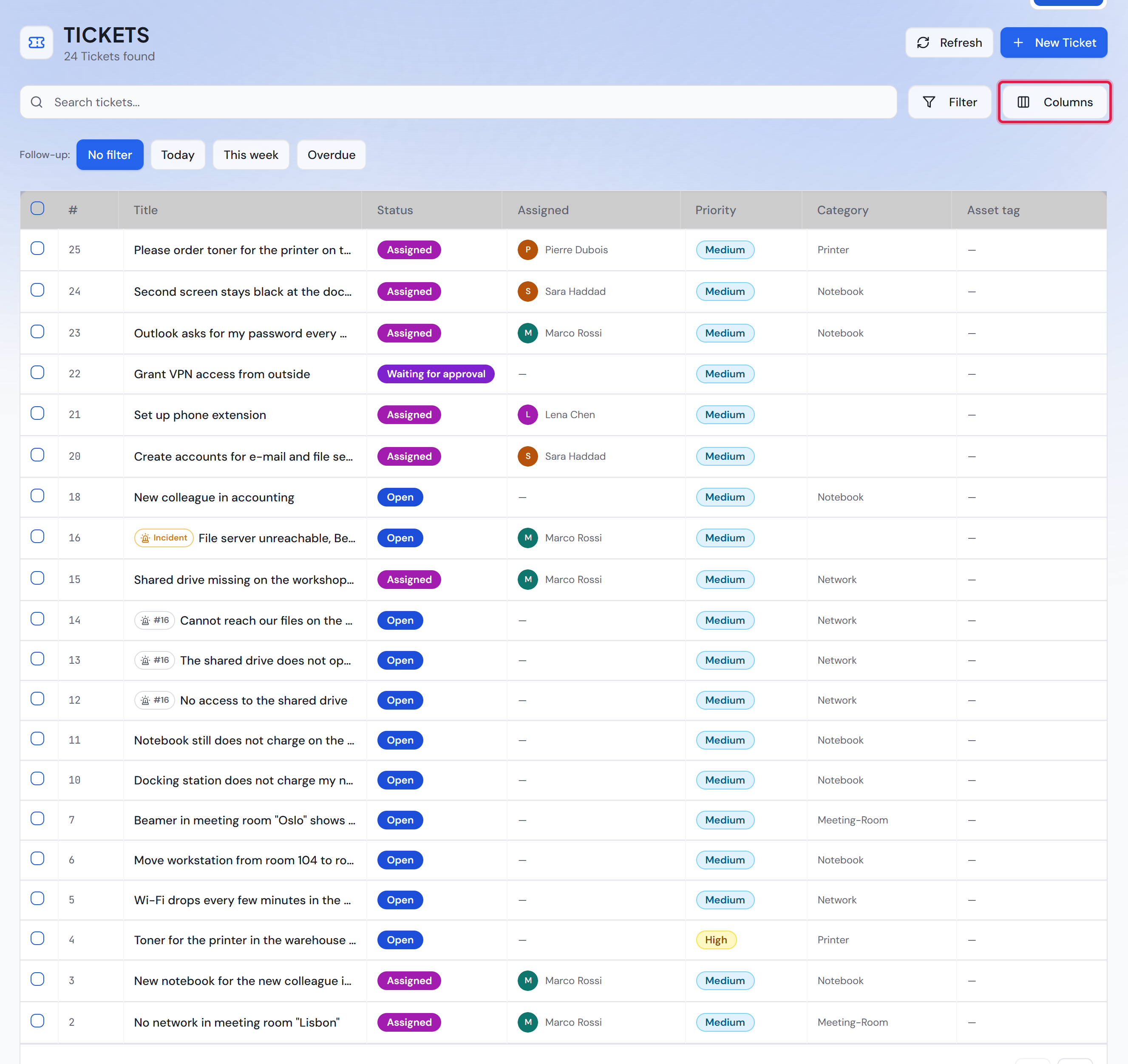
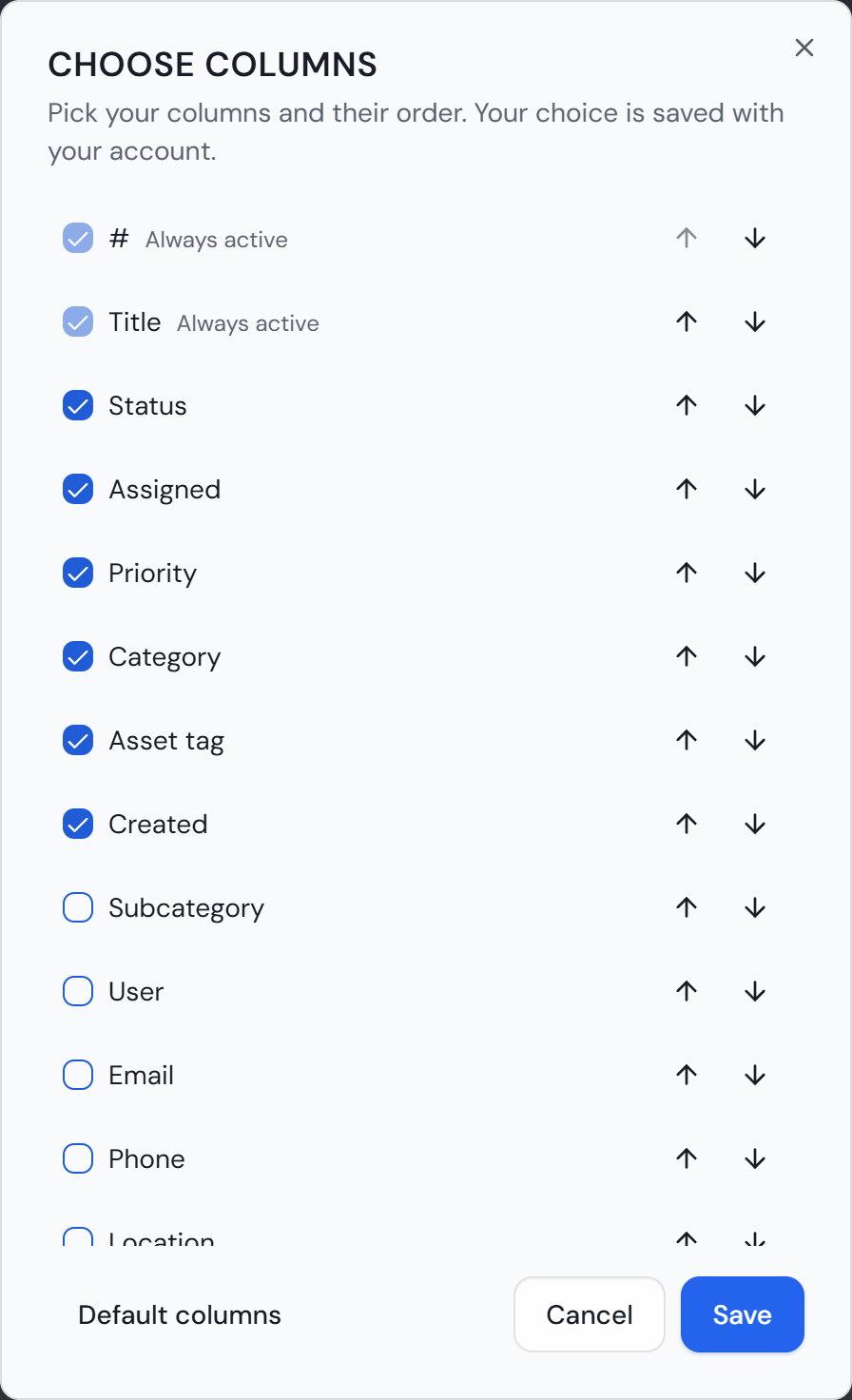
Everyone puts together their own ticket list. For this, the “Columns” button sits next to “Filter”. It opens the “Choose columns” dialog.

In the dialog you tick every column you want to see. The arrows next to it set the order. “#” and “Title” are always included. You change the width of a column in the list itself by dragging the edge of its header.

“Save” stores your choice with your user account. It therefore applies on every computer and stays after you sign out. “Default columns” restores the list to its factory setting.

When there is not enough room for all columns, the ones on the far right drop out first. “#”, “Title” and “Status” always stay. So you move what matters most to you to the front.

With Professional, your custom fields are on offer as well. They appear in the dialog under their own name, here for example “Asset tag”.

Customers can set up their list the same way but are offered fewer columns. “Team”, “Created by”, “Last activity”, “Status changed at”, “Deadline”, “Follow-up” and “Time” are not available to them. Fields you have hidden from customers do not appear as a column either.

On a smartphone the button is not shown. There the list shows the columns that fit.

The ticket list with the columns #, Title, Status, Assigned, Priority, Category and Asset tag. The “Columns” button is framed in red.
“Assigned” comes right after the status here, “Follow-up” is switched off. “Created” is chosen as well but no longer fits the width.Open image at full size
The “Choose columns” dialog with a checkbox and arrows for each column and the buttons “Default columns”, “Cancel” and “Save”.
The chosen columns are at the top in their order, all others below.Open image at full size
11

Handing a ticket to another team

Professional only

Before you start: Both routes need a second team. The customer does not see the change in the history: for them it stays one case with one number, no matter how many teams worked on it. The new status “Open” after a handover is visible to them in the ticket header.

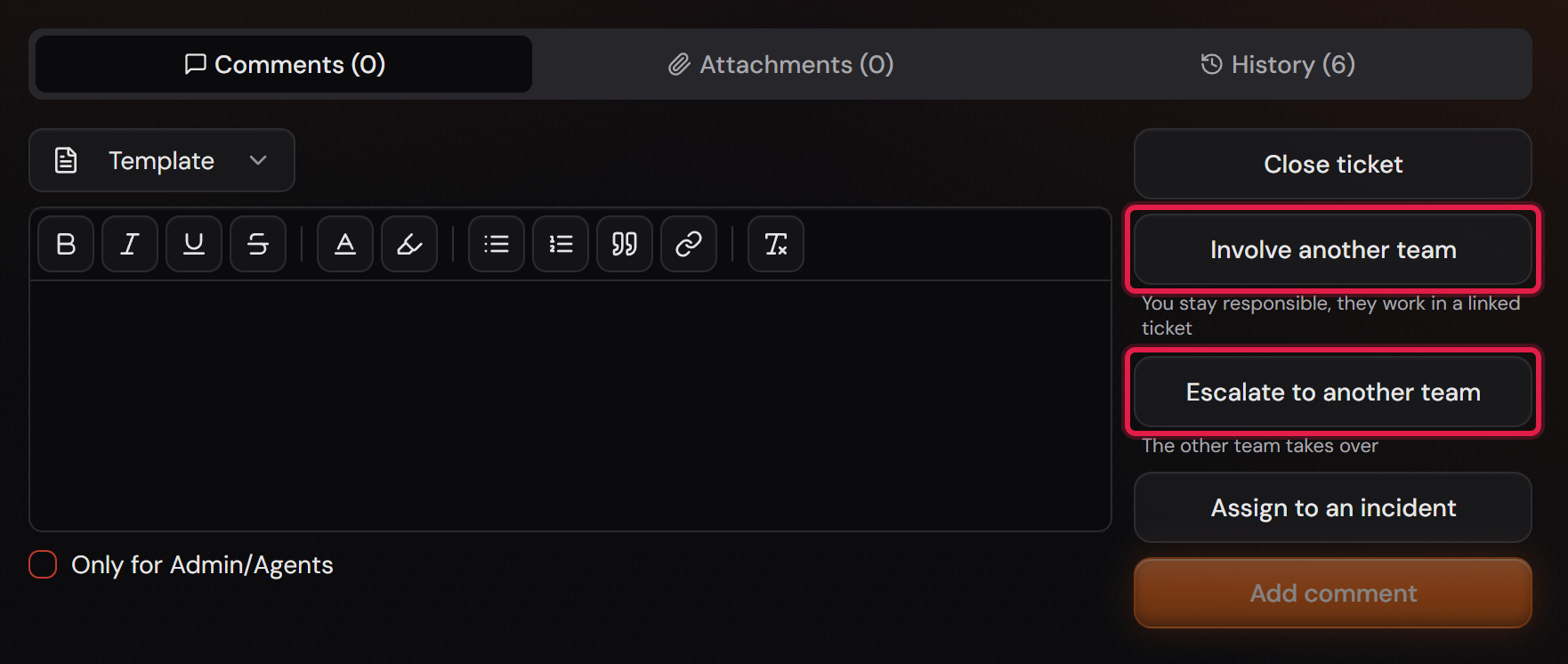
The ticket offers two buttons side by side for this, and the difference is printed underneath in small type. “Involve another team”: you stay responsible, the other team works alongside you in a linked ticket. “Escalate to another team”: the other team takes over.

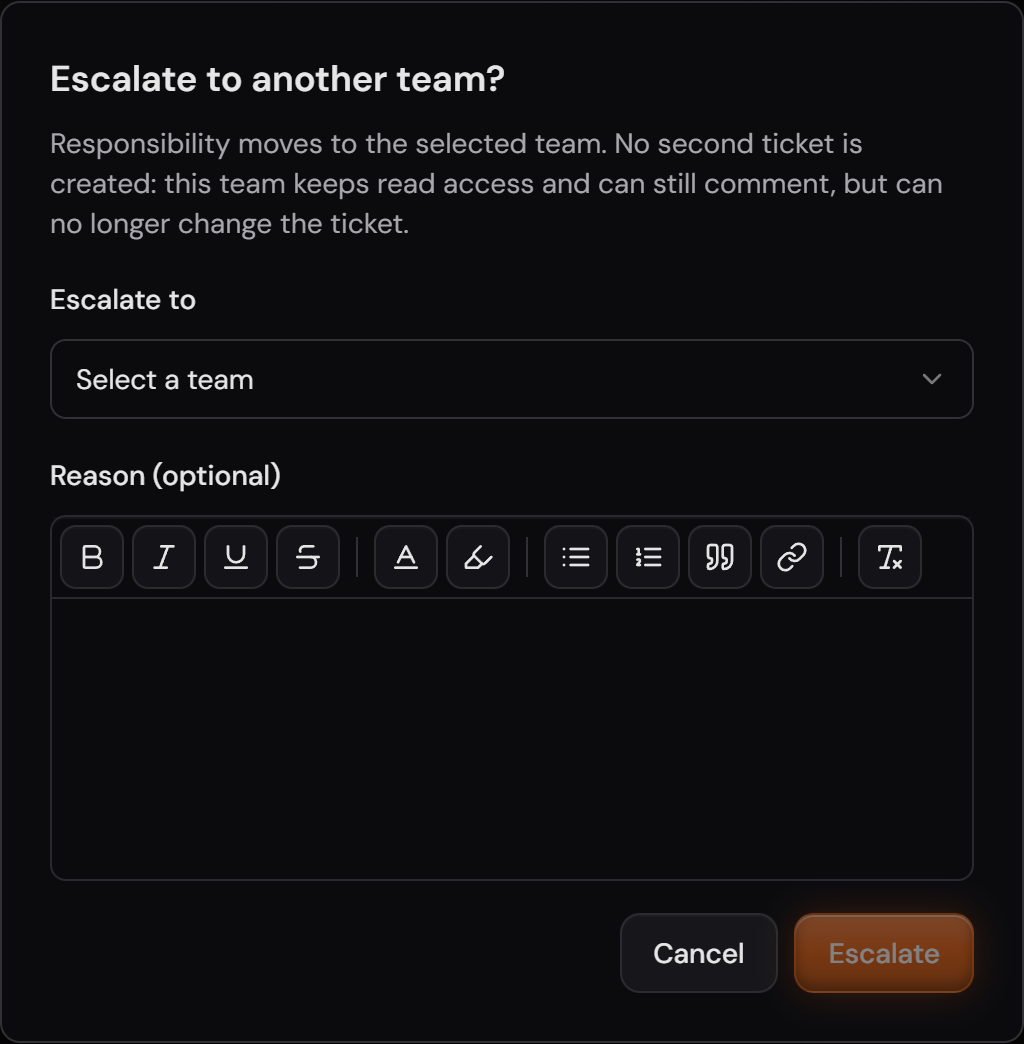
When you hand over, responsibility moves without a second ticket coming into being. Your team keeps read access and may still comment, but can no longer change anything — which is exactly what the dialog tells you before you confirm. You pick the target team there and can add a reason.

When you involve a team, your ticket stays in your hands and gets a child ticket in the other team. Yours moves to the status “Waiting for other team”; once the other team closes theirs, yours comes back as “Back from other team”. So you do not have to ask whether anything happened over there. The child ticket’s attachments are copied into your ticket with the “Internal” badge, and the customer does not see them.

As for the classification: the categories of the handing-over team stay on the ticket, even when the new team does not have them at all — they show up there with their origin, greyed out. That way the new team can see what the case ran as so far, and re-sort it into its own list if needed.

Only whoever is responsible right now may hand a ticket on. An earlier station still sees the case but cannot pass it along a second time. It can comment, but it cannot take the ticket back to itself.

In your team’s list the ticket then shows “Waiting for other team” for as long as the other team is working on it. The “Also show tickets this team handed over” tick is on as a factory setting, and each user’s own choice is kept. For the other team the ticket starts as “Open”.

Whoever escalates becomes an observer of the ticket. The dialog says so before you confirm. As an observer you get an e-mail when the status changes, the ticket is closed or someone comments. Like any observer you remove yourself with “Stop observing”.

The two buttons “Involve another team” and “Escalate to another team” framed in red, with their explanations underneath.
Two routes, visibly separated: let someone work alongside you, or hand over. The difference is printed right at the button.Open image at full size
The “Escalate to another team?” dialog with the target team selection and the “Reason (optional)” field.
The dialog names the consequence before you confirm: no second ticket, read access stays, only the new team may change anything.Open image at full size
12

Custom fields

Professional only

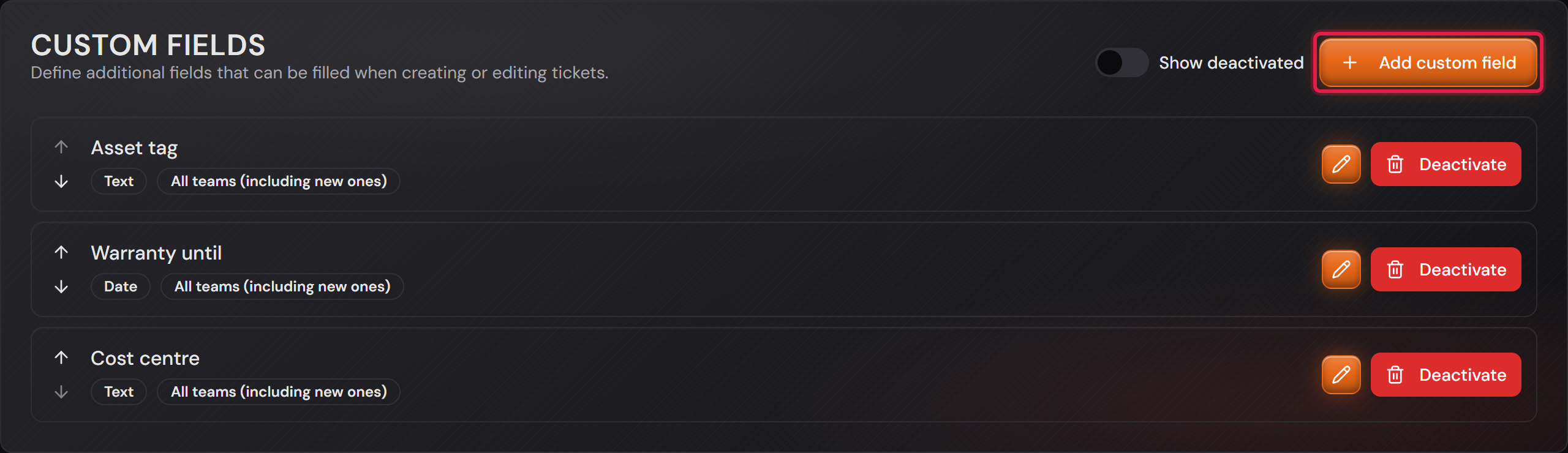
When a piece of information is missing from your tickets — the asset tag, the end of the warranty, the cost centre — you add it yourself. Under “Settings → Ticket Settings”, at the bottom, sits the “Custom fields” card; the button is called “Add custom field”.

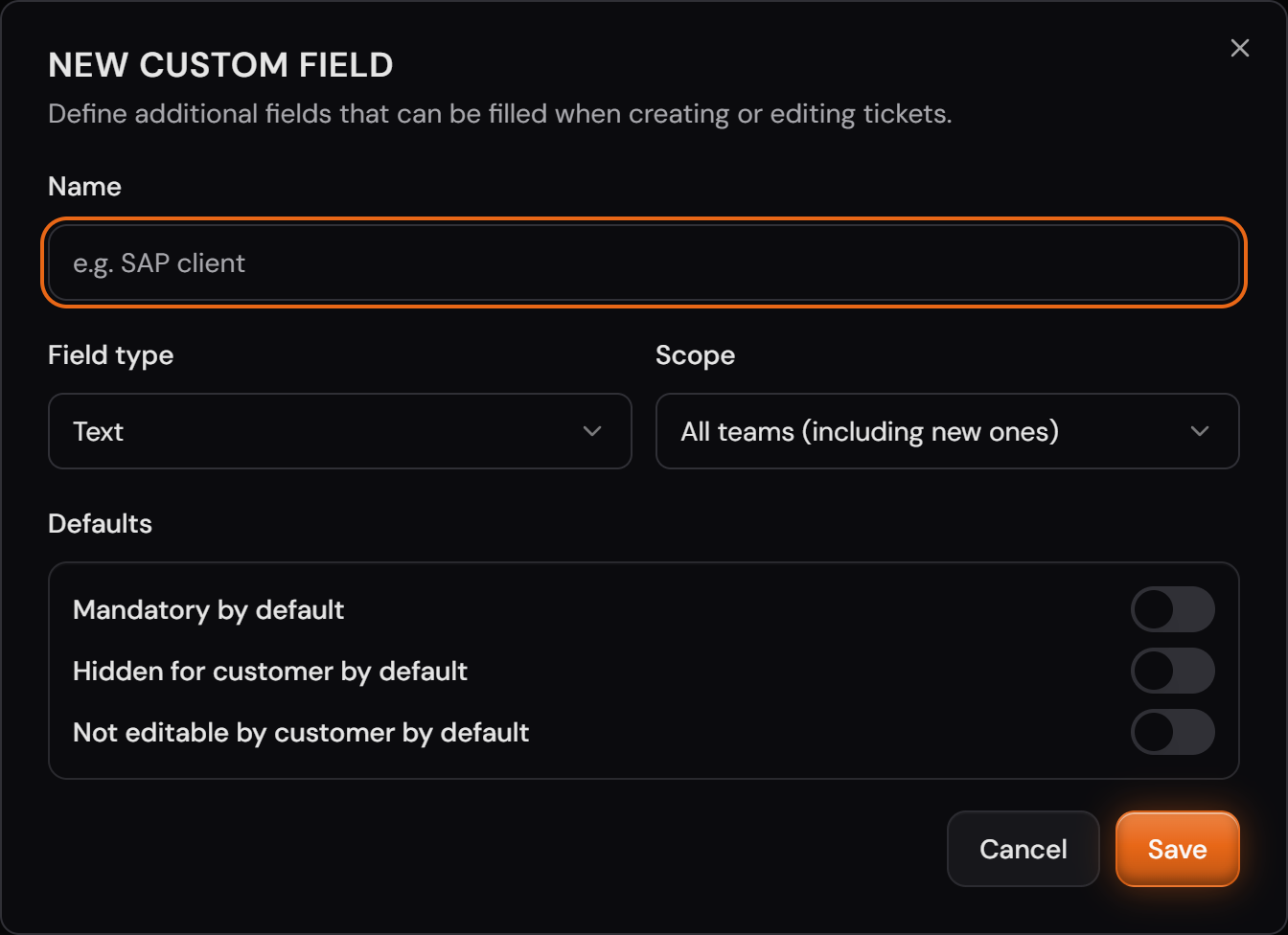
In the dialog you give a name and a field type: “Text”, “Multiline text”, “Integer”, “Decimal”, “Date” or “Yes / No”. The type decides what can be entered — a date field will not take “next week”, and that is exactly why you can report on it later.

Under “Scope” you decide where the field applies: “All teams (including new ones)” or “Selected teams only”. The first choice also covers teams that do not exist yet — the kind of difference you only notice half a year later.

The three switches under “Defaults” are “Mandatory by default”, “Hidden for customer by default” and “Not editable by customer by default”. They only apply to a field as long as nothing has been saved for that field in the field settings on the same page. Once you set it there, the field settings decide.

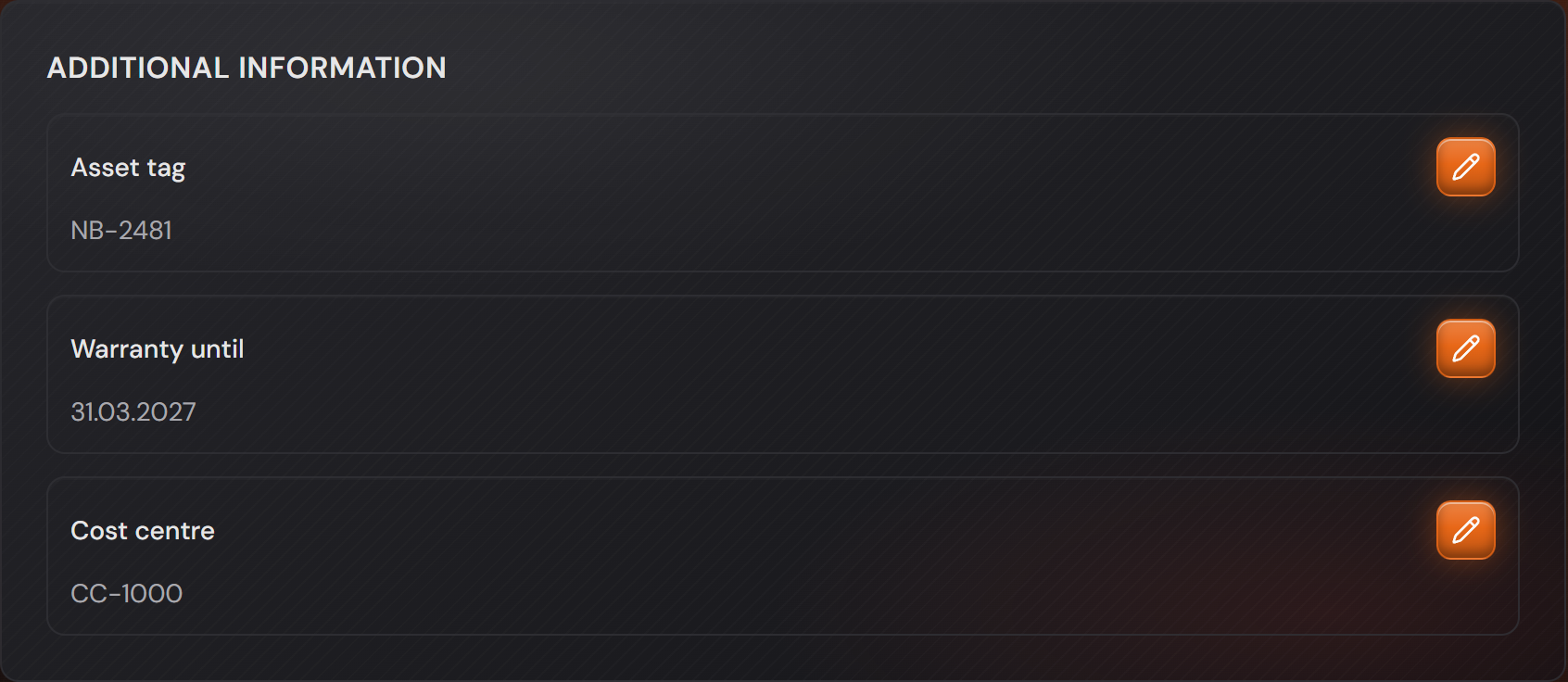
On the ticket the custom fields sit in a card of their own, “Additional information”, between the description and the comments. Without a template the form shows all custom fields of the team. If you pick a template when creating a ticket, it shows exactly the fields that template lists, in its order — “only the fields this case needs”.

A template can make a field mandatory on top of that. What the administrator hid from customers stays hidden, even when a template lists it. A mandatory field that a template does not list is not asked for, so that requirement does not apply to tickets created with this template.

How many custom fields a team may have is set under “Settings → General Settings” in the “Custom fields limit” card. You get rid of a field with “Deactivate”: it disappears from the form, but its values stay on the old tickets — the “Show deactivated” switch brings it back into the list.

The “Custom fields” card with three fields and the “Add custom field” button framed in red.
The list of custom fields lives under “Settings → Ticket Settings”, at the bottom of the page.Open image at full size
The “New custom field” dialog with name, field type, scope and the three defaults.
Name, field type, scope — a field needs no more than that. The three switches below are defaults.Open image at full size
The “Additional information” card on a ticket with the fields “Asset tag”, “Warranty until” and “Cost centre”.
This is how the agent sees the custom fields: a card of their own on the ticket, right below the description.Open image at full size
13

Observers

Sometimes somebody should follow a case without working on it: the team lead on a delicate matter, the colleague who takes over next week. That is what observers are for. On the ticket the “Observers” field sits on the “Actions” card, the button is called “Add observer”; the “Create new ticket” form has the same field. On the ticket a change there is saved with the “Save” in the “Details” card.

Only agents and administrators of the team the ticket belongs to can be picked. A customer cannot be an observer — they would otherwise receive mail about internal work.

An observer receives an e-mail when something happens on the ticket: a new comment, a changed status, a new assignment, changed fields. It is not sent immediately but bundled: after the last change the system waits a minute and then sends ONE mail covering everything that happened in that time. So working through a ticket in one go does not trigger seven mails. If several comments come in during that time, all of them are in the mail.

Who observes is part of the history: a change is recorded like any other, with the old and the new state.

Entering observers is part of Basic. The mail to observers is part of Professional, because it needs outgoing mail. Without it you can enter observers, but nothing goes out. An observer can remove themselves with the “Stop observing” button. That needs no right to change the ticket.

An observer is also added by itself: whoever hands a ticket on with “Escalate to another team” becomes an observer. That way they learn what the other team does with it.

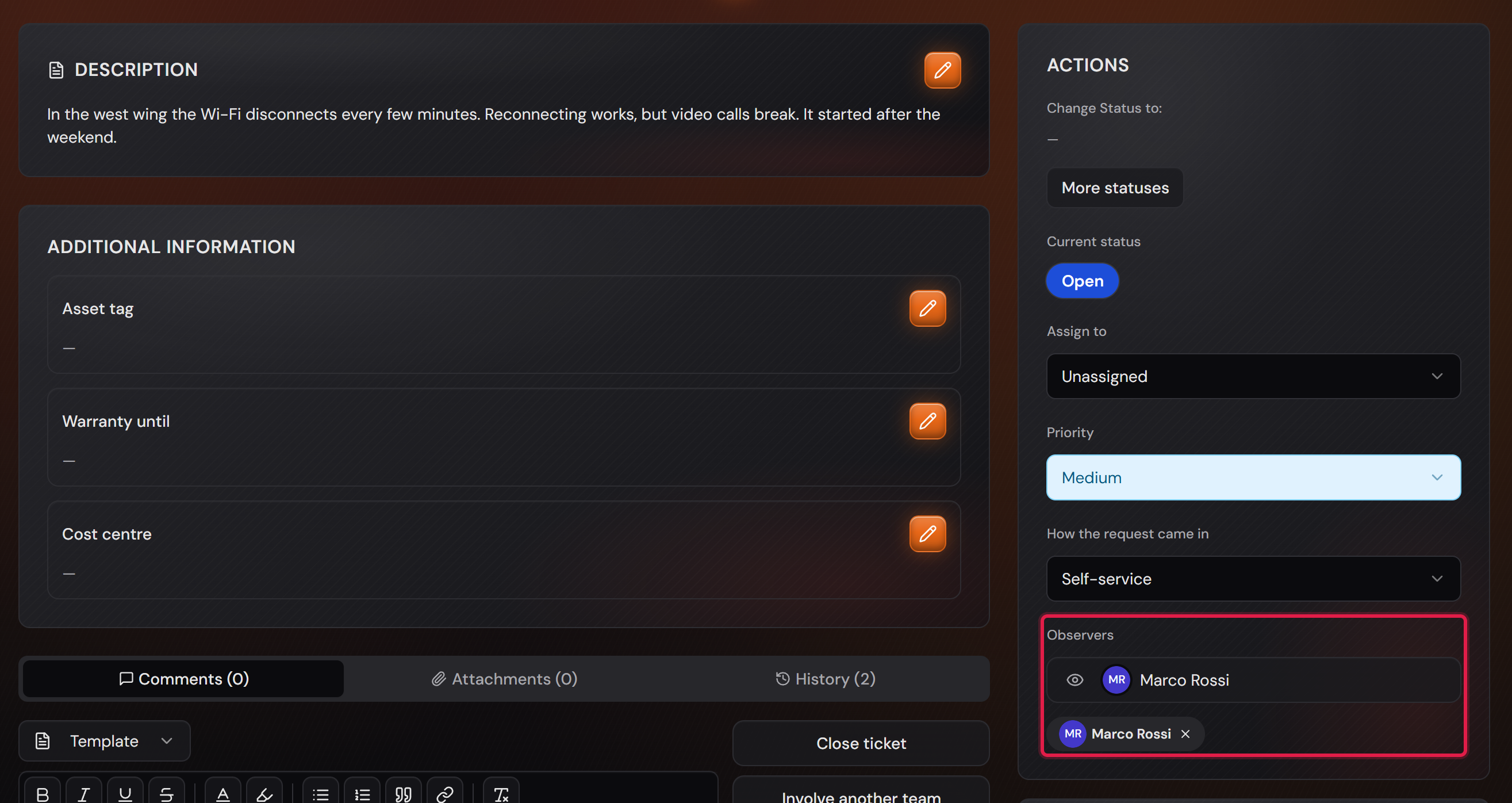
The “Actions” card of a ticket with the “Observers” section framed in red: the “Add observer” button and one agent below it.
The observer sits on the “Actions” card. The ticket is assigned to nobody — observing and working on a ticket are two different things.Open image at full size
14

Working on the same ticket at the same time

When two people work on the same ticket at the same time, the later save could overwrite the earlier one, and nobody would notice. That is why the ticket shows who else has it open. It also refuses a save that is based on an outdated state.

The notice sits in the header of the ticket. “Marco Rossi is viewing this ticket” means that Marco has the ticket open. “Marco Rossi is actively editing this ticket” means that Marco has unsaved input on it. That can be a started reply, a comment being changed, the title or the description in edit mode, a follow-up, a custom field or a time entry. Changed fields in the “Actions” and “Details” cards count as well, as long as they have not been saved with “Save”. An open window on the ticket counts too. These are the windows “Involve another team?”, “Escalate to another team?”, “Close ticket”, “Resolve incident” and “Start a workflow”, plus the window for the comment on a status change. After two minutes without input there, the notice shows “viewing” again, even if the draft is still there.

If several colleagues have the ticket open, the notice sums them up, for example “Marco Rossi and 2 more are viewing this ticket”. Point at the notice to see all names. As soon as someone is actively editing, the line only counts the people who are editing. You never see yourself. If you have the ticket open in two tabs, you count once. If the ticket is only open in a hidden tab, you drop out of the others’ notice after about a minute.

When a colleague saves a change, the notice reads “Marco Rossi changed this ticket”, with the “Refresh” button next to it. A new comment from someone else shows “Marco Rossi added a comment”. If no person made the change, for example an automation rule or an incoming e-mail, the notice reads “This ticket was changed”. The notice stays until you refresh.

“Refresh” loads the current state of the ticket, such as status, assignment, fields and history. It does not reload the whole page. Your unsaved input stays. A started reply stays in the reply box, and an open title or description keeps your text. If the saved text has changed in the meantime, “The saved text has changed in the meantime.” appears below the field. If you save then, your text replaces the saved one. The “Refresh” button in the header of the ticket does the same.

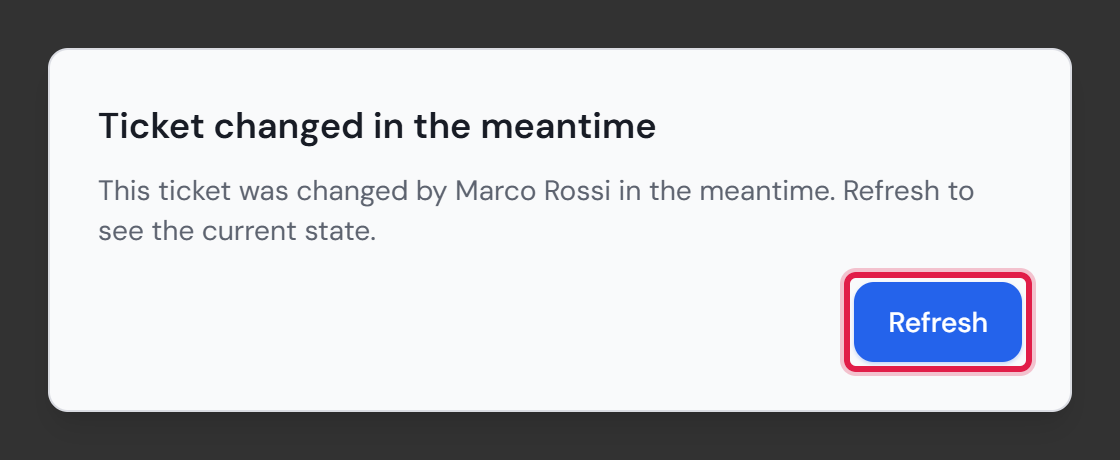
If you save on an outdated state anyway, the save is refused. The window “Ticket changed in the meantime” opens. If a person made the change, it names them. Your change has not been saved. Click “Refresh”, check your change against the current state and save again. This applies to every change to the ticket itself, for example status, assignment, priority, the “Details” card and custom fields.

Comments are never refused. Two replies do not overwrite each other. Both end up on the ticket. The same applies to attachments and time entries. Bulk actions on the ticket list and automation rules are not checked against the state either. They change the ticket directly. Whoever has it open sees the notice afterwards.

Customers see none of this. They do not appear in the notice. They also do not see who is working on their ticket.

Who has a ticket open is only held in the server’s memory. About a minute after the person has left the ticket, the entry is gone. None of it is written to a log. The ticket stores who changed it last. That entry is part of the data export for that person. When the person is anonymized, it is removed.

More on this in the card: Data export for one person, Anonymize people

The header of a ticket with the notice “Marco Rossi is actively editing this ticket” below the title, framed in red.
The notice sits below the title of the ticket. Here Marco Rossi has unsaved input.Open image at full size
The header of a ticket with the notice “Marco Rossi changed this ticket” and the “Refresh” button next to it, framed in red.
Marco Rossi saved while the ticket was open. “Refresh” loads the current state.Open image at full size
The “Ticket changed in the meantime” window naming Marco Rossi, with the “Refresh” button framed in red.
This window appears when you save on an outdated state. Your change has not been saved.Open image at full size
15

Tickets from e-mail, replies and follow-ups

Professional only

Before you start: With Google/Gmail you need an app password (which requires two-factor sign-in); Google rejects ordinary account credentials. Microsoft 365 does not work at all right now: basic authentication for IMAP is switched off there, and app passwords do not help either.

The mail channel is one road with two directions, and they belong together: an incoming mail turns into a ticket, your reply goes out as mail, and the requester’s answer lands as a comment on the same ticket — not on a second one.

The matching is not done by feel: a reply only lands on the existing ticket when the mail carries the case’s reference in its subject or brings the reply headers of the mail program with it. A mail with neither starts a new case — better one ticket too many than two unrelated cases merged just because the subject happened to match.

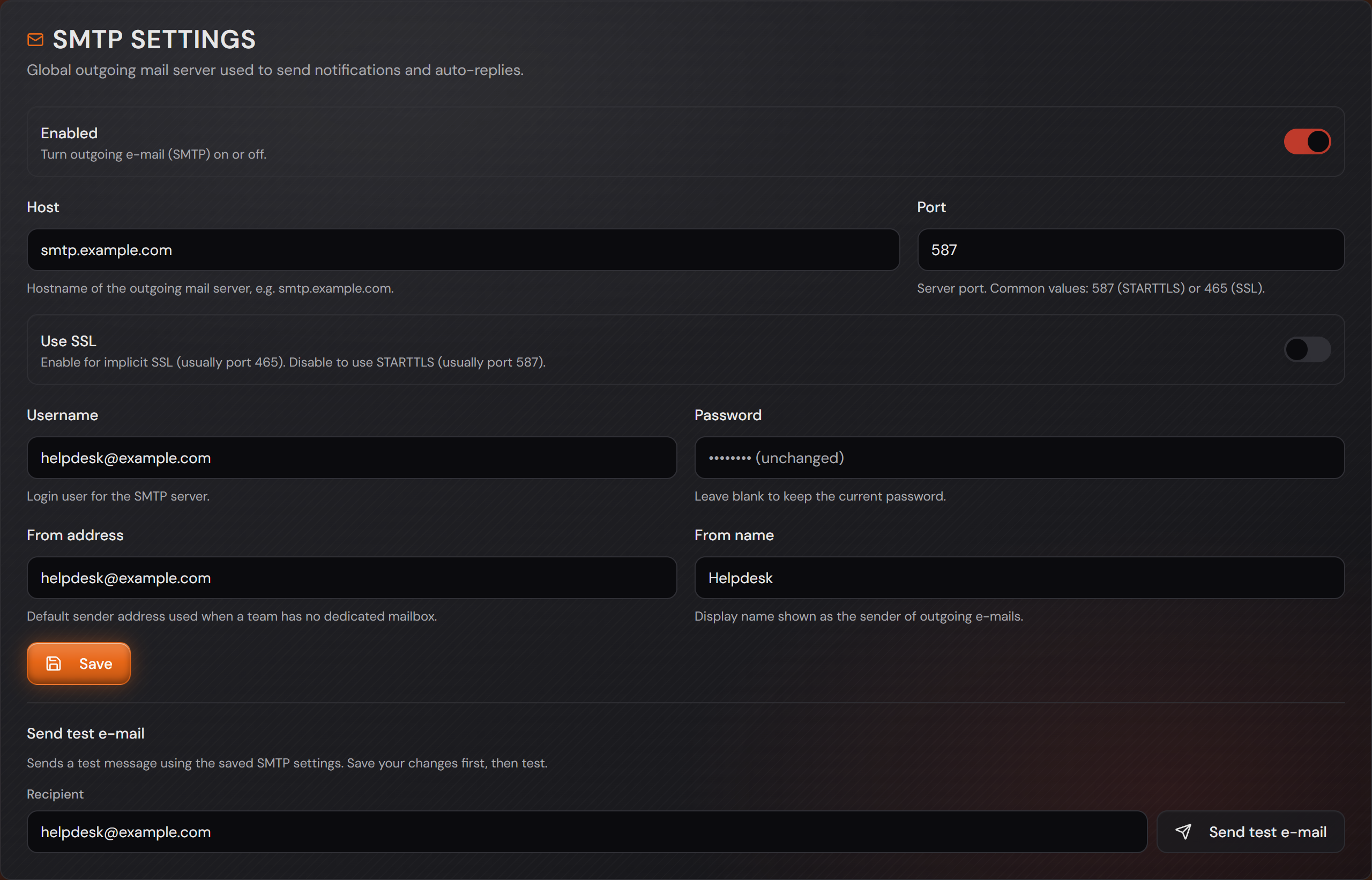
Everything for it sits under “Settings → E-Mail Settings”. The upper card, “SMTP settings”, is the way out: host, port, “Use SSL”, user and password, plus the sender address and sender name. With “Send test e-mail” you send yourself a sample — save first, then test, as the card says itself.

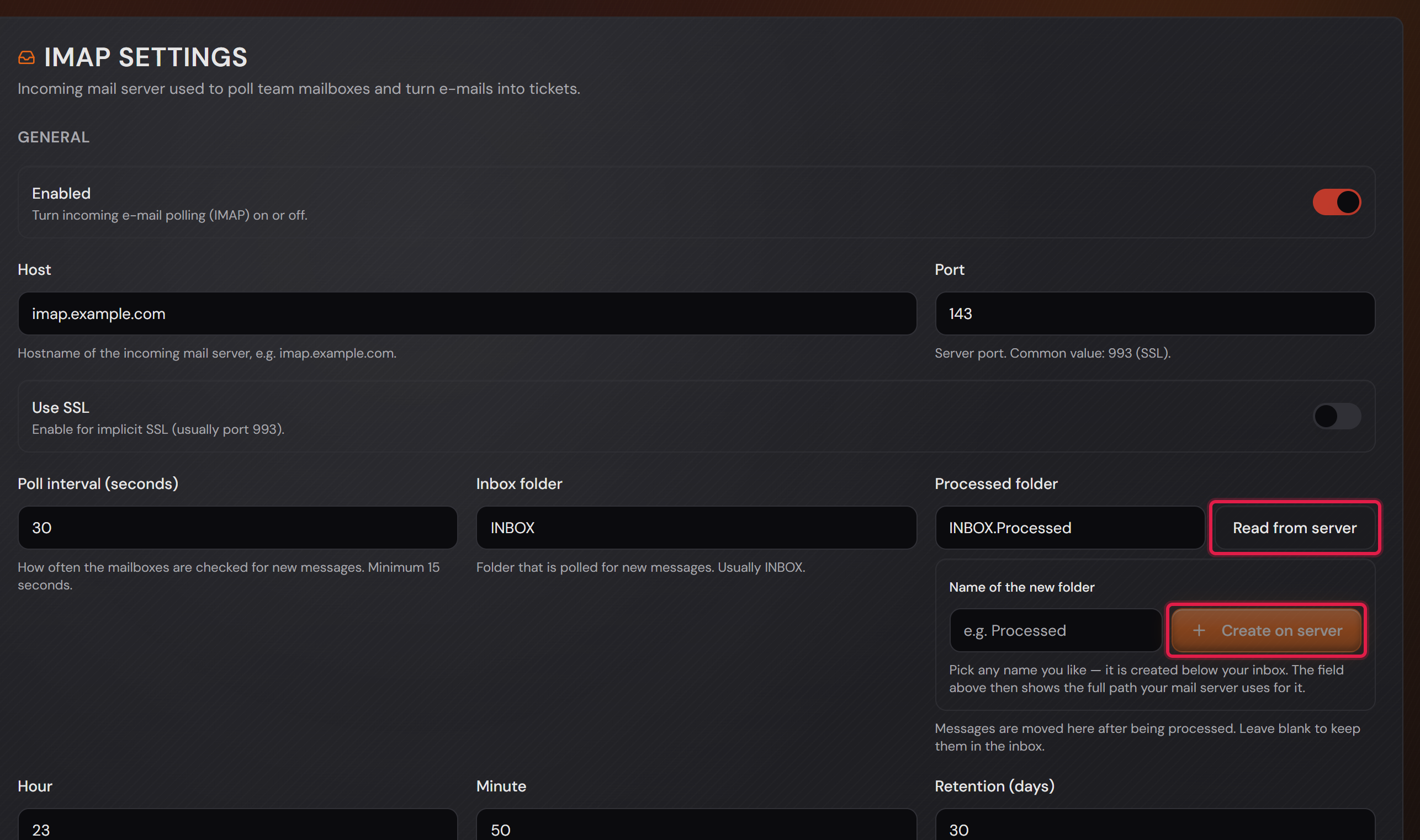
The “IMAP settings” card is the way in: host, port, the poll interval and the two folders. You do not have to guess the folder name: “Read from server” fetches the folders that actually exist in your mailbox, “Create on server” creates a new one. The field then takes the path your mail server uses for it — one server writes “INBOX/Processed”, the next one “INBOX.Processed”, and both mean the same thing.

The “Processed folder” takes the mails the system sets aside: mails from blocked senders, automatically generated mails, and mails a workflow moves with “Move to folder” without a folder of its own. Leave it empty and they stay in the inbox. Below that you set when the cleanup runs (“Hour”, “Minute”) and how old a message may get (“Retention (days)”) — otherwise the mailbox quietly keeps growing.

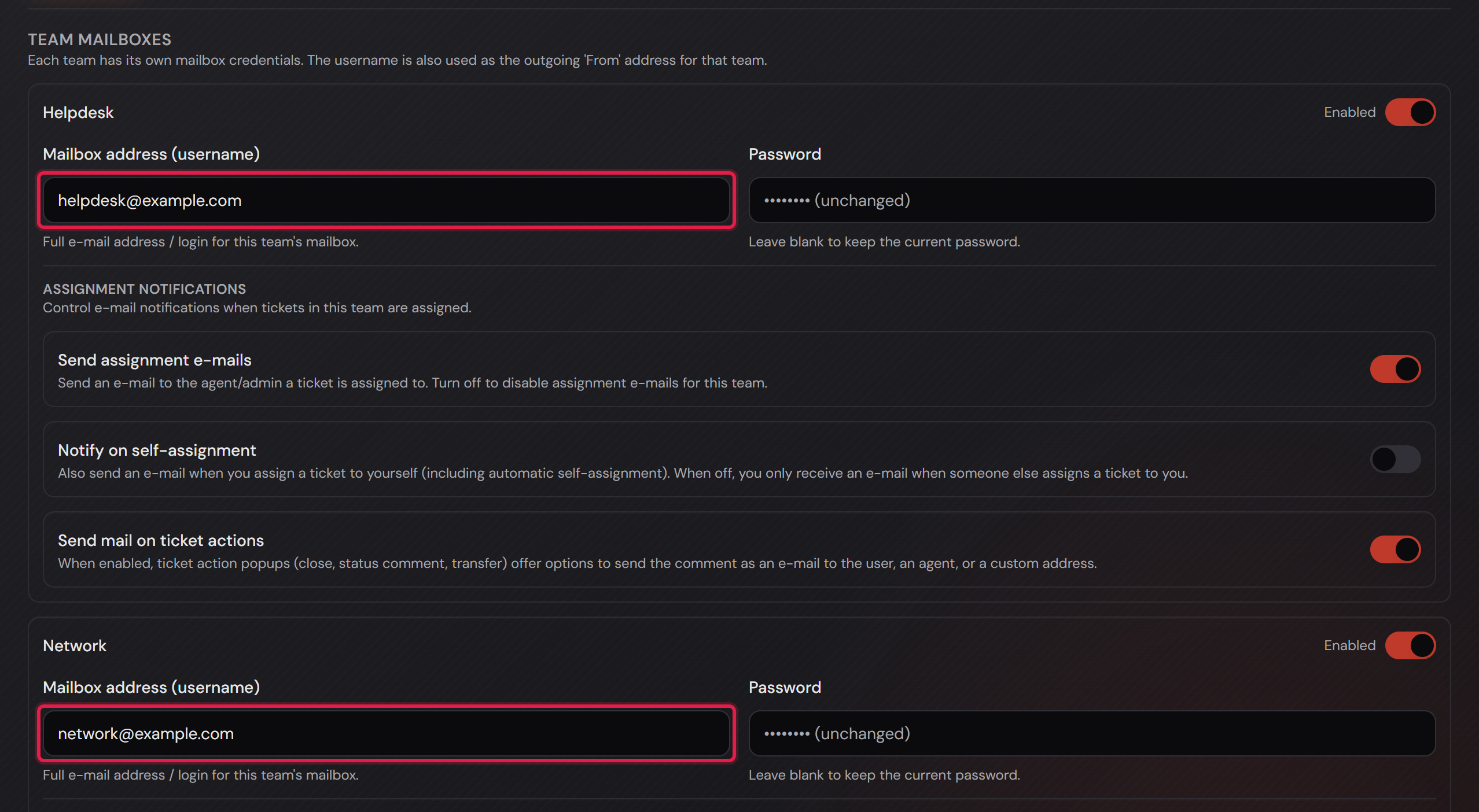
Mailboxes belong to the team, not to the system: under “Team mailboxes” each team enters its own address with a password. That address is at the same time the sender of that team’s mails — so the requester replies to the same place the mail is collected from.

And now the part without which none of this happens: the workflow. A configured mailbox on its own does nothing at all. If a team has no enabled workflow, the mailbox is not even polled — no ticket, no confirmation, the mails just sit there. The automatic reply to your customers exists only here, and you set it up yourself. That is on purpose: a system that writes to every sender address unasked would be worse than one that stays quiet.

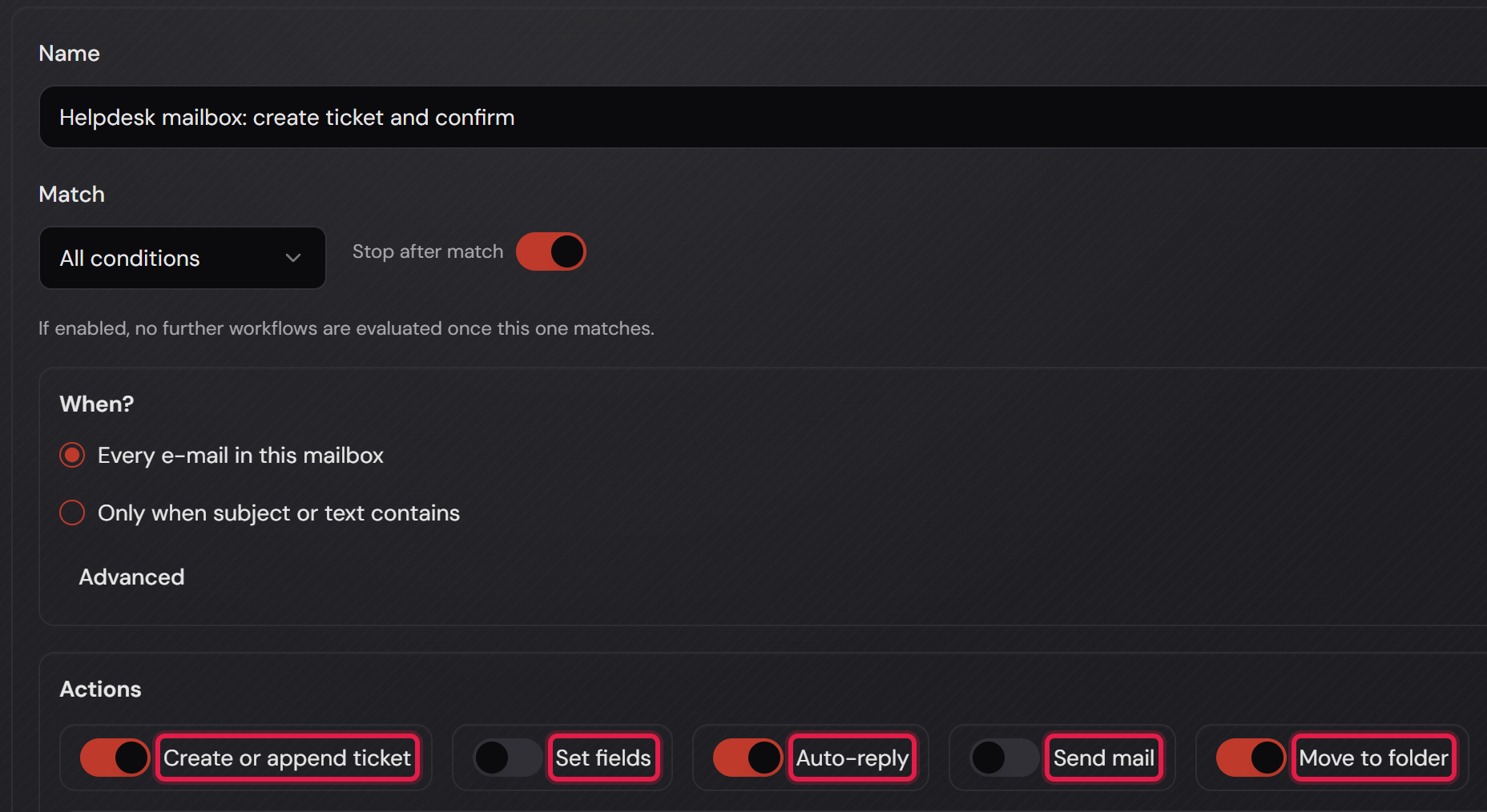
Under “E-Mail workflows” you pick the team at the top and create a workflow with “+ Add workflow”. It gets a name (for you only), an “Enabled” switch and two statements about when it applies: “Match” decides whether all conditions must be true (“All conditions”) or one is enough, and “Stop after match” ends the run as soon as this workflow has matched — a workflow further down never gets its turn then. You change the order with the arrows next to it.

Under “When?” sits the condition itself. “Every e-mail in this mailbox” takes every mail; “Only when subject or text contains” requires a word in the subject or the body. “Advanced” makes it precise: there you choose what is looked at — “Subject or body”, “Subject”, “Body”, “Sender (From)” or “Recipient (To/Cc)” — and how it is compared: “Contains”, “Equals” or “Regex”. That is how you separate, say, reports to a shared address from everything else.

Below that sit five actions as switches. They are the actual content of the workflow — whatever is not switched on does not happen:

“Create or append ticket” turns the mail into a ticket — or appends it as a comment to an existing one when the reference is in the subject. Without this action a mail never becomes a case.

“Set fields” sets priority, status, main and sub category, owning team and assignee right when the ticket is created. Everything left on “— Keep default —” stays as it would be without a workflow.

“Auto-reply” is the confirmation to the sender. With this switch off your customer gets no confirmation, no matter how well everything else is set up. “Send mail” can write to the sender as well, as the next action shows.

“Send mail” sends an additional mail: either to the sender of the incoming mail or to selected team members and fixed addresses. It has its own “Send conditions” — leave them empty and it goes out on every run of this workflow.

“Move to folder” files the processed mail into a folder. Leave the field empty and the general “Processed folder” from the IMAP settings above applies.

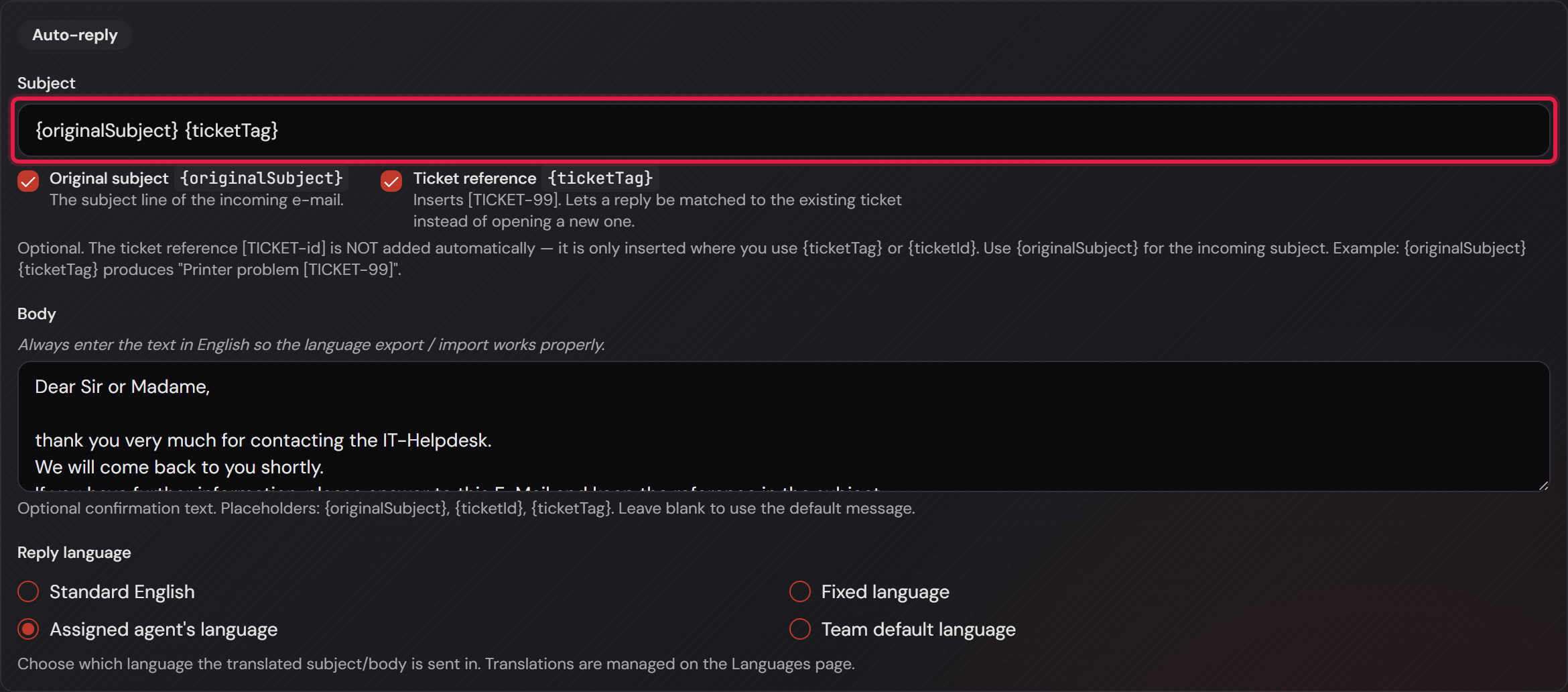
The “Auto-reply” action in detail: you build the subject from blocks. “Original subject {originalSubject}” takes over the subject of the incoming mail, “Ticket reference {ticketTag}” inserts the case reference — together they produce something like “Printer problem [TICKET-99-a1b2c3]”.

The reference is not added by itself. It appears only where you put {ticketTag}. {ticketId} only inserts the bare number, and the system does not recognise a reply by it. Without the reference in the subject, a reply is still matched if it carries the reply headers of the confirmation. Only a mail with neither becomes a new ticket.

The text below it is your confirmation message. Write it in English: it runs through the same export/import as every other text, and only that way can it be translated into the other languages. Leave it empty and the system sends its own default message. The same placeholders are allowed here as well.

“Reply language” decides which language the subject and the text go out in: “Standard English” uses English, “Fixed language” a language you pick, “Assigned agent's language” the language of the assigned agent, and “Team default language” the team’s default. The translations themselves are maintained on the languages page.

One piece of advice that the system prints above the card as well: everything belonging to one case belongs in ONE workflow. Only actions inside the same workflow know the ticket that was just created — that is why the confirmation can name its number and an action from a second workflow cannot.

The whole mail channel — in and out — is part of the Professional edition. In Basic the system neither sends nor receives e-mail; tickets are created there through the portal, the phone and the agent.
The “SMTP settings” card with host, port, user, password, sender address and the “Send test e-mail” button.
The way out. Every field carries its explanation below it — the ports 587 and 465 are named there explicitly.Open image at full size
The “IMAP settings” card with the “Read from server” and “Create on server” buttons framed in red.
Do not type the folder, fetch it: “Read from server” lists the real folders, “Create on server” creates a new one below the inbox.Open image at full size
The “Team mailboxes” section with the mailboxes of the Helpdesk and Network teams, the addresses framed in red.
One mailbox per team. The address is also the sender — which is why it lives here and not in the general settings.Open image at full size
A workflow with its name, “Match”, “Stop after match”, the condition under “When?” and the five action switches framed in red.
The five actions are framed in red. In this example “Create or append ticket”, “Auto-reply” and “Move to folder” are on — “Set fields” and “Send mail” are off. Without a workflow like this the mailbox is not polled at all.Open image at full size
The “Auto-reply” action with the subject field framed in red, the building blocks, the English text and the reply language choice.
The subject holds the blocks “{originalSubject} {ticketTag}” — that is what the system recognises the customer’s reply by later. Below it the text and the reply language, here the assigned agent’s.Open image at full size

The screenshots are from version 1.3.1. Nothing on the screens shown changed up to version 1.13.3. The only thing that looks different is the version number at the bottom of the sidebar.