Teams & users

A team is a responsibility, not a folder. It has its own categories, its own deadlines and its own members. A customer sees exactly one of them. Everything else comes down to who has which account and what that account may do.

1

Create and configure teams

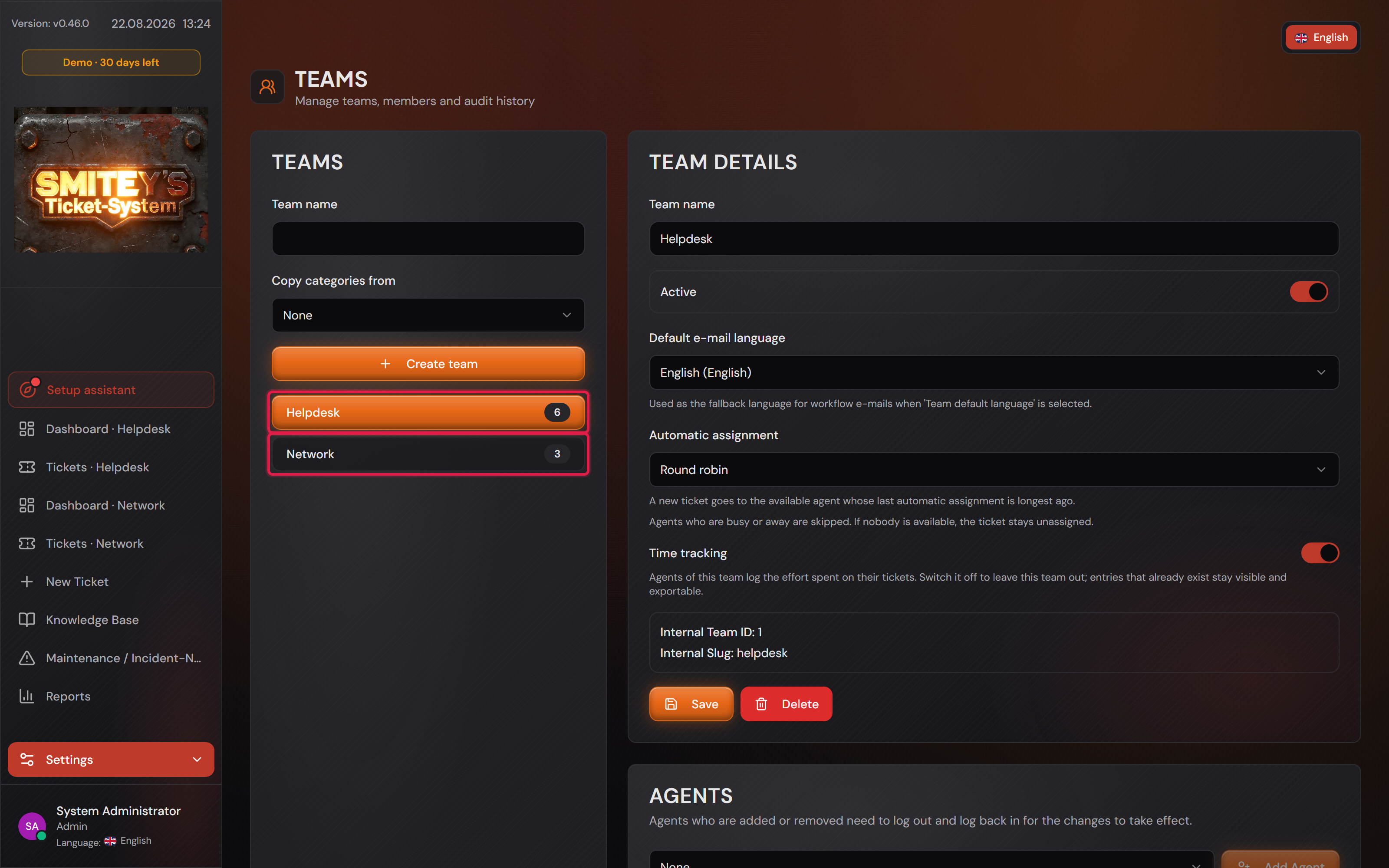
Teams live under “Settings → Teams”. The list is on the left, the settings of the team you clicked are on the right. The number behind the name is the number of its members.

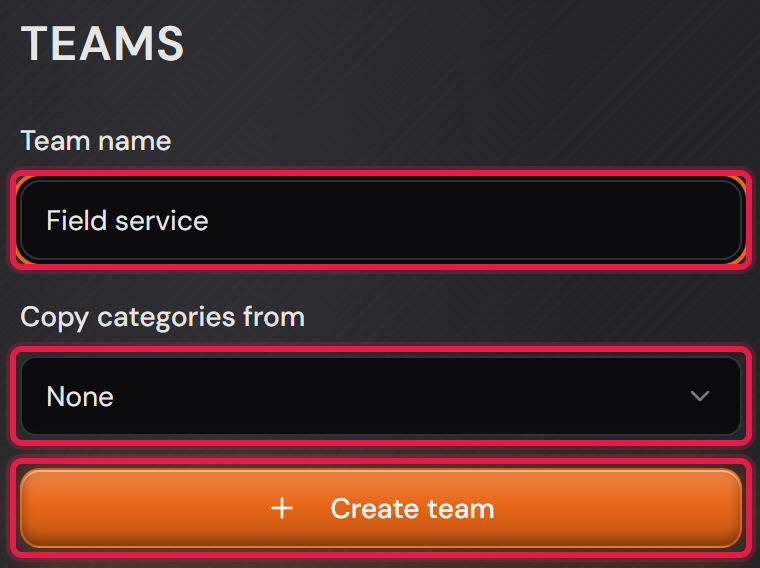
A new team gets its name in the “Team name” field. Below it, “Copy categories from” lets you pick an existing team, so the new team starts with the same main and sub categories. “Create team” creates it.

The first team is the team your customers see. Every further team is a specialist team behind it. Asking a reporter to pick the right department themselves is asking too much: they file with the first team, and it is handed on from there.

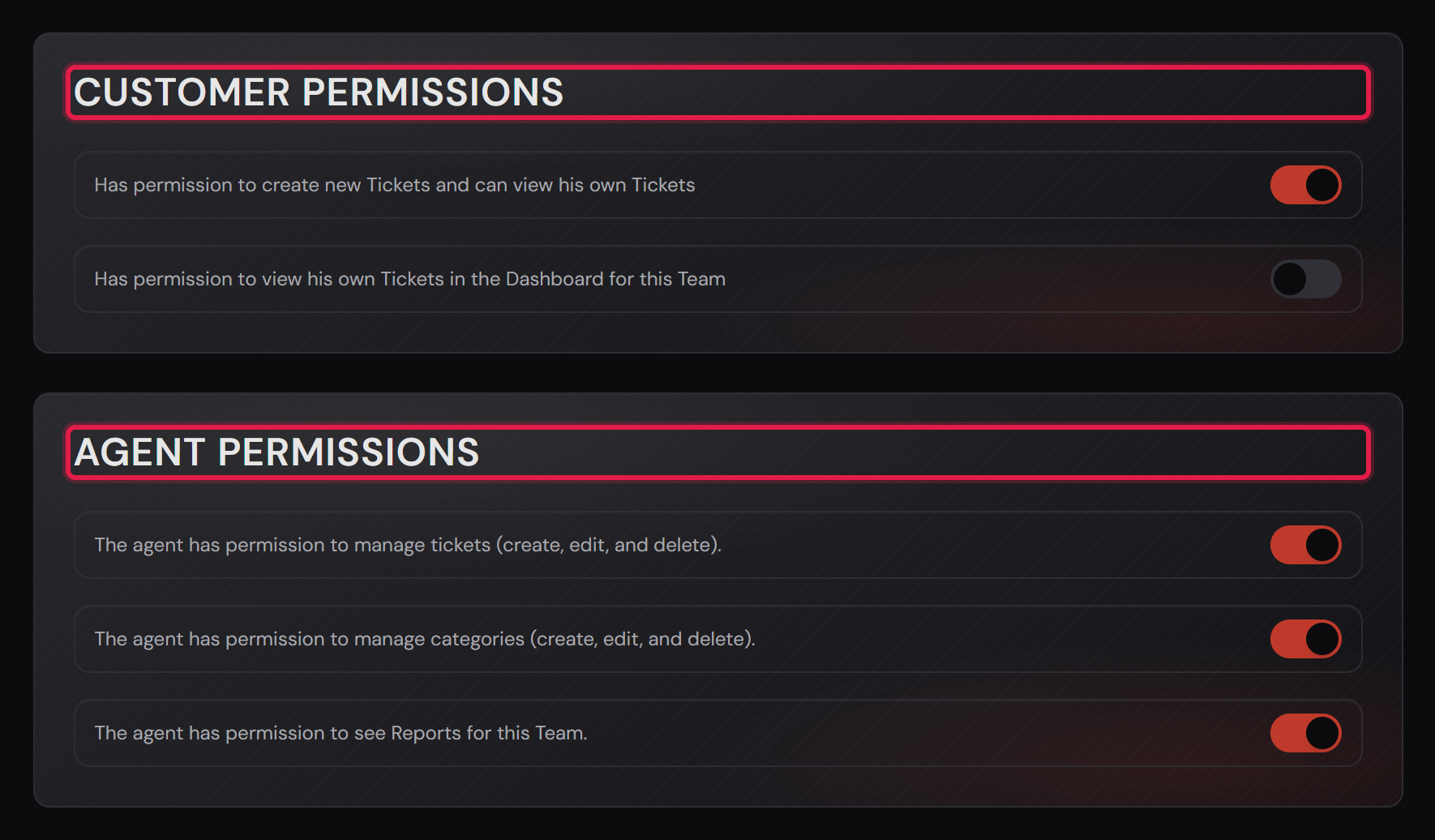
You can change that at any time. The “Customer permissions” card decides per team what customers may do there. It has two switches: “Can create new tickets and see their own tickets” and “Can see their own tickets of this team in the dashboard and in reports”. As soon as one of them is on, customers see the team. Only with both off does the team not show up for a customer at all.

The “Agent Permissions” card applies to the agents of this team. It has three switches: managing tickets, managing categories and seeing this team’s reports. Without the first, an agent can neither create, edit nor comment on tickets in this team, nor upload attachments. Without the second, the entry for the team’s categories disappears from their sidebar. Without the third, the reports leave this team out. Every change is recorded in the team’s “Audit log”.

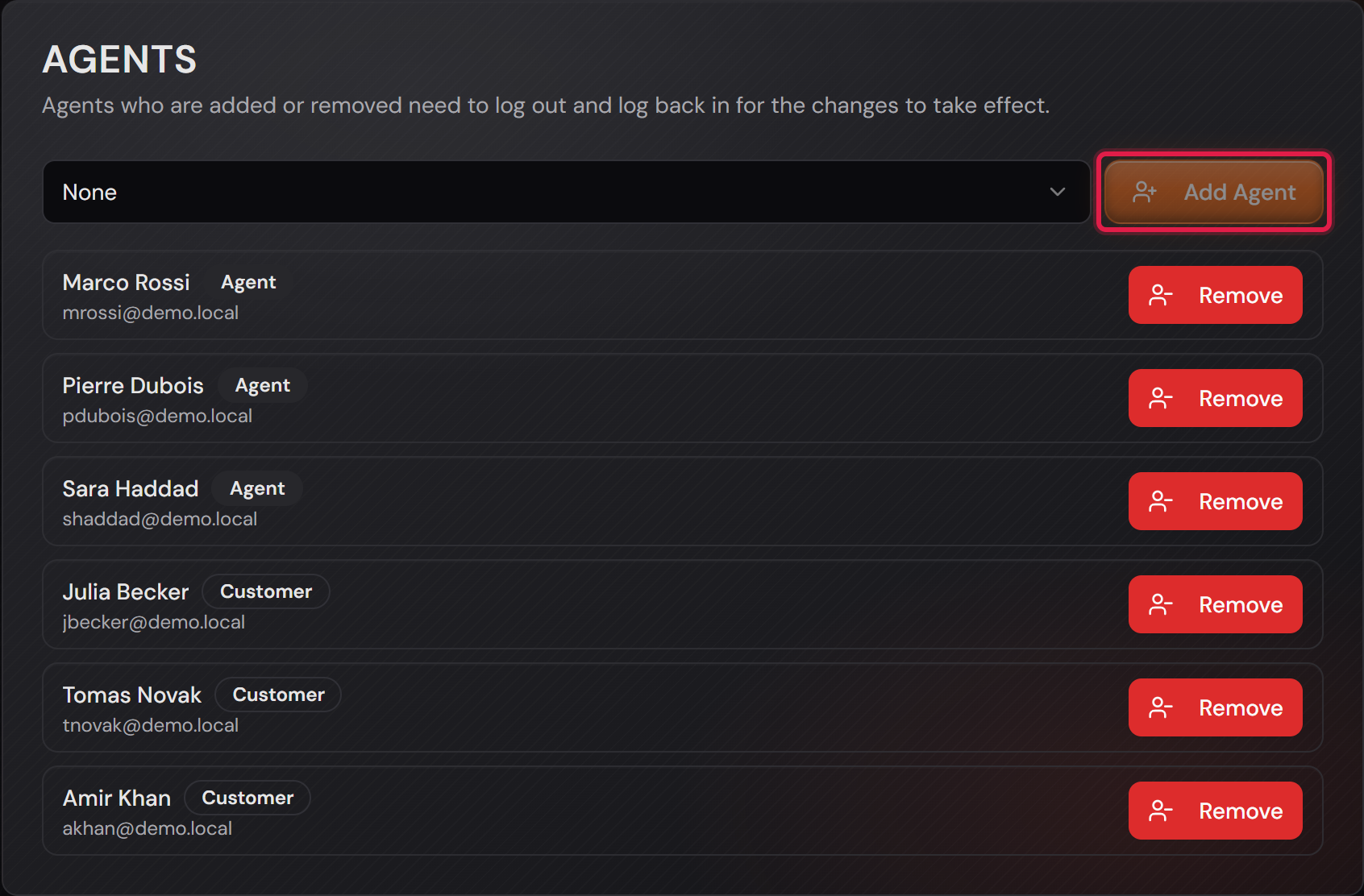
The “Agents” card holds the members. Despite the heading, the team’s customers are in there as well. The picker above it and “Add Agent” add someone, “Remove” takes them out. Whoever is added or removed has to sign out and back in once.

“Default e-mail language” is the language this team writes in. It applies when a mail rule selects “Team default language”.

The “Active” switch takes a team out of service. It disappears from the sidebar and from every picker. It is not deleted by that.

“Delete” only removes a team while no ticket is still open. Otherwise the system names the reason and does nothing.

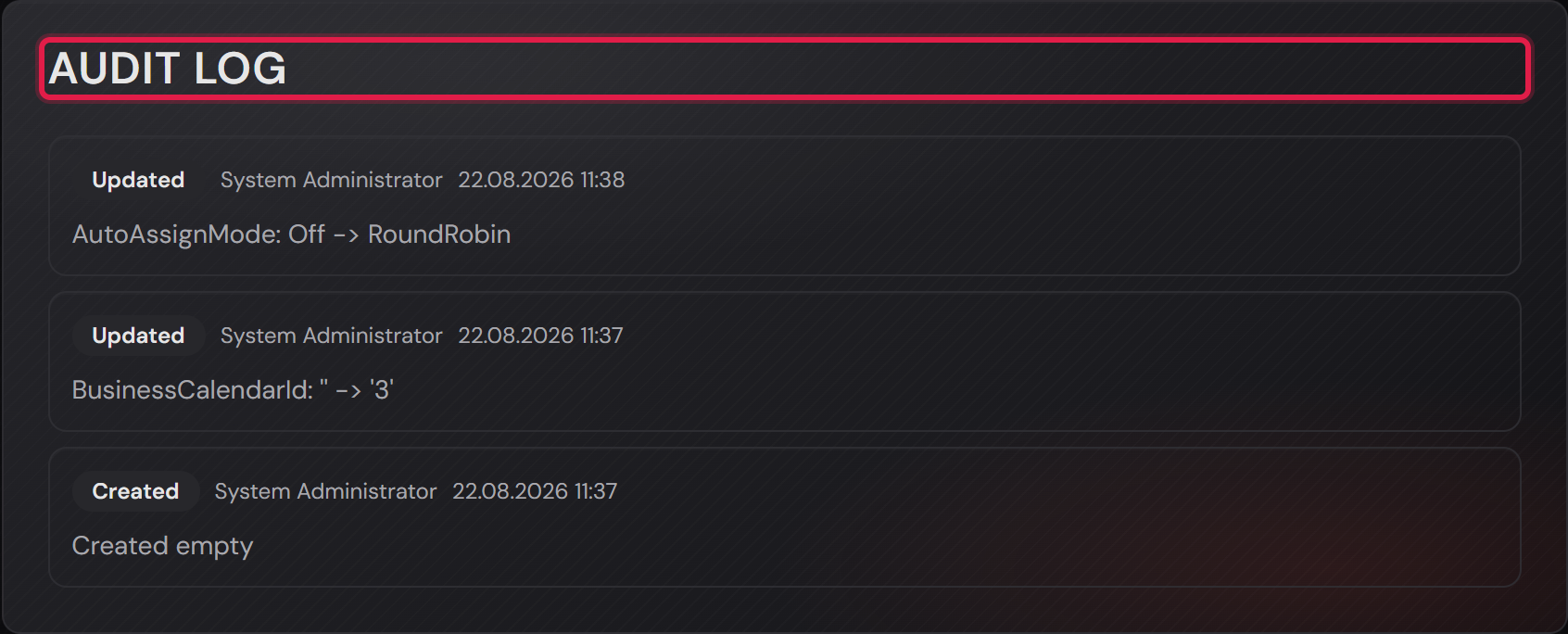
The “Audit log” card records every change to the team, with name and time.

Basic runs one team. Professional has no limit.

The “Teams” page with the list of both teams on the left and the Helpdesk settings on the right.
The red frames sit on the two teams. Clicking one changes what stands on the right. The number at the edge is the member count.Open image at full size
The “Team name” field with a name typed in, below it “Copy categories from” and the “Create team” button.
Type the name, optionally take over the categories of an existing team, then “Create team”.Open image at full size
The “Customer permissions” and “Agent Permissions” cards with their switches.
The red frames sit on the two headings. These switches apply to this one team only.Open image at full size
The “Agents” card with the picker, the “Add Agent” button and the members below.
The red frame sits on “Add Agent”. The badge next to each name is the role, and the card holds the team’s customers as well.Open image at full size
The “Audit log” card with its entries, each with the change, the name and the time.
The red frame sits on the heading. Every line names the change, who made it and when.Open image at full size
2

Create administrators and agents

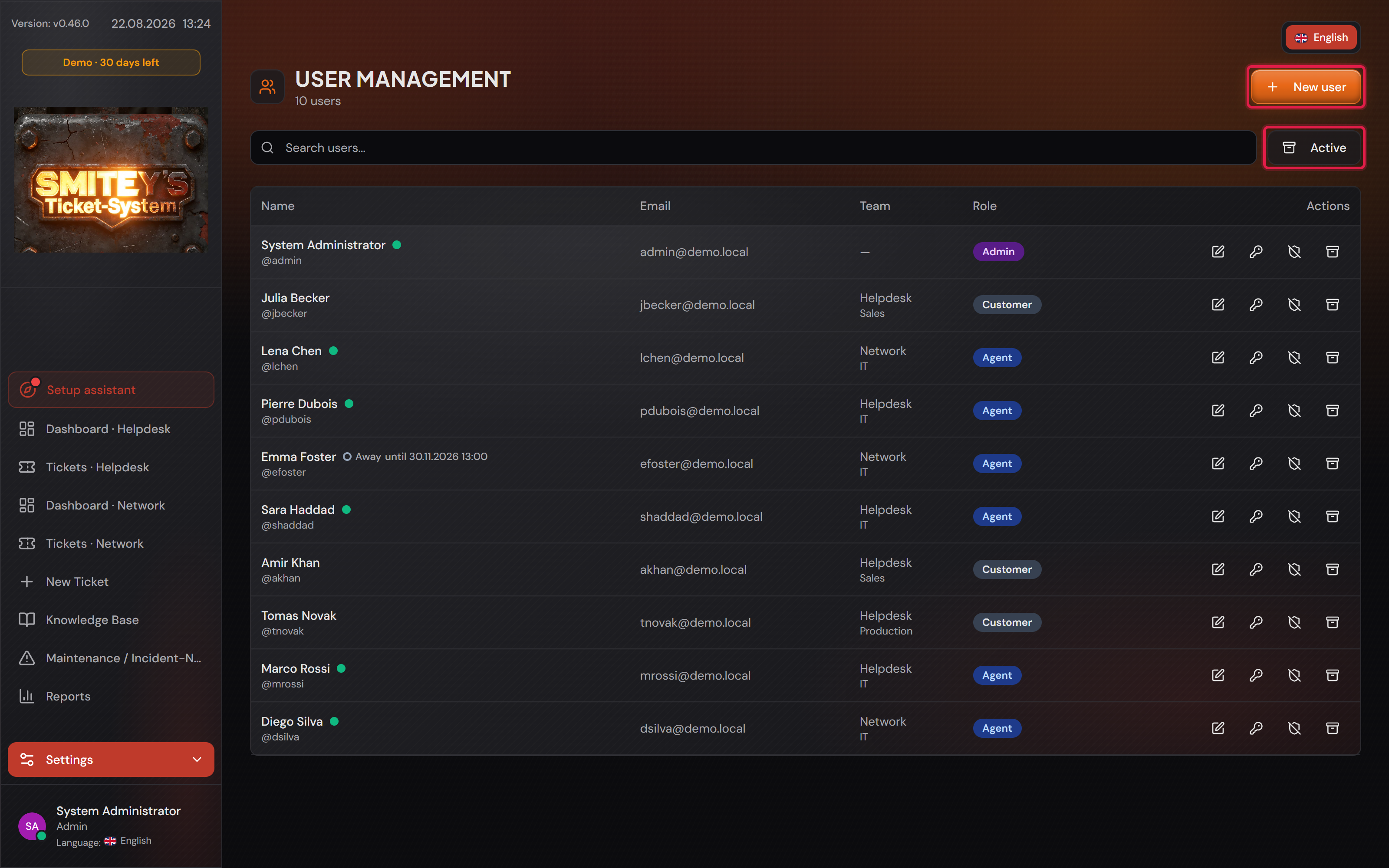
Accounts live under “User management”. The list shows name and sign-in name, the e-mail address, the team with the department below it, and the role.

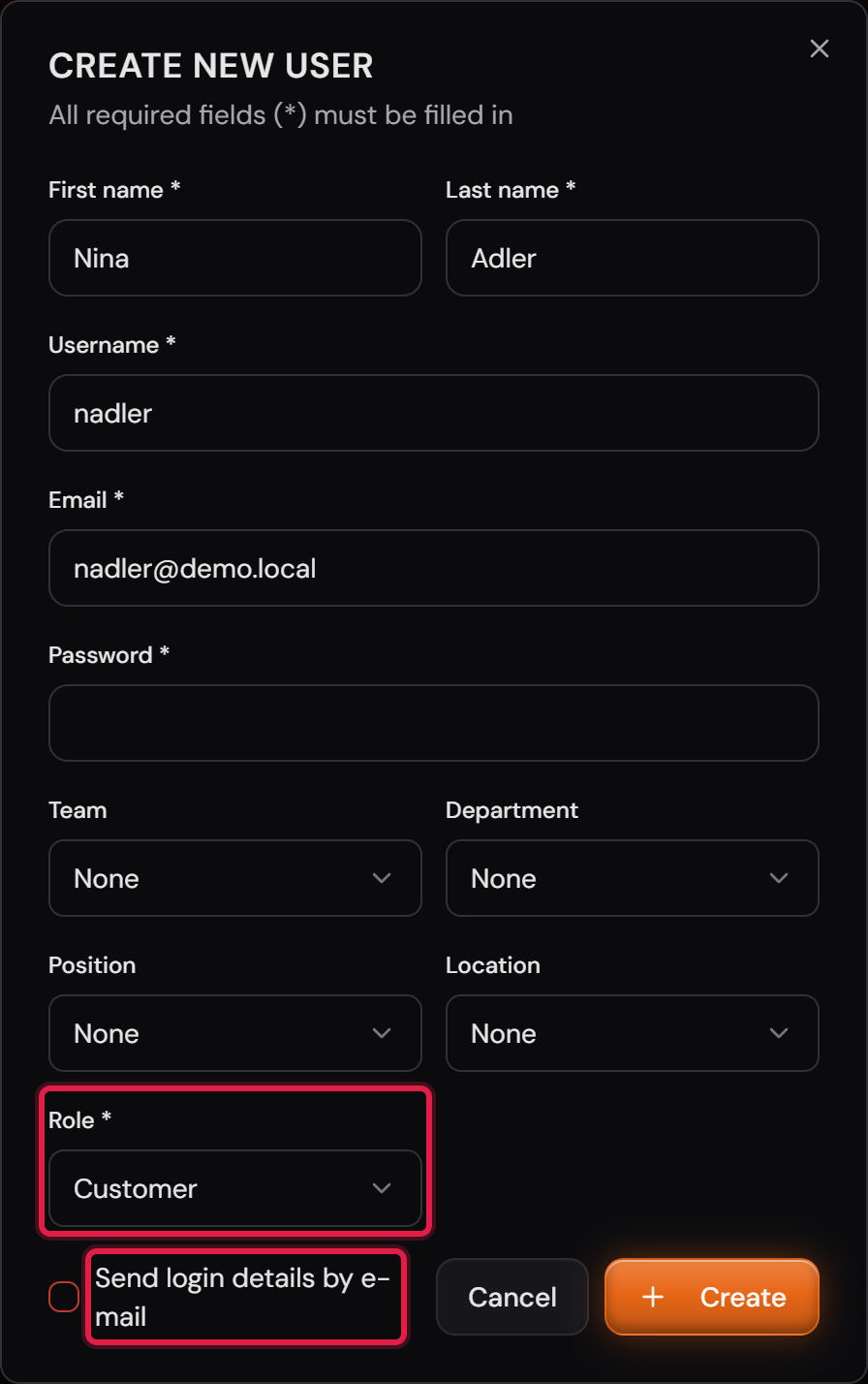
“New user” opens the form. First name, last name, sign-in name and e-mail address are required. On top of that comes a password. With Professional you can set the “Send login details by e-mail” tick instead.

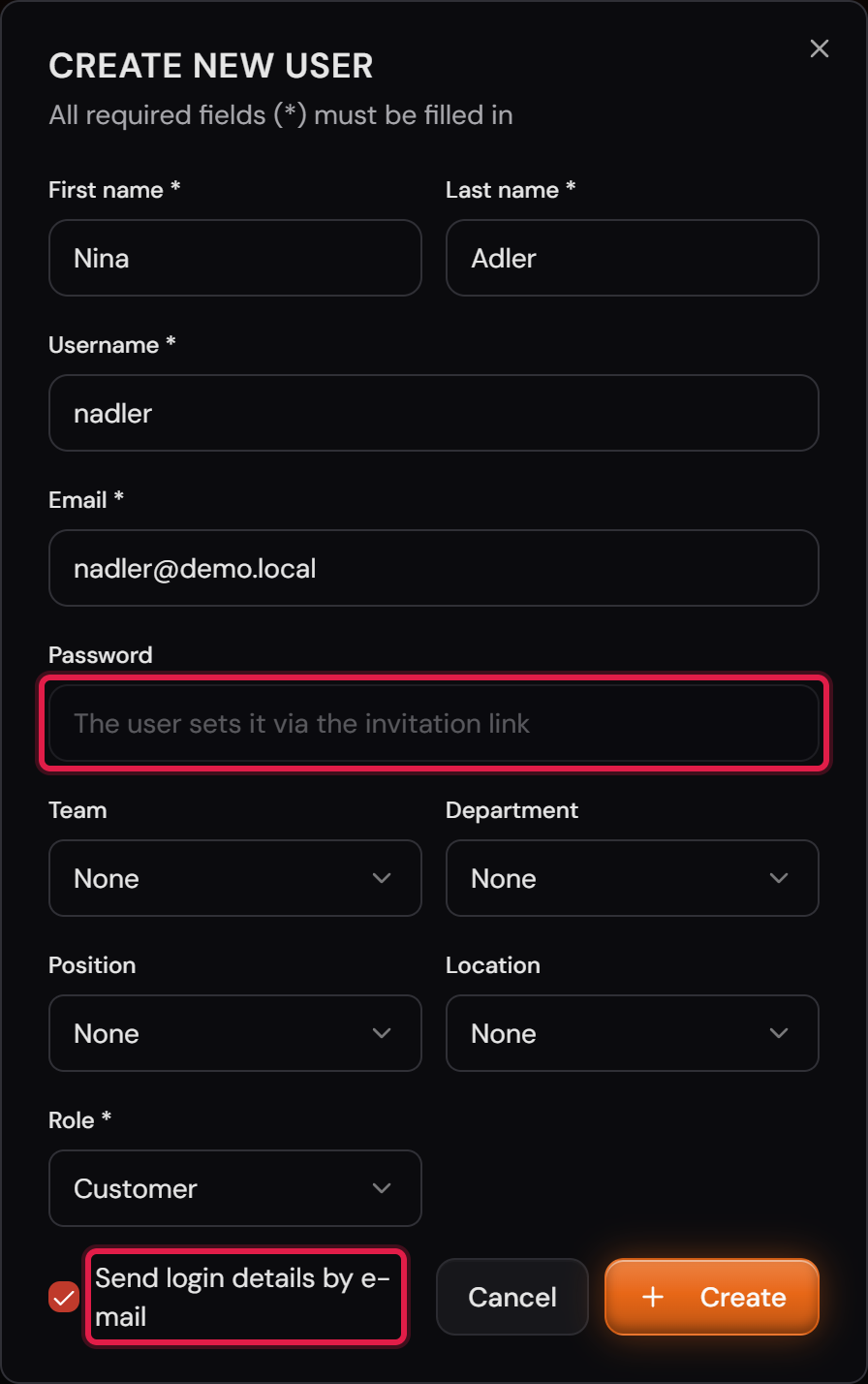
With that tick you set no password. The new user gets a mail with their sign-in name and a time-limited link and sets their own password. The system never sends passwords.

The role decides everything else. “Admin” and “Agent” are both staff and count against the same pool. An administrator may do more out of the box. Nearly every single permission can be changed; the exceptions are on the card “Roles and the permission concept”. Only an administrator can give or take away the “Admin” role. That also applies to their own account. “Edit user” only changes the team shown in the form. Teams the person was added to with “Add Agent” stay as they are.

Basic comes with two staff seats. How you split them is up to you: one administrator and one agent, or two administrators. Customers do not count, they are unlimited in both editions.

When someone leaves, click the archive symbol in their row. The account is locked, so they can no longer sign in.

A locked account moves to the “Archived” view and carries the “locked” badge there. It is no longer visible in the “Active” view.

A locked account no longer occupies a staff seat, and it appears in no “Assign to” picker. Tickets already assigned keep their agent and their agent’s name.

In the “Archived” view the same button is called “Restore” and releases the account again. In Basic that needs a free seat again.

The key symbol resets a password. The crossed-out shield resets two-factor sign-in. The new password is then shown once on screen. It is not sent anywhere.

Resetting the password or two-factor sign-in only lifts the short lock after failed attempts. An archived account stays locked. It receives no invitation and no reset mail, and only “Restore” brings it back.

Archiving can be undone at any time. If someone has left for good, also delete the account with the bin symbol “Delete account”. Only from the deletion on does the time until automatic anonymization run.

More on this in the card: Anonymize people

The “User management” page with all accounts, their role and the actions in each row.
The red frames sit on “New user” and on the switch between open and locked accounts. The button shows which of the two views is open.Open image at full size
The “Create new user” dialog with names, user name and e-mail filled in, and the pickers for team, department, position, location and role.
The red frames sit on the role and on the invitation. The role is the only picker that has to be filled in.Open image at full size
The same dialog with the tick set: the password field is disabled and says the user sets it via the link.
With the tick the asterisk on the password field disappears. The field itself says who sets the password.Open image at full size
The “Archived” view with a locked account, the “locked” badge and the restore icon at the end of the row.
The red frames sit on the badge and on the way back. Both exist only in this view.Open image at full size
3

Customers: the accounts of the people who report

Customers are unlimited in Basic and in Professional. They occupy no staff seat.

A customer account comes about in three ways. You create it yourself under “User management”; with Professional you can invite the person by mail while doing so. The second way is self-registration. The third is the first sign-in through SSO or a directory, which creates the account by itself.

The switch for that sits under “Settings → Security” in the “Self-registration” card. It is off out of the box. Switched on, a “Register” link appears on the sign-in page.

Whoever registers themselves always gets the “Customer” role. No other role can be handed out along this route.

With Professional, a self-registered customer gets a second mail after the welcome. With the link in it, they confirm their address. Until then, their account carries the “not confirmed” note in the list.

You can also confirm an address yourself. In Basic that is the only way, because Basic sends no mail. The account’s row then shows a button with an envelope icon: “Mark email as confirmed”. Only do that if you know that the address belongs to the person.

For an internal helpdesk you are better off leaving the switch alone. Otherwise anyone who knows the address creates an account.

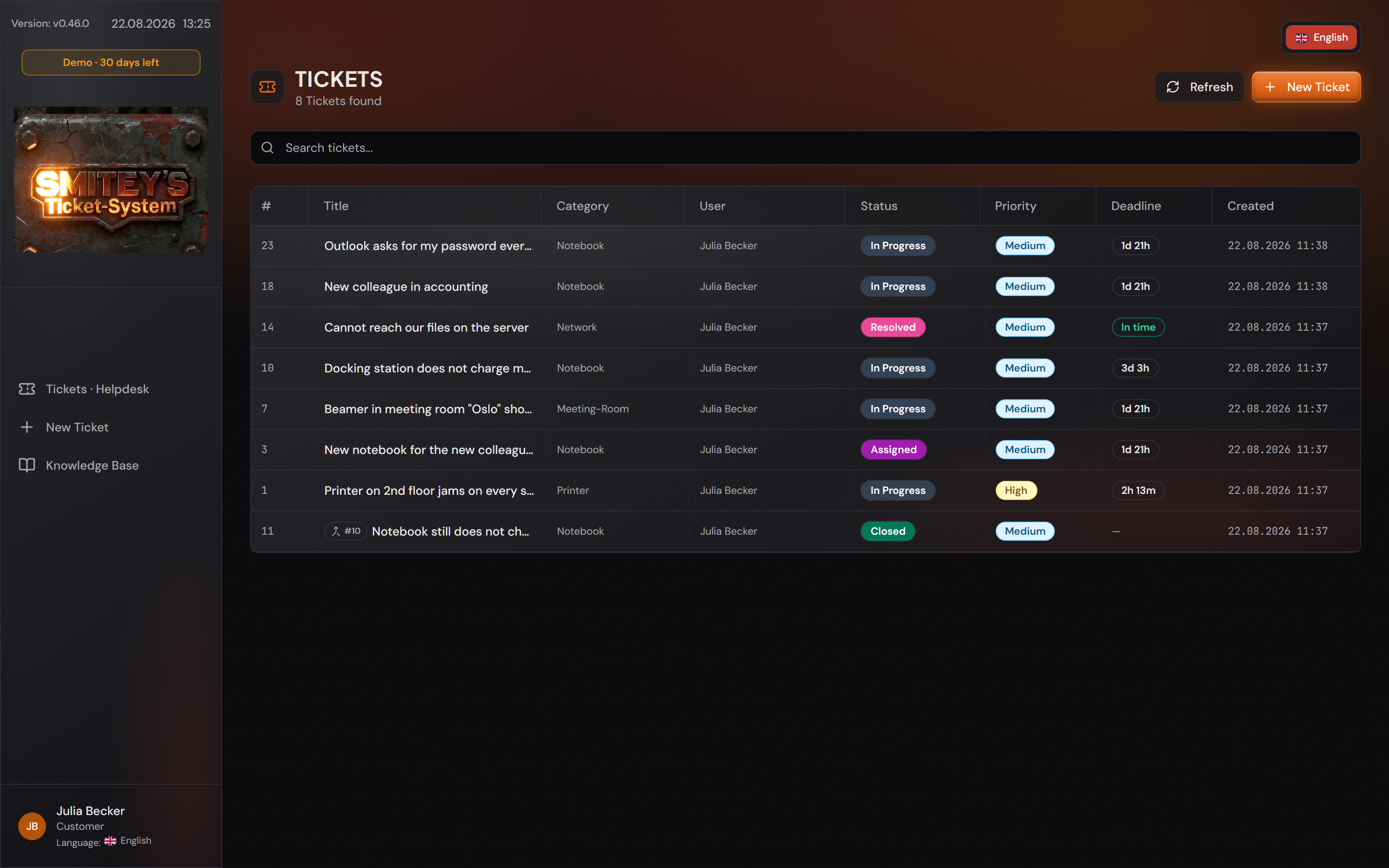
A customer sees only their own cases. These are the tickets they created themselves. Added to that are the tickets that an agent or an email created for their confirmed address. A ticket that another customer creates with their address stays hidden from them. If two accounts have the same address, both see these tickets.

If their address is not confirmed yet, a notice sits above their ticket list. With “Send confirmation email” they request the link again. The notice only appears if the system can send mail.

Their sidebar is short: their tickets, a new ticket, the knowledge base. They never get to see any settings. If the team’s switch “Can see their own tickets of this team in the dashboard and in reports” is on, their sidebar also holds the dashboard and the reports.

What they may do in a team is set on the team. Only with both customer switches off does that team not exist for them.

The “Self-registration” card with the switch and the note below it.
The red frame sits on the switch. The text beside it says what it does and what happens without mail delivery.Open image at full size
The same system, signed in as a customer: a short sidebar and a ticket list holding only her own cases.
The “User” column holds the same name in every row. A customer sees nothing that is not theirs, and the settings are missing from the sidebar.Open image at full size
4

Data export for one person

Before you start: You need the “Data export (data subject request)” permission. As the factory setting, only administrators have it.

A person can ask you which data you store about them. The data export collects all of it in one ZIP file.

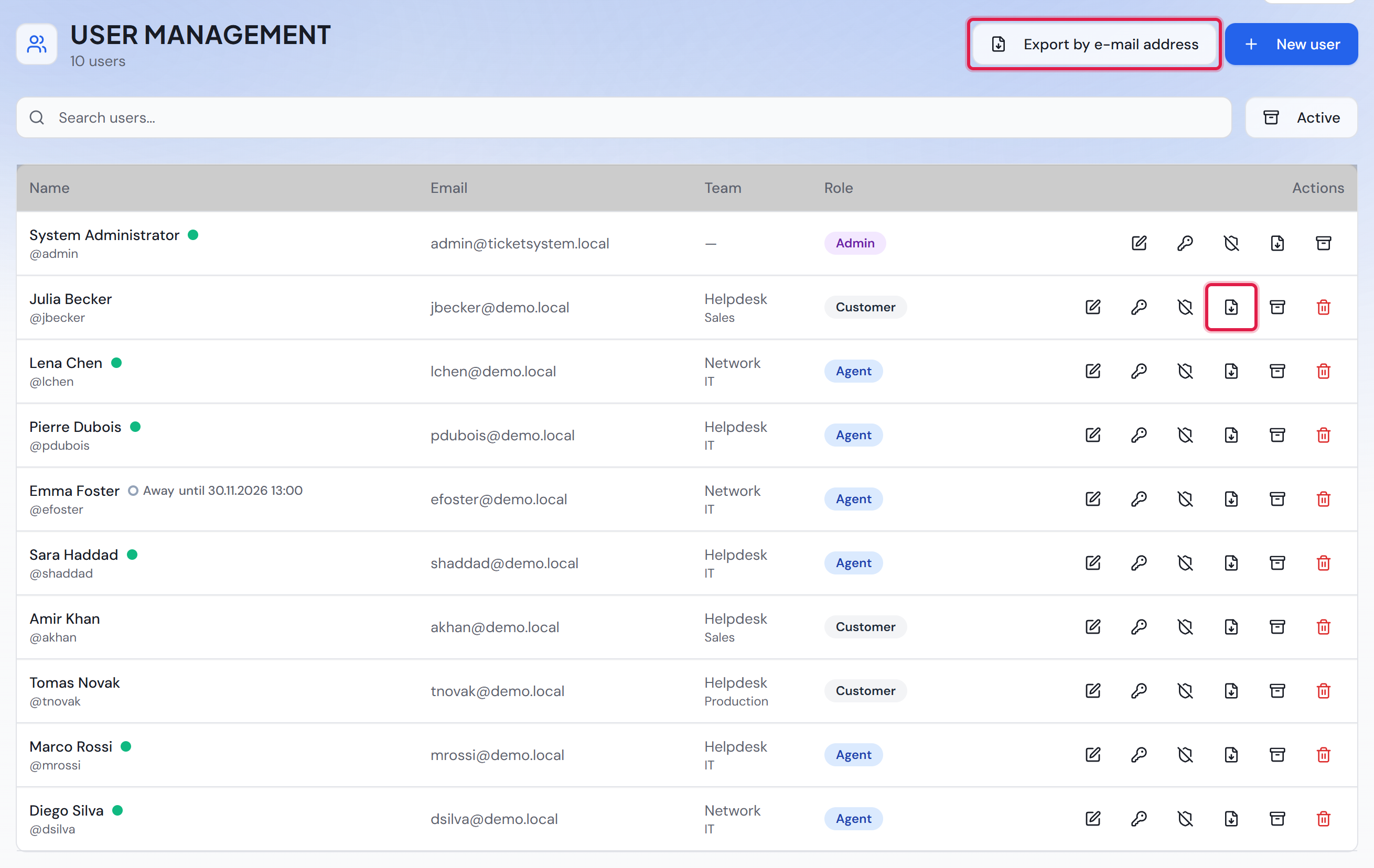
You start it under “User management”. Every row has a file symbol with an arrow and the tooltip “Export personal data”. It opens the export for that account.

Some people have no account. They only wrote to you, or an agent created a ticket with their address. For them there is “Export by e-mail address” at the top of the page. Type the address there and click “Search”. The search works with an account or an address, never with a name.

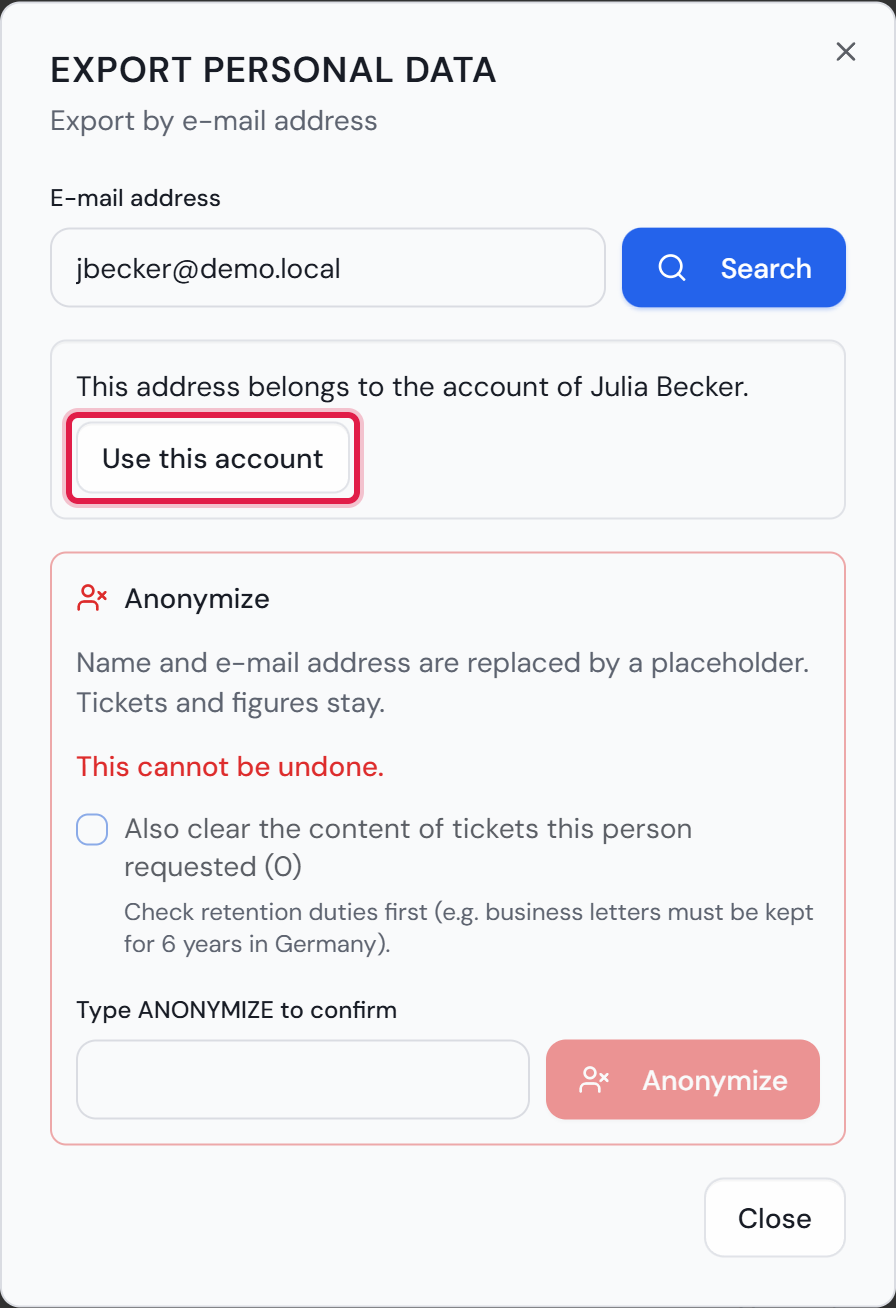
A search by address finds less than a search by the account. It only finds where the address itself is stored, for example as the requester of a ticket or as the sender of an e-mail. A search by the account also finds everything that is linked to the account. If the address belongs to an account, the dialog says so and offers “Use this account”. After that, it shows the person’s name and the account’s e-mail address.

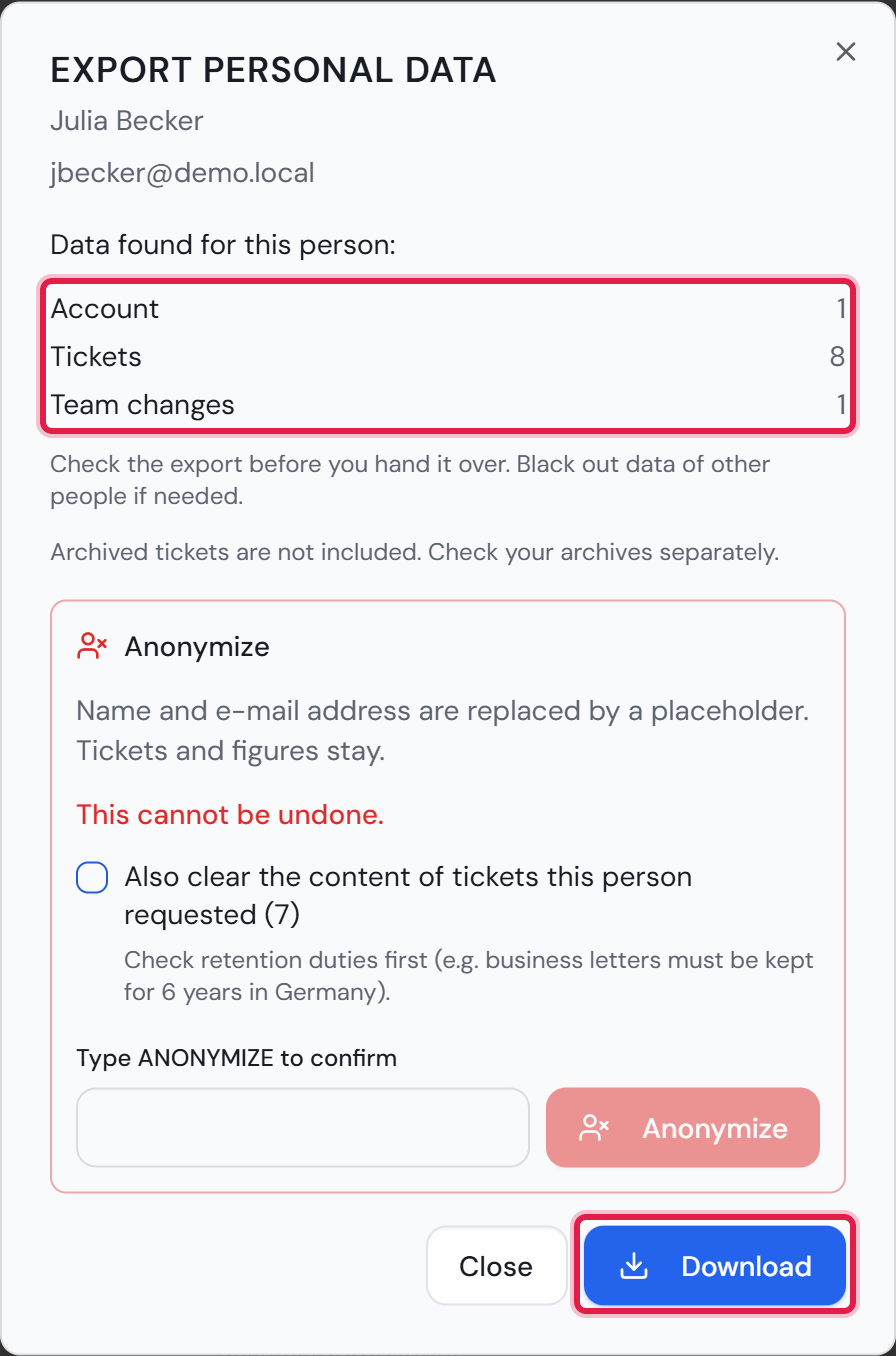
Before you download anything, the dialog shows what it found, counted per area. Areas are for example tickets, time entries, satisfaction surveys and the security log. If it finds nothing, it says “No data found for this person.” and offers no download. If the address belongs to an account and has no findings of its own, the dialog shows no findings and offers no download. It shows the box with “Use this account”. Administrators also see the “Anonymize” area below it. The card “Anonymize people” explains it.

“Download” creates the ZIP file. It holds one JSON file per area, so the data can be read by machine. The files of all attachments found come with it. “overview.html” shows the main content in a readable form. There, every ticket says why it is included (“Why this ticket is included”). “README.txt” is written for the person and explains what the file contains.

A ticket that concerns the person comes along in full. That includes comments and changes by other people. Internal notes are included as well and are marked as internal. If the person replied by e-mail to someone else’s ticket, that ticket carries the badge “Replied by e-mail to someone else’s ticket”. A ticket on which the person made the last change comes along as well. Its line “Why this ticket is included” then names “Last person to change the ticket”.

So check the export before you hand it over. Black out data of other people where needed. The dialog reminds you of this. The “README.txt” does not contain this note, because it goes to the person.

Tickets that were moved to an archive are not searched. Check your archives separately. The dialog reminds you of this as well.

Passwords and two-factor keys are not part of the export.

Every download is recorded: who started it, for which person and when. The record holds no content of the export. The search before it is not recorded.

An agent who gets the permission also needs “Users: manage accounts”. Otherwise they cannot reach the “User management” page. The permission can never be given to the “Customer” role.

The area “Survey consents and unsubscribes” holds every consent and unsubscribe for the satisfaction survey with date, channel and ticket. “overview.html” shows the full history in a section of its own. If the person was anonymized after an unsubscribe, the export by their address finds the remaining unsubscribe. The column “E-mail address” then says “Anonymized (address removed)”.

More on this in the card: Anonymize people

The “User management” page with the “Export by e-mail address” button at the top and the file symbol with an arrow in every row.
The red frames sit on “Export by e-mail address” and on the symbol in Julia Becker’s row. Both open the same dialog.Open image at full size
The “Export personal data” dialog for Julia Becker with her e-mail address below the name, the list of findings per area, the two notes on checking and on archives, the “Anonymize” area and the “Download” button.
The red frames sit on the list of findings and on “Download”. The list only names areas in which something was found.Open image at full size
The same dialog after searching by address: it names the account the address belongs to and offers “Use this account”.
The red frame sits on “Use this account”. By the address alone the search finds nothing here. That is why the dialog shows no findings and no “Download”. The export for the account finds Julia Becker’s tickets. Only administrators see the “Anonymize” area below.Open image at full size
5

Anonymize people

Before you start: Only an administrator can anonymize a person. An anonymization cannot be undone.

Some data must not stay forever. When someone leaves your company, or a person asks you to delete their data, you anonymize them. Name and e-mail address are then replaced by a placeholder such as “Anonymized user 3”. The tickets stay. Reports, deadlines, time entries and satisfaction figures keep counting.

Each person gets their own number. Two entries with the same number come from the same person. The e-mail address becomes “anonymized-3@anonymized.invalid”. No mail can be delivered to such an address, so the system leaves it out when it sends mail. The placeholder is stored in English and stays English in every language.

There are two ways. The automatic way anonymizes deleted accounts after a set number of months. The immediate way anonymizes one person at once, for example after a request for erasure.

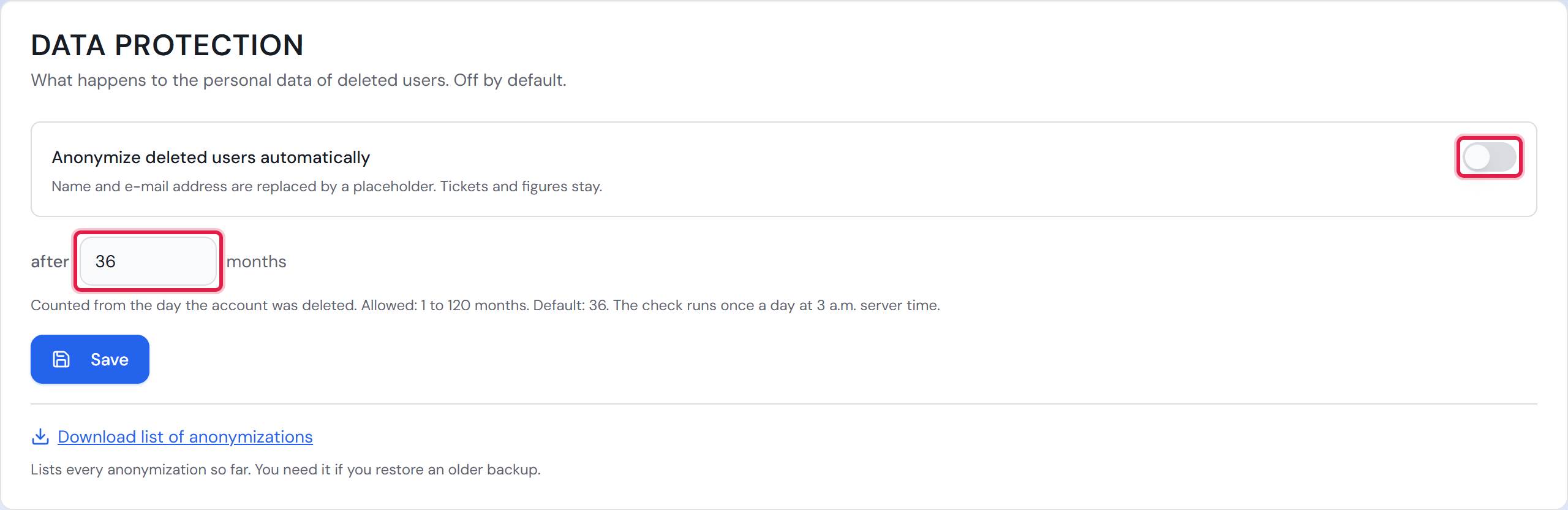
The automatic way is under “Settings → Security” in the “Data protection” card. The switch “Anonymize deleted users automatically” is off as the factory setting. Next to “after” you enter the number of months. Allowed are 1 to 120, the factory setting is 36. “Save” stores a changed number.

The time counts from the day an account was deleted. The system checks every ten minutes whether a run is due. It runs once a day, at the first check after 03:00 in the time zone under “Settings → General Settings”. Every deleted account whose time is up is anonymized in that run.

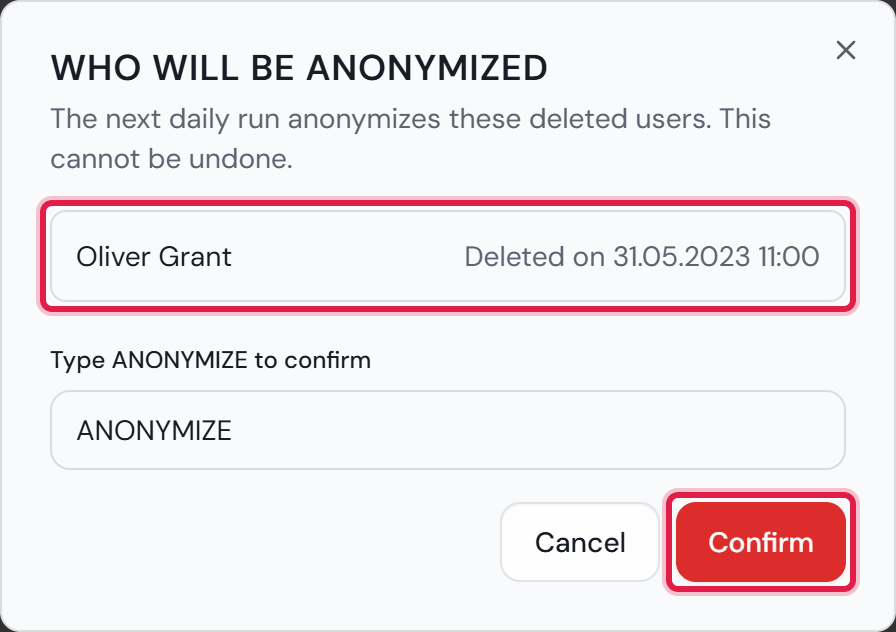
When you turn the switch on, a window opens first. It lists the deleted users the next run will anonymize, each with the day of deletion. Type ANONYMIZE into the field and click “Confirm”. Only then is the switch on. If it is already past 03:00 in that time zone, the first run follows within about ten minutes.

The same window appears when you shorten the number of months while the switch is on. Turning it off needs no confirmation.

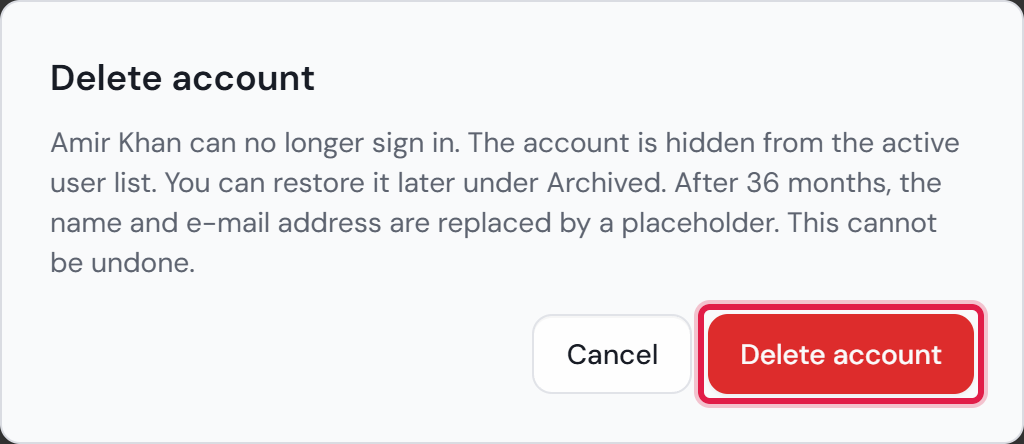
The time only starts when an account is deleted. Archiving is not enough. An archived account is only locked and can come back at any time, for example after parental leave. To delete an account, click the bin symbol “Delete account” in its row under “User management”.

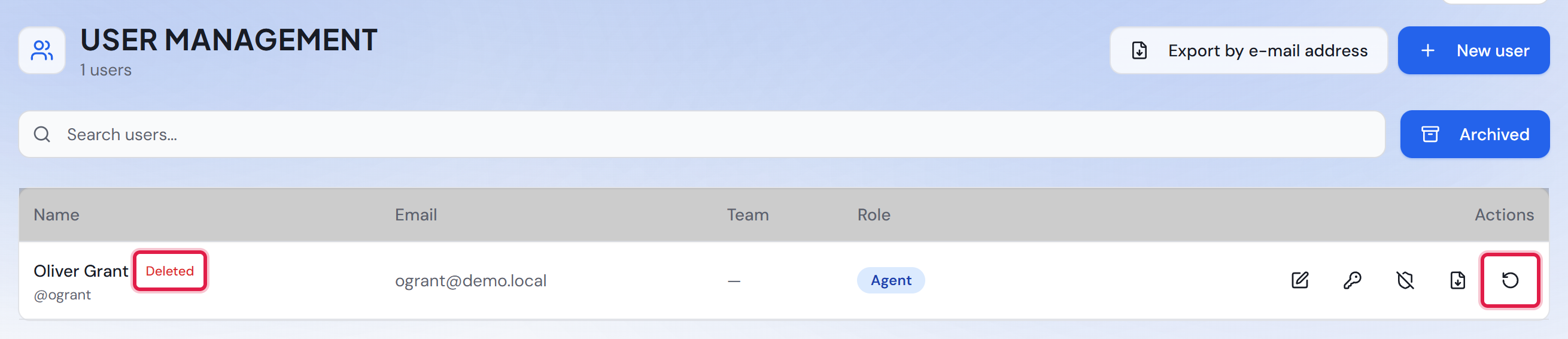
A window says what follows before anything happens. If automatic anonymization is on, it names the number of months. A deleted account appears in the “Archived” view with the “Deleted” badge. The symbol “Restore account” brings it back. For administrators and agents, Basic needs a free seat for that. If the account is deleted again later, the time starts again.

Your own account has no bin symbol. Only an administrator can delete or archive an administrator account. The last active administrator can be neither deleted nor archived.

So when someone has left for good, delete the account and do not only archive it. An account that has been archived for more than a year shows a calendar symbol in its row. Its tooltip reminds you to delete the account.

The immediate way is in the data export dialog, in the “Anonymize” area below the findings. You open the dialog from the row of an account, or with “Export by e-mail address” for a person without an account.

If the address belongs to an account, click “Use this account” first. Only then is the account itself anonymized. A run by the address alone replaces the address where it is stored and leaves the account as it is.

Type ANONYMIZE into the field and click “Anonymize”. An active account is deleted first and then anonymized. Your own account cannot be anonymized. Neither can the last active administrator.

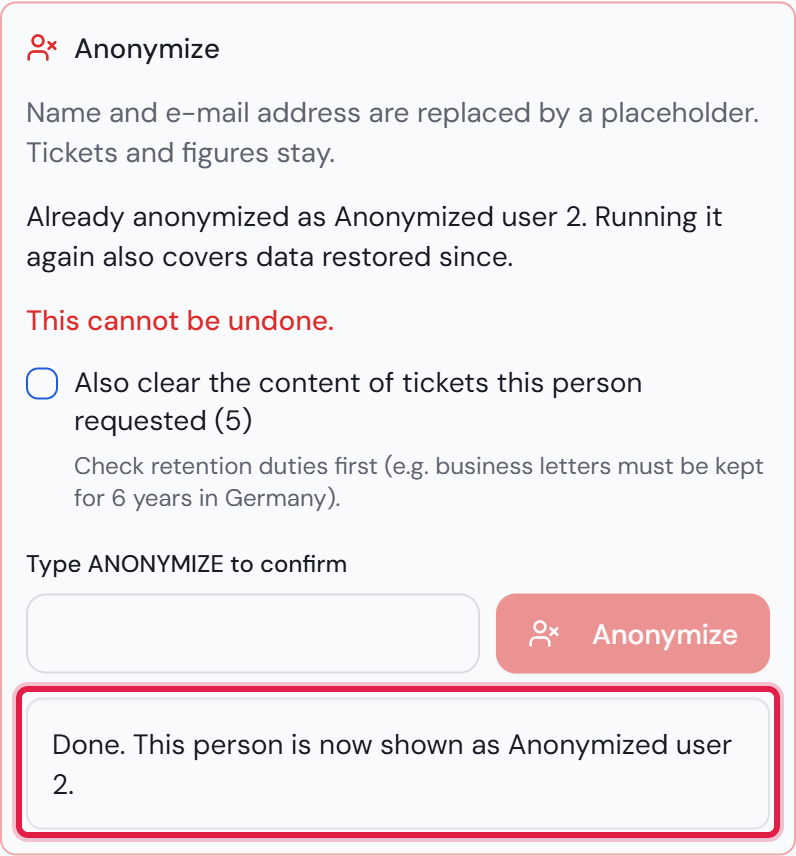
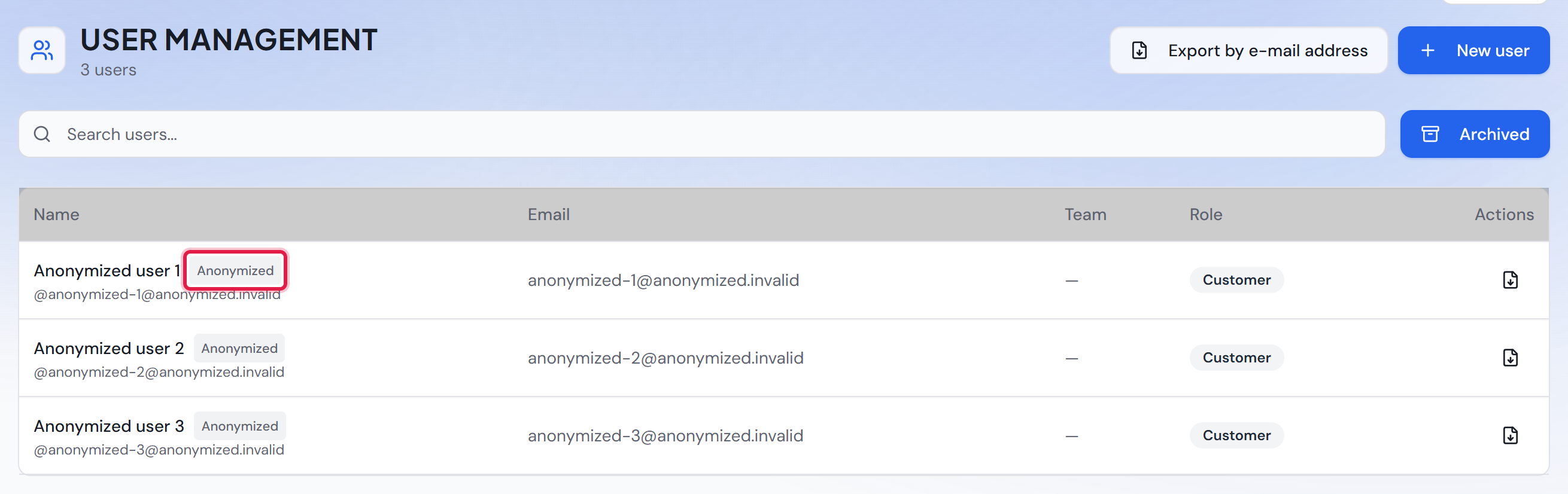
Afterwards the row carries the “Anonymized” badge. Such an account can no longer be edited, restored or reactivated. Only the data export remains. You may run the anonymization again. The number stays the same, and data restored since is covered as well.

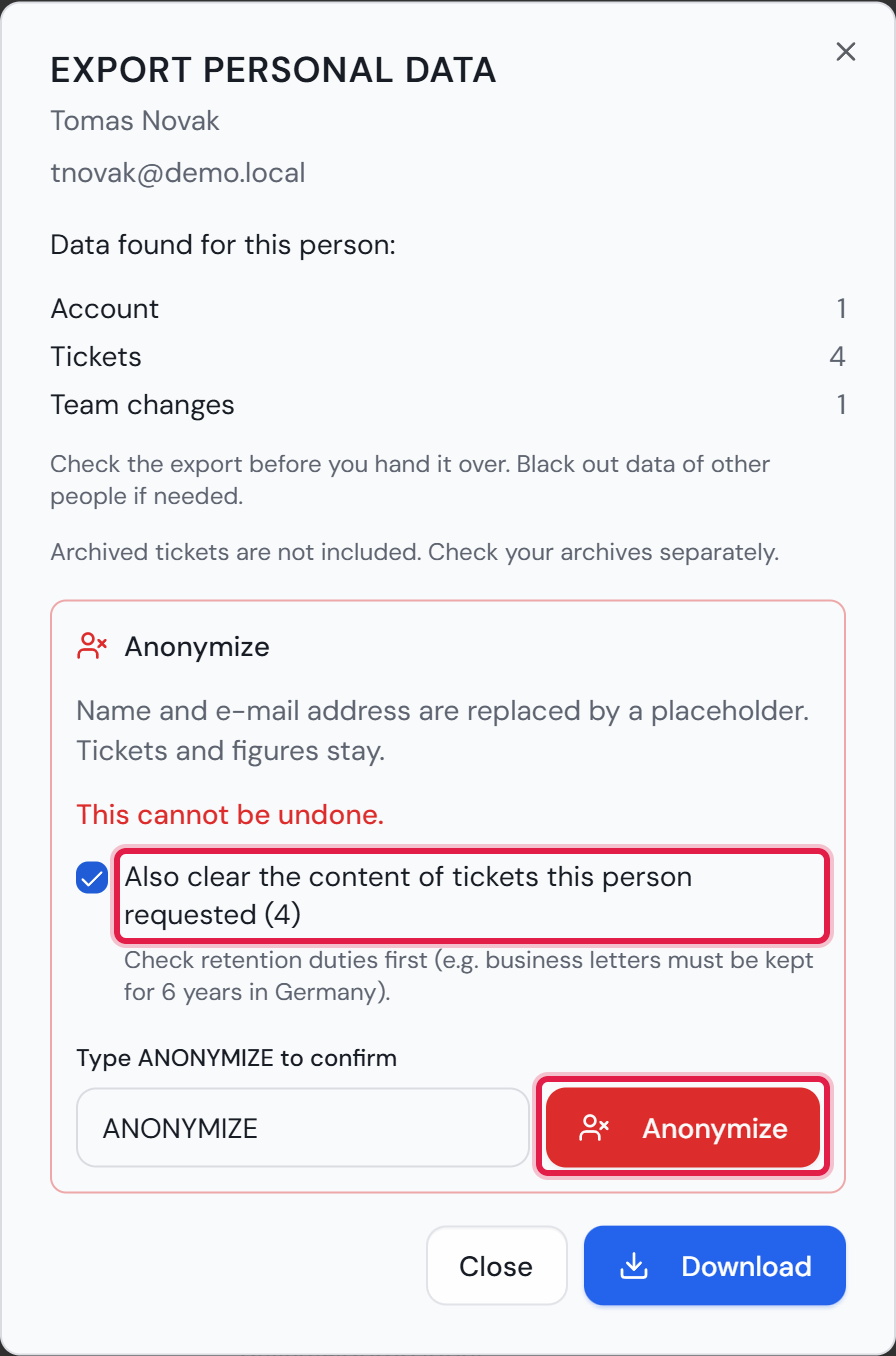
The box “Also clear the content of tickets this person requested” goes further. The number in brackets is the number of those tickets. Their texts are cleared and their attachments are deleted. Tickets of other people in which the person only replied are only anonymized.

Check your retention duties first. In Germany, for example, business letters must be kept for six years. The dialog reminds you of that. The automatic way only anonymizes. It never clears content.

If a file could not be deleted from the server, the dialog says how many. The run still counts as done. The system does not try again on its own.

Every run is recorded with its time, the number of the placeholder and what was changed. For the immediate way, the record also names who started it. It holds neither the name nor the e-mail address of the person.

Anonymizing needs the “Anonymize people” permission. By default, only administrators have it. Only an administrator can use it. It can never be given to the “Customer” role. The data export dialog also needs “Data export (data subject request)”.

More on this in the card: Data export for one person, Retention periods

The “Data protection” card with the switch turned off, the field for the months, “Save” and the “Download list of anonymizations” link.
The red frames sit on the switch and on the number of months. The switch is off, as after every update.Open image at full size
The “Who will be anonymized” window with one deleted user and the date of deletion, below it the field with ANONYMIZE and the “Confirm” button.
The red frames sit on the list and on “Confirm”. Oliver Grant was deleted more than 36 months ago. The first run would anonymize him.Open image at full size
The “Delete account” window for Amir Khan. The text names what follows and the 36 months until the anonymization.
The red frame sits on “Delete account”. Automatic anonymization is turned on here. That is why the window names the number of months.Open image at full size
The “Archived” view with Oliver Grant’s deleted account, the “Deleted” badge and the symbol for restoring it.
The red frames sit on the “Deleted” badge and on “Restore account”. Until the anonymization the account can be brought back.Open image at full size
The “Export personal data” dialog for Tomas Novak. Below the findings sits the “Anonymize” area with the ticked box, ANONYMIZE typed in and the “Anonymize” button.
The red frames sit on the box and on “Anonymize”. Tomas Novak requested four tickets. Their content would be cleared as well.Open image at full size
The “Anonymize” area after the run: at the top “Already anonymized as Anonymized user 2”, at the bottom the “Done” message.
The red frame sits on the message with the number of the placeholder. The area allows another run.Open image at full size
The “Archived” view with anonymized accounts. Every row carries a placeholder name, the placeholder address and the “Anonymized” badge.
The red frame sits on the “Anonymized” badge. An anonymized account has no action left except the data export.Open image at full size

The account

The following tables name every place where the system stores a person, and what the anonymization does there. You can use them to describe how your company deletes personal data.

DataWhat happens
First name and last name“Anonymized user” and the number
E-mail address and sign-in namethe placeholder address
Phone numberremoved
Department, position and locationremoved
Language, light or dark look, availabilityback to the factory setting
Password and the list of earlier passwordsdeleted
Two-factor keys and the link to an account at a sign-in provider (SSO)deleted
Sign-in events in the security logdeleted. The person’s administrator actions in the security log stay. Their name there is replaced by the placeholder.
Profile picturedeleted
Role and team membershipsremoved. The user list then shows the role “Customer”.
Own column choice of the ticket listremoved
A running time tracking timerdeleted
The account itselfstays, deleted and locked for good. Tickets, comments and time entries keep pointing to it. That is why reports keep counting.
Yes/no flags for confirmed e-mail address, confirmed phone number and two-factor sign-in, the yes/no setting of the ticket list, the counter of failed attempts, the time of the last password change and of the deactivationstay. They hold no value of the person, only yes or no, numbers and times. The address, number, password and keys themselves are replaced or deleted.
The note on a ticket of who last changed itremoved. The ticket then names nobody as the last person to change it.

Copies of the name

In some places the system stores the name a second time. That way an entry still shows who made it after a change. These copies are replaced as well.

PlaceWhat happens
Who made a change in the ticket historyplaceholder name
Name on time entriesplaceholder name
Who changed a knowledge base articleplaceholder name
Entries in a team’s “Audit log”, also “Added user …” and “Removed user …”placeholder name
Requester name on tickets the person requestedplaceholder name. The requester’s phone number is removed.
Old and new values in the ticket history: requester name, address and phone number, observers, assignmentplaceholder or removed. This applies in the person’s tickets and in tickets in which the person was the requester before.

E-mail addresses

Wherever an address of the person is stored as a field of its own, it becomes the placeholder address. Upper and lower case do not matter.

PlaceWhat happens
Requester address on ticketsplaceholder address
Recipient of satisfaction surveysplaceholder address
Address of an approver, on approvals and in requests with tasksplaceholder address
Sender of incoming e-mailsplaceholder address
Fixed recipient address in reply templatesplaceholder address
Internal note that a mail rule has already handled an e-mailplaceholder address
Address in the record of earlier data exportsplaceholder address. The record itself stays as proof. A later data export for this address also records only the placeholder.
Suggestions for the requester details when a ticket is createddeleted where they carry the address
Entry on the e-mail blockliststays. Otherwise spam from this address would get through again after the deletion.
Consents and unsubscribes for the satisfaction surveydeleted. If the last entry was an unsubscribe, it stays as one entry without the address. The list “Survey consents and unsubscribes” shows it as “anonymized”. Until the person gives consent again or subscribes again, no survey goes to the address. If the anonymization key can no longer be read or was discarded, this entry no longer takes effect.

Addresses in text

In texts, the anonymization only replaces the person’s e-mail addresses. This happens in the tickets that concern the person. These are the same tickets the data export finds.

TextWhat happens
Ticket descriptionaddresses replaced
Comments, including the text of incoming e-mailsaddresses replaced
Subject of incoming e-mailsaddresses replaced
Notes on time entriesaddresses replaced
Comment in a satisfaction surveyaddresses replaced
Old and new values in the ticket historyaddresses replaced
Title and text of knowledge base articles, also in their historyaddresses replaced, in all articles

Clearing the content of requested tickets

With the box “Also clear the content of tickets this person requested”, these tickets lose their content. What reports and deadlines need stays.

Part of the ticketWhat happens
Number, dates, status, team, category, priority, assignment and deadlinesstay
Titlebecomes “Content removed”
Descriptioncleared
All comments, also the replies of agentstext cleared. The comment itself stays, so the first response and the deadlines stay correct.
Subject of incoming e-mailscleared
Values of custom fieldsdeleted
Follow-up note and locationcleared
Ticket historyThe kind of each change stays. The values are cleared, except for status, priority, category, subcategory, channel, team, escalation and assignment. Reports need those.
Satisfaction surveyThe rating stays, the comment is cleared.
Time entriesThe booked minutes stay, the note is cleared.
Attachmentsdeleted, the entry and the file

Limits

Names in running text stay, for example “Regards, Max” at the end of a mail. Phone numbers in running text stay as well. Neither can be recognized reliably. For a customer’s tickets there is the box for clearing the content.

If another account has the same first and last name, the person’s name is not replaced in the ticket history or as the requester name. Otherwise the entries of the other person would be hit too. Address and phone number are still replaced. The check compares first and last name. The assignment history stores the sign-in name. A namesake who appears there only with a sign-in name is therefore not detected.

Very old entries in the ticket history that do not yet point to the account only carry the name. They are not recognized.

A ticket that an agent recorded by phone without the requester’s e-mail address is not recognized. The requester’s name and phone number stay in it.

Addresses in settings are not changed, for example in mail rules and automation rules. If the person’s address appears there, change it yourself.

If the person writes again after the run, a new run by their address also covers the new e-mails. You start it with “Export by e-mail address”. The number stays the same. A new run on the anonymized account does not find the new e-mails. The account no longer knows the old address.

The system takes care of archives itself. When you restore an archive, every person anonymized before is anonymized again in the restored tickets. The message after restoring says how many. An address that appears in those tickets only in running text is not recognized there. Archive files are also updated by the nightly run after an anonymization. The card “Retention periods” explains it.

Backups are different. A backup made before a run still holds the old data. “Ticket System Backup & Restore” takes care of that when you restore. It asks whether everyone anonymized in today’s state should be anonymized again. “Yes” is preselected. The ticket system then does this in the nightly run at 03:00 in the time zone that is set. This also applies if the switch is off. Until then their names are visible again. The “Data protection” card shows a note with the number. The backup also brings back the switch setting of that time. So check the switch after restoring.

If you restore a backup some other way, answer “No”, or use “--no-reapply” on the command line, this does not happen. The automatic way then finds the deleted accounts again, as long as the switch is on. Runs you started by hand have to be repeated. The link “Download list of anonymizations” in the “Data protection” card helps with that. Download the list before you restore. Afterwards it no longer contains the runs made after the backup. The list has one row per anonymized person, with the columns “Date”, “Number”, “Account ID”, “E-mail hash” and “Content cleared”. “Date” is the time of the first run in UTC. “Account ID” is only filled if an account was anonymized. “E-mail hash” is a fingerprint of the address that cannot be reversed. “Content cleared” says whether the content of the requested tickets was cleared. After each run, download the list by hand and keep it outside the system. A backup made before a run does not contain that run.

Text for your privacy notice

As the operator, you must tell people how long you keep their data. You can use this text in your own privacy notice.

Template text

After you leave, your name and e-mail address in the ticket system are replaced by a placeholder after [36] months. Tickets and figures are kept without any reference to you. At your request, we can also anonymize your data earlier, unless a retention duty prevents this. Data of external contacts with whom there has been no contact for [36] months is anonymized in the same way. Sign-in events in the security log are deleted after [90] days. Entries about administrator actions are deleted after [12] months.

Change the numbers to your own settings. Leave out every sentence whose switch is off. Have the text checked by your own data protection adviser. This manual is not legal advice.

Deletion requests and returning people

Deleting and anonymizing are two different things. “Delete account” only hides an account. “Restore account” brings it back. Until then its e-mail address stays reserved for this account. So you fulfil a request for erasure with “Anonymize” in the data export dialog. This cannot be undone. Name and address are replaced by “Anonymized user” and the number. The link to the account at a single sign-on provider is deleted.

Each e-mail address belongs to exactly one account. If you create an account with an address that another account already holds, the system refuses. The message reads “This e-mail address already belongs to another account.” The same applies when you change the address of an account. If the address belongs to a deleted account, the message reads “This e-mail address belongs to a deleted account. Restore that account instead.” Then restore the old account instead of creating a new one. Anonymized accounts do not count. They only carry the placeholder address.

A deleted account cannot be restored if another active account now holds the same address. The message then reads “This e-mail address already belongs to another account.” First change the address of the other account.

From the time before this rule there may be accounts that share an address. The user management shows them with the note “This e-mail address belongs to more than one account. Change it so that each account has its own address.” Give each of these accounts its own address. Until then, signing in with this address instead of the user name does not work. The password reset mail is not sent either.

If a person returns after a request for erasure, they get a new account. This applies, for example, when they sign in again through Google or Microsoft with the same address. For that, “Automatically create accounts on first sign-in” must be on. The anonymized account no longer carries their address and does not stand in the way of the new account.

Old anonymizations never affect this person’s new tickets. This also applies after a backup or an archive has been restored. When an anonymization is applied again, it only covers data that was created before its time.

If the old account was only deleted and not anonymized, the system refuses the first sign-in through SSO with this address. What the person sees depends on the provider. If the provider confirms the address, the message reads “An account with this e-mail address was deleted. Ask an administrator to restore it.” If it does not, the message reads “Your e-mail address is not verified with the provider.” That way the system does not reveal whether a deleted account exists for an address.

As an administrator you then have two ways. If you restore the old account with “Restore account”, the person continues in it with their history. Sign-in through SSO works if the account was already linked to this provider or the provider confirms the address. If the request for erasure still applies, anonymize the old account. Afterwards the address is free, and the sign-in creates a new account.

Self-registration answers neutrally in this case: “Registration could not be completed. If you already have an account, use the password reset on the sign-in page.” It does not reveal whether an account exists for the address.
6

Retention periods

Before you start: Only an administrator can change these settings. An anonymization cannot be undone.

The system keeps personal data only as long as it needs it. A person is anonymized when they leave or when they ask for it. Leaving means a deleted account, or an external contact who has not been in contact for a long time. You handle a request in the data export dialog with “Anonymize”.

Tickets themselves have no time limit. Their content keeps its purpose, for example as customer history. Reports and time entries keep counting.

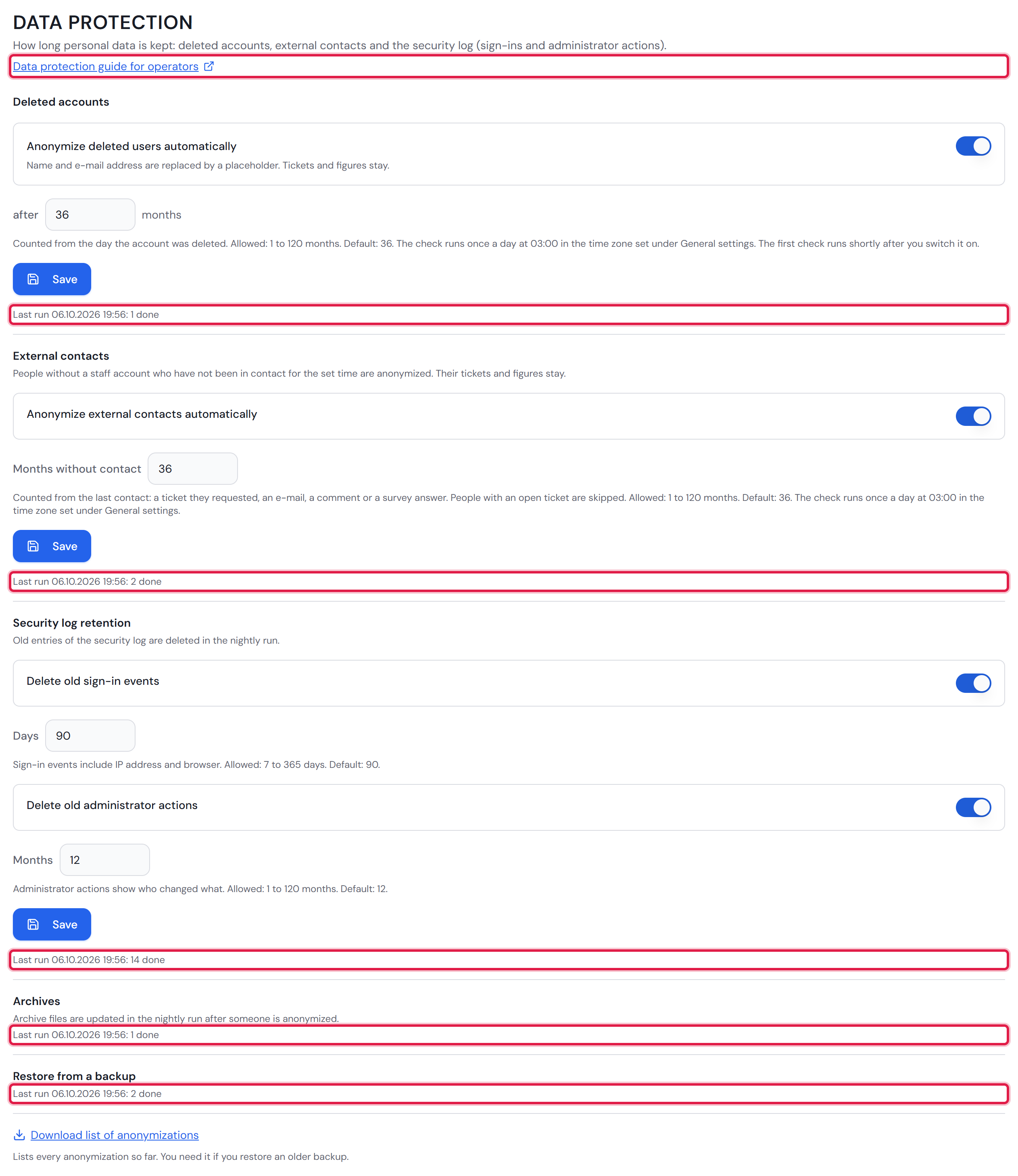
All time limits are under “Settings → Security” in the “Data protection” card. It has three blocks: “Deleted accounts”, “External contacts” and “Security log retention”. Each block has a switch, a time limit and “Save”. The “Security log retention” block has two switches and two time limits. Below them is “Archives”. After a restore, “Restore from a backup” is added once the next run at 03:00 has taken place. Until then the card shows the note “… will be applied again tonight at 03:00.” The card “Anonymize people” explains the first block. It also holds the template text for your privacy notice. Below the description of the “Data protection” card is the link “Data protection guide for operators”. The guide contains templates for the record of processing activities, the technical and organisational measures and a concept for retention and deletion.

Below each block there is a “Last run” line. It names the date and time of the last nightly run and how many people or entries it handled. “0 done” means there was nothing to do. “Not run yet” appears as long as the task has no result. If a switch is off, its task does not run.

If the line is orange, the task did not finish everything. With “skipped” it names how many people, entries or files were skipped. For “Archives” these are locked or damaged files. With “failed” the whole task failed. The sentence after it says what to do. If it reads “Details are in the server log.”, read the log of the server. On Linux the command “sudo podman logs container-backend-1” shows it. If it names the anonymization key, follow the section “When the key cannot be read” further down. The next nightly run tries again whatever was skipped.

More on this in the card: Anonymize people, Getting everything back

The “Data protection” card with the blocks “Deleted accounts”, “External contacts” and “Security log retention”, below them “Archives” and “Restore from a backup”, each with its “Last run” line.
The red frames sit on the “Last run” lines. All four switches are on here. By default only the two switches in the “Security log retention” block are on.Open image at full size
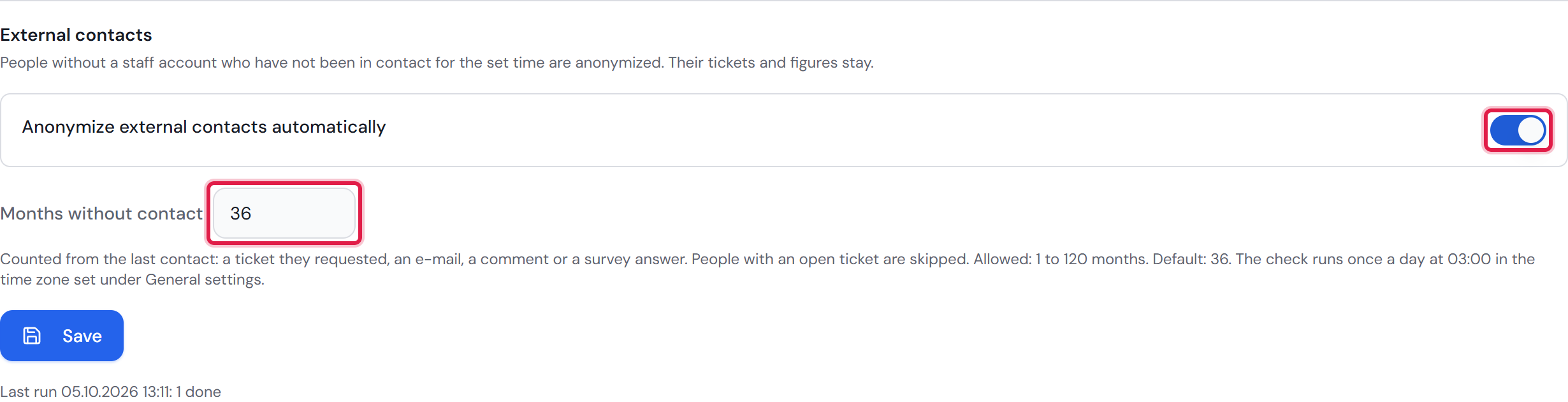
The “External contacts” block with the switch “Anonymize external contacts automatically” and the “Months without contact” field.
The red frames sit on the switch and on the number of months. The text below them names what counts as contact.Open image at full size
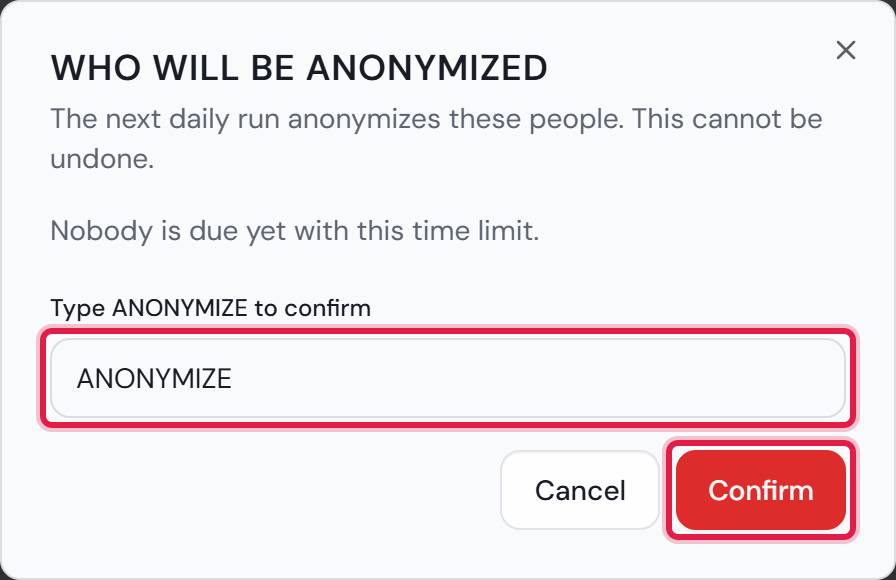
The “Who will be anonymized” window with the sentence “Nobody is due yet with this time limit.”, ANONYMIZE typed in and “Confirm”.
The red frames sit on the field and on “Confirm”. Here the time limit was shortened to 24 months, and nobody would be due. Otherwise the number and the first people with their last contact appear here.Open image at full size
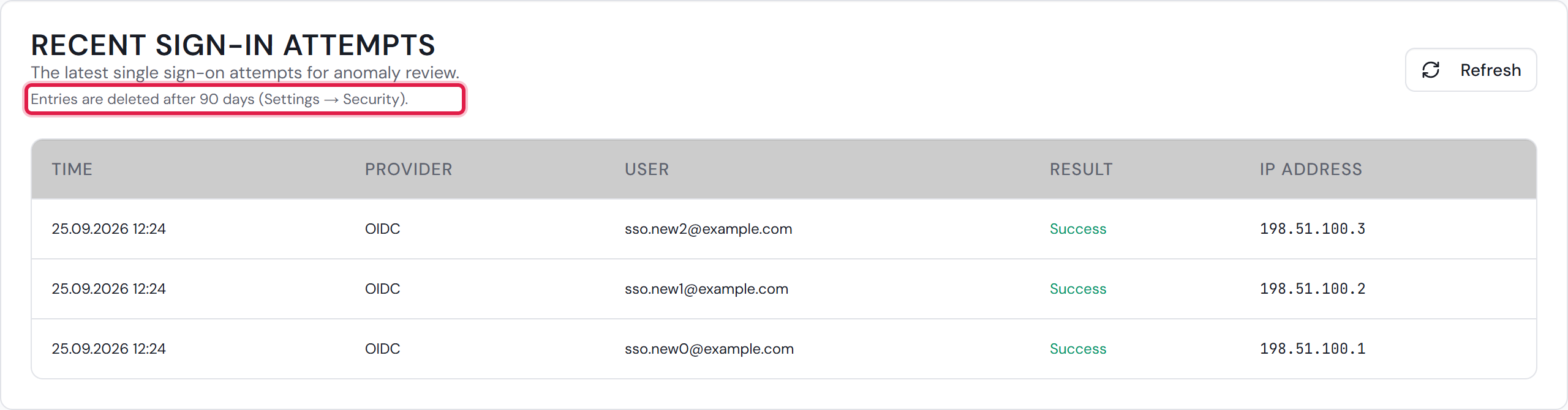
The “Recent sign-in attempts” card with the sentence “Entries are deleted after 90 days (Settings → Security).” and three sign-ins.
The red frame sits on the sentence about the time limit. If the deletion is off, it reads “Entries are kept until you delete them.”Open image at full size
Two notes at the top of the card: the number of addresses that are no longer recognized, and anonymizations that could not be carried over.
The red frame sits on the note about the carry-over. What to do is in the section “Restoring a backup”.Open image at full size
The warning “The anonymization key cannot be read” with the “How to restore the key” link and the “Discard old key” button.
The red frames sit on the link to this manual and on “Discard old key”. As long as the warning is shown, the card shows no note on pending anonymizations.Open image at full size
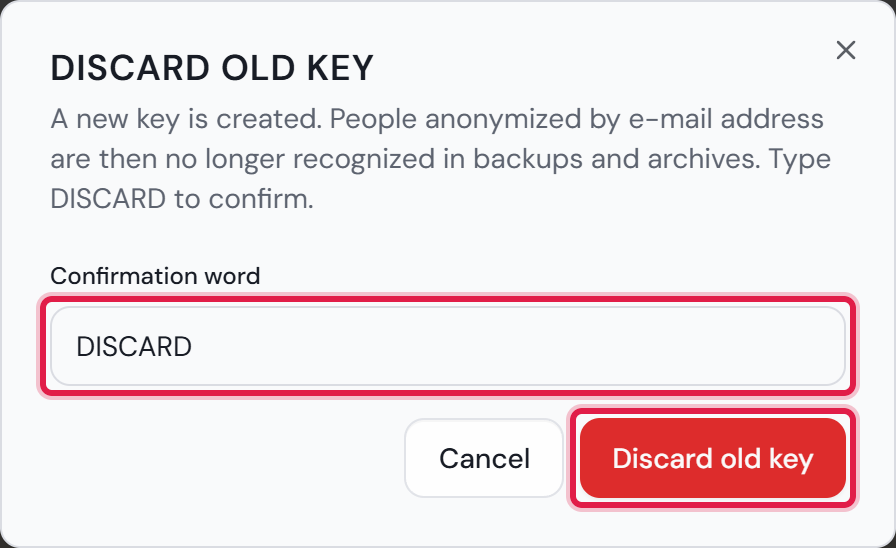
The “Discard old key” window with DISCARD typed into the “Confirmation word” field.
The red frames sit on the field and on “Discard old key”. Only with the word can the button be clicked.Open image at full size

External contacts

External contacts are people without a staff account. These are requesters without an account and customer accounts. For the system they never leave. That is why this block counts the time since the last contact.

The last contact is the newest of these times: the last change to a ticket the person requested, an e-mail from them, their own comment, an answer to a satisfaction survey, an approval sent to them and a suggestion for the requester details. For a customer account, the day it was created counts as well. A new account that was never used is therefore not due at once. Accounts that existed before the update to version 1.7.0 count as created on the day of the update.

Staff accounts and their addresses are never affected. This also applies to a shared address such as info@ if it belongs to a staff account. Anyone with a ticket that is not closed yet is skipped until it is closed. Deleted accounts belong to the “Deleted accounts” block.

The switch “Anonymize external contacts automatically” is off as the factory setting. Next to “Months without contact” you enter the number of months. Allowed are 1 to 120, the factory setting is 36.

When you turn the switch on, the “Who will be anonymized” window opens first. It says how many people are due and shows the first of them with their last contact. Type ANONYMIZE into the field and click “Confirm”. The same window appears when you shorten the number while the switch is on and click “Save”.

This is applied in the next nightly run. Each due person is anonymized as with “Anonymize”. Their content is never cleared. What remains is the placeholder, the tickets and the figures. Names and phone numbers in running text stay. The card “Anonymize people” lists the limits.

Security log

The security log records sign-in events and administrator actions. Sign-in events also hold the IP address and the browser identification. The card “The security log” explains what exactly is recorded.

The “Recent sign-in attempts” card under “Settings → SSO Settings” shows the last 100 sign-in events through SSO and the directory. Anyone who may open that page can see it. By default these are only administrators. The sentence below the card title names the time limit, for example “Entries are deleted after 90 days (Settings → Security).”

By default sign-in events are deleted after 90 days and administrator actions after 12 months. In the “Security log retention” block you set 7 to 365 days next to “Days” and 1 to 120 months next to “Months”. The switches “Delete old sign-in events” and “Delete old administrator actions” turn the deletion off. The entries then stay. No confirmation word is needed, because only entries are deleted and no people.

Sign-in with a username and password is in the security log as well. A failed attempt is stored with its IP address and browser. A successful sign-in is only stored for administrators and after failed attempts.

Archives

An archive file also holds people who were anonymized only later. The nightly run after an anonymization therefore updates every archive file in which the person appears. Names and addresses are replaced there by the same placeholders as in the database. If the content was cleared, the attachments of those tickets are missing from the archive as well.

Until the next night the person is therefore still in the archives in plain text. Archives have no switch. An archive file that is locked at that moment stays unchanged, for example because it is being downloaded or restored. The same applies to a damaged file. The next nightly run tries again.

Time and time zone

All these tasks run once a day at 03:00. The time zone under “Settings → General Settings” in the “Time Zone” card applies. The clock of the server does not matter. Many servers run on UTC. There 03:00 would be a different hour for you.

The system checks every ten minutes whether the run is due. The first check after 03:00 starts it. If the server was off at 03:00, the run follows at the first check after the start.

After the update to version 1.7.0, the first run follows soon after the update, at the latest at the next 03:00. That run removes the entries of the sign-in log older than 90 days.

If you change the time zone, the new one applies from the next check. The run takes place at most once per calendar day. After a change to the west it can be left out on that day. It then follows on the next day.

The application “Ticket System Backup & Restore” plans its backups in the same time zone. It reads the zone from the ticket system when the schedule is applied. The “Schedule” tab and “schedule --show” show the time with the zone, for example “02:00 (Europe/Berlin)”. If the database cannot be reached at that moment, the previous zone stays. If there is none yet, the clock of the computer applies and the display reads “(host clock)”.

The operating system only knows its own clock. So the application converts the time. Depending on the time zone of the server, it registers one or two entries per plan. That way the backup runs at the right time in summer and in winter. On start it checks whether a backup is really due. Otherwise it ends without a backup, and the log says “No backup is due at this time in …”.

If you change the time zone in the ticket system, the next scheduled backup still runs. Afterwards the application registers the schedule again. The log then shows a warning that starts with “The time zone in the ticket system changed”. If the schedule could not be registered again, it says “The schedule could not be updated.” Then open the application and click “Apply schedule”.

When the key cannot be read

The system remembers anonymized e-mail addresses as a fingerprint. For that it needs a key. The key ring of the server protects this key. The key ring consists of the files key-*.xml in the key folder. If they are missing or do not match, the card shows the warning “The anonymization key cannot be read”.

Then saved passwords for mail and SSO do not work either. They depend on the same key ring. The nightly runs for deleted accounts and the security log go on. People who are only known by their address are skipped. “Anonymize” refuses a run by the address alone.

This is how you get the key ring back. Take a backup from before the problem. It holds the key folder as a file of its own. On Linux the backups are in “/opt/smitey/backups”. Copy one of them into an empty folder and change into that folder. The commands below write the backup as plain files and take the files key-*.xml out. Then they copy the files into the key folder and restart the server of the ticket system. Other files in the key folder stay as they are. After the restart the warning is gone. Afterwards delete the folder “plain”. It contains passwords and personal data. An older backup ending in “.zip” is not encrypted. For it the first command is “sudo unzip -o <file> volumes/dataprotection_keys.tar && sudo tar -xf volumes/dataprotection_keys.tar”.

On Windows the backups are in “C:\Program Files\SMITEY\backups”. Copy one of them into an empty folder. Open PowerShell there as an administrator. Enter the command from the box “Windows: Write the backup as unencrypted files and take the key files out”. Replace <file>.smbk in it with the full file name of the backup. Then copy each file key-*.xml with “podman cp <file> container-backend-1:/app/DataProtection-Keys/”. Enter the commands for the owner and the restart without “sudo”. Afterwards delete the folder “plain”.

Write the backup as unencrypted files and take the key files out

sudo /opt/smitey/Backup/TicketSystemBackup decrypt ticketsystem-backup-*.smbk --out plain && sudo tar -xf plain/volumes/dataprotection_keys.tar

The folder holds exactly one backup. Afterwards the files key-*.xml are in it. The subfolder “plain” holds the whole backup unencrypted.

Copy the files into the key folder

for f in key-*.xml; do sudo podman cp "$f" container-backend-1:/app/DataProtection-Keys/; done

Existing files with a different name stay in the key folder.

Give the files the right owner

sudo podman exec -u root container-backend-1 chown -R 1654:1654 /app/DataProtection-Keys

The ticket system runs in the container as a user of its own. The files must belong to it.

Restart the server of the ticket system

sudo podman restart container-backend-1

After the restart the system reads the key ring again.

Windows: Write the backup as unencrypted files and take the key files out

& "C:\Program Files\SMITEY\Backup\TicketSystemBackup.exe" decrypt <file>.smbk --out plain | Out-Host; tar -xf plain\volumes\dataprotection_keys.tar

In PowerShell as an administrator, in the folder with the backup. Replace <file>.smbk with the full file name of the backup. Afterwards the files key-*.xml are in it.

The last way out: “Discard old key”

If you have no backup with the key files, “Discard old key” remains. Only an administrator sees the button. Type DISCARD into the “Confirmation word” field and click “Discard old key”. The system then creates a new key.

Anonymizations by account keep working. People who were anonymized only by their address are no longer recognized in backups and archives afterwards. The card names how many. An older backup can therefore make these people visible again. The saved passwords for mail and SSO stay unreadable. Enter them again.

Restoring a backup

When you restore, “Ticket System Backup & Restore” asks whether everyone anonymized today should be anonymized again. “Yes” is preselected. The ticket system does this in the next nightly run at 03:00 in its time zone. Until then the card shows “… will be applied again tonight at 03:00.”

The backup also brings back the switches and time limits of that time. So check the “Data protection” card after restoring.

If there were warnings while carrying over, the status line of the application says how many, for example “2 warning(s) while carrying over anonymizations. See the Log tab.” On the command line the same appears in the last line and points to “backup.log”. That is where it says what did not work. If the anonymizations could not be carried over, repeat the runs made after this backup by hand. The list you downloaded before restoring helps with that.

The ticket system reads the carry-over file of the application at its next start. If it cannot read it, the card shows “A carry-over file from the backup app could not be read”. The file stays on the server and is read again at the next start. Then restore the backup once more with the current version of the application.

If the key of the backup does not match, anonymizations by address cannot be carried over. The card then shows “… could not be carried over from before the restore”. If you know these people, anonymize them again with “Export by e-mail address”.

The “Last run” line under “Restore from a backup” shows how many anonymizations the run applied again.

7

Roles and the permission concept

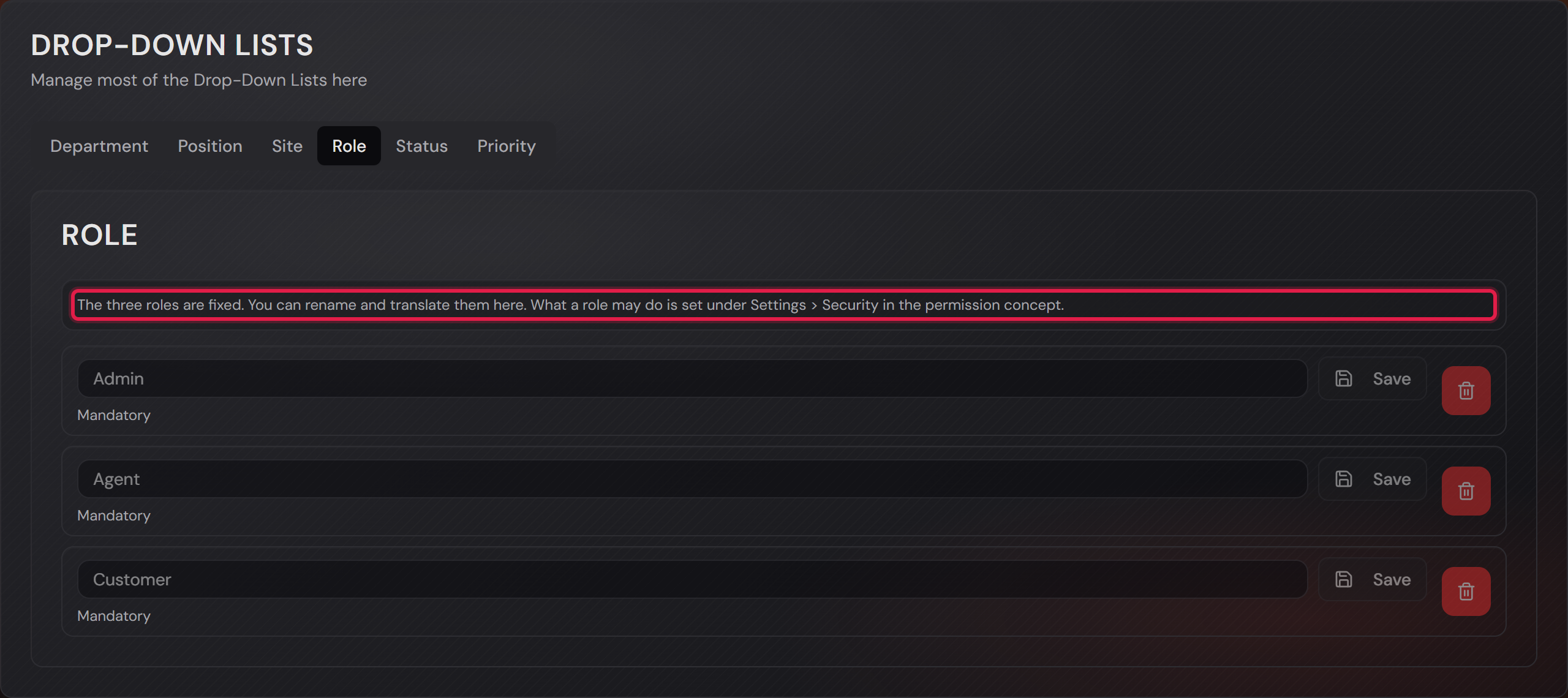
There are three roles: “Admin”, “Agent” and “Customer”. No further ones can be created. What is free instead is nearly every single permission; the exceptions are listed further down.

You find those three under “Settings → General Settings” on the “Role” tab. They cannot be renamed.

What a role may do sits somewhere else: under “Settings → Security” in the “Permission concept” card.

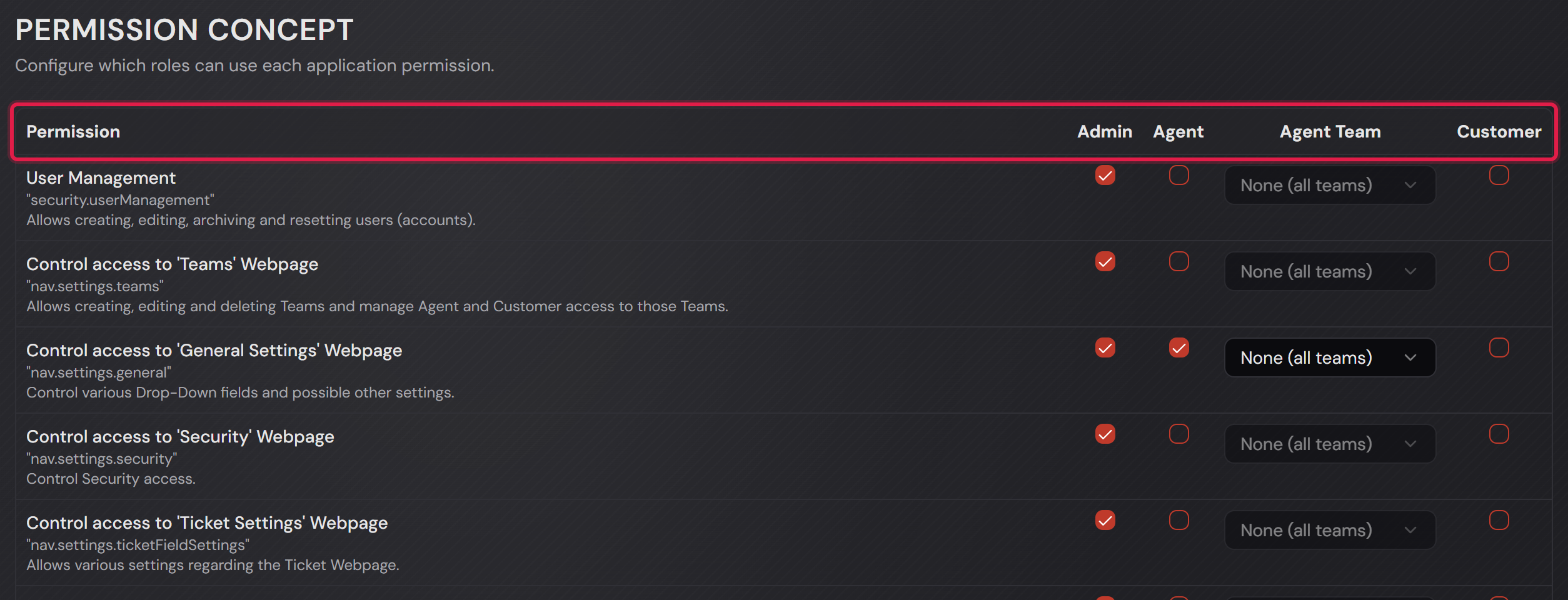
Every line is one function, every column one role. A tick allows it. Below the name stands the internal key; you do not need it to work with the page.

The list is long. It ranges from user management through access to the individual settings pages all the way to time tracking.

The “Agent Team” column is the special case. It only becomes usable once the “Agent” tick is set in the same line. Pick a team there and the permission applies to that team’s agents only.

No permission can be taken away from the “Admin” role. The tick is back after saving. That way nobody can lock themselves out of their own system. Only an administrator can change the table. That holds for every setting on the “Security” page. Anybody else who may open the page sees it read-only. Six permissions can never be given to the “Customer” role: “Users: manage accounts”, “Data export (data subject request)”, “Anonymize people”, “Security log”, “Settings: Security” and “Settings: Single sign-on”.

With “Save” the change applies immediately. Whoever is affected notices at their next click.

The “Permission concept” card with the table: one line per function, columns for admin, agent, agent team and customer.
The red frame sits on the header row. The picker in the “Agent Team” column is only usable where the “Agent” tick is set.Open image at full size
The “Role” tab with the three roles, each marked “Mandatory”.
The red frame sits on the note. The three roles are marked “Mandatory”. None of them can be deleted.Open image at full size
8

Department, position and site

Three lists describe the person and not the ticket: department, position and site.

They are created under “Settings → General Settings” in the “Drop-down lists” card. The handling is the same for all three.

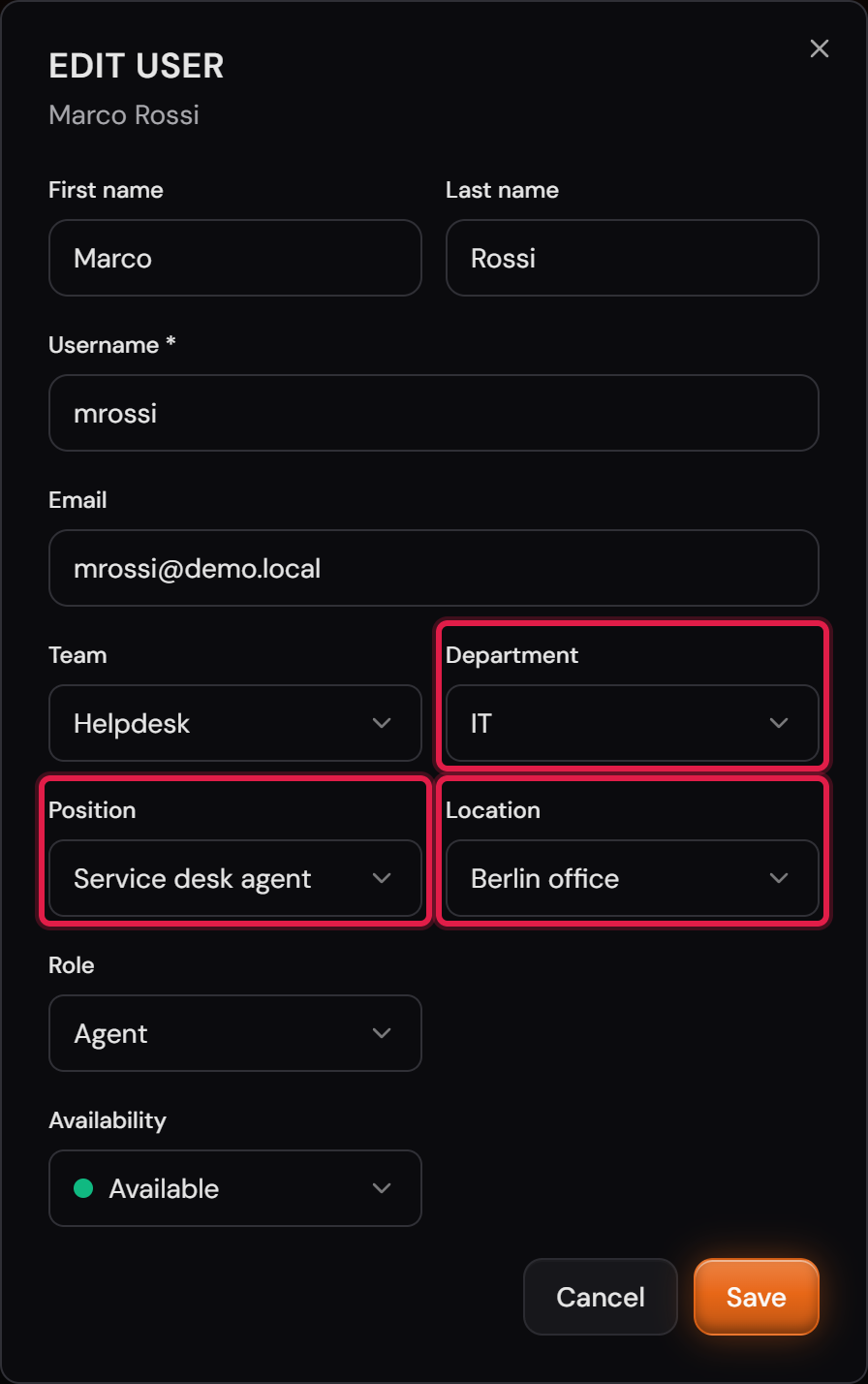
They are assigned on the account. In the form under “User management” the fields are called “Department”, “Position” and “Location”.

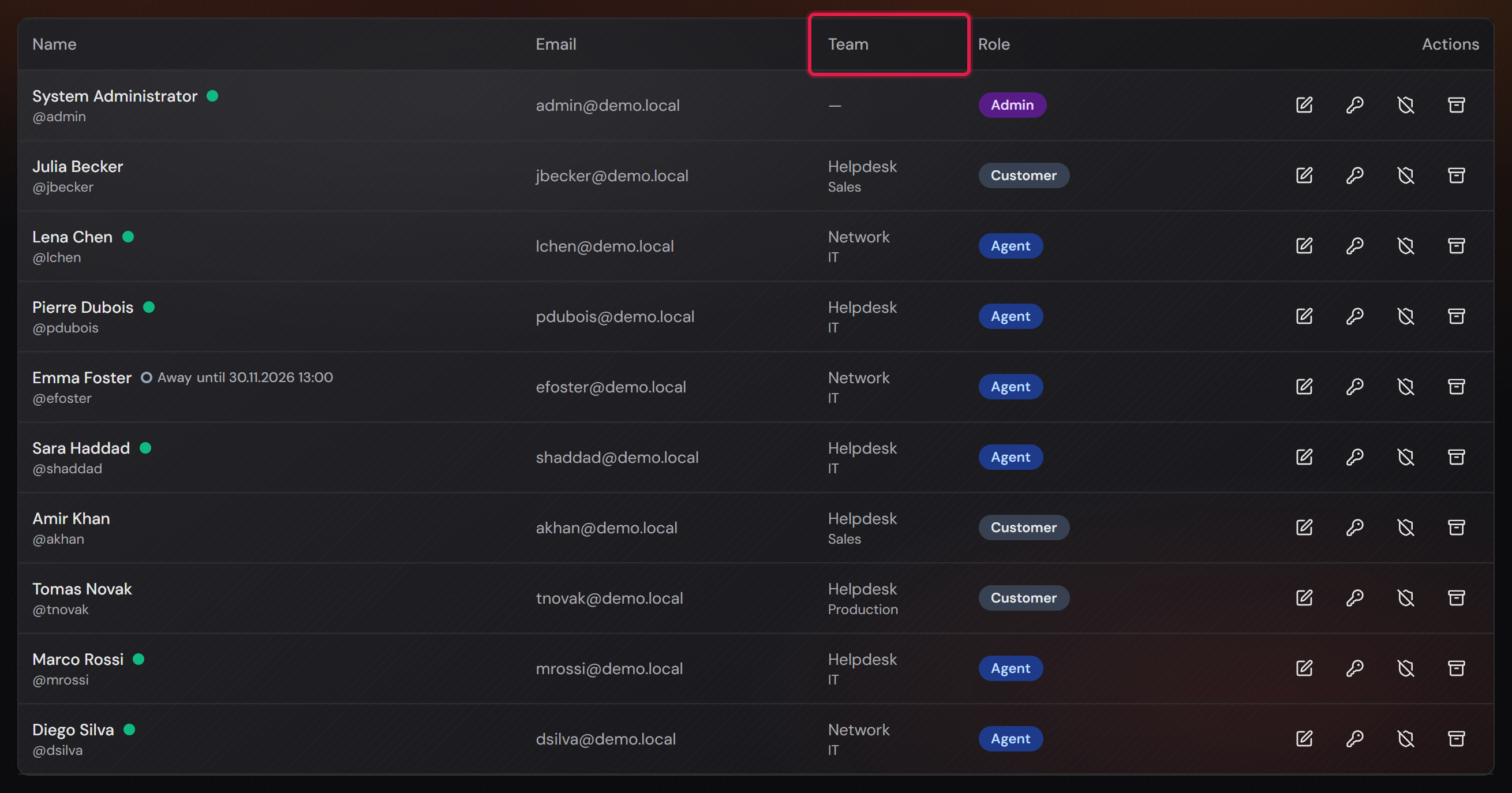
In the user list the department stands below the team. Position and site are visible in the account’s form.

The site has a second use. There is a “Location” field on the ticket, and it draws from the same list.

Each of the three lists has one entry you cannot delete. It is called “None selected or available” and carries the “Mandatory” badge.

If you delete another entry, everyone who carried it moves to that placeholder. So nobody is left pointing at something that is gone.

You do not translate here but in one go on the translation page. The English name is the anchor the translations hang on.

The “Edit user” dialog with the department, position and location fields filled in.
The red frames sit on the three fields. They stand next to the team but mean something else: the team says who works the tickets, the department says where the person works.Open image at full size
The user list with the “Team” column holding the department below the team name.
The red frame sits on the column. The team is on top, the department below it. Whoever is in no team has a dash in that spot.Open image at full size

The screenshots are from version 1.3.1. Nothing on the screens shown changed up to version 1.13.3. The only thing that looks different is the version number at the bottom of the sidebar.