Customization & administration

Here you manage the language settings of the system and apply your company’s branding. You set the date and time format, and you inform everyone about planned maintenance and outages. This block also covers the tasks you rarely do and then really need: an update, an archive, a warning before the disk fills up. Everything here is part of Basic, except sending the notice by e-mail.

1

Enable languages and translate them yourself

Under “Settings → Language Settings” you choose which languages your company offers. There are 30 to pick from.

English is always on and cannot be switched off. It is the language the system falls back to when a text has no translation yet.

After that every user picks the language they work in, from the ones you enabled, in their own menu.

Translations do not arrive with an update. An update brings new English texts; you supply the translation for them yourself.

That works in two steps. With “Export JSON” you download a file that holds every English text next to your existing translation.

You fill that file in at your own pace and load it back with “Import JSON”. Empty fields are skipped, existing translations are overwritten.

Placeholders such as {count} have to survive in the translation. An entry whose placeholders differ from the English text is rejected, and that includes an extra placeholder. The previous translation then stays active. English only appears if there was none. The system tells you which entry it was.

The card “State of your language packs” tells you, per language, where you stand. Every language you enabled appears there, even without a translation. The card shows how many texts are translated and names four cases: out of date, not translated, unknown and complete. “Unknown” means the texts were imported before this check existed. The next import settles it.

“Out of date” is the case that matters. The English text changed, your translation is still there and now says something different.

Ready-made language packs for every language are free on our “Downloads” page. You load them in with “Import JSON”, just like your own file. You can also edit the file first to improve a translation.

In the application, the “Download language packs” link on the “Import translations” card takes you straight to that page.
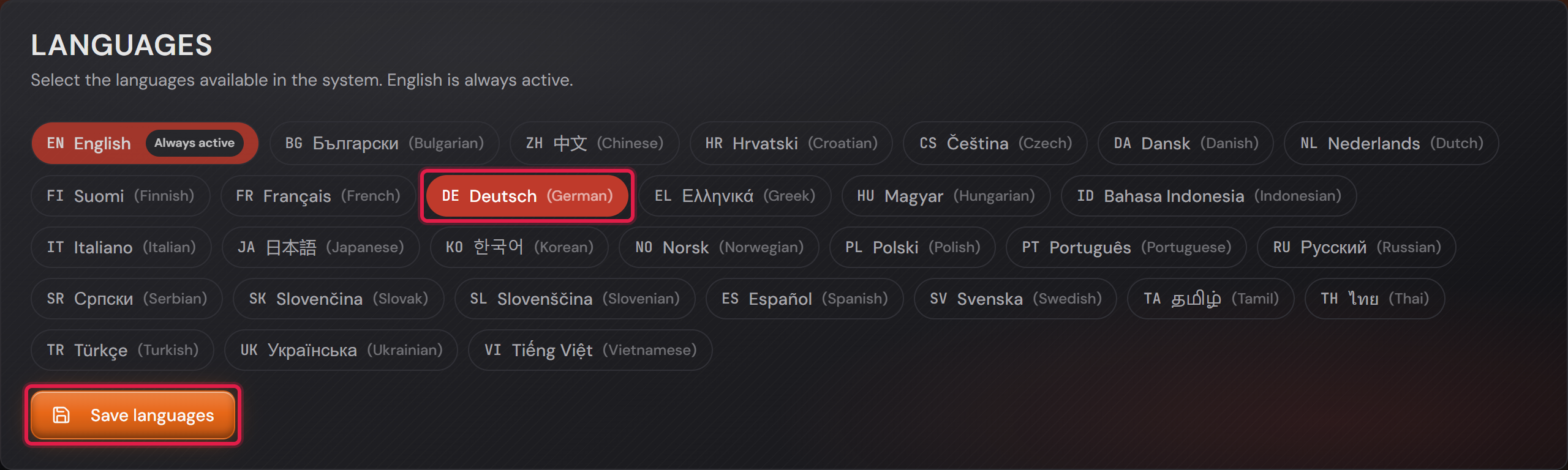

The “Languages” card with the languages as buttons, English switched on for good.
The red frame sits on German and on “Save languages”. English carries the mark “Always active”.Open image at full size
The “Export translations” card with the target language picker.
Pick the target language first, then download. The file holds the English text and your existing translation.Open image at full size
The “Import translations” card with the chosen file.
After “Select file” the file name appears beside it. Only “Import JSON” loads it in.Open image at full size
The “State of your language packs” card with the state of German.
In this example world the German pack is complete. The second number grows with every update that brings new texts.Open image at full size
2

Logo, favicon and colours

Under “Settings → CI Settings” you set your logo, your favicon and three colours.

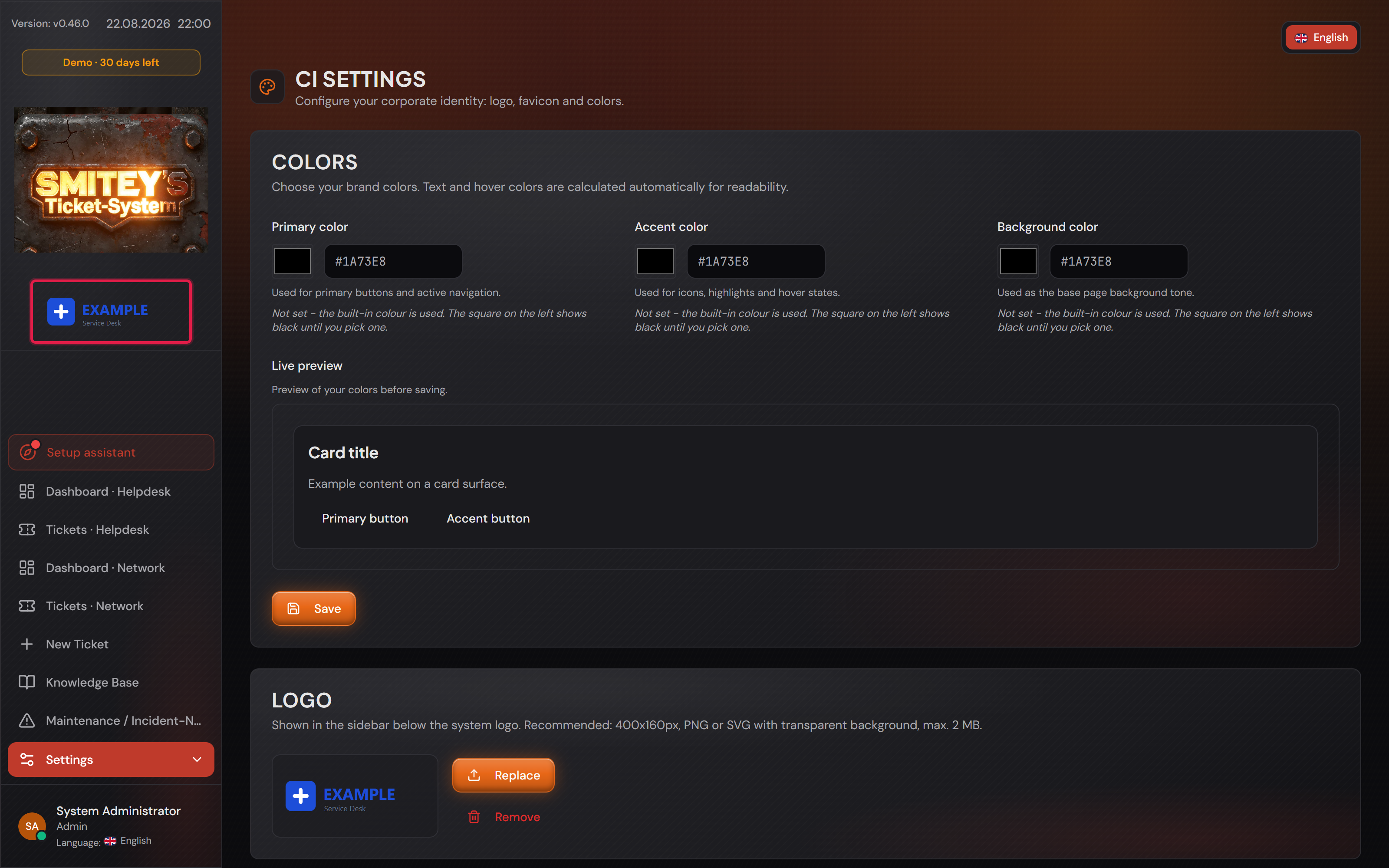
The logo appears in the sidebar below the system logo. Recommended are 400 by 160 pixels as PNG or SVG with a transparent background, 2 MB at most. An SVG file that contains a script is rejected on upload. If an upload fails, the message names the reason.

The favicon is the small image in the browser tab. Recommended are SVG or 64 by 64 pixels.

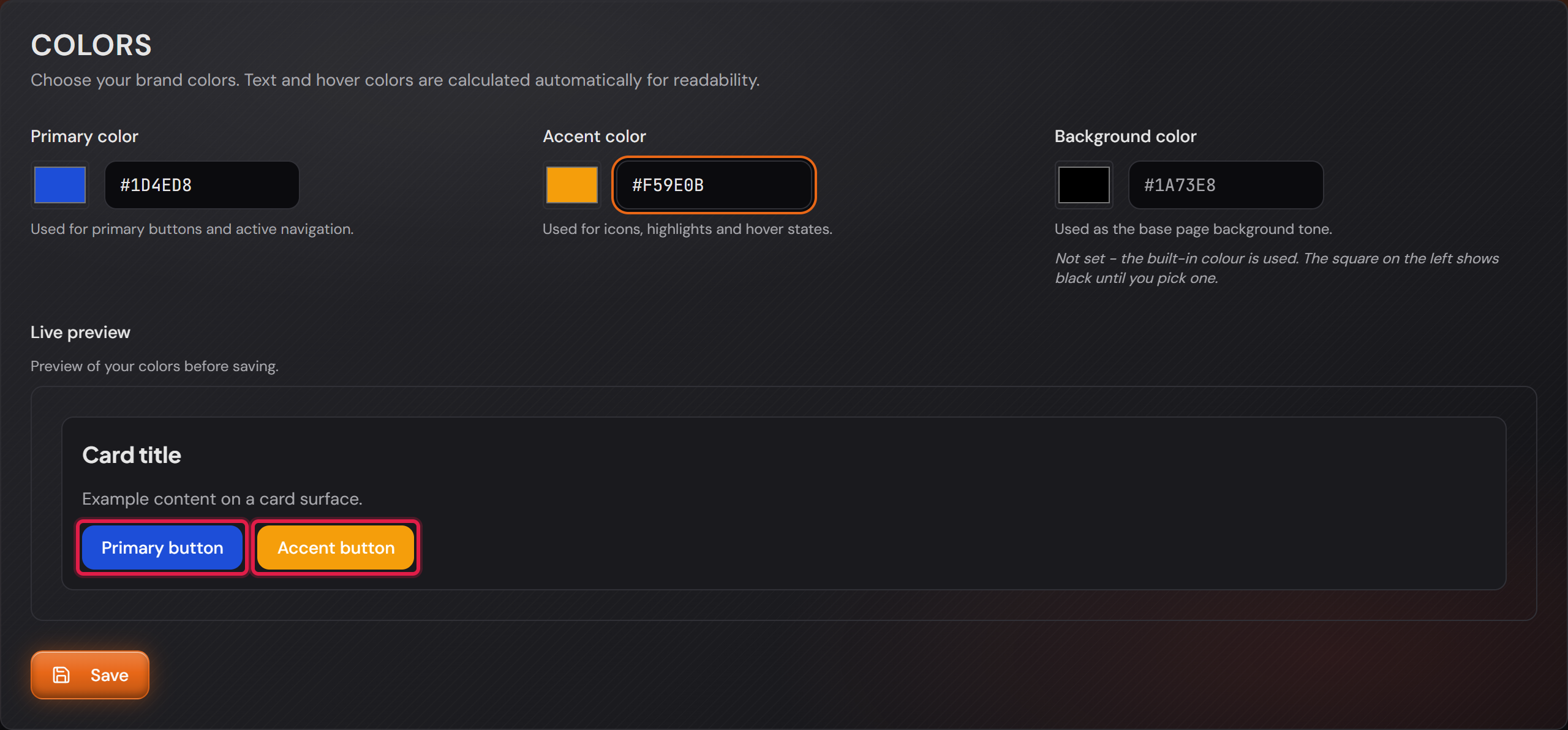
The three colours are “Primary color”, “Accent color” and “Background color”. The first paints the important buttons, the second icons and highlights, the third the background.

The system works out the text and hover colours itself so the text stays readable. You only supply the three base colours.

An empty field means the built-in colour applies. The square beside it then shows black, because it cannot show “no colour”. The note below says so.

The preview below the fields shows your colours before you save. Only “Save” makes them apply for everyone.

“Restore defaults” puts everything back. That also removes the uploaded logo and favicon.

The “Colors” card with two colours set and the preview below.
The red frame sits on the two preview buttons. They show the colours you entered right away.Open image at full size
The company logo in the sidebar, below the system logo.
The red frame sits on the uploaded logo. It appears at once and on every page.Open image at full size
3

Light and dark, and the view on a phone

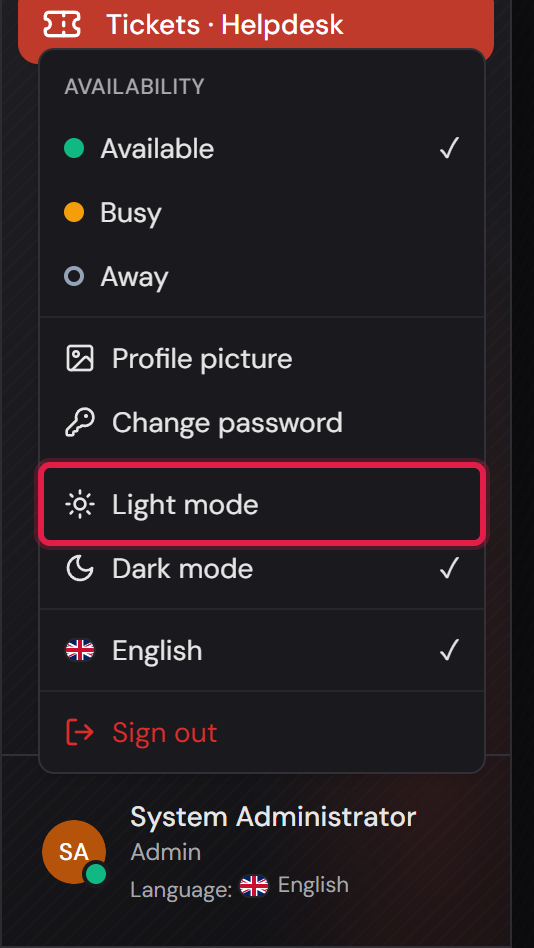
The system comes in a dark and a light look. You switch in your own menu at the bottom of the sidebar.

The choice belongs to each user and is remembered. One agent can work in light while a colleague works in dark.

The same menu holds your availability, your profile picture, your password and your language.

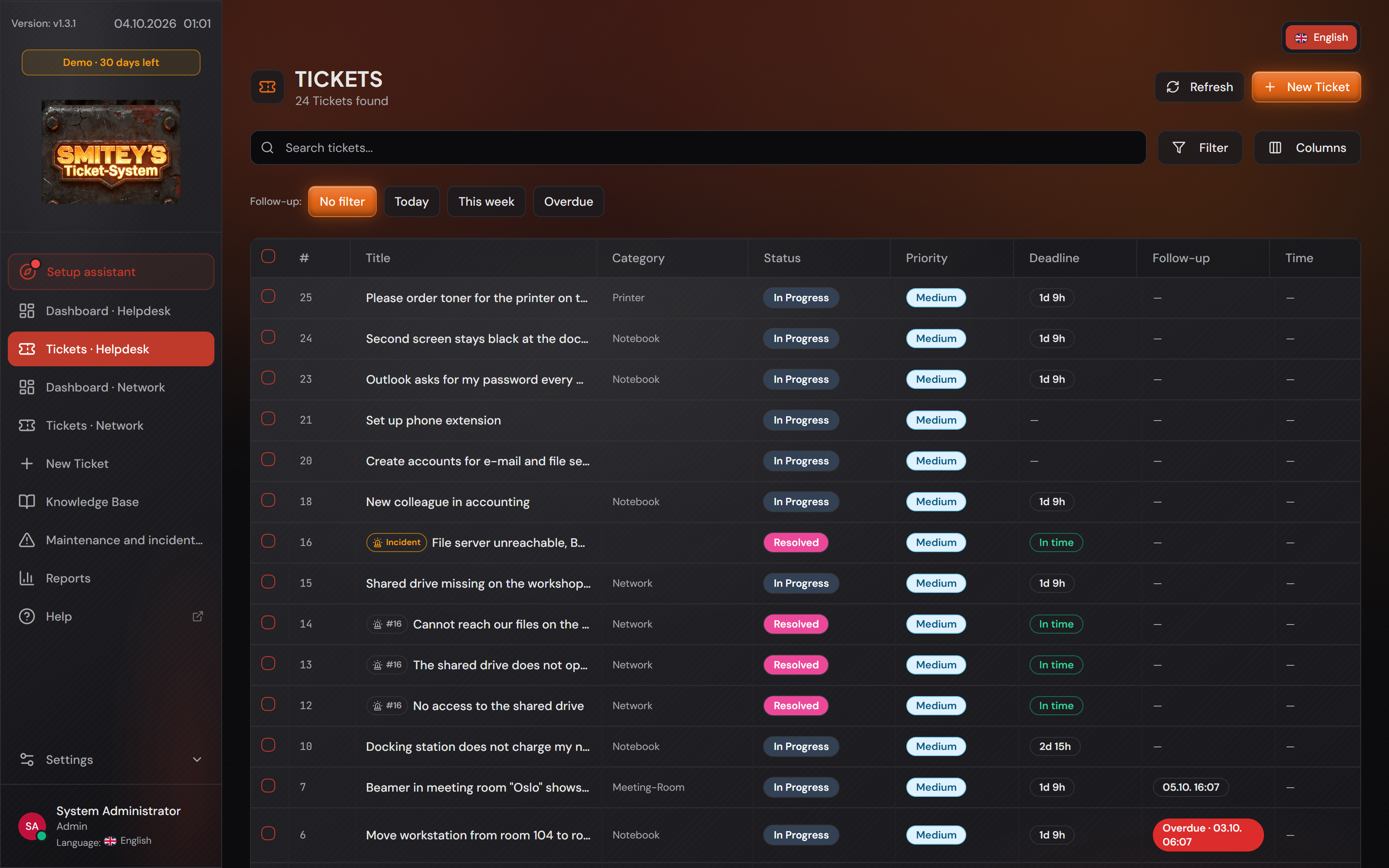
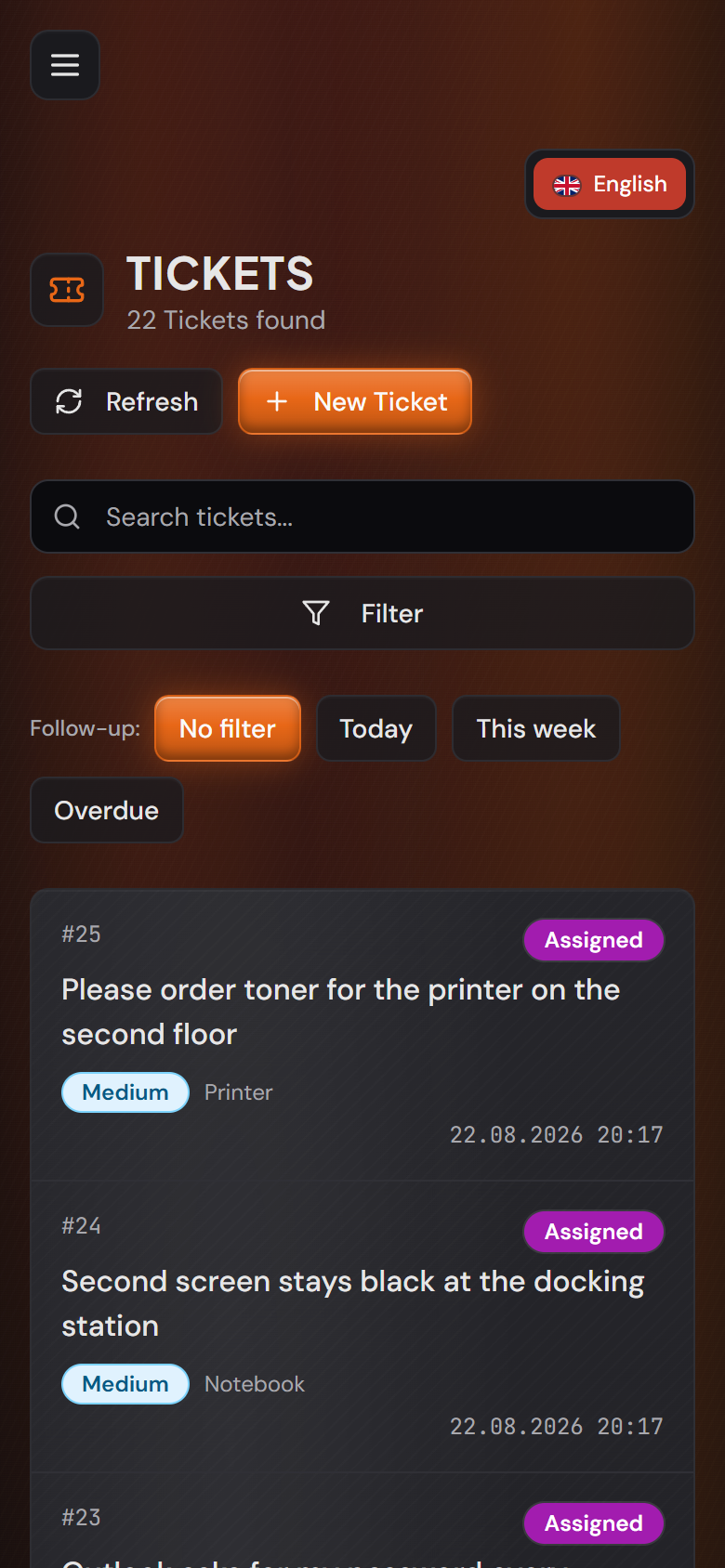
On a narrow screen the interface rearranges itself. The table turns into stacked cards, and the sidebar folds behind the icon in the top left.

There is no separate app. The address is the same as on the desktop, and you sign in the same way.

The personal menu with the entries “Light mode” and “Dark mode”.
The red frame sits on “Light mode”. The tick beside it shows which look is active.Open image at full size
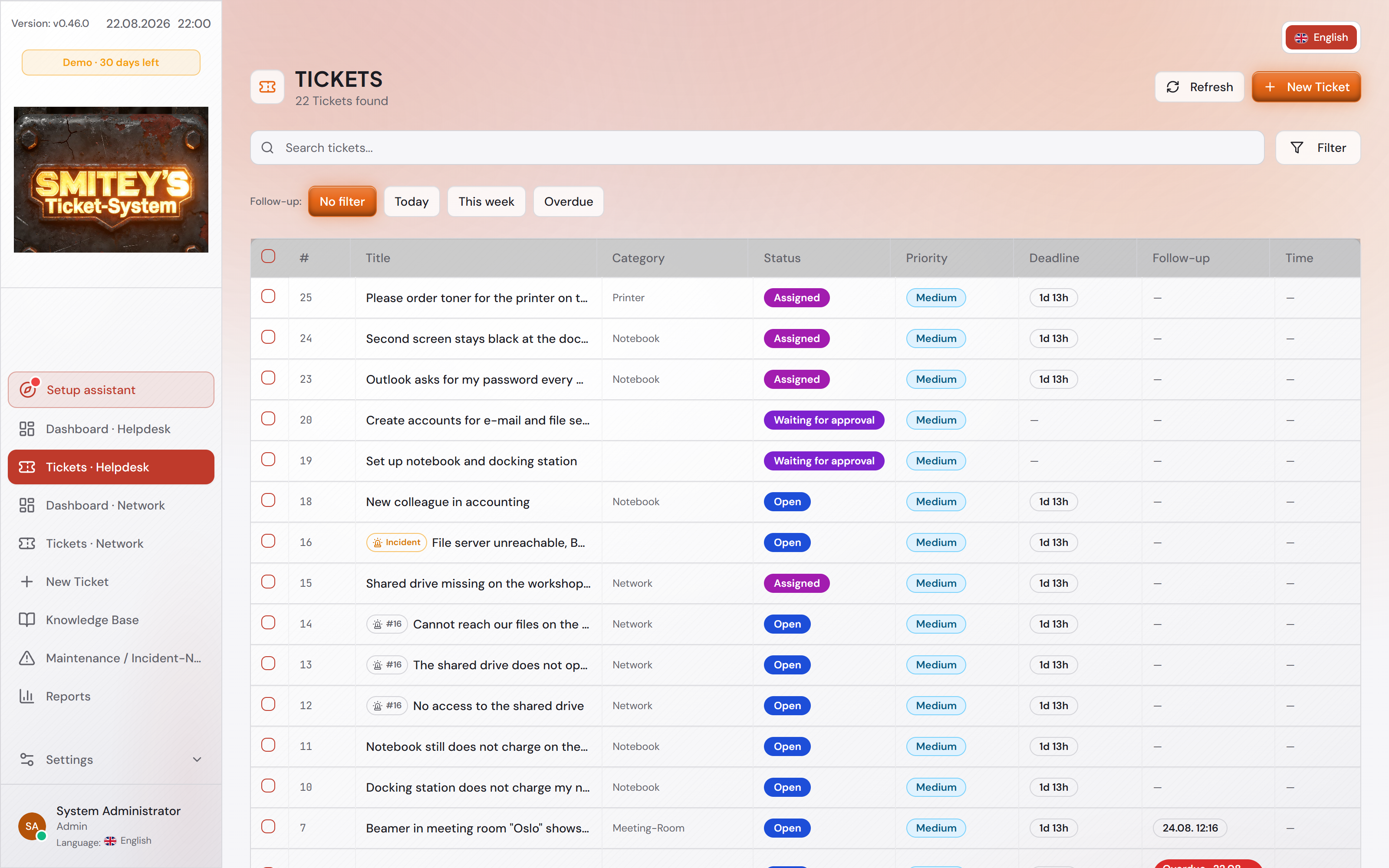
The ticket list in the light look.
The light look is the factory setting.Open image at full size
The same ticket list in the dark look.
The same page, the same data. Only the look changes.Open image at full size
The same page in a narrow window, as on a phone.
On a phone the list is stacked. You open the sidebar with the icon in the top left.Open image at full size
4

Dates and times the way you write them

Before you start: Administrators and agents may change the general settings. Everyone else reads dates the way they are set there.

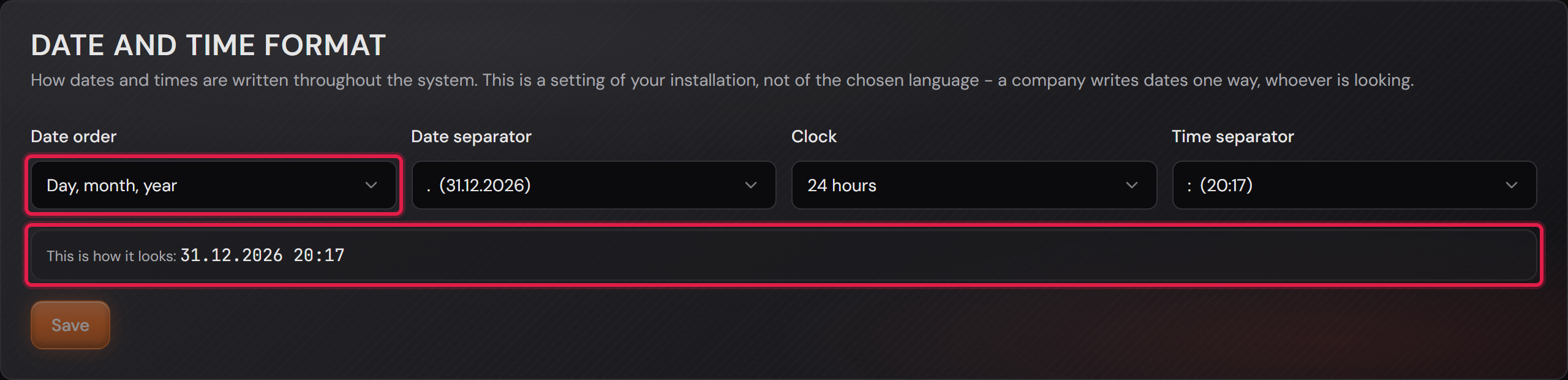
Under “Settings → General Settings” you find the card “Date and time format”. It sits directly behind the time zone.

Four choices make up the way a date is written. “Date order” is the order of day, month and year.

“Date separator” is the character between the numbers. You can pick the dot, the slash or the hyphen.

“Clock” is the clock: 24 hours, or 12 hours with AM and PM. “Time separator” is the character between hour and minute.

Below the four fields you see “This is how it looks”. It shows the result before you click “Save”.

The setting applies to the whole installation. It does not depend on the language, and not on the individual user.

That is deliberate. One company writes dates one way, and every colleague reads the same way of writing.

The factory setting is day, month, year with a dot and the 24-hour clock. If you change nothing, nothing changes.

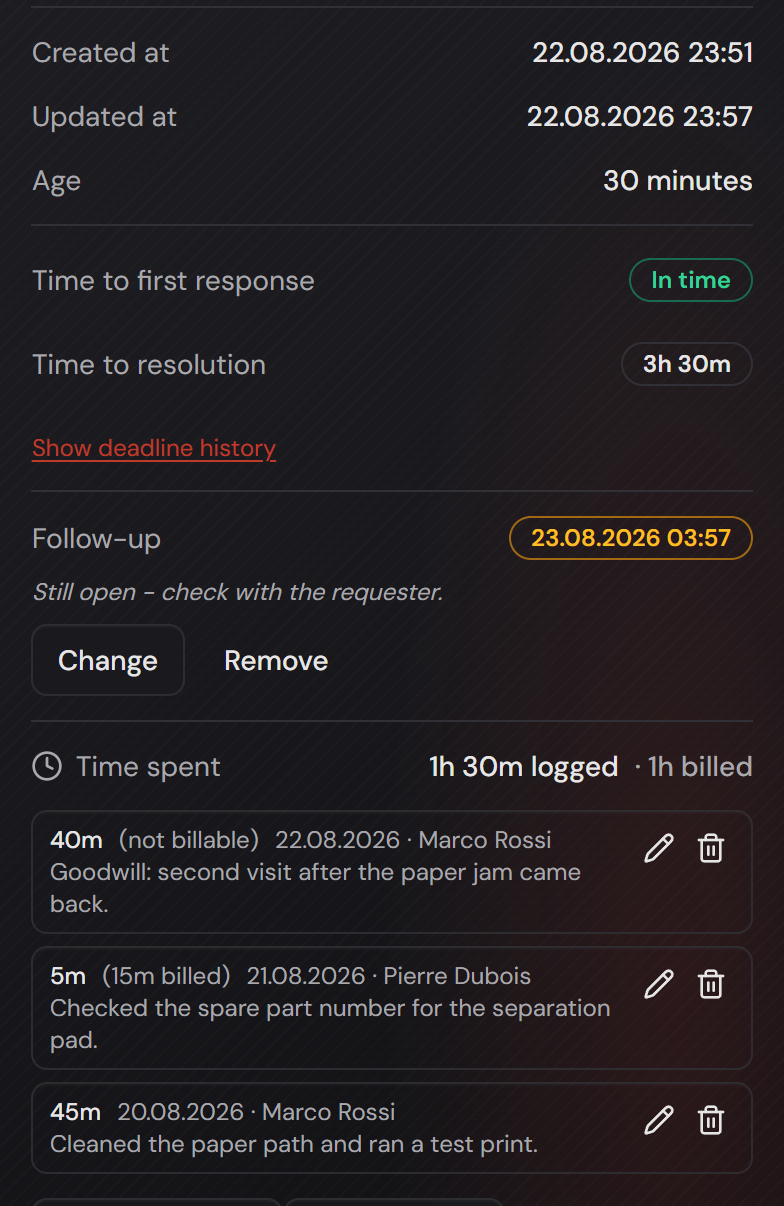
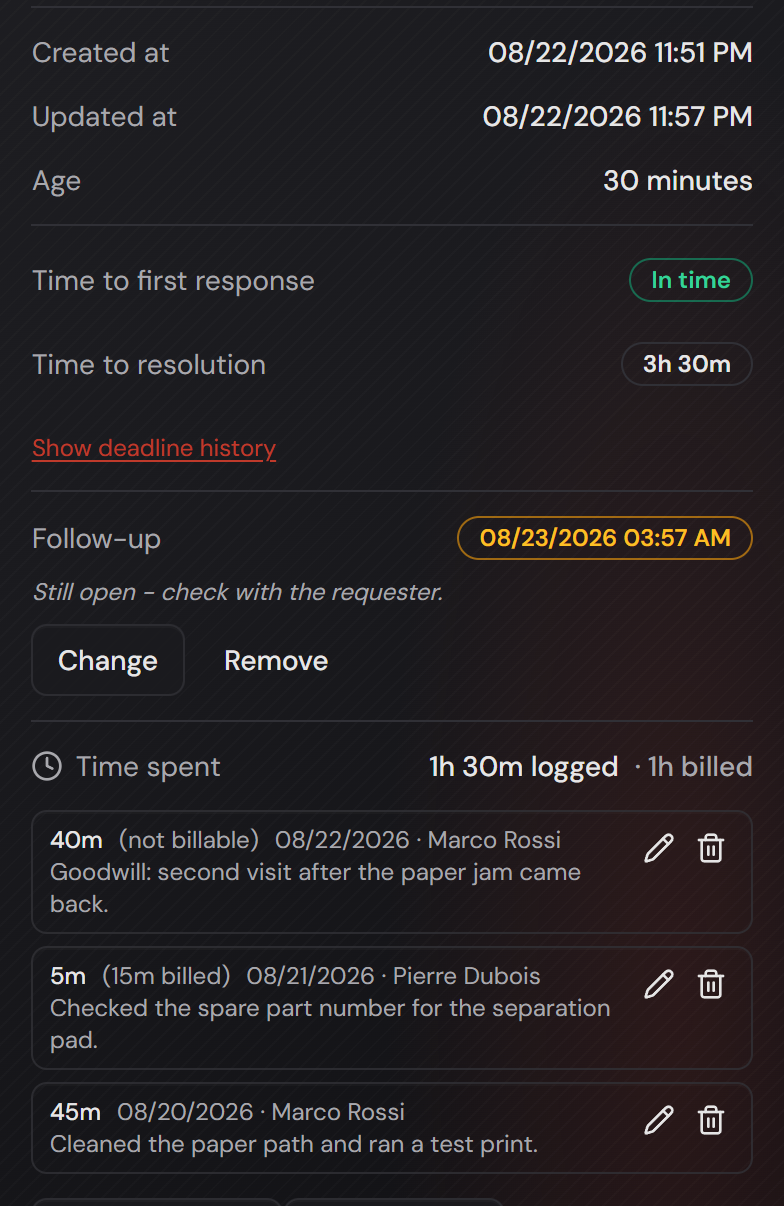
The chosen way of writing applies everywhere the system shows a date. That includes the ticket, the lists, the follow-up and the logged time.

Exports are not affected. They write a date as 2026-08-22, because spreadsheet programs read that form reliably.

Fields where you enter a date follow the setting as well. A click on the field opens a calendar, and the chosen date then appears in your way of writing. An empty field reads “Pick a date”.

More on this in the card: Enable languages and translate them yourself

The “Date and time format” card with the four pickers and the preview.
The red frame sits on the order and on the preview. The examples inside the pickers move along with the chosen order.Open image at full size
The ticket details in the factory setting: day, month, year and the 24-hour clock.
This is a ticket as long as nothing is changed. At the top there are moments in time, at the bottom the days of the logged time.Open image at full size
The same details after switching to month, day, year with the 12-hour clock.
The same ticket after the change. The logged days follow the setting just as the moments above them do.Open image at full size
5

Announce maintenance and outages

Before you start: The notice on the sign-in page is part of Basic. Sending it as an e-mail as well is part of Professional.

The page “Maintenance and incident notices” sits in the sidebar. There you write a notice that everyone sees.

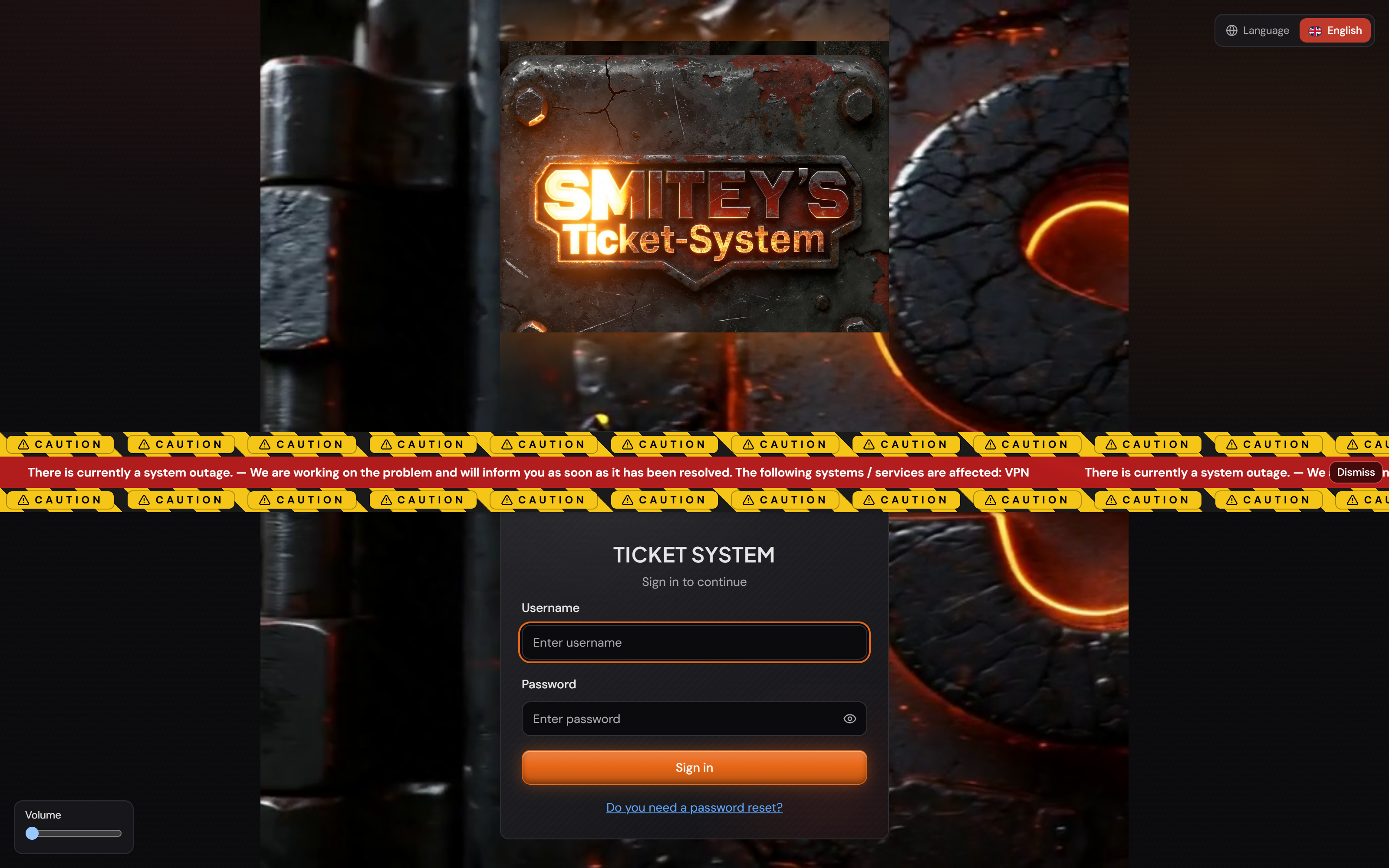
The notice appears on the sign-in page and throughout the system. So people read it before they even sign in.

The point is to avoid unnecessary tickets. Someone who reads that the network is down does not report it again.

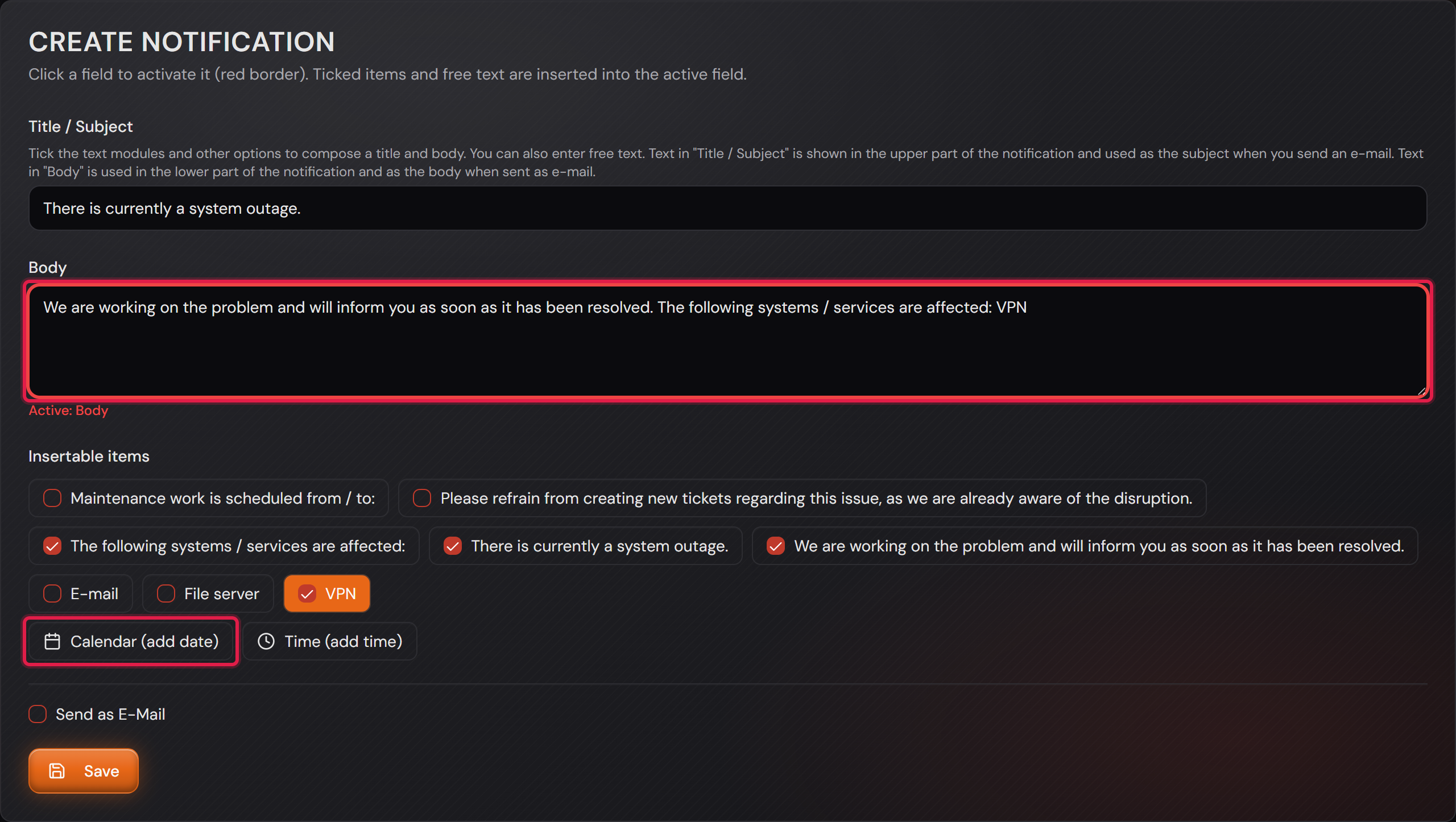
You compose the text by clicking. First click the field you want to fill. It gets a red border, and everything you tick afterwards goes in there. Untick a building block and it leaves the text again.

“Title / Subject” shows at the top of the notice. “Body” shows below it. If you send the notice as an e-mail, one becomes the subject and the other the body.

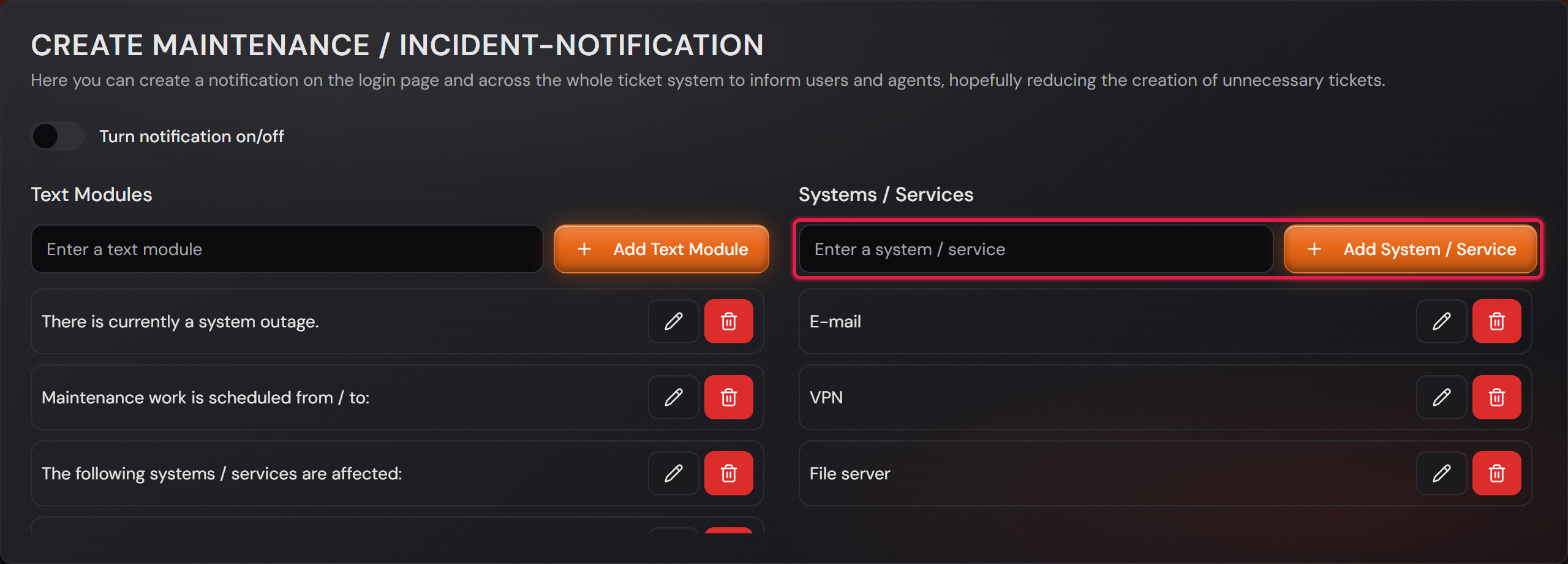
Ready-made sentences are there as building blocks. You can add your own under “Text Modules” and your systems and services under “Systems / Services”.

With “Calendar (add date)” and “Time (add time)” you insert a date and a time. That is the way to announce planned maintenance.

The switch “Turn notification on/off” at the top turns the notice on and off again. Switching it on saves the title and the text along with it. The notice stays up until you switch it off. If the notice is already on, a change to the text only takes effect with “Save”.

There is a second kind of notice beside it. If you turn a ticket into an outage, it also appears on the sign-in page and disappears by itself once the ticket is resolved. This switch does not apply to it.

With “Send as E-Mail” you also send the same text to a list of addresses. That is the part which belongs to Professional.

You write the notice in English. Its translation comes in through the language page like every other text. If you change the English text afterwards, the imported translation no longer applies. It has to be imported again.

More on this in the card: The incident as a banner and as a note in the automatic reply

The card with the text modules and your own systems.
The red frames sit on the two input lines: one for sentences, one for your own systems. In this example world the systems are e-mail, a file server and VPN.Open image at full size
Title and body with ticked building blocks, the “Body” field is active.
The red frame sits on the active field and on “Calendar (add date)”. Below the field it says which one is active.Open image at full size
The sign-in page with the notice switched on, across the page.
This is how a customer reads it before signing in. “Dismiss” hides the notices currently shown until the page is reloaded.Open image at full size
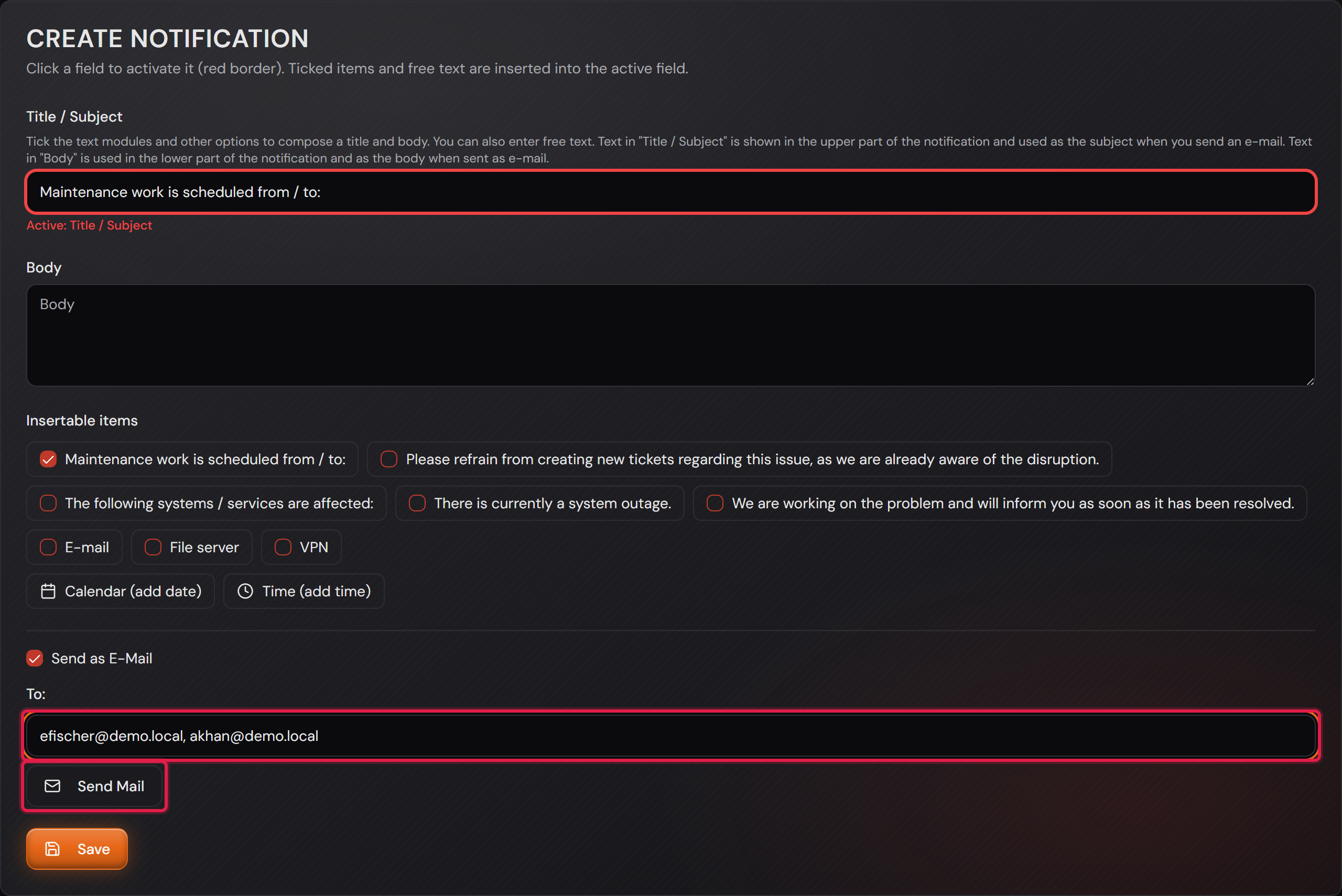
The same text with “Send as E-Mail” ticked and the recipient list.
The red frame sits on the recipient list and on “Send Mail”. Separate several addresses with a comma.Open image at full size
6

Early warning before the disk fills up

The system watches the disk space on the server and speaks up before it runs out.

There are two stages. From 90 percent used you get a notice, from 95 percent a warning.

Whoever manages updates sees the figures and what to do. Usually old images from earlier updates are the biggest item.

Everyone else who is signed in gets a short sentence and a pointer to their administrator. They only see it from the warning stage.

Nothing of this appears on the sign-in page. How full a server disk is, is nobody’s business before they sign in.

A full disk does not only hit the update. Attachments, incoming mail, the database and the backup all live on the same disk.

You also get a notice as soon as less than 10 GB are free. An update needs that much space and does not start with less.

After each successful update the system removes the images of older versions. The version before stays for a rollback.

The banner with the notice that space is getting tight.
The first stage. In this example world 93 percent are used and 14 of 200 GB are free.Open image at full size
The same banner with the wording of the warning stage.
The second stage at 96 percent. Now the text also names what can start failing.Open image at full size
The same event in an agent’s window: a short sentence without figures.
People who cannot free up space get no figures. The sentence names the consequence and points to the administrator.Open image at full size
7

Update at the press of a button

Under “Settings → Updates” you see which version is running and whether a newer one exists.

If there is a new version, what it brings is listed below. The list shows every version you skip.

Before the update the system checks that there is enough free space. An update needs the old and the new image at the same time, so it asks for 10 GB. If there is not enough, the system refuses the update and says why. That is better news than giving up halfway through.

Then it takes an encrypted backup by itself. It covers the database, the attachments, the archives and the keys. If the database runs outside SMITEY, it is not part of this backup.

If the backup fails, the update stops before anything is changed. A database outside SMITEY does not hold the update up. Back it up with your own tools.

The system asks before it starts. During the update it is unreachable for a few minutes, so pick a quiet time.

If something goes wrong, the system falls back to the previous version and keeps running.

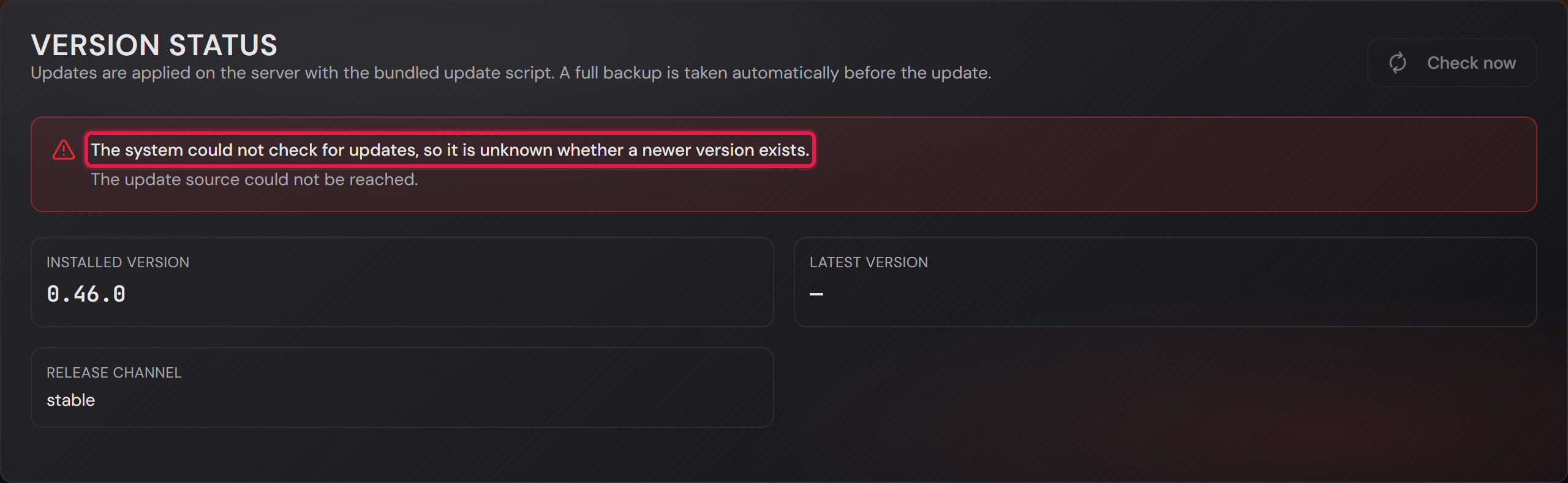
If your server cannot reach the update source, the system says exactly that. It does not then claim you are up to date.

An update that moves the database to a new version is not applied at the press of a button. The system tells you, and the release notes say what to do.

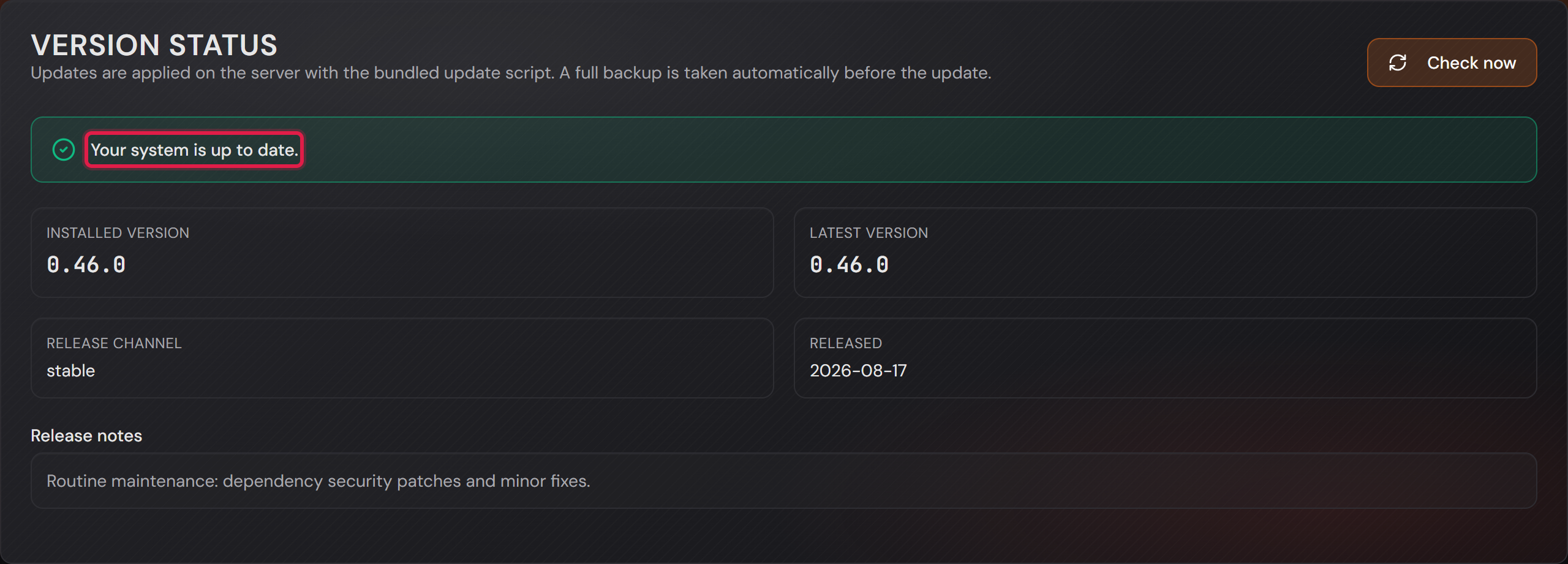
The “Version status” card reporting that the system is up to date.
The red frame sits on the message. “Check now” asks straight away instead of waiting for the next check.Open image at full size
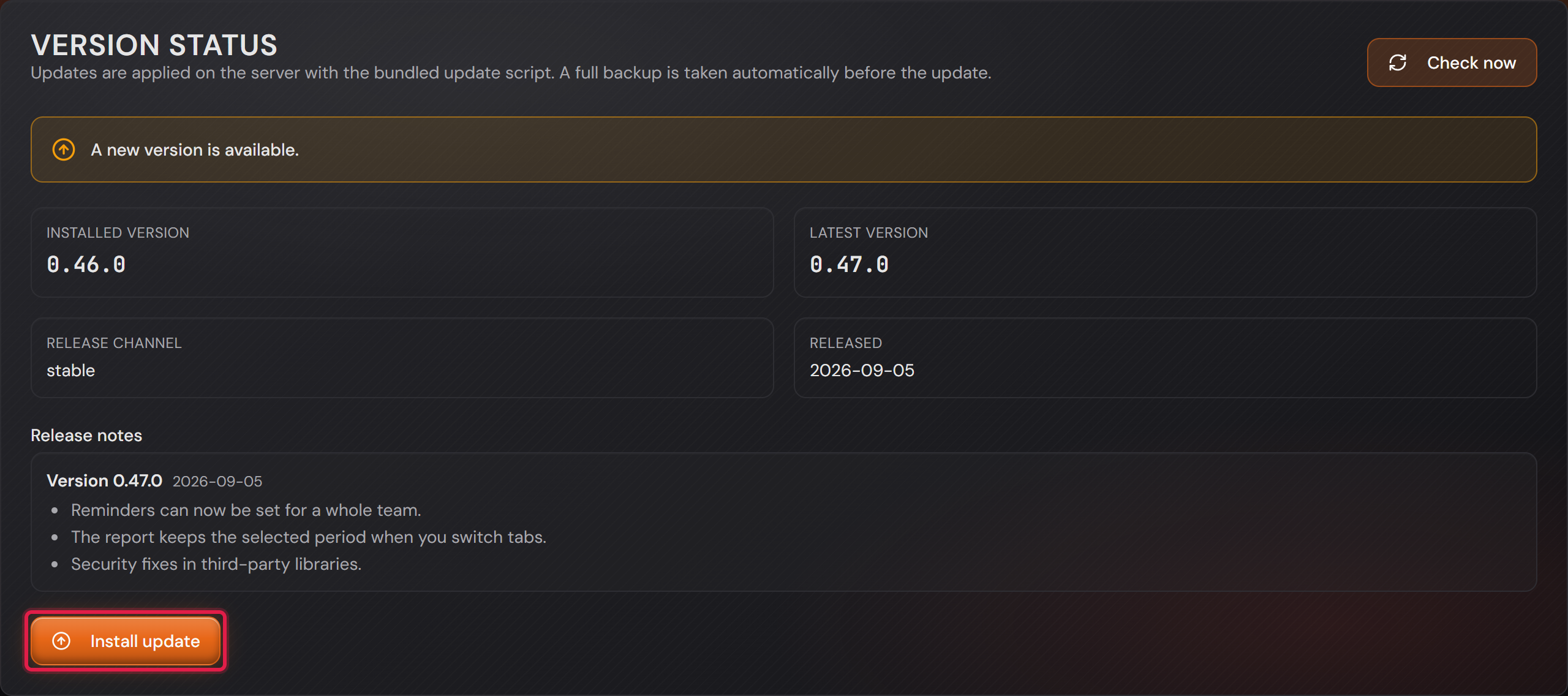
The same card with a version available and its release notes.
The red frame sits on “Install update”. Above it stands what the new version brings.Open image at full size
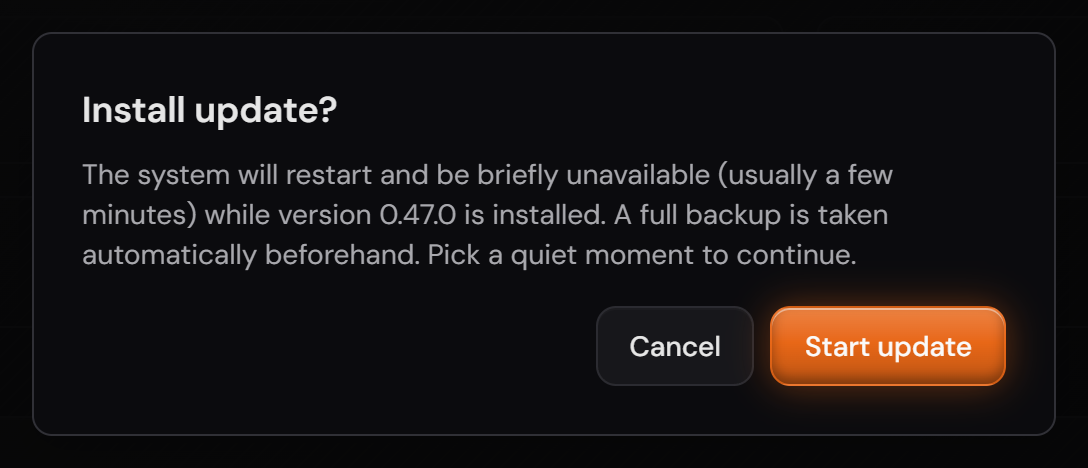
The confirmation asked before the update starts.
The question names the version and says that a backup is taken first.Open image at full size
The same card when the update source cannot be reached.
The red frame sits on the message. Without an answer the system says that it does not know.Open image at full size
8

Archive closed tickets

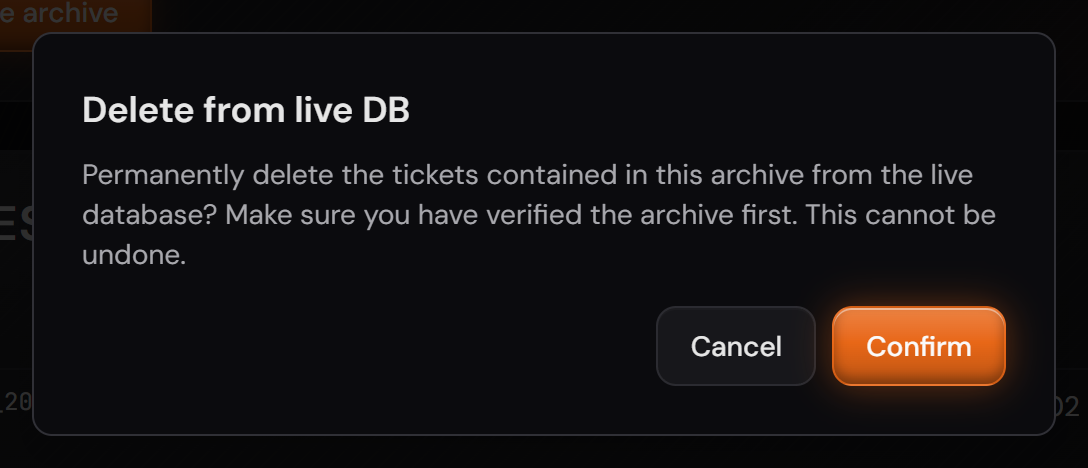
Before you start: “Delete from live DB” removes the tickets from the running database for good. Download the archive first and look inside.

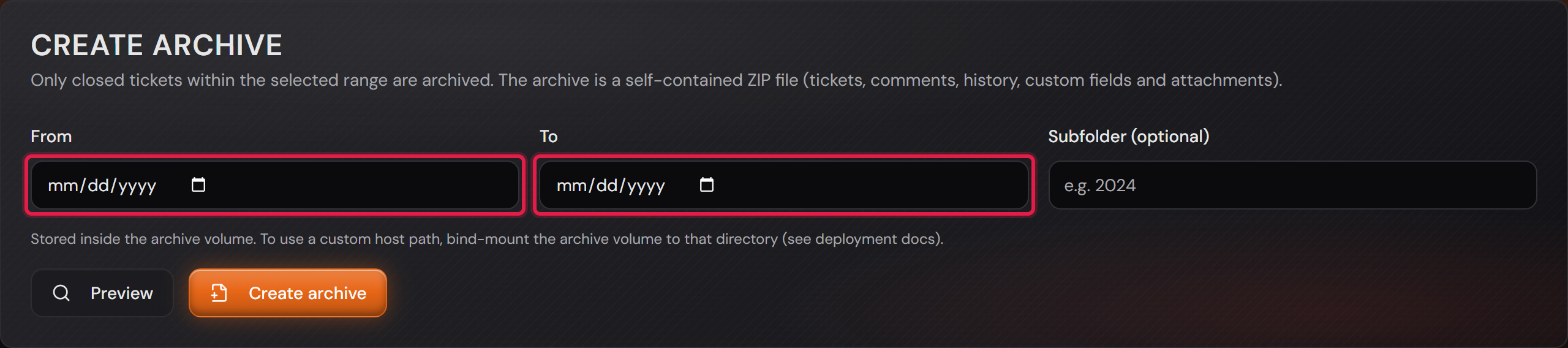
Under “Settings → Archive” you pack the closed tickets of a period into a file. That keeps the working set small.

Only closed tickets move. A resolved ticket only joins once it is closed. That happens by itself 24 hours after it was resolved. An open ticket in the same period stays where it is.

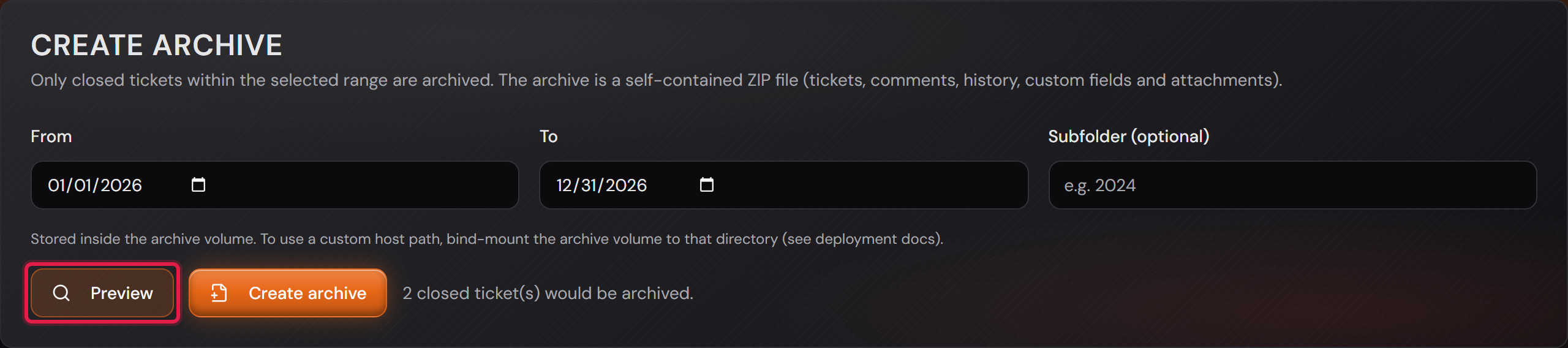
“Preview” tells you up front how many tickets the period covers. It writes nothing and changes nothing.

“Create archive” builds a ZIP file. It holds the tickets with their comments, their history, their custom fields and their attachments.

The file then sits in the list below, with period, count and size. A subfolder is possible if you want to file by year.

Only then do you decide whether the tickets leave the running database. That is a step of its own: “Delete from live DB” in the “Existing archives” list. Creating the archive on its own changes nothing.

“Restore” brings the tickets back from the file. Tickets whose number already exists are skipped.

A restore needs the teams and the workflows a ticket refers to. Afterwards the system reports how many tickets came back and how many it skipped because they already existed. It also names skipped team participations and tasks without their child ticket. Other gaps are not reported. A missing team, category, user or status is left empty on the ticket. Comments without their user and values of deleted custom fields are left out.

“Delete archive file” only deletes the file. The tickets in the running database are untouched.

The “Create archive” card with the two date fields.
The red frame sits on the period. The subfolder is optional.Open image at full size
The same card with the result of the preview.
The red frame sits on “Preview”. The number next to it counts the closed tickets of the chosen period. The preview changes nothing.Open image at full size
The list of archives with period, count, attachments and size.
The red frame sits on the two actions that touch the running data.Open image at full size
The question asked before the tickets leave the running database.
The question says that this step cannot be undone.Open image at full size
9

Fill your drop-down lists from a file

Under “Settings → General Settings” you find the system’s drop-down lists. Each list has its own tab.

For departments, positions and sites there is also the route through a file. That pays off when you add many entries at once.

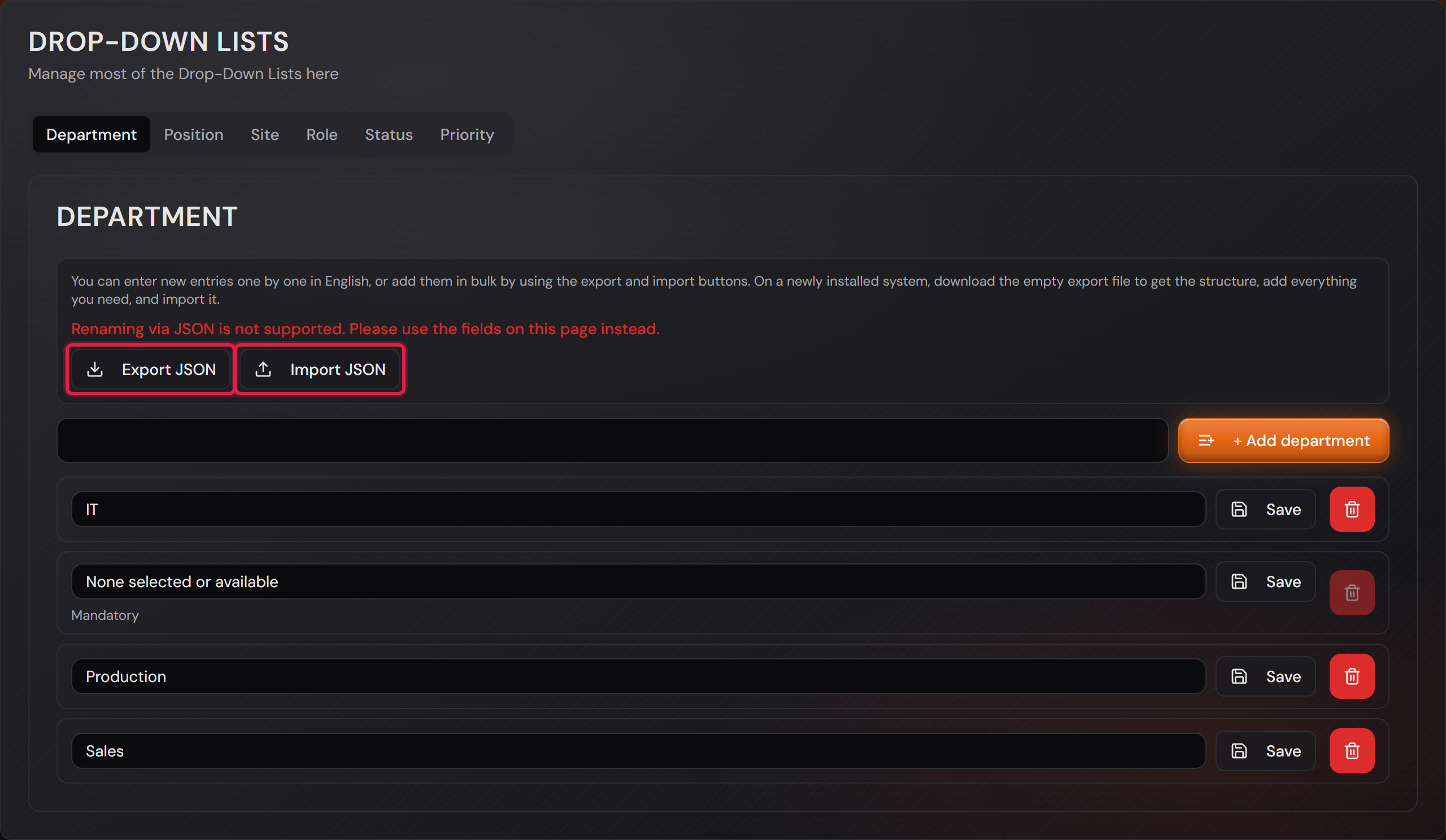
“Export JSON” downloads the list. On a fresh installation this gives you the empty structure to write your entries into.

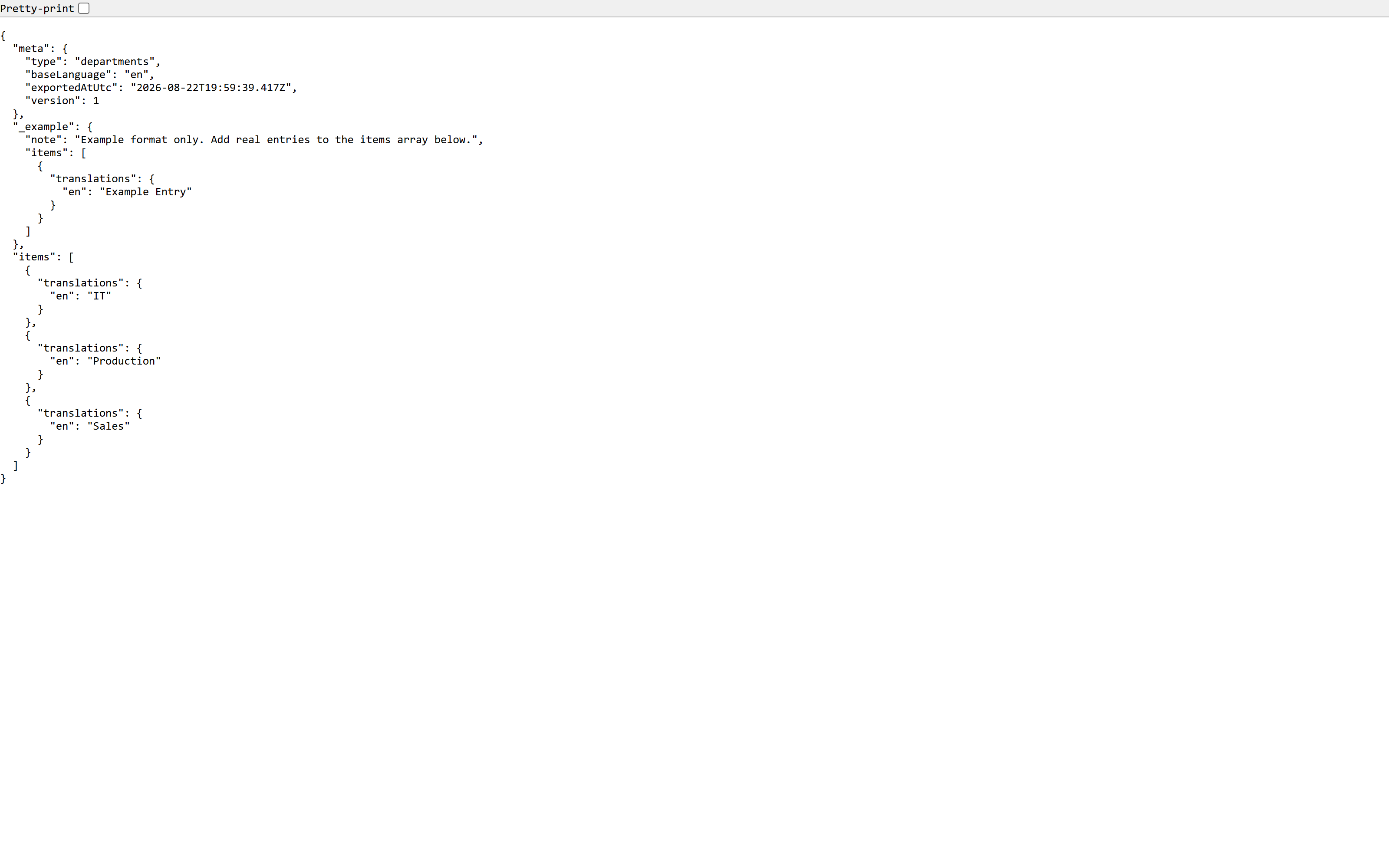
The file holds an example that shows what an entry looks like. It is skipped when you load the file back.

“Import JSON” creates what is missing. Existing entries are left alone. A name that appears twice in the file is created once.

Renaming does not work through the file. The fields on this page are there for that, and the red note says so. The placeholder “None selected or available” cannot be renamed. You only translate it, on the language page.

You translate the entries afterwards on the language page. The file holds the English name.

Categories work the same way. They belong to a team, so they live on that team’s category page.

More on this in the card: Main and sub categories are freely configurable per team

The “Department” tab with the export and import buttons.
The red frame sits on the two buttons. The red sentence above warns against renaming through the file.Open image at full size
The downloaded file in the browser, with the example and the entries.
Apart from a short header and the example, the file holds only names. That is why any text editor can edit it.Open image at full size

The screenshots are from version 1.3.1. Nothing on the screens shown changed up to version 1.13.3. The only thing that looks different is the version number at the bottom of the sidebar.