Multiple reports & outages

Two situations look alike and are not. If the same person reports the same thing twice, one report should disappear. If many people report one outage, none may disappear. Each has its own route, and the difference is the requester.

1

Merge two reports from the same person

Tick the rows in the ticket list and click “Multiple report”. The button becomes usable from two ticked rows onwards.

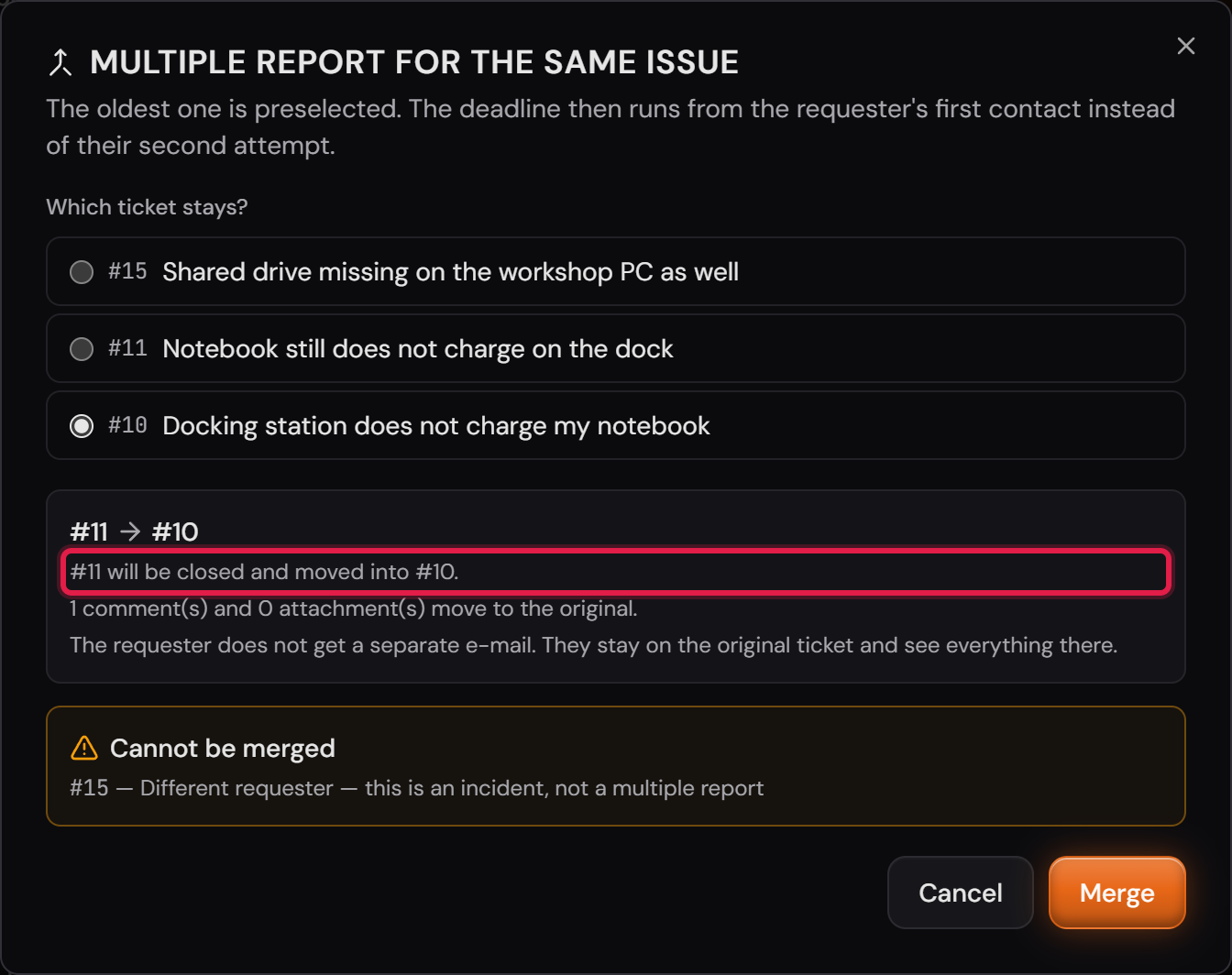
The dialog asks first: “Which ticket stays?” The oldest ticket is preselected, so the deadline runs from the requester’s first contact instead of their second attempt. You can pick a different one.

Below it stands the direction with both numbers: “#11 will be closed and moved into #10.” So before the click it is clear which ticket stays.

Everything comes along: comments, attachments and the description of the second report. The description becomes a comment on the original, with its original author and its date. The dialog states the numbers beforehand.

Recorded time is moved, not copied. Otherwise the same effort would sit on two tickets and be billed twice.

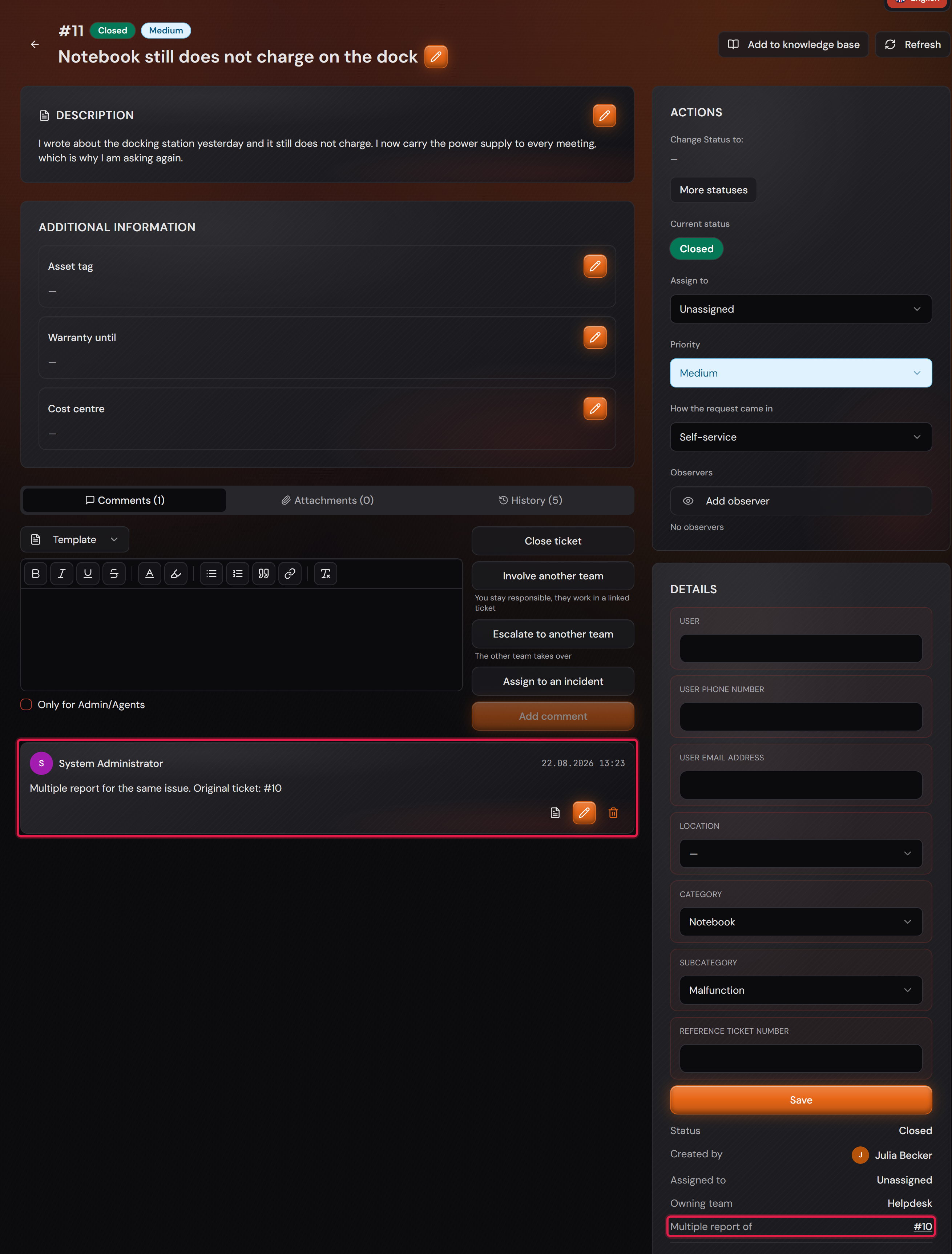
The second report is not deleted. It is closed and points to the original from then on, and its number stays valid.

The requester does not get a separate e-mail. They are on the original and see everything there. The closed report carries a comment naming the original, which they can read.

There is no undo. That is why everything stands in the dialog before you click “Merge”.

Afterwards the history of both tickets records who merged what and when.
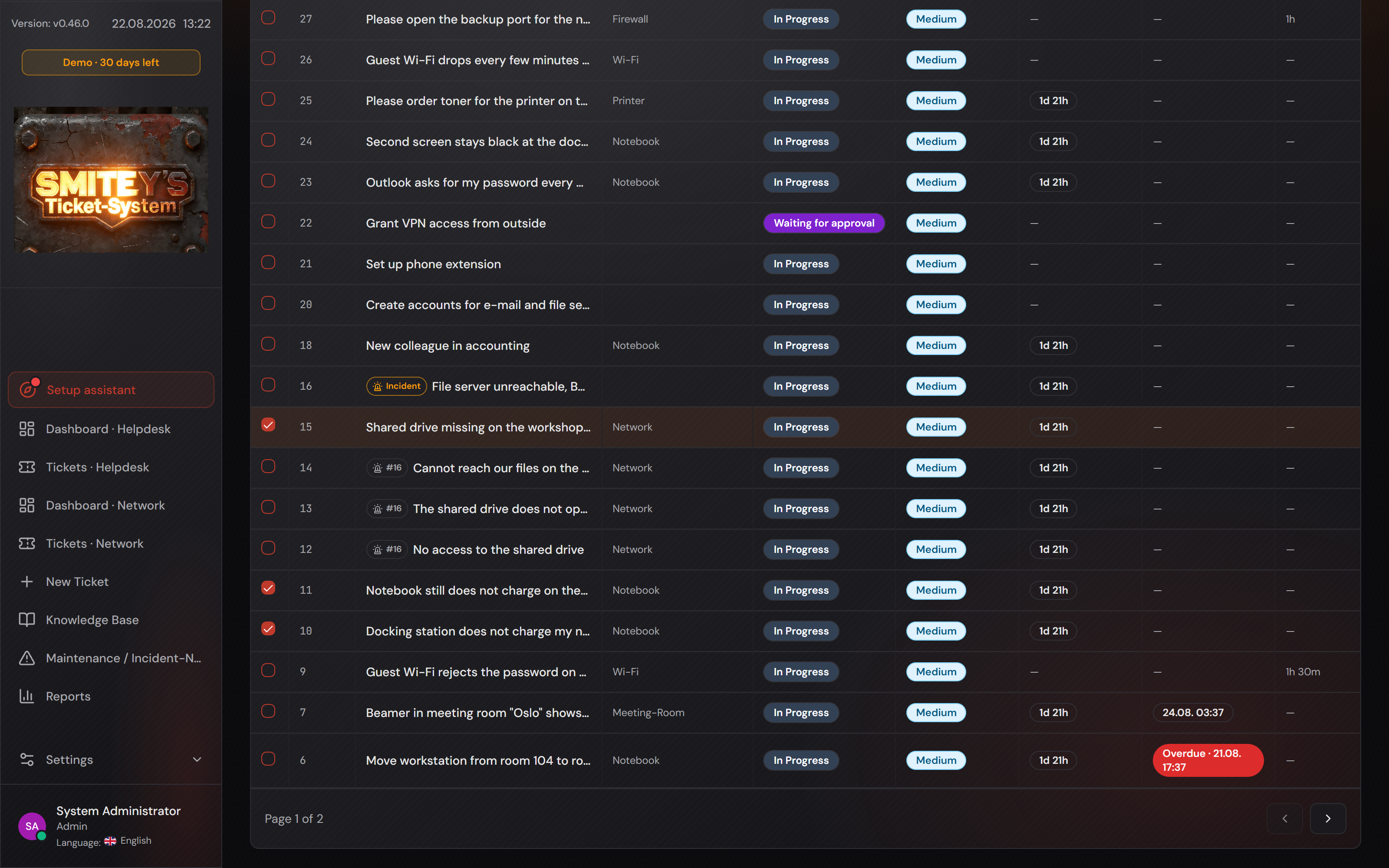
The ticket list with three ticked rows and the bar above it holding the “Multiple report” and “Group into incident” buttons.
The red frames sit on the two buttons. They stand side by side and mean two different things. In rows 12 to 14 you can also see the marker of the running incident.Open image at full size
The “Multiple report for the same issue” dialog with the choice of the ticket that stays and the summary.
The red frame sits on the direction. It names both numbers so nobody has to guess which ticket disappears.Open image at full size
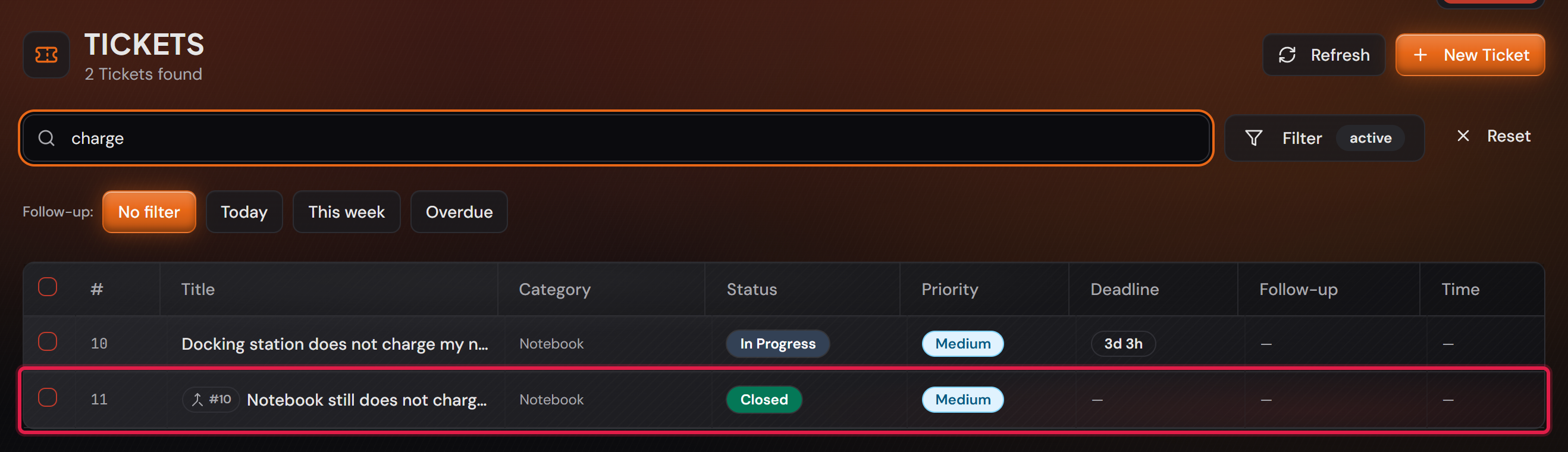
The ticket list, searched down to two tickets: the original and the merged report, which is closed.
The search holds a word from both titles, so the original and the report stand next to each other. The red frame sits on the merged report. It is closed and still stands in the list, with a reference to the ticket it was moved into.Open image at full size
2

Replies to the old ticket number still arrive

Professional only

Before you start: This needs the e-mail inbox. Without it there is no reply by e-mail that would have to be routed.

The requester has the old ticket number in their mailbox. They know nothing about two reports having been merged and reply to the mail they have.

That reply lands in the original. The system follows the reference the closed report carries.

That is why a merged report is never deleted. Without it the reference would not exist and the reply would arrive nowhere.

Whoever took part in the old report may also write on the original. The check happens on the ticket named in the mail.

The closed report with the reference to the original and the comment the requester reads there.
The red frames sit on the reference in the card on the right and on the comment. This reference is what a reply by e-mail follows.Open image at full size
3

Reports from different people cannot be merged

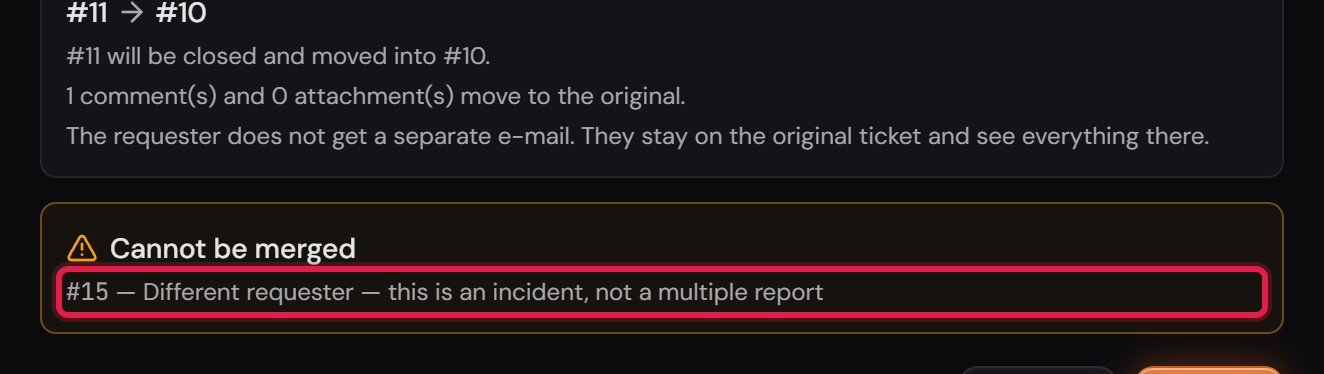
If you select tickets from different people, the dialog does not take them along. It names every rejected row and its reason before you click.

The reason reads: “Different requester — this is an incident, not a multiple report.” It also tells you where to go instead.

This is the most important guard of the whole function. If you merged thirty reports from thirty people, twenty-nine of them would lose their ticket and never hear back.

Who the requester is is decided first by the e-mail address on the ticket. If there is none, a foreign name in the “User” field decides, and the same name counts as the same person. Otherwise the account that created the ticket counts.

This is why the guard also holds for phone calls. If an agent records two calls, both tickets were created by them. Different callers still stay different callers, because their names are in the field.

If the requester cannot be determined on one side, it is rejected as well. Unknown is not the same as the same person.

More reasons appear in the same box. An incident cannot be merged. A closed original takes nothing more. And a report that already has reports of its own does not come along, so no chains are formed.

The “Cannot be merged” box in the dialog, with the ticket number and the reason.
The red frame sits on the reason. Ticket 15 belongs to a different person, so it stays out. The other two tickets are merged all the same.Open image at full size
4

Bundle many reports about one outage under a single incident

Professional only

When the file server goes down, twenty people report it. Every one of these reports is a case of its own with its own requester. Merging would be wrong here, because nineteen people would lose their ticket.

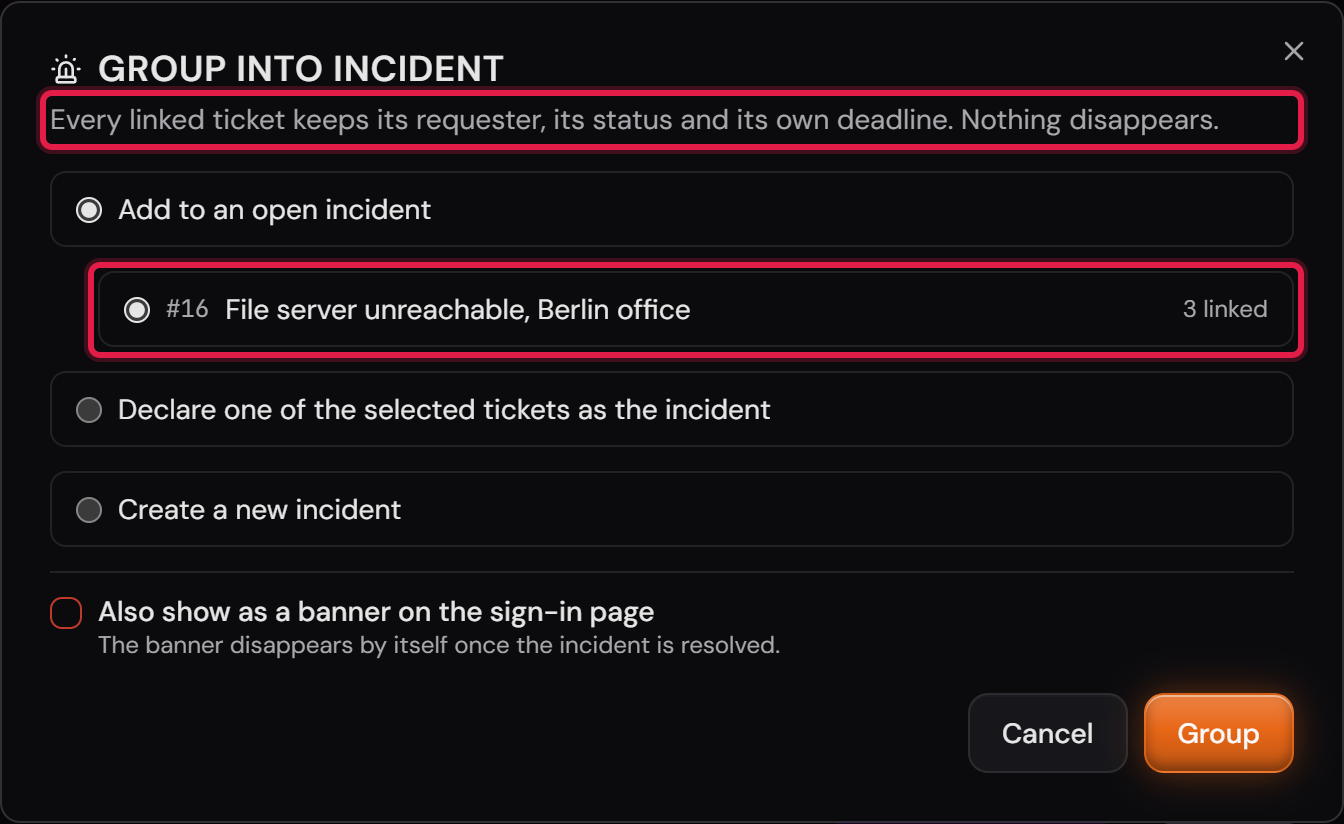
Tick the reports and click “Group into incident”. The dialog offers three routes: add them to an incident that is already open, declare one of the selected tickets to be the incident, or create a new incident with its own title.

If the team already has an open incident, that route is preselected. It is the more common one: the outage is long known, only new reports keep coming in.

Every linked ticket keeps its requester, its status and its own deadline. Nothing disappears. The incident only bundles the answer.

All reports of one incident have to belong to the same team. If an outage affects two teams, each gets its own incident. Otherwise one team’s resolution would empty the other team’s queue.

You can also attach latecomers on the single ticket. If the team has an open incident, a hint appears at the top with “Assign” and “Not related”. The system never attaches anything by itself: a wrongly attached ticket would get a resolution that does not concern it, and would be closed along the way.

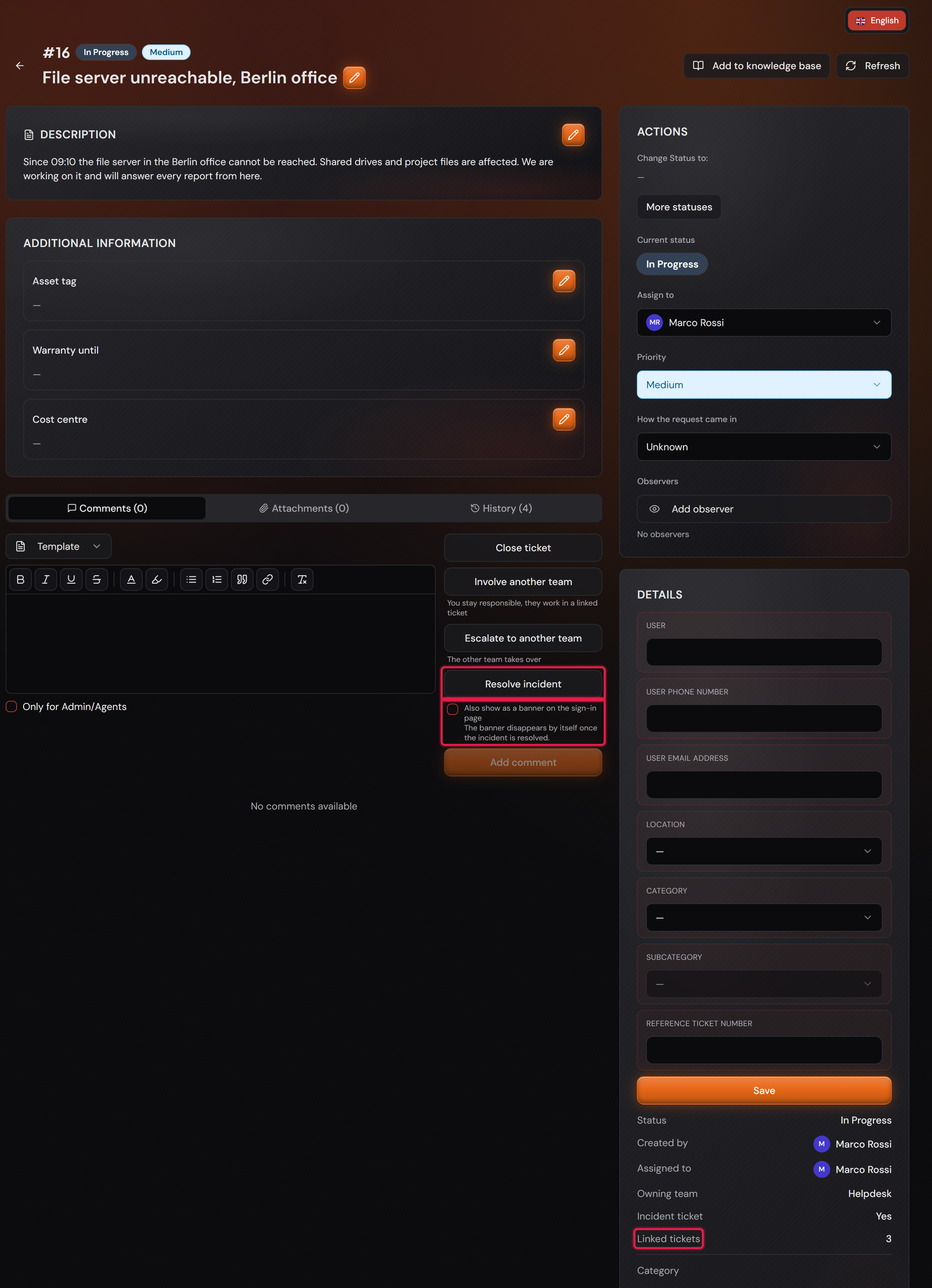
The incident ticket states how many reports are attached to it. Linked tickets in turn carry the number of their incident, in the list and in the card on the right.

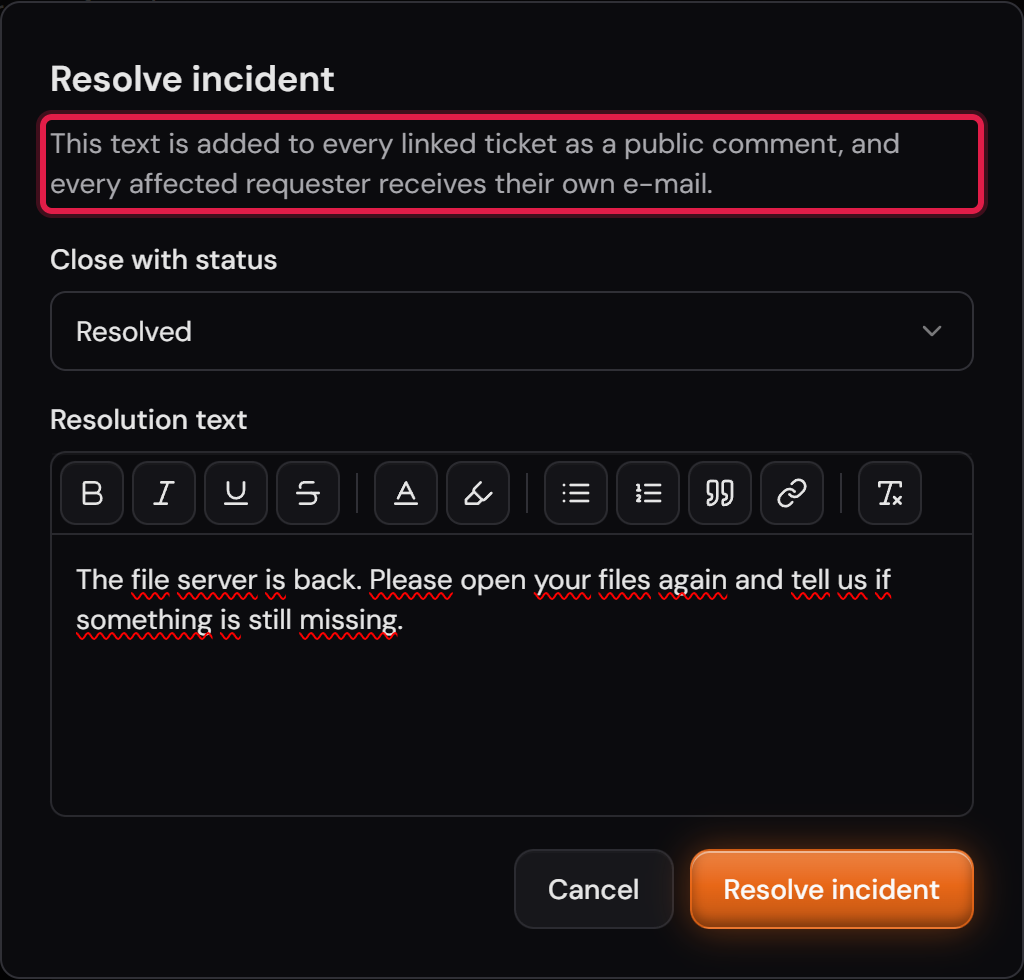
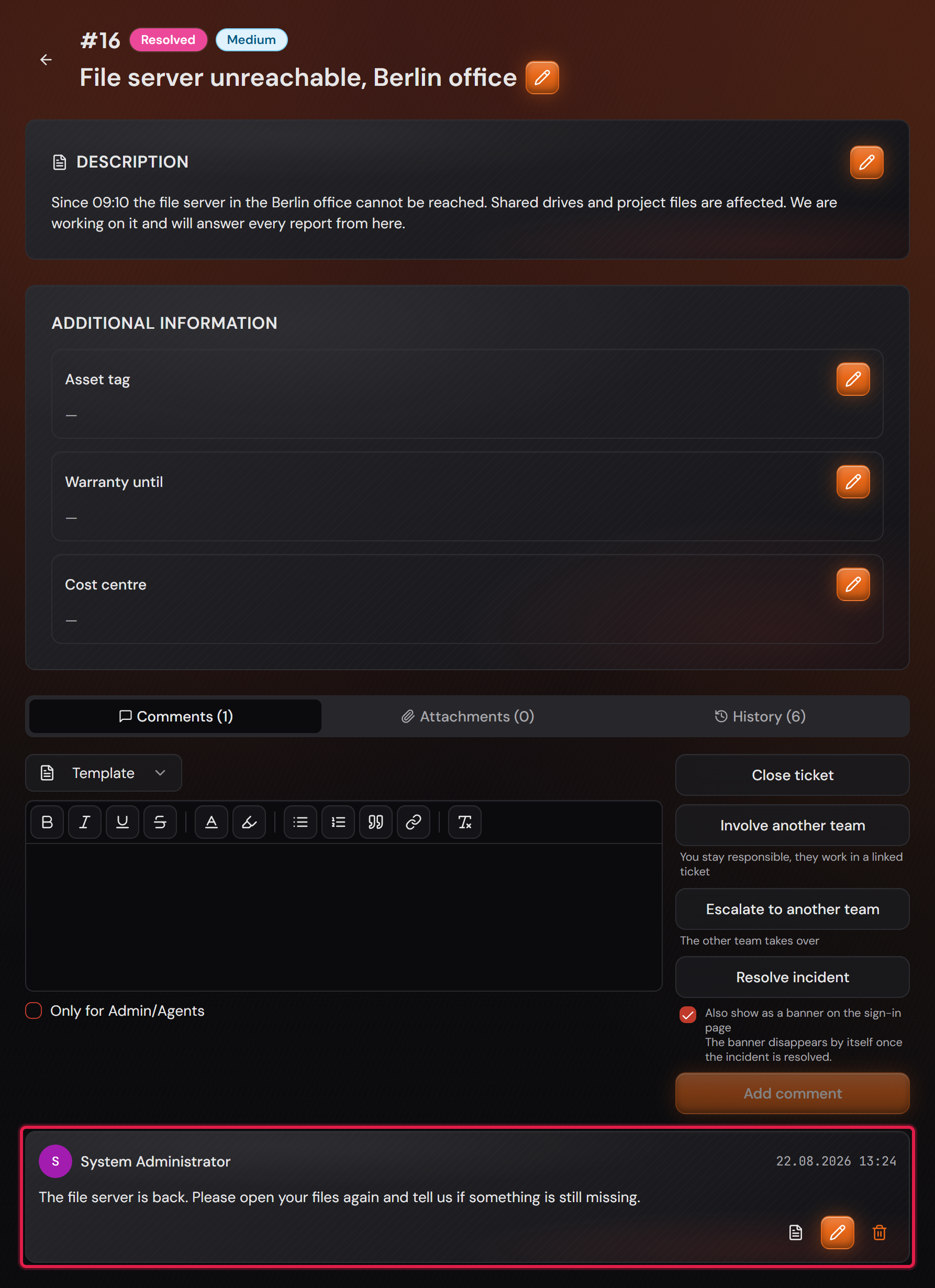
“Resolve incident” closes the incident and answers all reports at once. The resolution text is mandatory: it is the entire point of the function, because it goes to everyone affected.

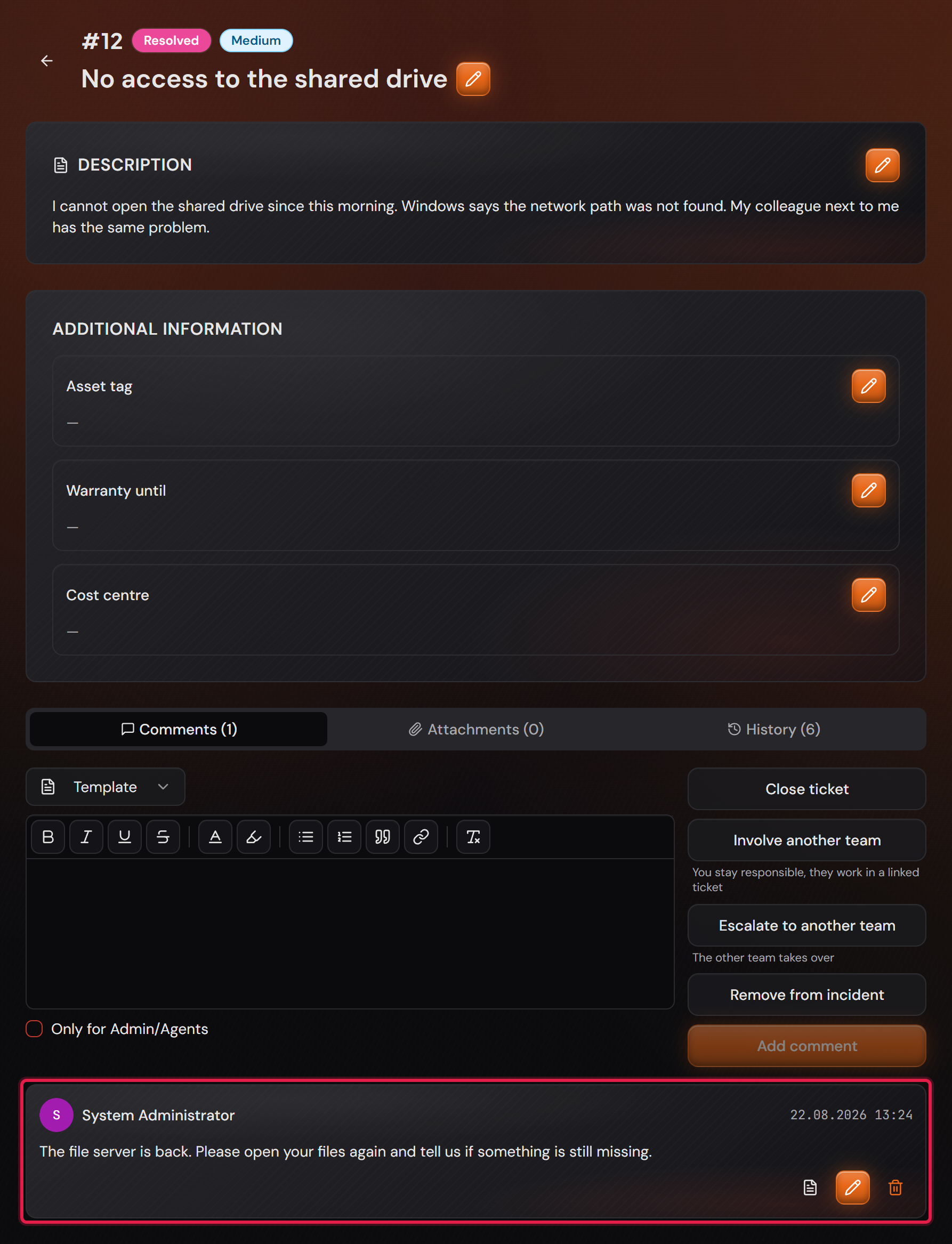
Every linked ticket gets the text as a public comment, is set to the chosen status, and its requester receives their own e-mail. No group mail, because that would expose the addresses of everyone affected.

The message afterwards states how many tickets were closed and how many requesters were notified. Both numbers stand apart, because a ticket without a reachable address gets a comment and a status but no e-mail.

A ticket you answered and closed yourself in the meantime stays untouched. It is not closed a second time and not written to again.

As long as open reports hang on an incident, it cannot be closed through the normal status change. Otherwise twenty people would silently be left without an answer.

The “Group into incident” dialog with the three routes and the open incident including its number of linked tickets.
The red frame sits on the open incident, with the number of reports already attached to it on the right. Above the routes stands the sentence that separates this case from merging: nothing disappears.Open image at full size
The hint bar on a single ticket with the open incident and the “Assign” and “Not related” buttons.
The red frame sits on the hint bar. It is a suggestion, not an action: clicking it away changes nothing on the ticket.Open image at full size
The incident ticket with the number of linked reports, the “Resolve incident” button and the checkbox for the banner.
The red frames sit on the button that resolves, on the checkbox for the banner and on the number of linked reports.Open image at full size
The “Resolve incident” dialog with the closing status and the resolution text entered.
The red frame sits on the note above the field. It says where this one text goes: to every linked ticket and to every requester.Open image at full size
The report of one affected person after resolving: resolved, with the resolution text as a public comment.
The red frame sits on the answer. It stands on this one requester’s ticket, with their number and their history. The same answer stands on every other affected person’s ticket.Open image at full size
5

The incident as a banner and as a note in the automatic reply

Professional only

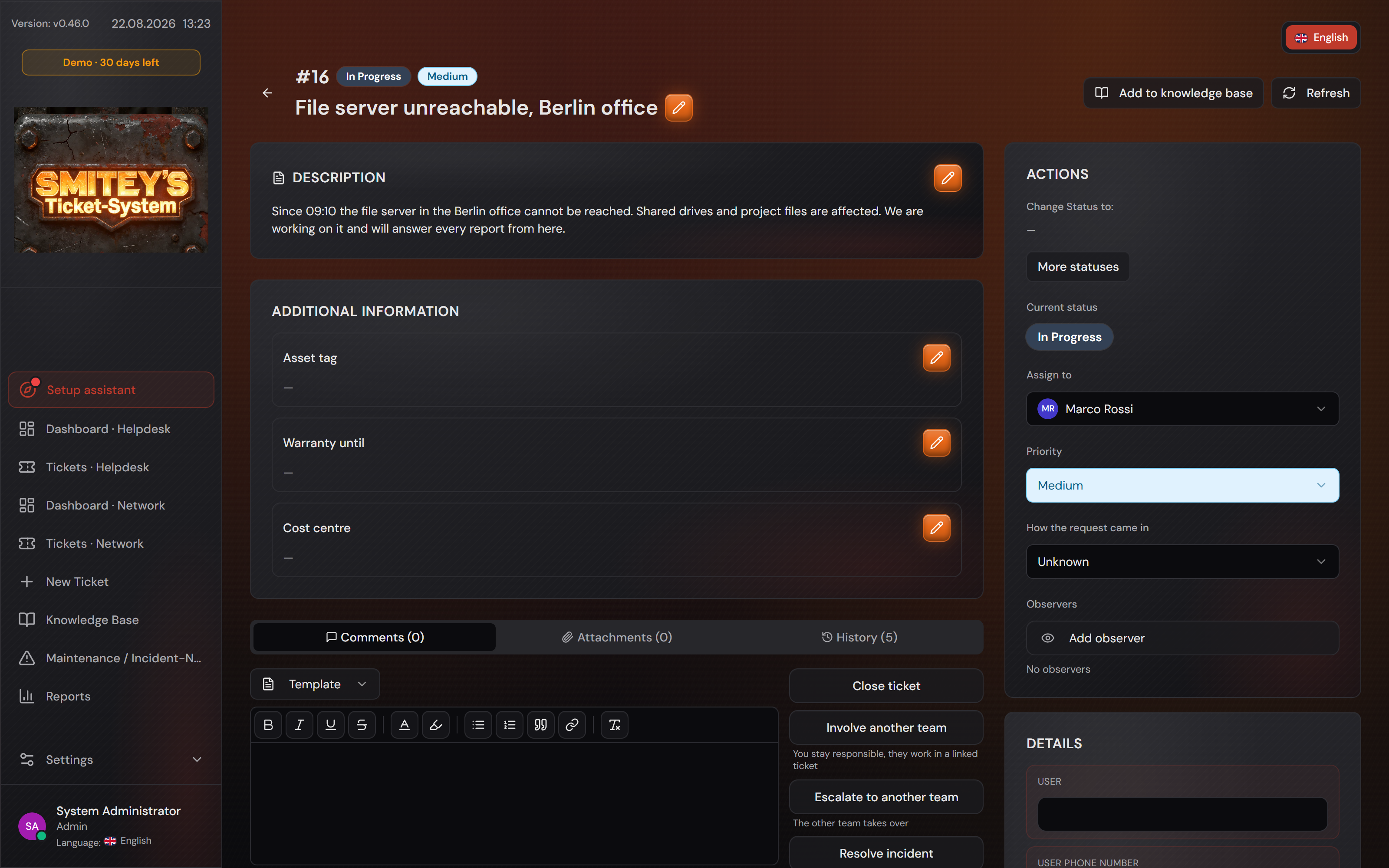
The dialog and the incident ticket both carry the checkbox “Also show as a banner on the sign-in page”. With it everyone learns about the outage before writing another ticket.

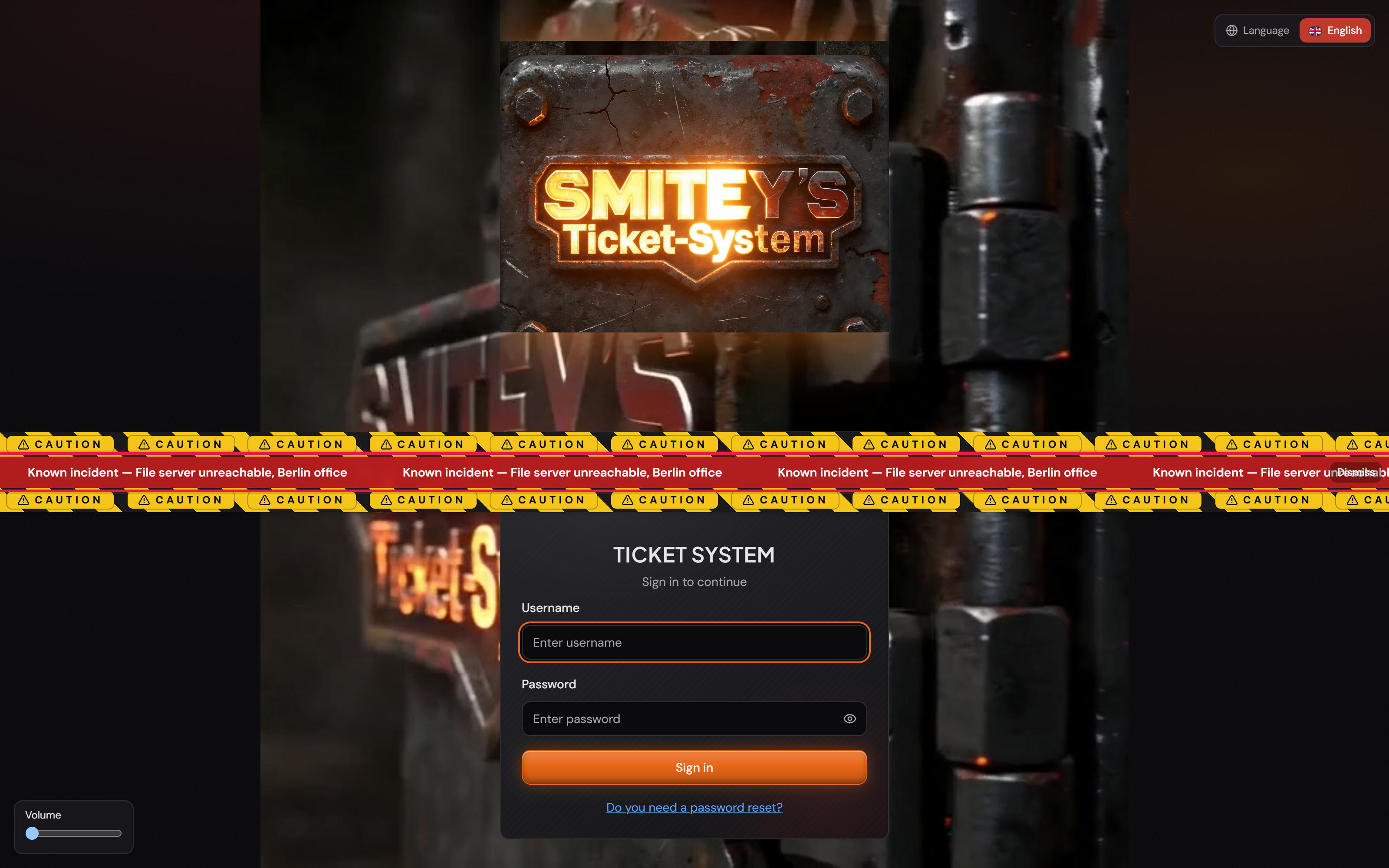
The banner stands on the sign-in page and inside the system once signed in. It names “Known incident” and the title of the incident, so that title is a text for customers.

If several notices are active, they stand below one another. Maintenance announced for Saturday does not push away today’s outage, and the other way round.

If somebody creates a new ticket anyway, the automatic reply names the incident. That holds for a ticket that is already linked and for every new ticket of that team, as long as the incident is open and announced. This needs outgoing e-mail.

Once the incident is resolved the banner disappears by itself. Nobody has to remember to switch it off again.

On the “Maintenance and incident notices” page you can see which incident is running as a banner right now. The switch on that page belongs to planned maintenance and does not apply to incidents.

The incident ticket with the checkbox ticked and the banner that appears at the bottom as a result.
The red frame sits on the checkbox. It takes effect at once: the notice runs along the bottom, on every page of the system.Open image at full size
The sign-in page with the running incident banner between the logo and the sign-in form.
The red frame sits on the banner. It is there before signing in, so it also reaches whoever only wants to check whether they need to write a ticket.Open image at full size
The incident ticket after resolving: resolved, with the resolution text as a comment.
The red frame sits on the resolution text. With this closure the banner is gone as well.Open image at full size

The screenshots are from version 1.3.1. Nothing on the screens shown changed up to version 1.13.3. The only thing that looks different is the version number at the bottom of the sidebar.